> ## Documentation Index
> Fetch the complete documentation index at: https://docs.lendpathway.com/llms.txt
> Use this file to discover all available pages before exploring further.
# Bank Statements & ISO App
> What you see after parsing bank statements and loan applications.
> When you parse a book consisting of bank statments and (optionally) a loan application you will be presented with an output consisting of the following tabs
# Synopsis Tab
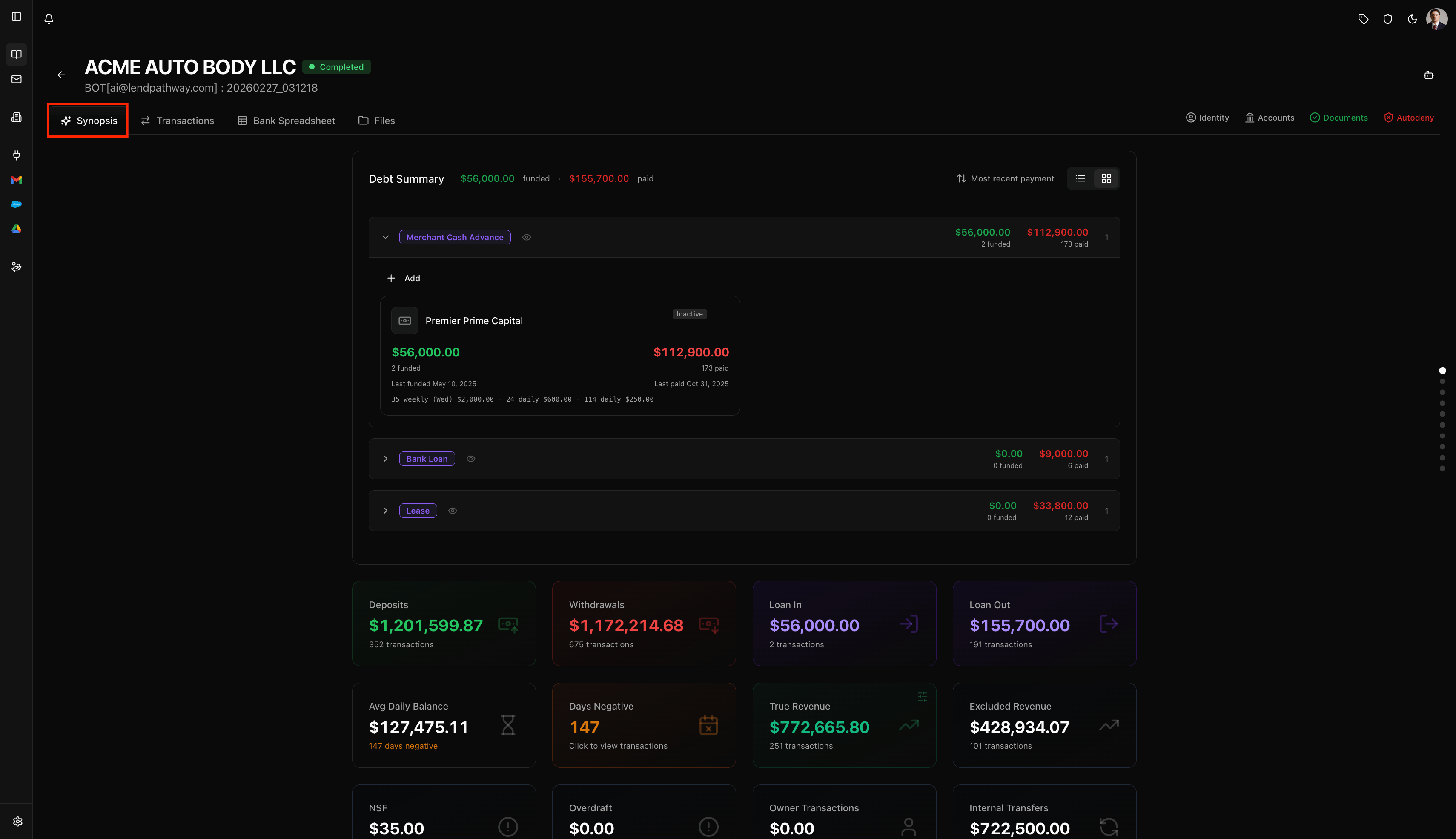
The Synopsis tab is the main view after parsing bank statements. It's a single scrollable page made up of **draggable, reorderable sections** (you can grab the grip icon on the left edge of any section and drag it to rearrange the layout). A sticky sidebar navigation appears on the right to jump between sections.
There are also **info badges** that sit in the top-right corner of the page, next to the tab bar. These are covered at the end of this section.
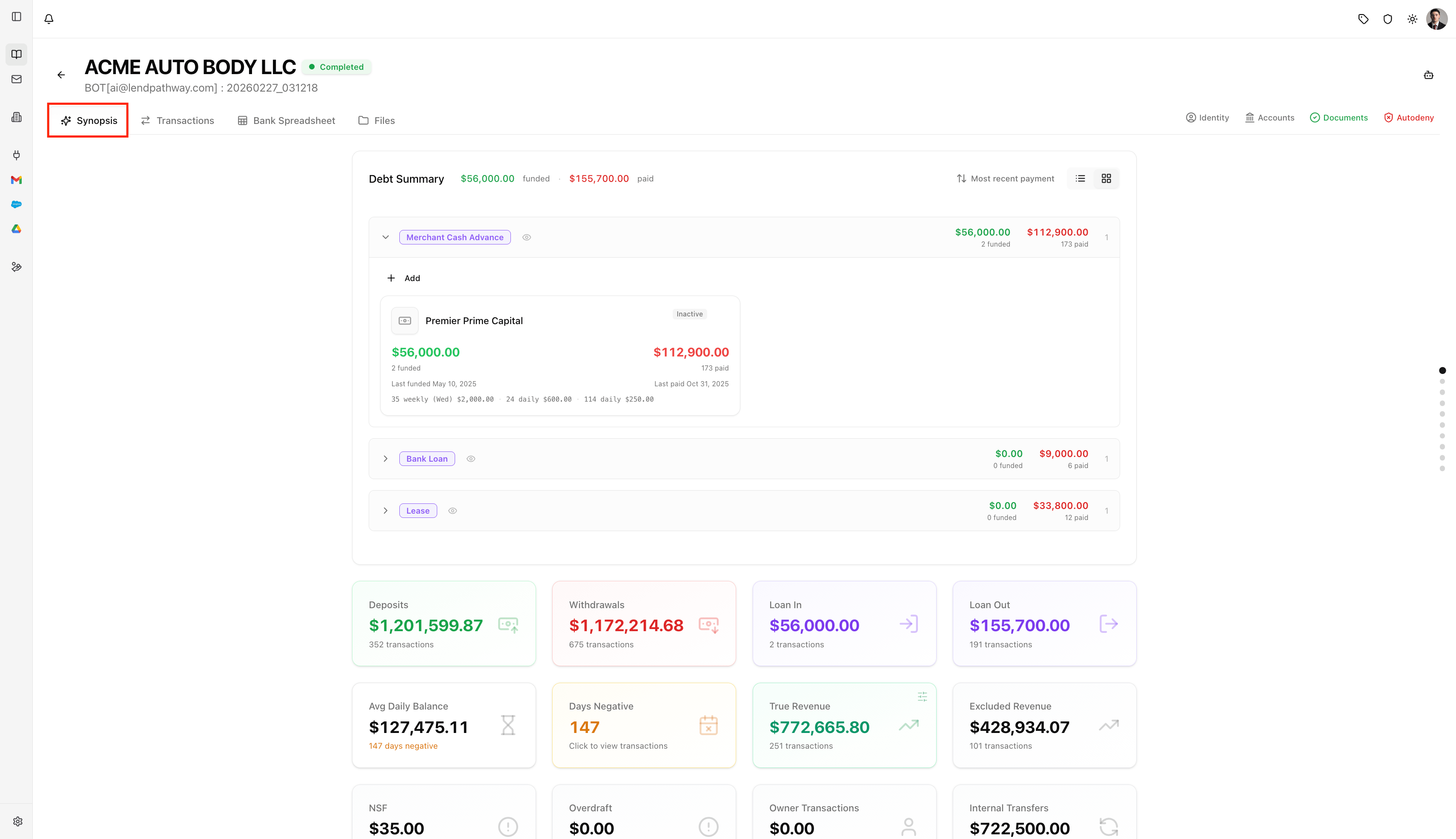 ***
### **Debt Summary**
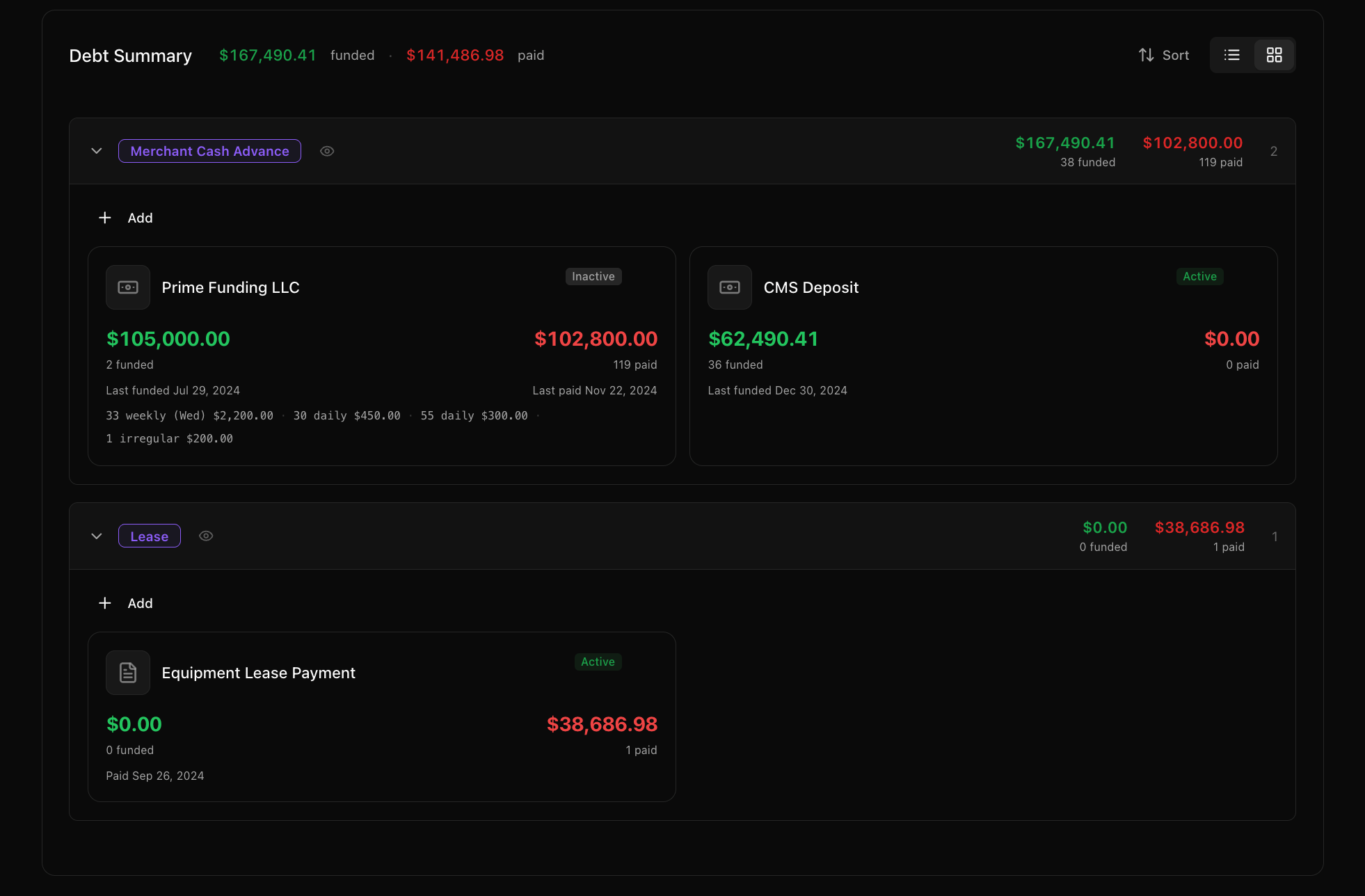
At the top of the Synopsis. Shows total **funded** and **paid** amounts across all detected debt positions.
Positions are organized into columns by **loan type** (e.g. "Merchant Cash Advance", "Lease"). Each column shows total funded/paid for that type, and contains **position cards**: one per detected lender/funder.
Each position card shows:
* Funder name
* Amount funded (green) and amount paid (red)
* Active/Inactive badge
* Last funded and last paid dates
* Payment pattern summary (e.g. "33 weekly (Wed) \$2,206.00, 30 daily \$450.00")
You can:
* **Click a position card** to see all its transactions in a modal
* **Click a loan type header** to see all transactions for that loan type
* **Drag positions** between loan type sections to reclassify them
* **+ Add** new positions manually
* **Select multiple positions** to merge or delete them
* **Exclude/include** individual positions or entire loan types from revenue calculations using the eye icon ()
* **Sort** positions by most recent payment, most recent funding, largest funded, etc.
* Toggle between **expanded** (detailed cards ) and **sparse** (compact ) view
***
### **Debt Summary**
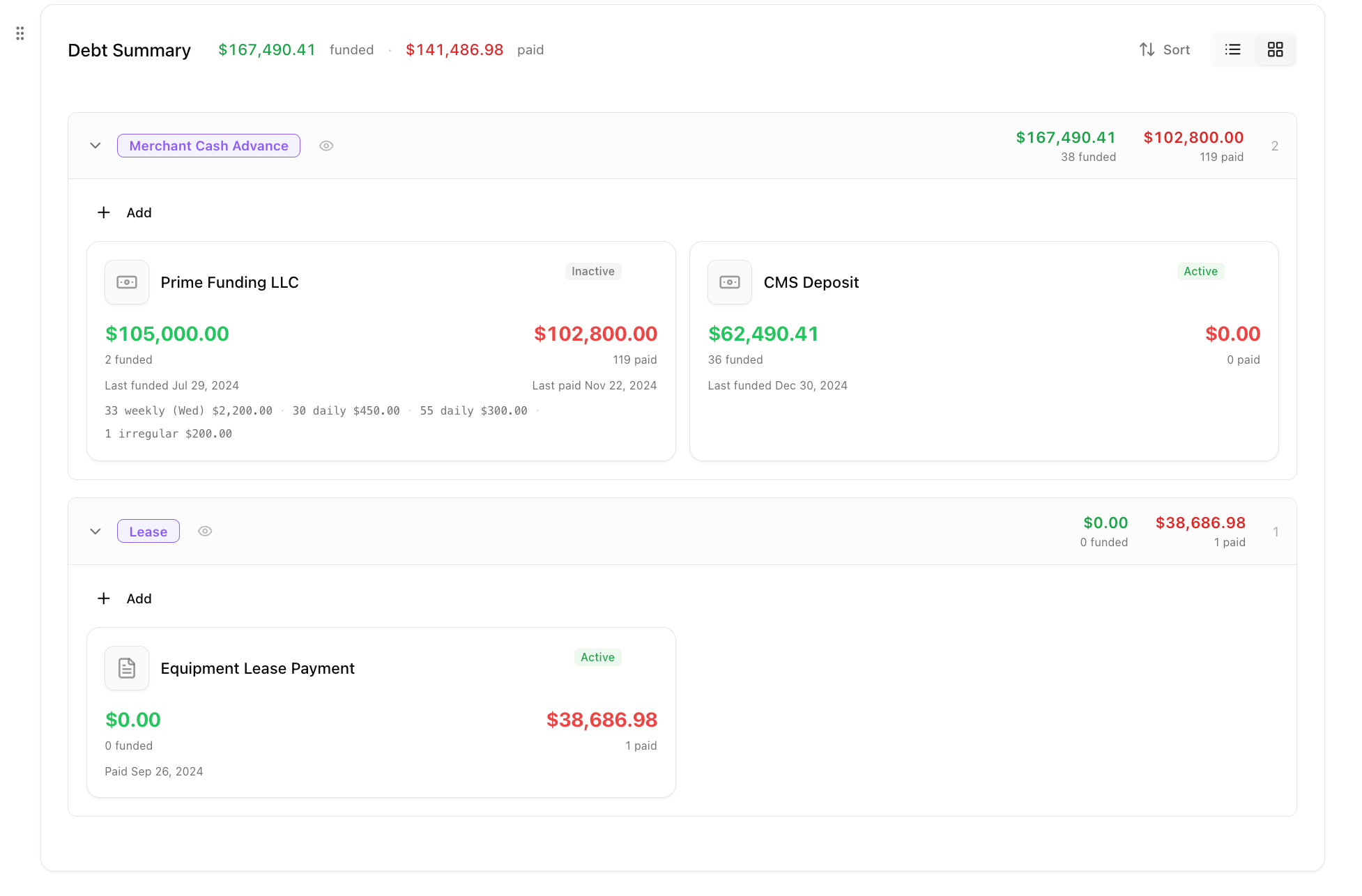
At the top of the Synopsis. Shows total **funded** and **paid** amounts across all detected debt positions.
Positions are organized into columns by **loan type** (e.g. "Merchant Cash Advance", "Lease"). Each column shows total funded/paid for that type, and contains **position cards**: one per detected lender/funder.
Each position card shows:
* Funder name
* Amount funded (green) and amount paid (red)
* Active/Inactive badge
* Last funded and last paid dates
* Payment pattern summary (e.g. "33 weekly (Wed) \$2,206.00, 30 daily \$450.00")
You can:
* **Click a position card** to see all its transactions in a modal
* **Click a loan type header** to see all transactions for that loan type
* **Drag positions** between loan type sections to reclassify them
* **+ Add** new positions manually
* **Select multiple positions** to merge or delete them
* **Exclude/include** individual positions or entire loan types from revenue calculations using the eye icon ()
* **Sort** positions by most recent payment, most recent funding, largest funded, etc.
* Toggle between **expanded** (detailed cards ) and **sparse** (compact ) view
 ***
### **Metrics**
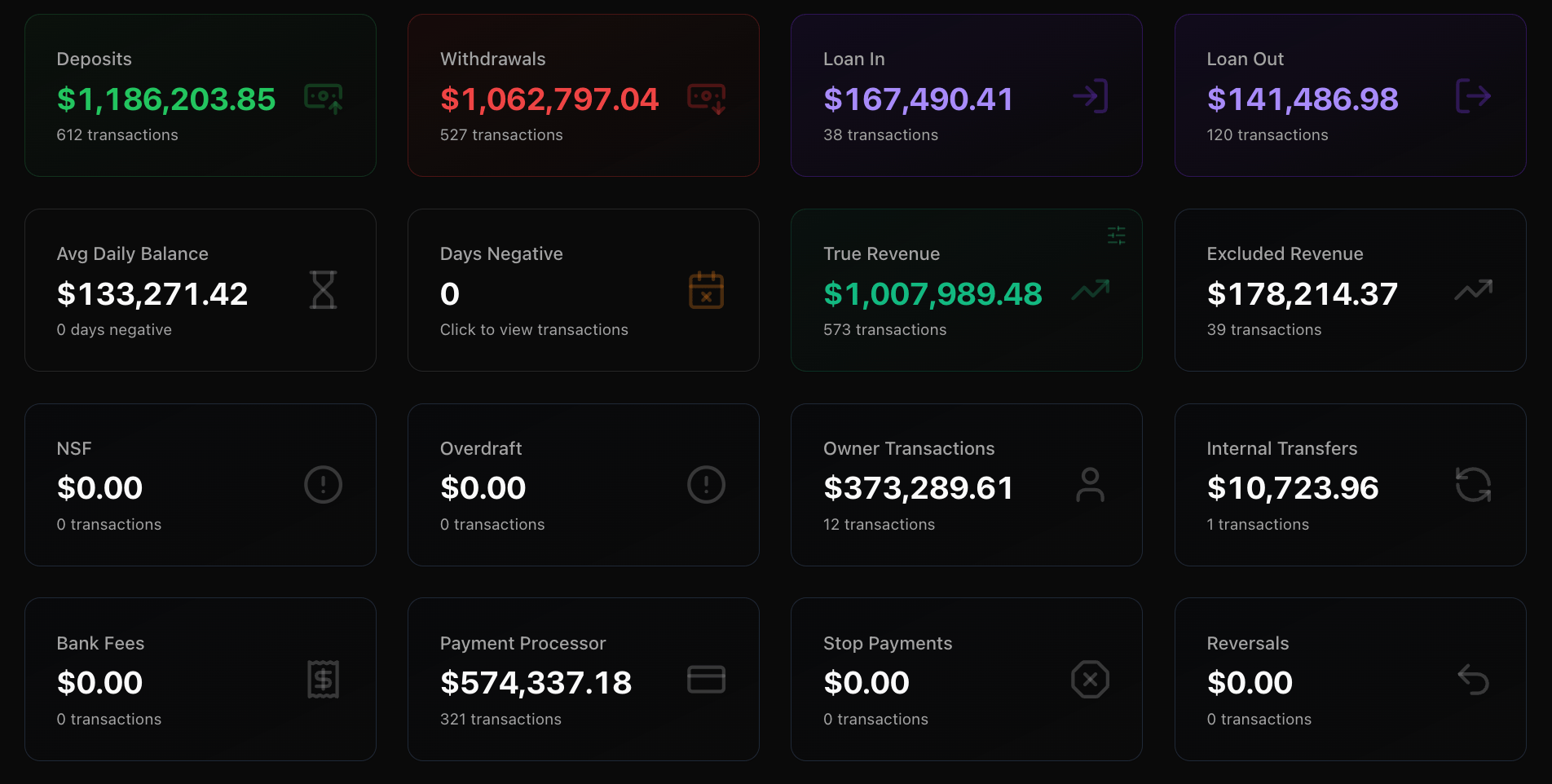
A grid of clickable metric cards showing aggregate numbers across all statements. **Clicking any card** opens a modal with the underlying transactions for that metric.
**Row 1 (primary):**
| Card | Shows |
| :-------------- | :---------------------------------------------- |
| **Deposits** | Total deposit amount, number of transactions |
| **Withdrawals** | Total withdrawal amount, number of transactions |
| **Loan In** | Total loan-in (disbursements) amount and count |
| **Loan Out** | Total loan-out (payments) amount and count |
**Row 2:**
| Card | Shows |
| :-------------------- | :---------------------------------------------------------------- |
| **Avg Daily Balance** | Average daily balance (click to see daily balance chart) |
| **Days Negative** | Number of days the balance was negative |
| **True Revenue** | Revenue after excluding loan activity (click to see transactions) |
| **Excluded Revenue** | Revenue excluded from True Revenue calculation |
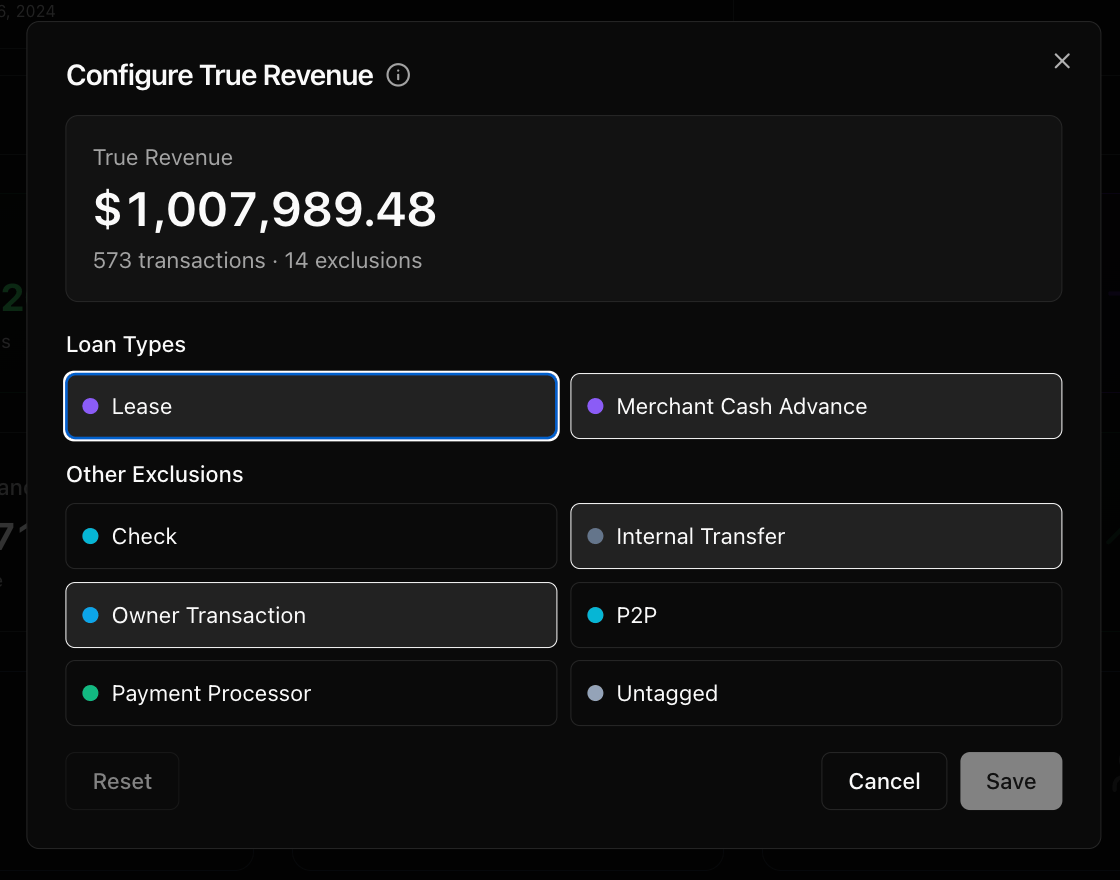
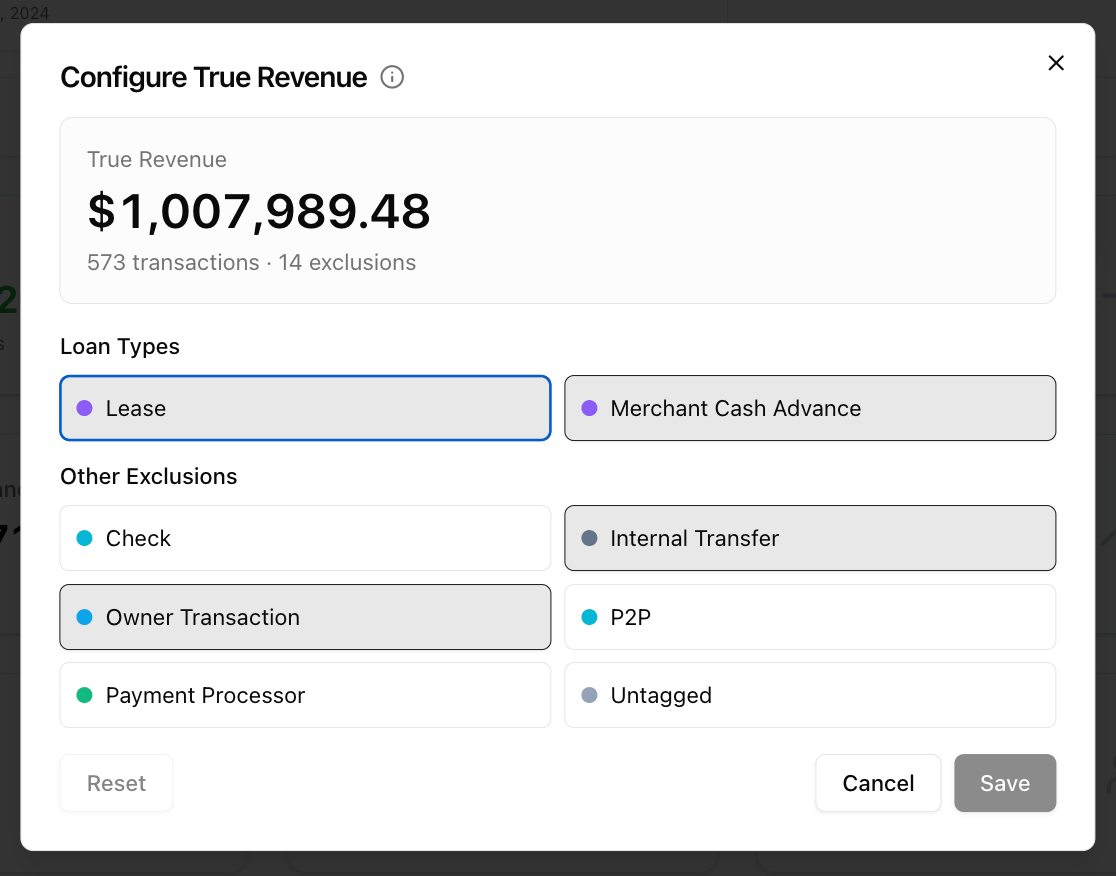
The True Revenue card also has an **abacus icon** () in the top right that opens the **True Revenue Configuration** modal, where you can choose which loan types are excluded from revenue.
*(see screenshot below)*
**Row 3 (flagged activity):**
| Card | Shows |
| :--------------------- | :----------------------------------- |
| **NSF** | Non-sufficient funds count and total |
| **Overdraft** | Overdraft count and total |
| **Owner Transactions** | Owner draw/deposit count and total |
| **Internal Transfers** | Internal transfer count and total |
**Row 4:**
| Card | Shows |
| :-------------------- | :--------------------------------- |
| **Bank Fees** | Bank fee count and total |
| **Payment Processor** | Payment processor volume and count |
| **Stop Payments** | Stop payment count and total |
| **Reversals** | Reversal count and total |
***
### **Metrics**
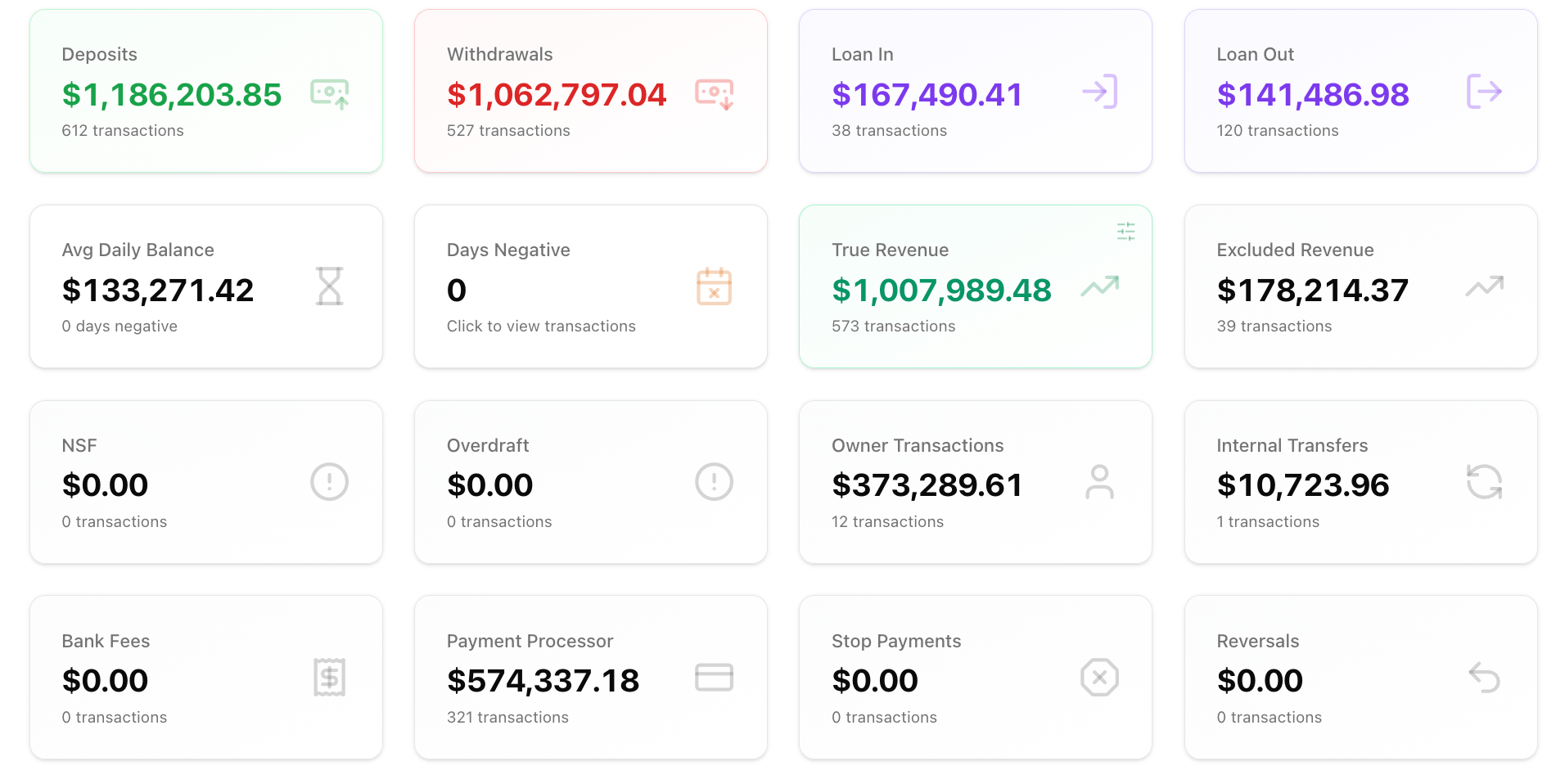
A grid of clickable metric cards showing aggregate numbers across all statements. **Clicking any card** opens a modal with the underlying transactions for that metric.
**Row 1 (primary):**
| Card | Shows |
| :-------------- | :---------------------------------------------- |
| **Deposits** | Total deposit amount, number of transactions |
| **Withdrawals** | Total withdrawal amount, number of transactions |
| **Loan In** | Total loan-in (disbursements) amount and count |
| **Loan Out** | Total loan-out (payments) amount and count |
**Row 2:**
| Card | Shows |
| :-------------------- | :---------------------------------------------------------------- |
| **Avg Daily Balance** | Average daily balance (click to see daily balance chart) |
| **Days Negative** | Number of days the balance was negative |
| **True Revenue** | Revenue after excluding loan activity (click to see transactions) |
| **Excluded Revenue** | Revenue excluded from True Revenue calculation |
The True Revenue card also has an **abacus icon** () in the top right that opens the **True Revenue Configuration** modal, where you can choose which loan types are excluded from revenue.
*(see screenshot below)*
**Row 3 (flagged activity):**
| Card | Shows |
| :--------------------- | :----------------------------------- |
| **NSF** | Non-sufficient funds count and total |
| **Overdraft** | Overdraft count and total |
| **Owner Transactions** | Owner draw/deposit count and total |
| **Internal Transfers** | Internal transfer count and total |
**Row 4:**
| Card | Shows |
| :-------------------- | :--------------------------------- |
| **Bank Fees** | Bank fee count and total |
| **Payment Processor** | Payment processor volume and count |
| **Stop Payments** | Stop payment count and total |
| **Reversals** | Reversal count and total |
 ***
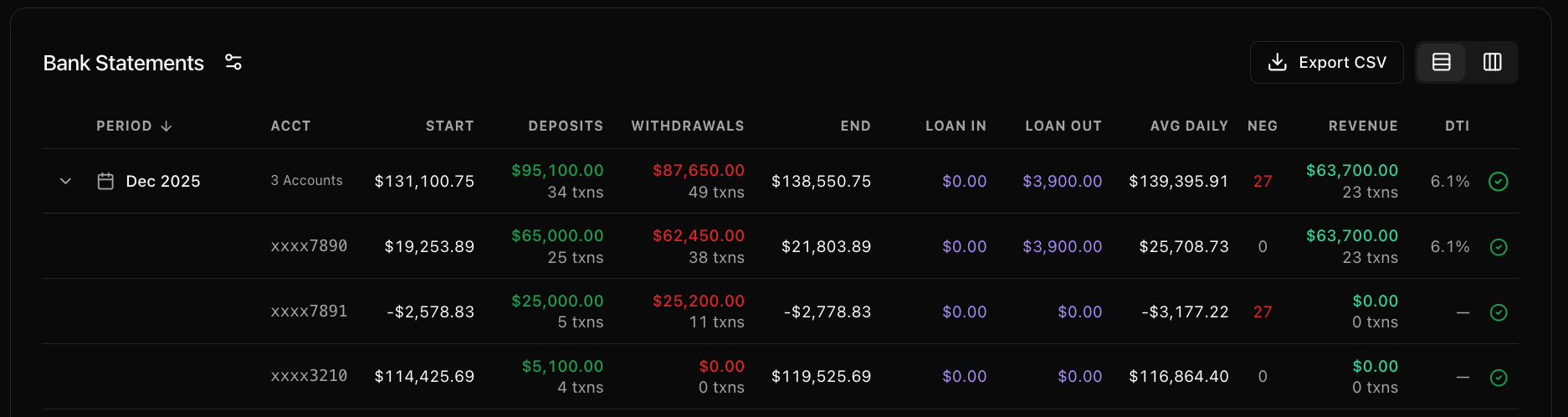
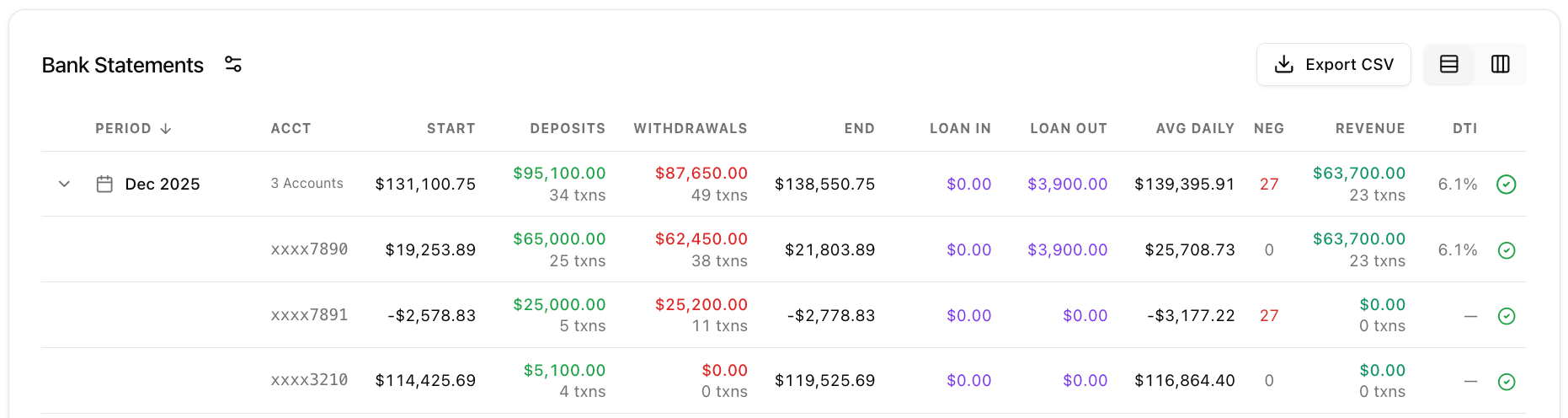
### **Bank Statements**
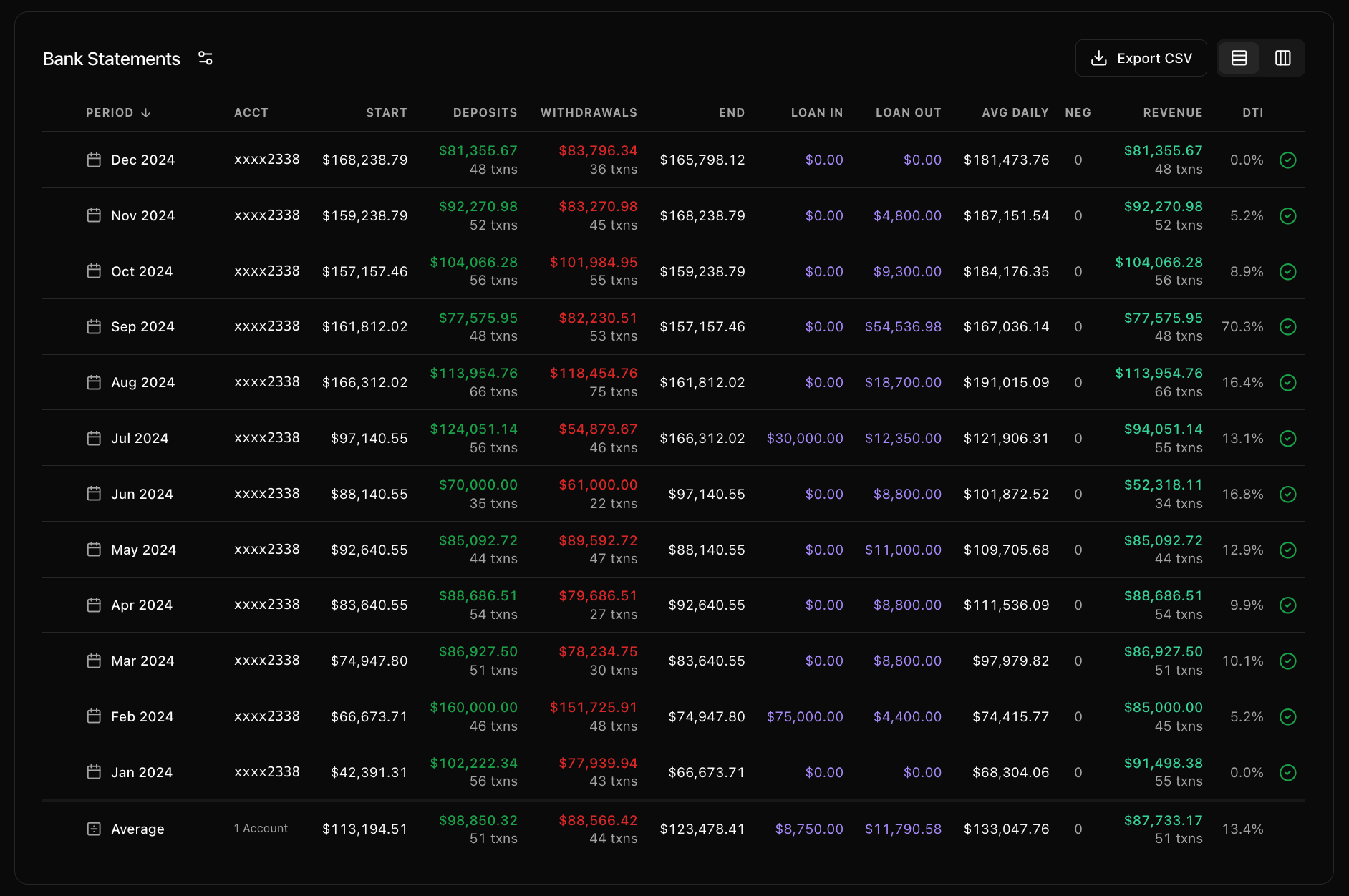
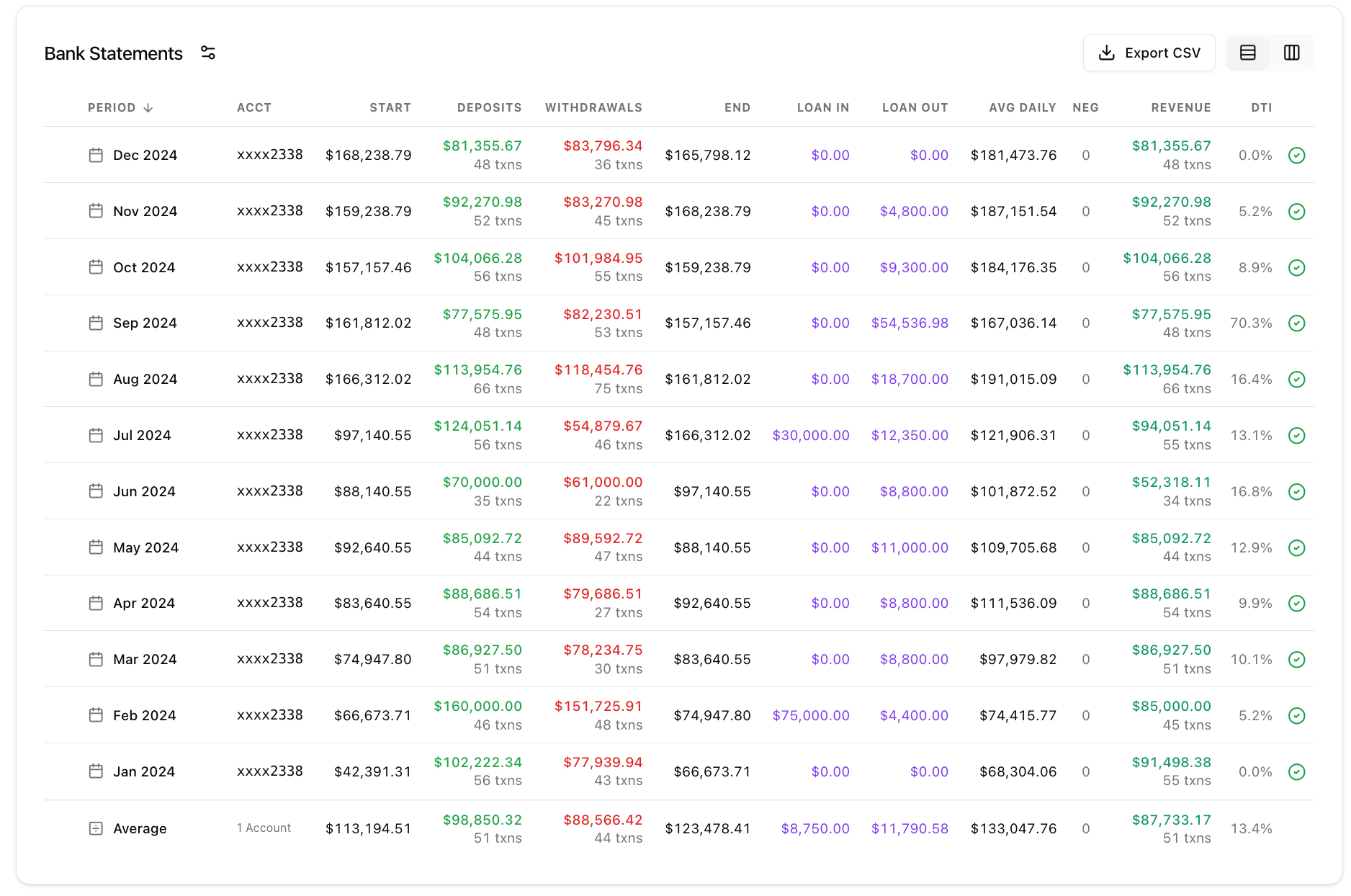
A table with **one row per statement period per account**. Shows the month-by-month breakdown plus an **Average** row at the bottom.
**Default visible columns:** Period, Acct, Start, Deposits, Withdrawals, End, Loan In, Loan Out, Avg Daily, Neg, Revenue, DTI, Status (reconciliation check mark).
**Additional columns** (toggle via the column picker gear icon): Days, Discrepancy, NSF, Overdraft, Owner Txn, Internal Xfer, Bank Fees, Payment Processor, Stop Payments, Reversals.
You can:
* **Sort** by period (newest or oldest first)
* **Toggle between Rows and Pivoted** view (icon toggle in top-right)
* **Export CSV** of the table
* **Click a row** to open the corresponding document in the side panel
* **Expand a row** to see a per-account breakdown (if multiple accounts exist)
***
### **Bank Statements**
A table with **one row per statement period per account**. Shows the month-by-month breakdown plus an **Average** row at the bottom.
**Default visible columns:** Period, Acct, Start, Deposits, Withdrawals, End, Loan In, Loan Out, Avg Daily, Neg, Revenue, DTI, Status (reconciliation check mark).
**Additional columns** (toggle via the column picker gear icon): Days, Discrepancy, NSF, Overdraft, Owner Txn, Internal Xfer, Bank Fees, Payment Processor, Stop Payments, Reversals.
You can:
* **Sort** by period (newest or oldest first)
* **Toggle between Rows and Pivoted** view (icon toggle in top-right)
* **Export CSV** of the table
* **Click a row** to open the corresponding document in the side panel
* **Expand a row** to see a per-account breakdown (if multiple accounts exist)
 ***
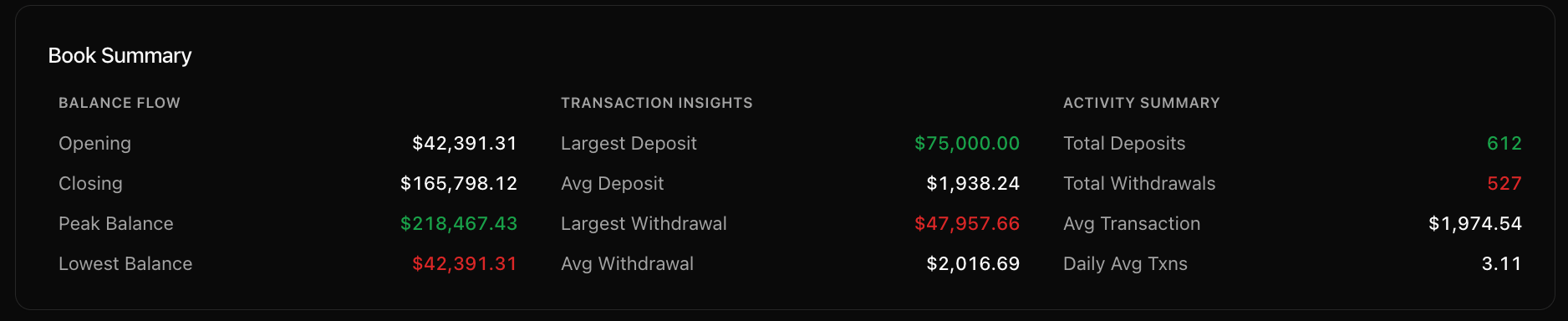
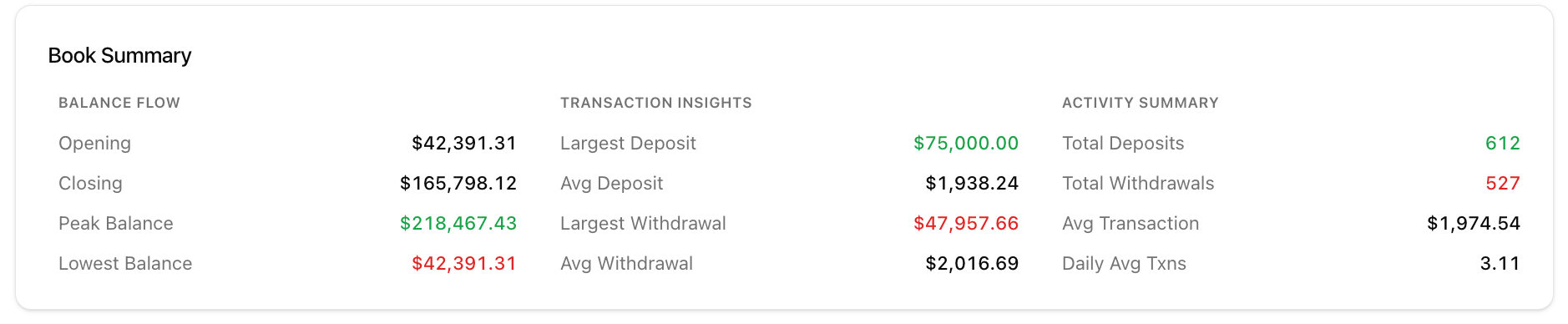
### **Book Summary**
Three-column summary card:
| Balance Flow | Transaction Insights | Activity Summary |
| :-------------- | :------------------- | :------------------------ |
| Opening balance | Largest Deposit | Total Deposits (count) |
| Closing balance | Avg Deposit | Total Withdrawals (count) |
| Peak Balance | Largest Withdrawal | Avg Transaction |
| Lowest Balance | Avg Withdrawal | Daily Avg Txns |
This section is display only: no clickable elements.
***
### **Book Summary**
Three-column summary card:
| Balance Flow | Transaction Insights | Activity Summary |
| :-------------- | :------------------- | :------------------------ |
| Opening balance | Largest Deposit | Total Deposits (count) |
| Closing balance | Avg Deposit | Total Withdrawals (count) |
| Peak Balance | Largest Withdrawal | Avg Transaction |
| Lowest Balance | Avg Withdrawal | Daily Avg Txns |
This section is display only: no clickable elements.
 ***
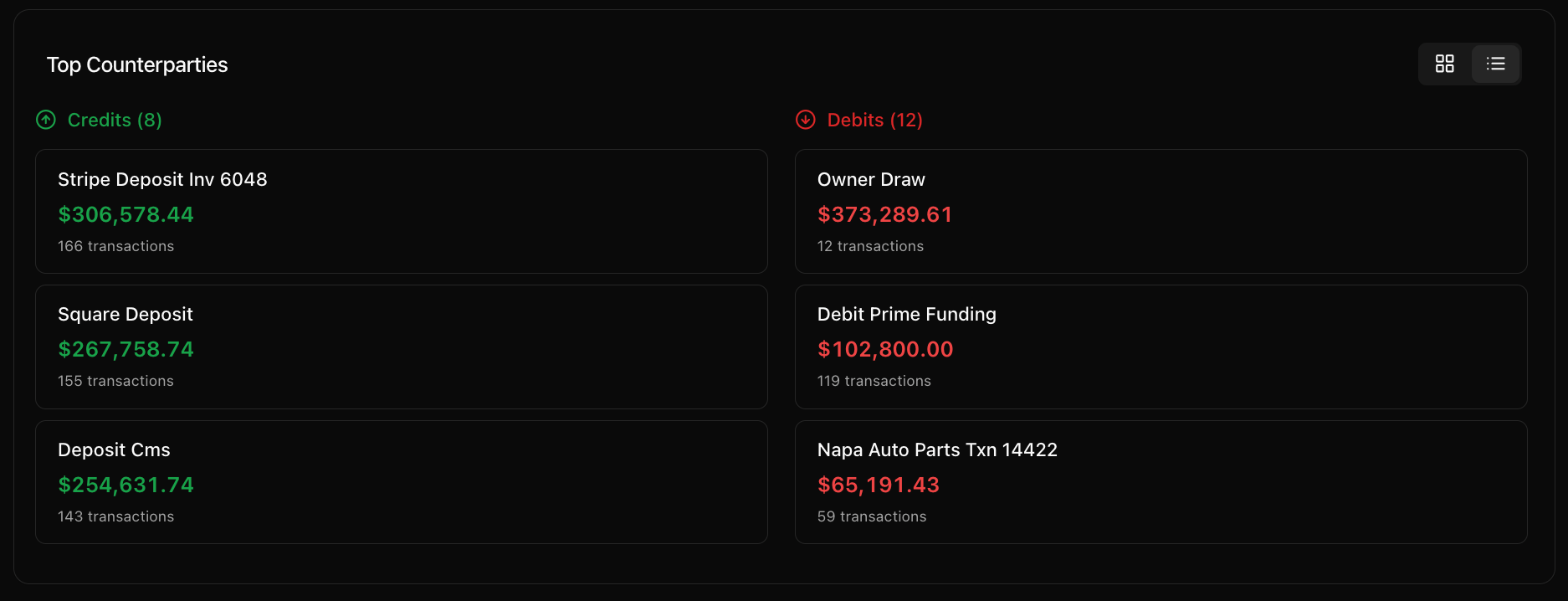
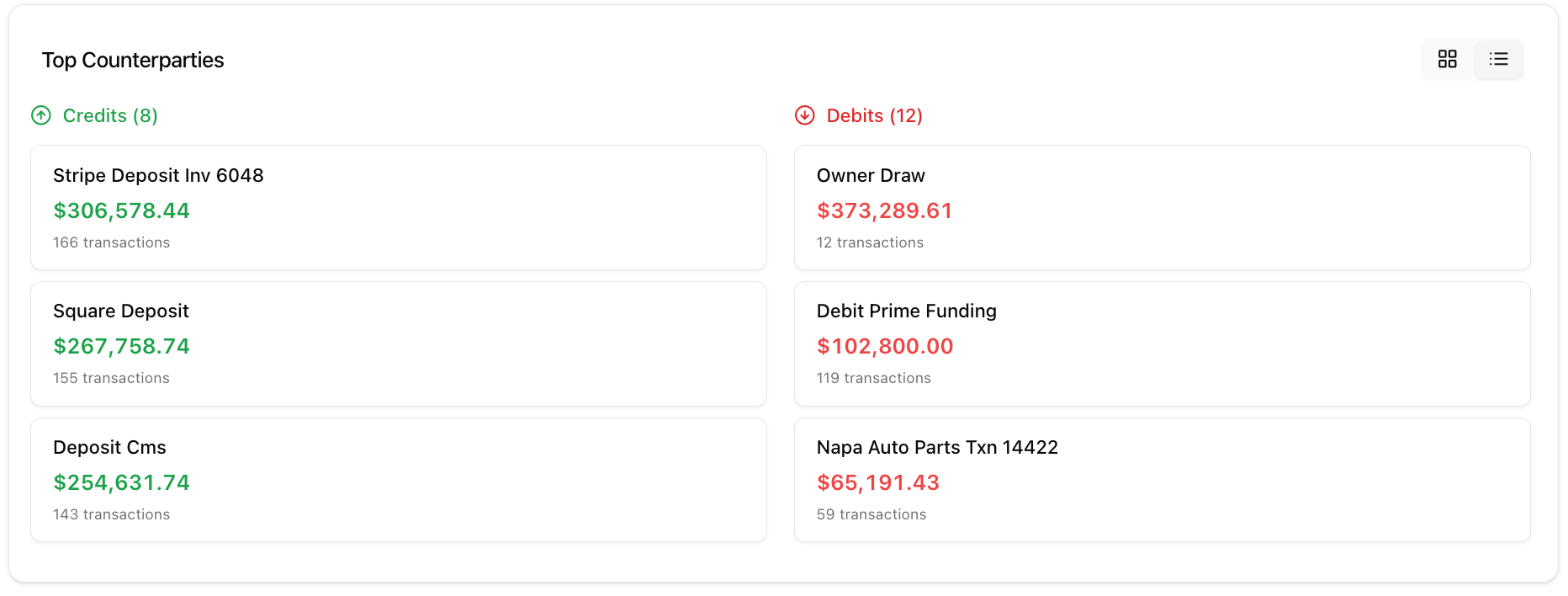
### **Top Counterparties**
Shows the most significant counterparties (entities you transact with), split into **Credits** and **Debits** columns. Each counterparty shows name, total dollar amount, and transaction count.
You can:
* Toggle between **grid** and **list** view
* **Click a counterparty** to open a modal with all transactions for that counterparty
***
### **Top Counterparties**
Shows the most significant counterparties (entities you transact with), split into **Credits** and **Debits** columns. Each counterparty shows name, total dollar amount, and transaction count.
You can:
* Toggle between **grid** and **list** view
* **Click a counterparty** to open a modal with all transactions for that counterparty
 ***
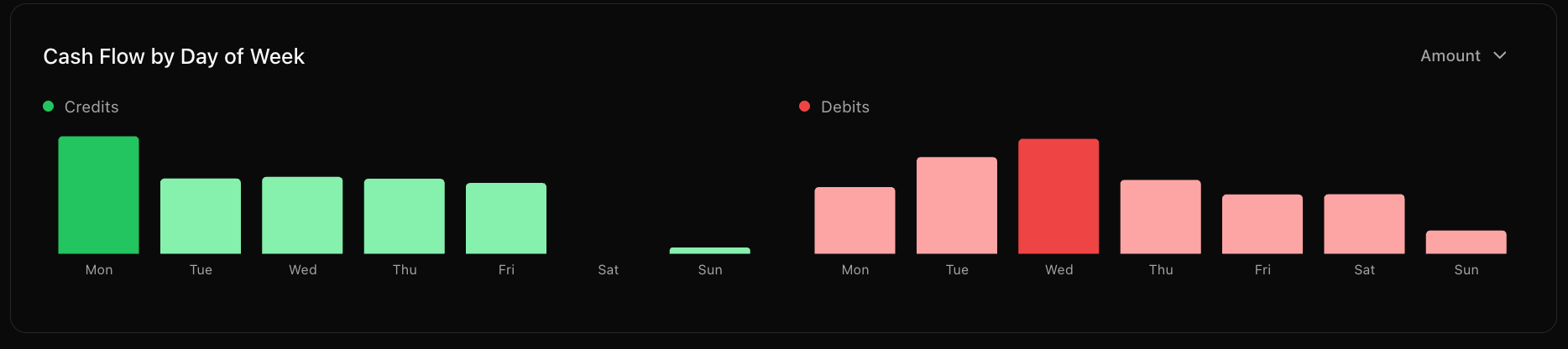
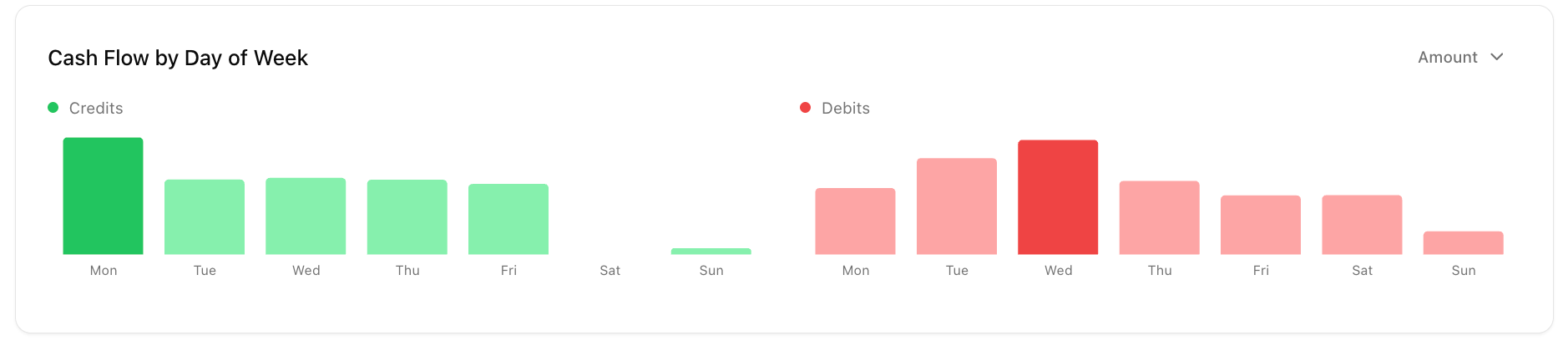
### **Cash Flow by Day of Week**
Bar chart showing deposit and withdrawal activity broken down by day of week (Mon–Sun). Credits on the left, Debits on the right.
You can toggle between **Amount** and **Count** using the dropdown.
***
### **Cash Flow by Day of Week**
Bar chart showing deposit and withdrawal activity broken down by day of week (Mon–Sun). Credits on the left, Debits on the right.
You can toggle between **Amount** and **Count** using the dropdown.
 ***
### **Daily Balance Calendar**
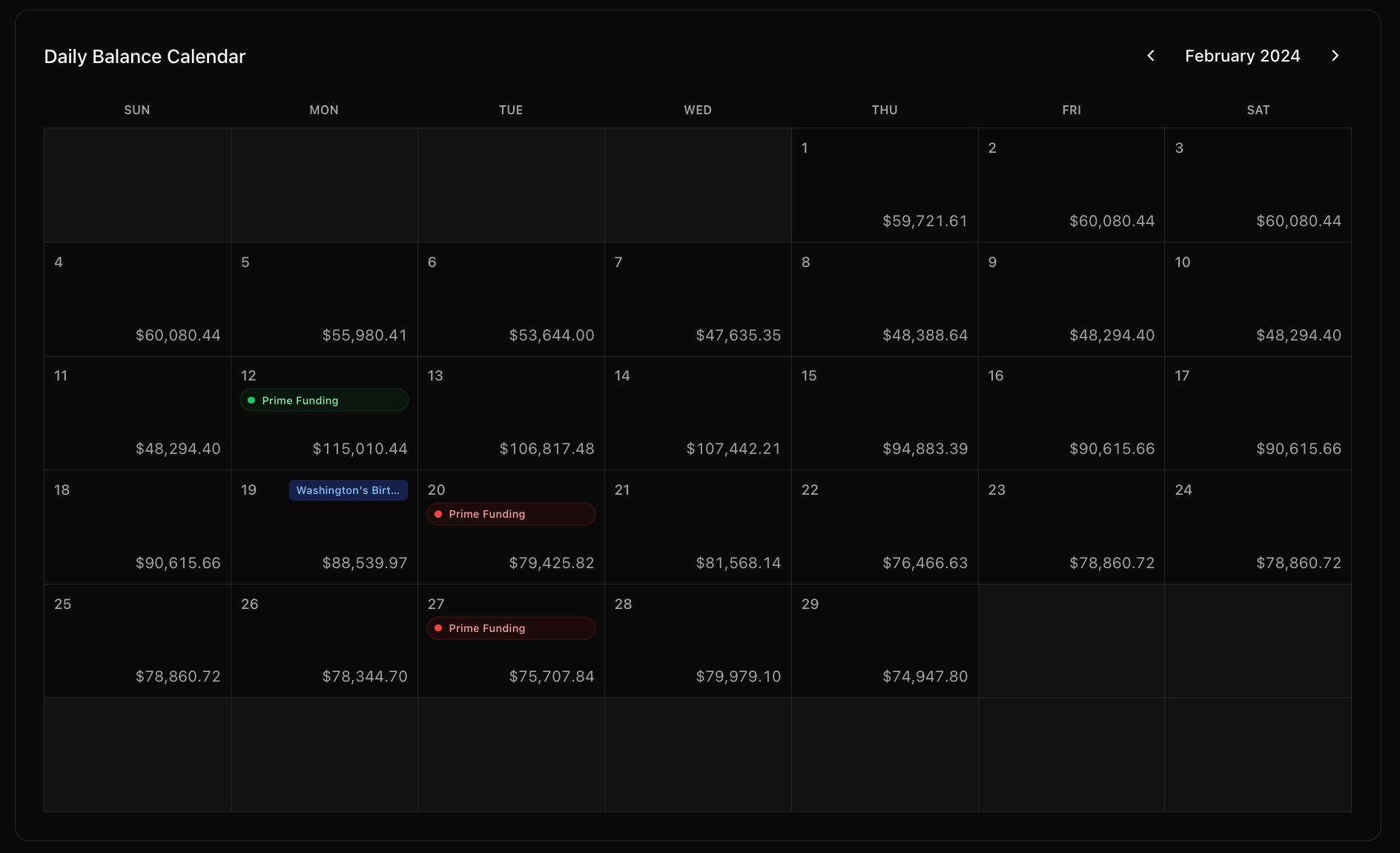
A month-by-month calendar view showing the **end-of-day balance** for each day. Navigate between months using the left/right arrows. Bank holidays are labeled (e.g. "New Year's Day"). MCA disbursement & repayment events will be labeled on days they occur.
***
### **Daily Balance Calendar**
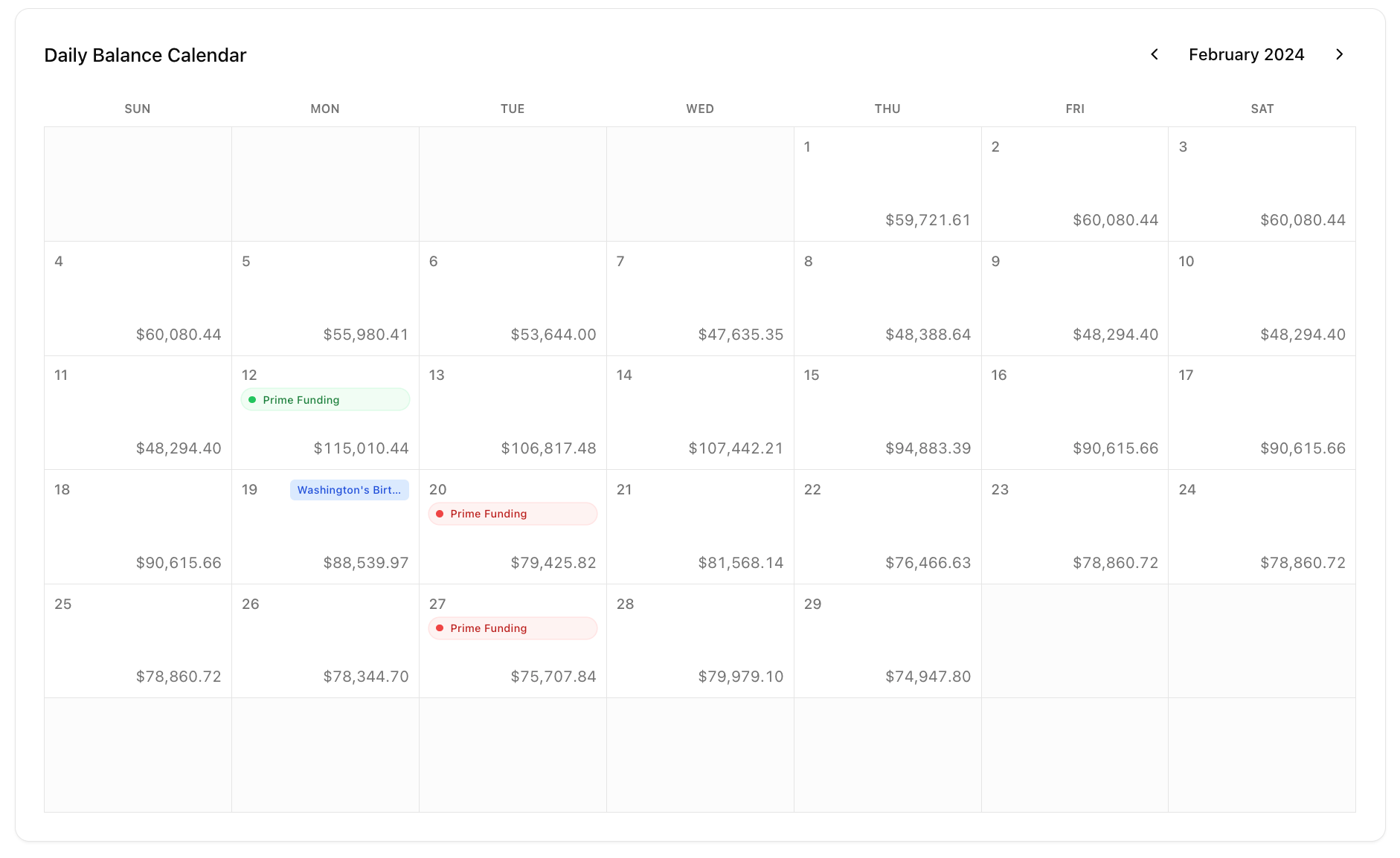
A month-by-month calendar view showing the **end-of-day balance** for each day. Navigate between months using the left/right arrows. Bank holidays are labeled (e.g. "New Year's Day"). MCA disbursement & repayment events will be labeled on days they occur.
 ***
### **AI Deep Research**
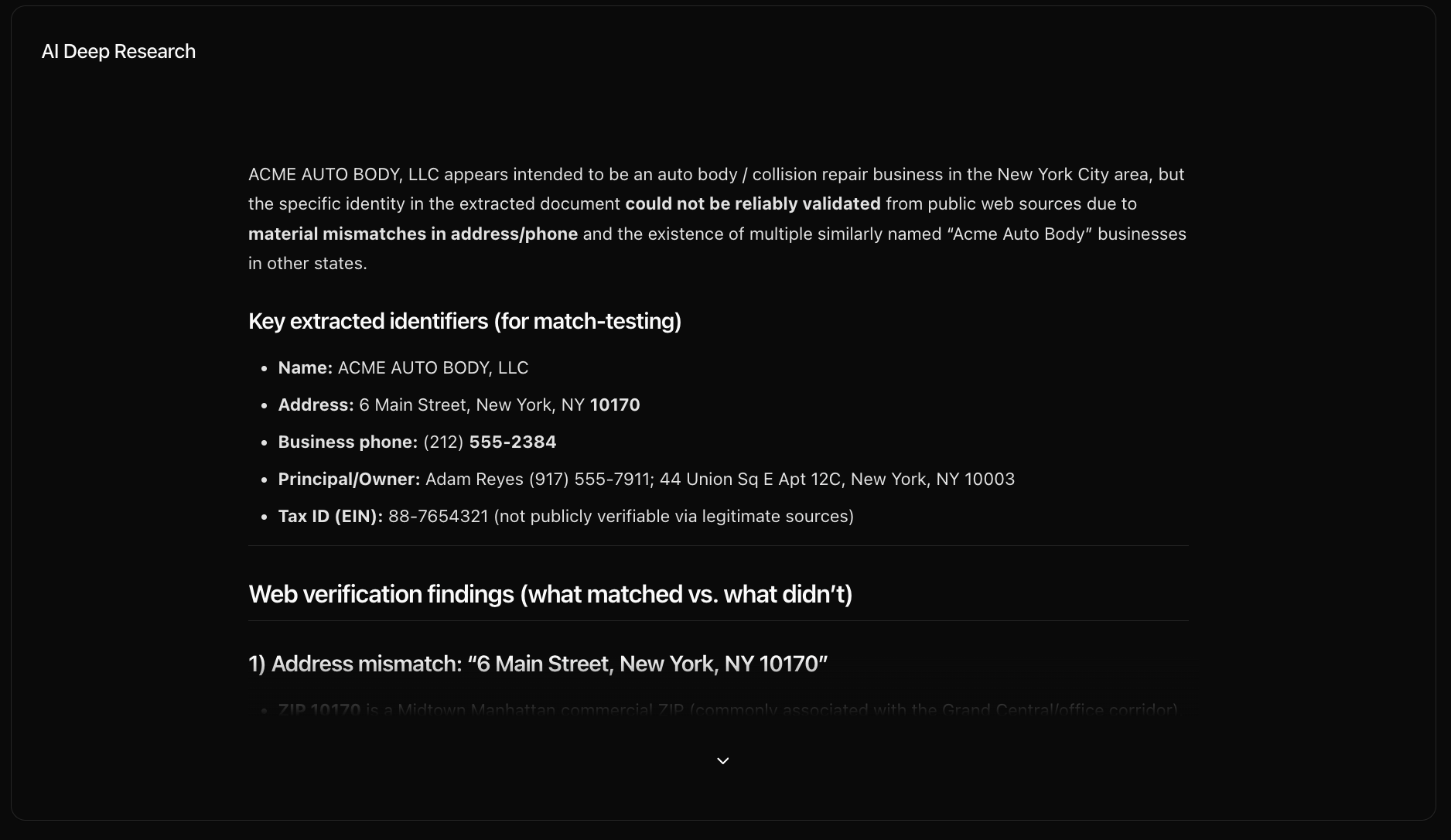
An AI-generated report that cross-references the extracted business identity (name, address, phone) against web sources to verify legitimacy. Shows match/mismatch findings for each identifier.
***
### **AI Deep Research**
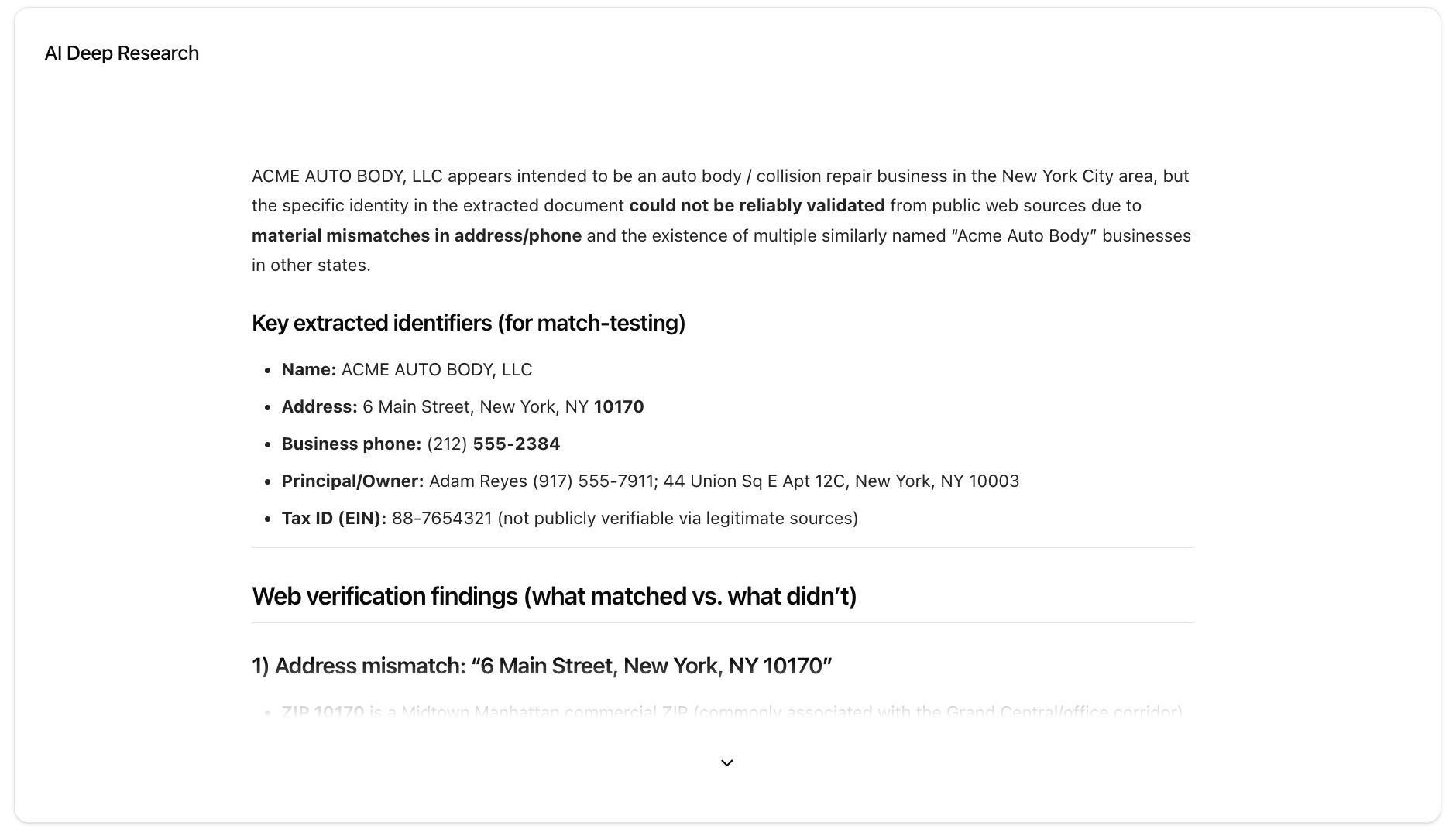
An AI-generated report that cross-references the extracted business identity (name, address, phone) against web sources to verify legitimacy. Shows match/mismatch findings for each identifier.
 ***
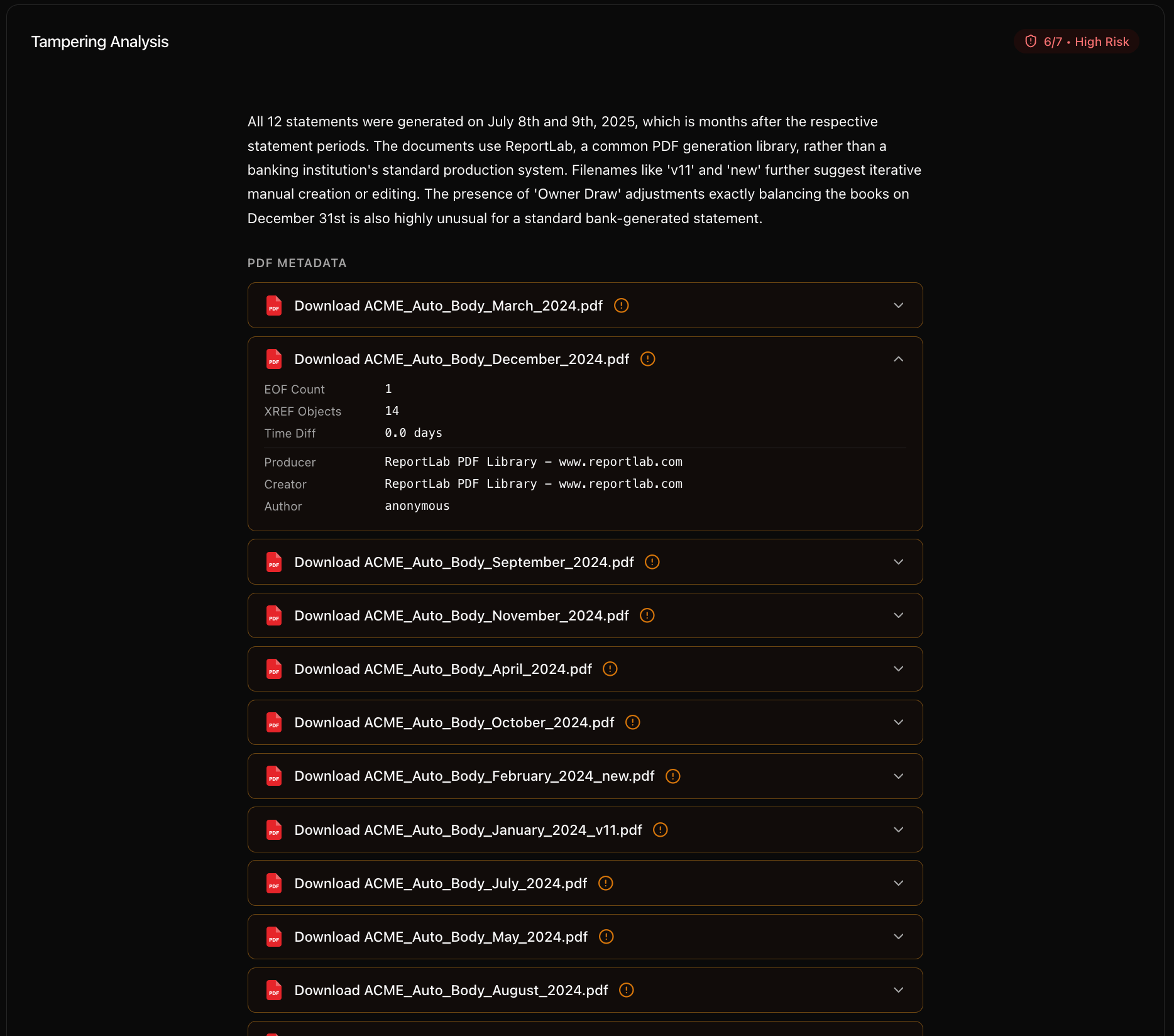
### **Tampering Analysis**
Analyzes the uploaded PDF files for signs of fabrication or tampering. Shows:
* A **risk score** (e.g. "6/7 - High Risk") in the top-right
* A written summary of findings (e.g. identical metadata, programmatic PDF generation signals, temporal impossibilities)
* **PDF Metadata** section listing each document with expandable details (producer, creator, creation dates)
***
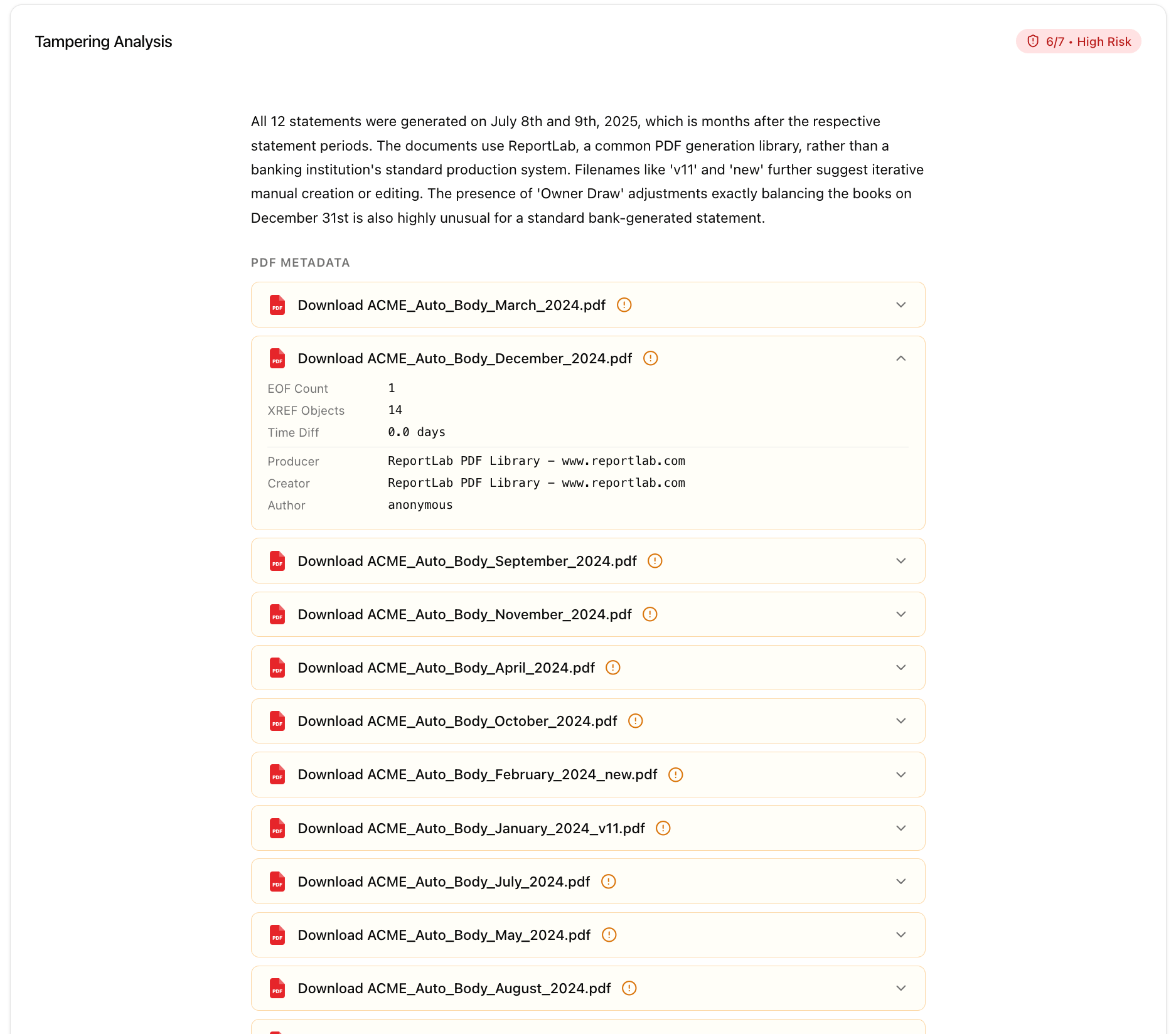
### **Tampering Analysis**
Analyzes the uploaded PDF files for signs of fabrication or tampering. Shows:
* A **risk score** (e.g. "6/7 - High Risk") in the top-right
* A written summary of findings (e.g. identical metadata, programmatic PDF generation signals, temporal impossibilities)
* **PDF Metadata** section listing each document with expandable details (producer, creator, creation dates)
 ***
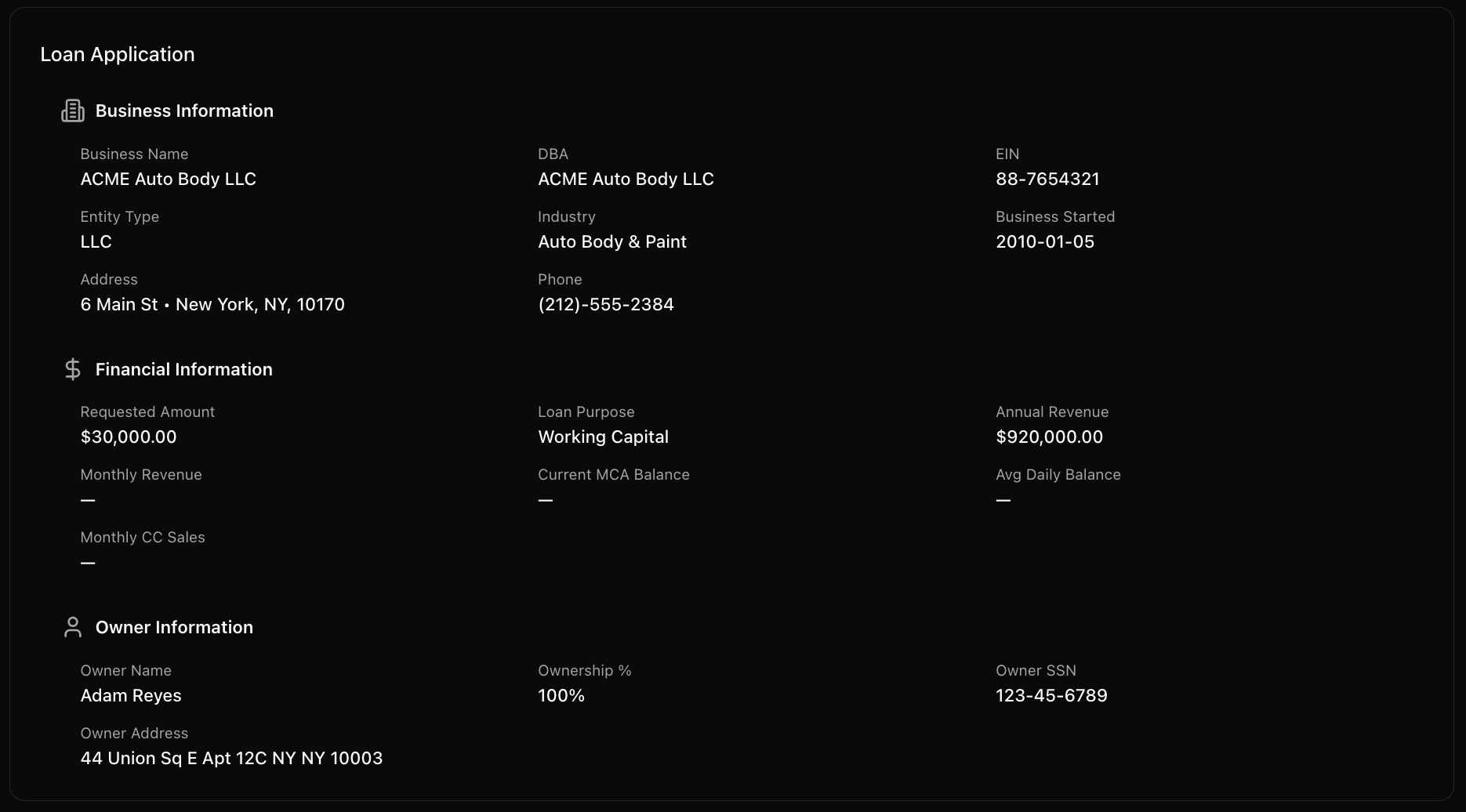
### **Loan Application**
Only appears if a **loan application** was uploaded alongside the bank statements. Displays extracted fields in three groups:
* **Business Information**: Business Name, DBA, EIN, Entity Type, Industry, Business Started, Employees, Address, Phone, Email, Website
* **Financial Information**: Requested Amount, Loan Purpose, Annual Revenue, Monthly Revenue, Current MCA Balance, Avg Daily Balance, Monthly CC Sales
* **Owner Information**: Owner Name, Ownership %, Owner SSN, Owner Address, Credit Score
***
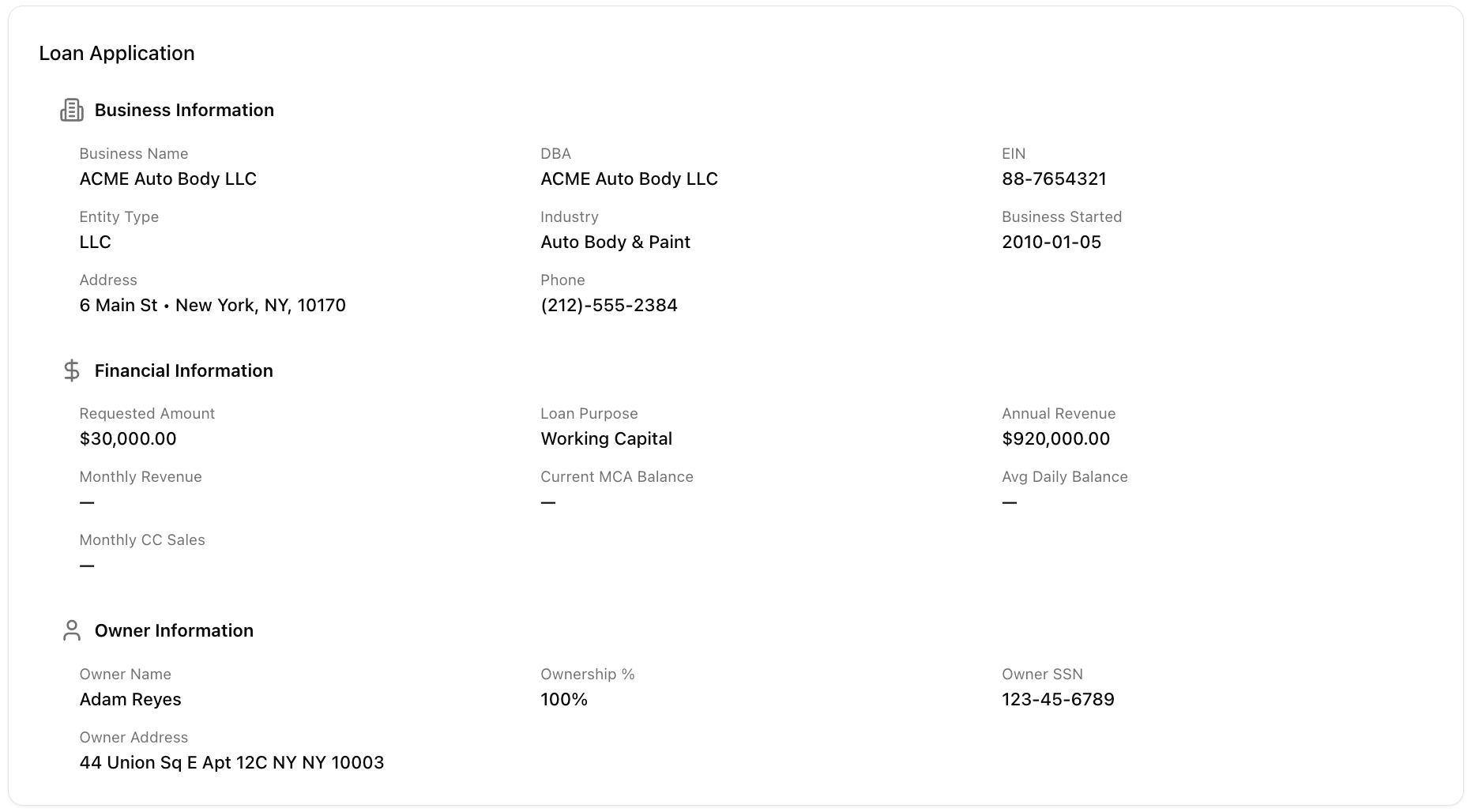
### **Loan Application**
Only appears if a **loan application** was uploaded alongside the bank statements. Displays extracted fields in three groups:
* **Business Information**: Business Name, DBA, EIN, Entity Type, Industry, Business Started, Employees, Address, Phone, Email, Website
* **Financial Information**: Requested Amount, Loan Purpose, Annual Revenue, Monthly Revenue, Current MCA Balance, Avg Daily Balance, Monthly CC Sales
* **Owner Information**: Owner Name, Ownership %, Owner SSN, Owner Address, Credit Score
 ***
### **Info Badges (top-right corner)**
These popover badges sit next to the tab bar and are always visible on the Synopsis page:
**1. Identity (****)** — Business name, tax ID, address, phone. Principal(s) with name, role, address, phone.
***
### **Info Badges (top-right corner)**
These popover badges sit next to the tab bar and are always visible on the Synopsis page:
**1. Identity (****)** — Business name, tax ID, address, phone. Principal(s) with name, role, address, phone.

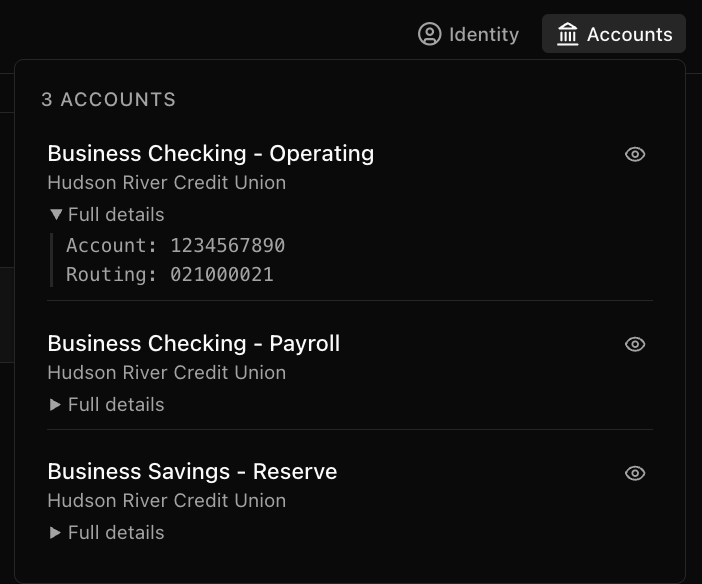
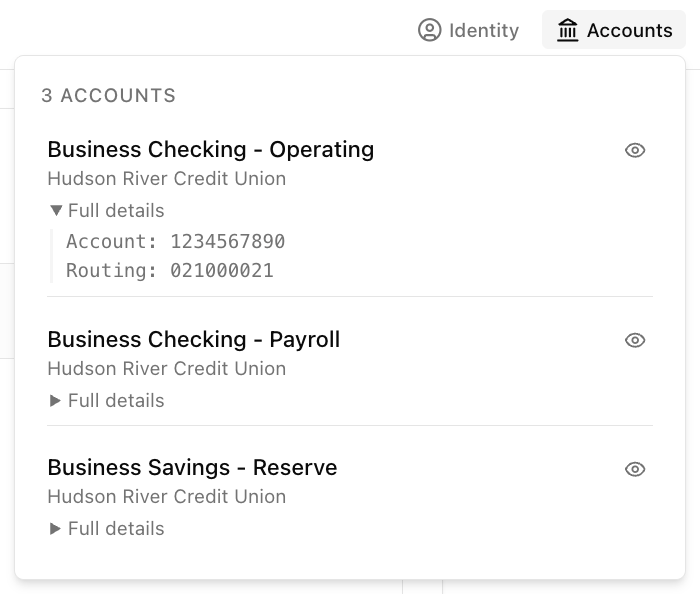
 **2. Accounts** **(****)** — Number of bank accounts detected. Account name, bank name. Eye icon to exclude/include an account from analytics. Expandable "Full details" for account and routing numbers.
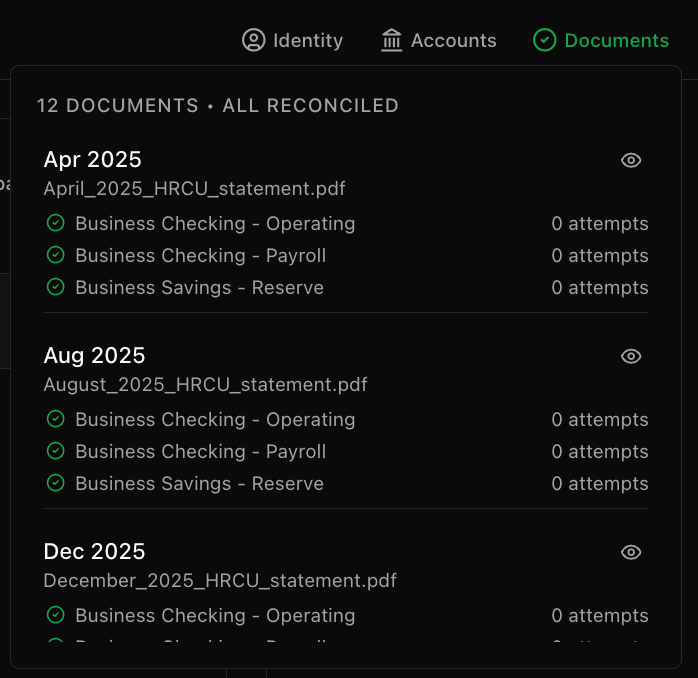
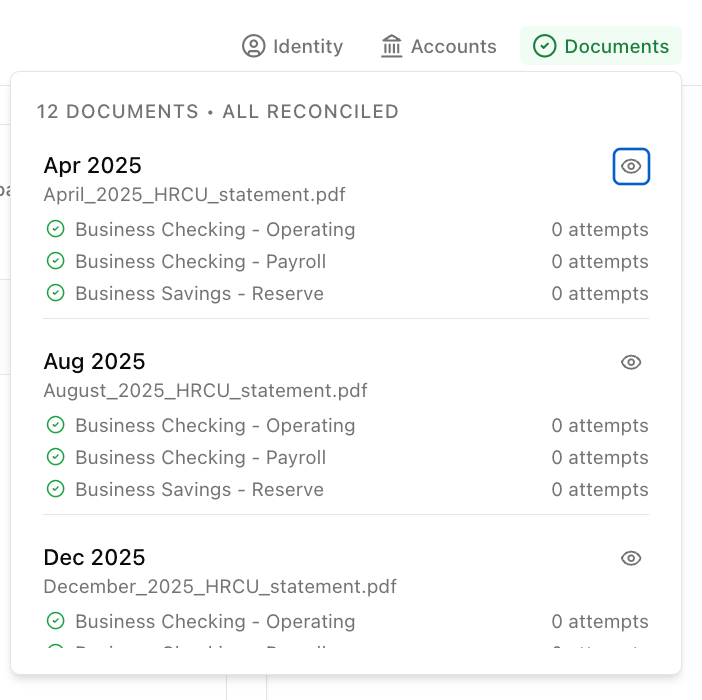
 **3. Documents (****)** — Count of documents and reconciliation status (e.g. "12 Documents - All Reconciled"). Each document listed with period, filename, status, and eye icon to exclude/include from analytics.
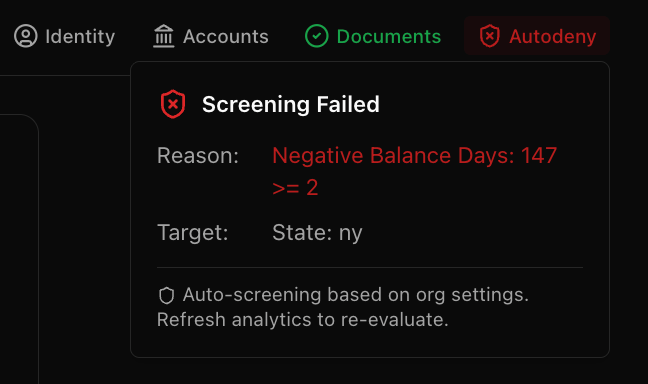
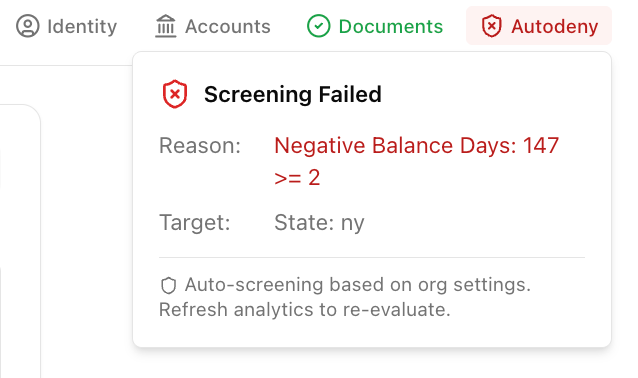
 **4. Pass / Autodeny** **(****)**— Screening result badge (green "Pass" or red "Autodeny"). Shows reason and target. Based on auto-screening org settings. See the Autodeny Section for more information
 **5. Salesforce** *(if linked)* — Push-to-Salesforce button with mapped field preview.
> See the Integrations page for more information
# Transactions Tab
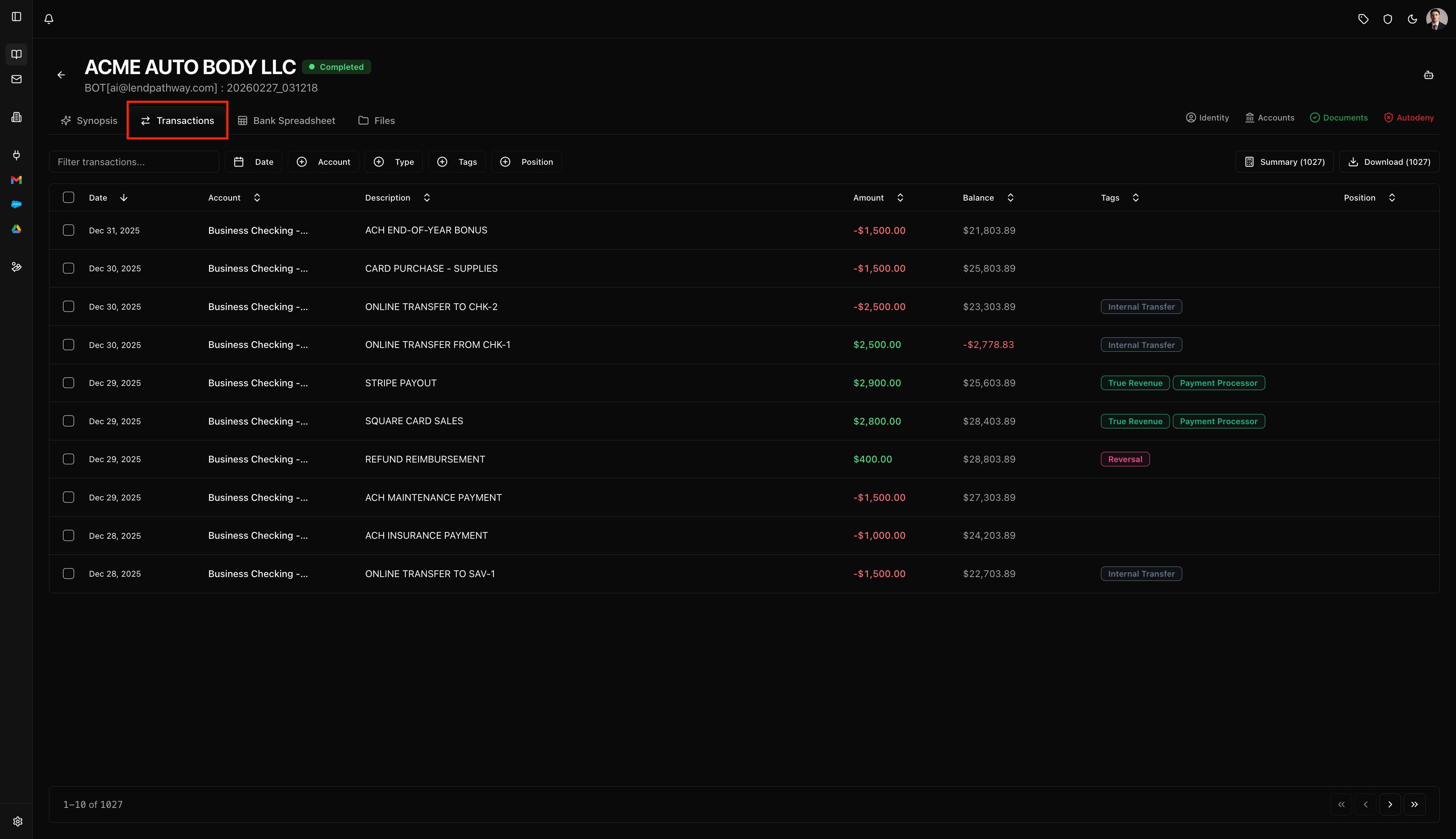
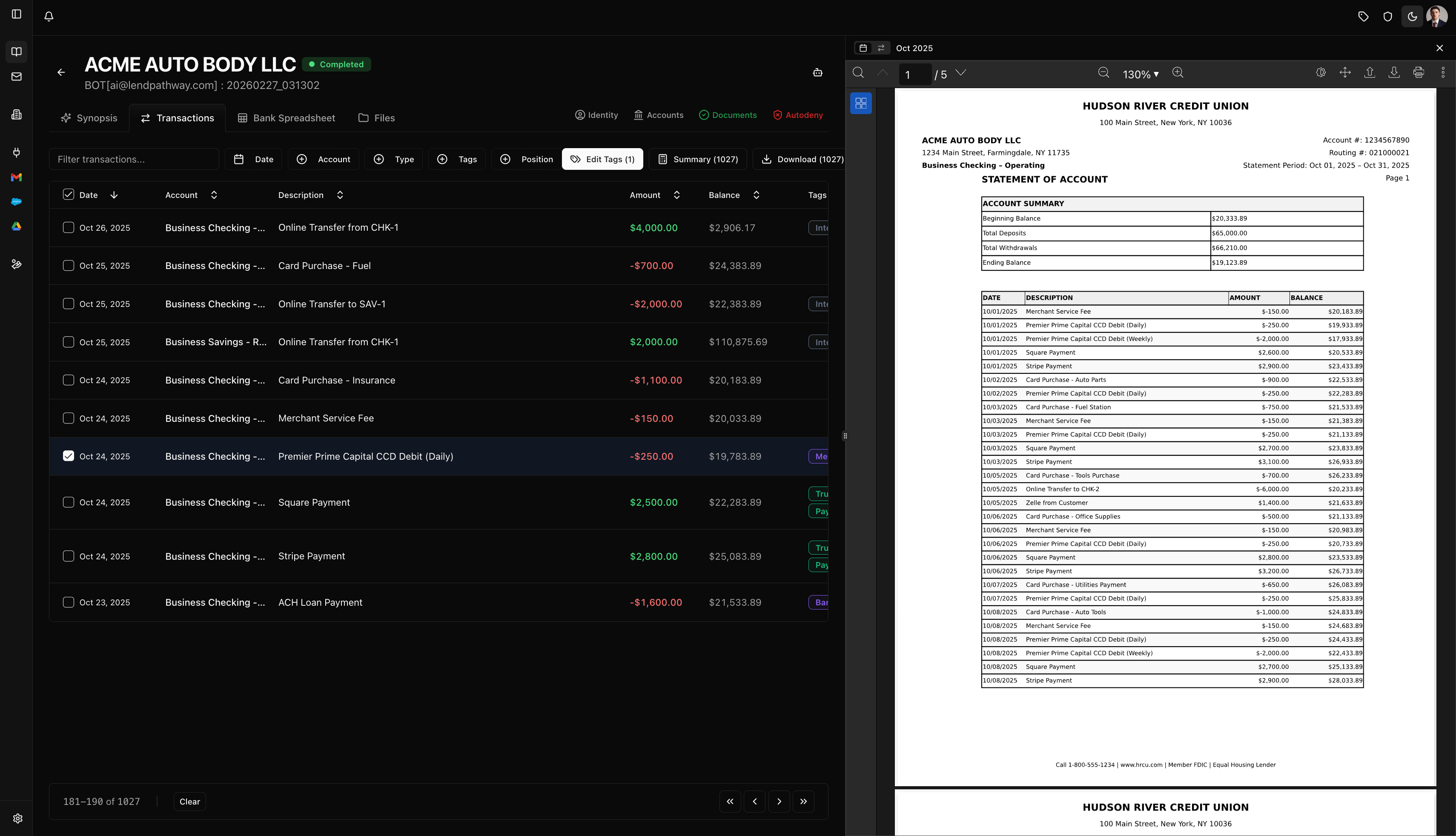
> The Transactions tab shows every individual transaction extracted from the bank statements in a searchable, filterable, sortable table.
**5. Salesforce** *(if linked)* — Push-to-Salesforce button with mapped field preview.
> See the Integrations page for more information
# Transactions Tab
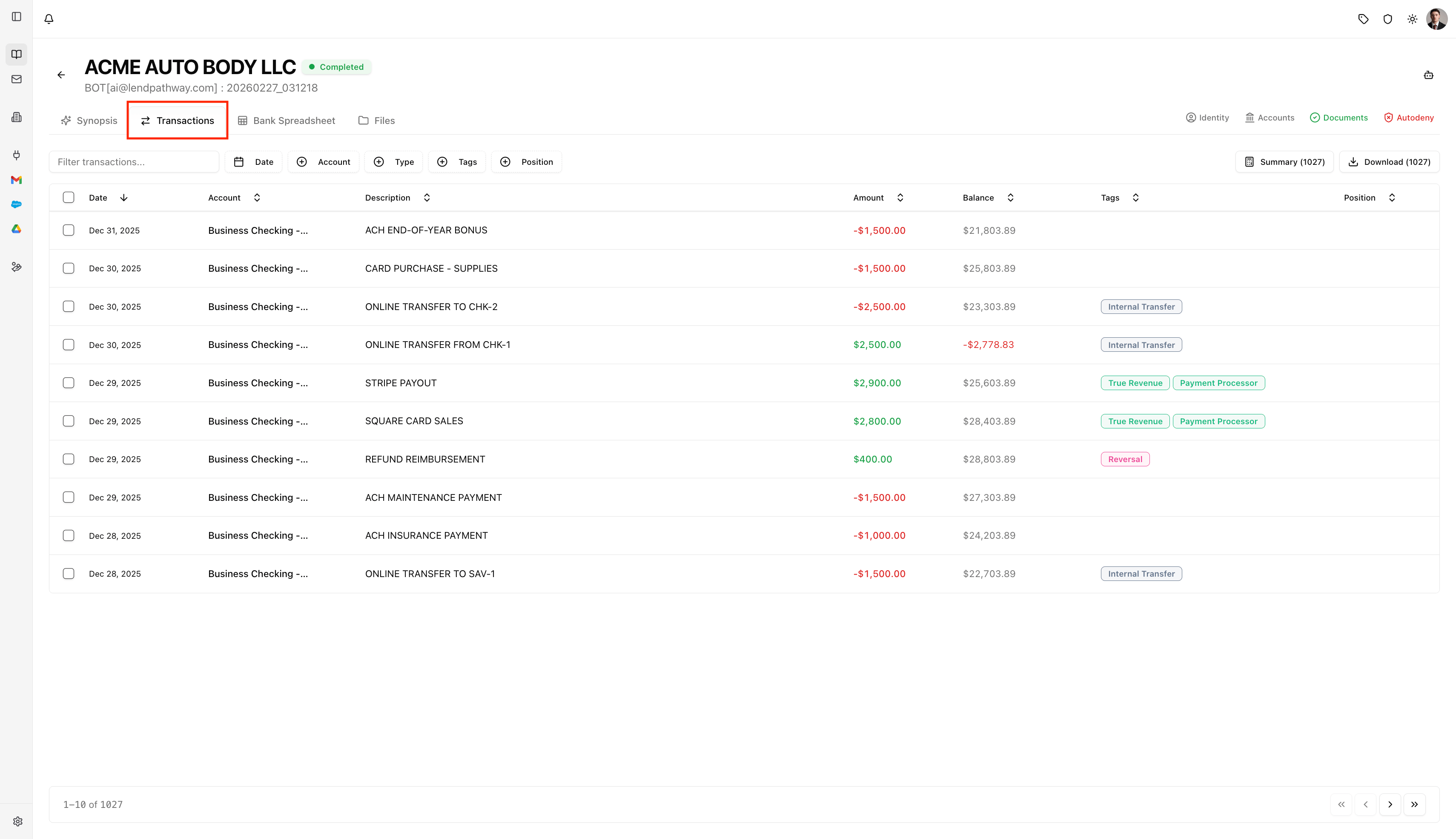
> The Transactions tab shows every individual transaction extracted from the bank statements in a searchable, filterable, sortable table.
 ***
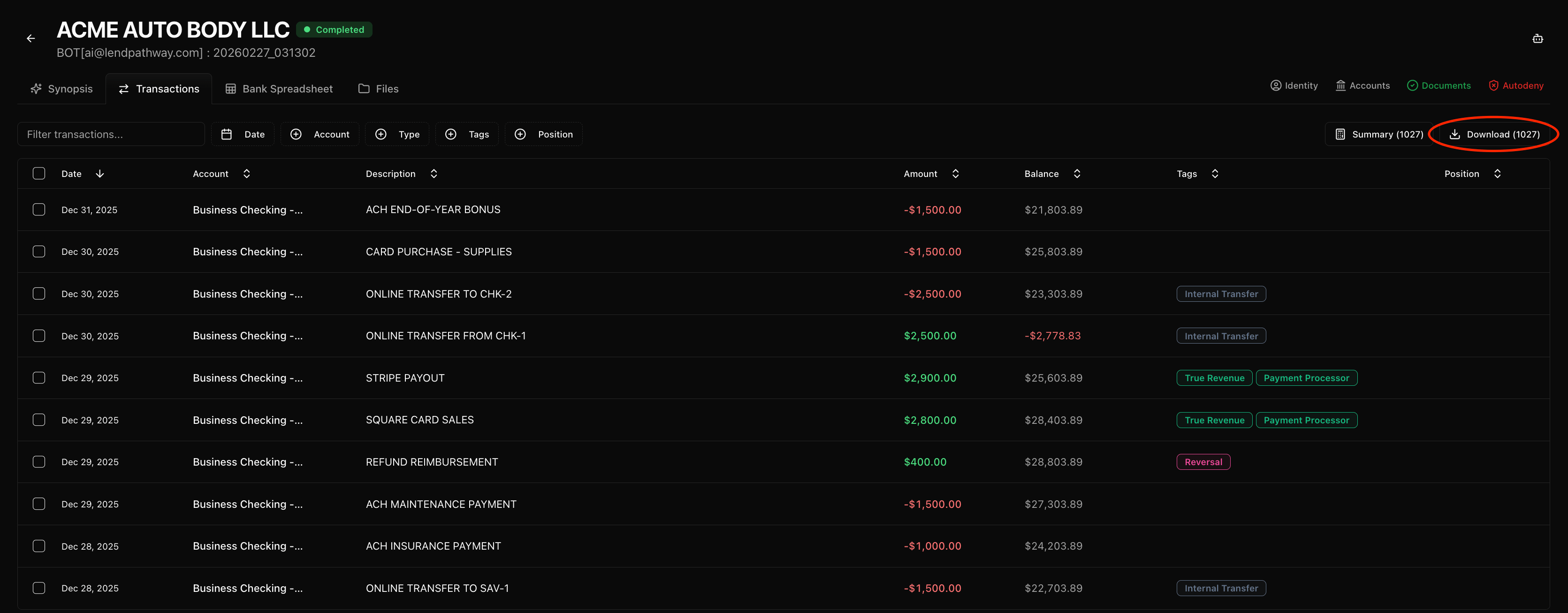
### **Table Columns**
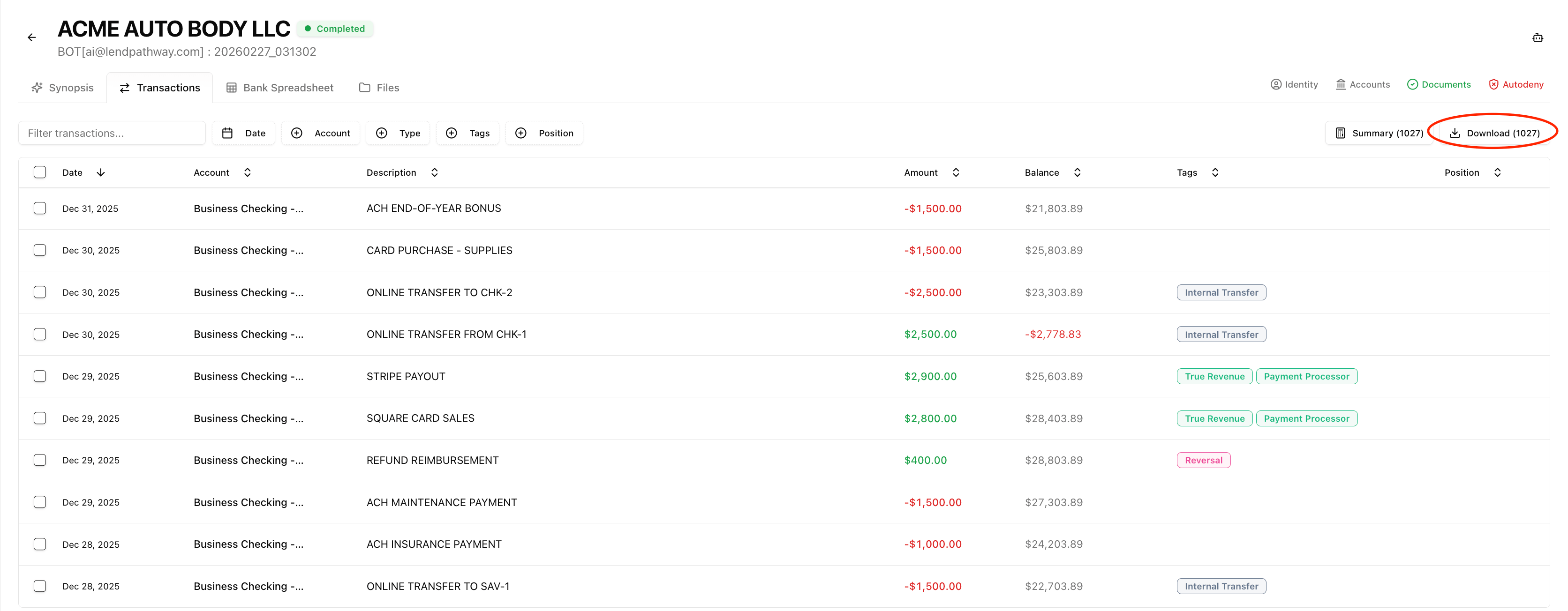
Each row is a single transaction. The columns are:
| Column | What it shows |
| :-------------- | :------------------------------------------------------------------------------------------------------------------------------------------------------------------------- |
| **Checkbox** | Select individual transactions (or select all/ multiple with the header checkbox) |
| **Date** | Transaction date (e.g. "Jan 15, 2024") |
| **Account** | Account name (shown when multiple accounts exist; hidden by default for single-account books) |
| **Description** | Full transaction description — search matches are highlighted |
| **Amount** | Dollar amount, color-coded: green for credits, red (with minus sign) for debits |
| **Balance** | Running ledger balance after this transaction (red if negative) |
| **Tags** | Color-coded badges showing the tags assigned to this transaction (e.g. "Merchant Cash Advance", "NSF", "Owner Draw"). Loan-type tags appear first, followed by other tags. |
| **Position** | If the transaction is assigned to a debt position, shows the funder name (with favicon if available) |
| **Doc ID** | First 8 characters of the source document ID (hidden by default) |
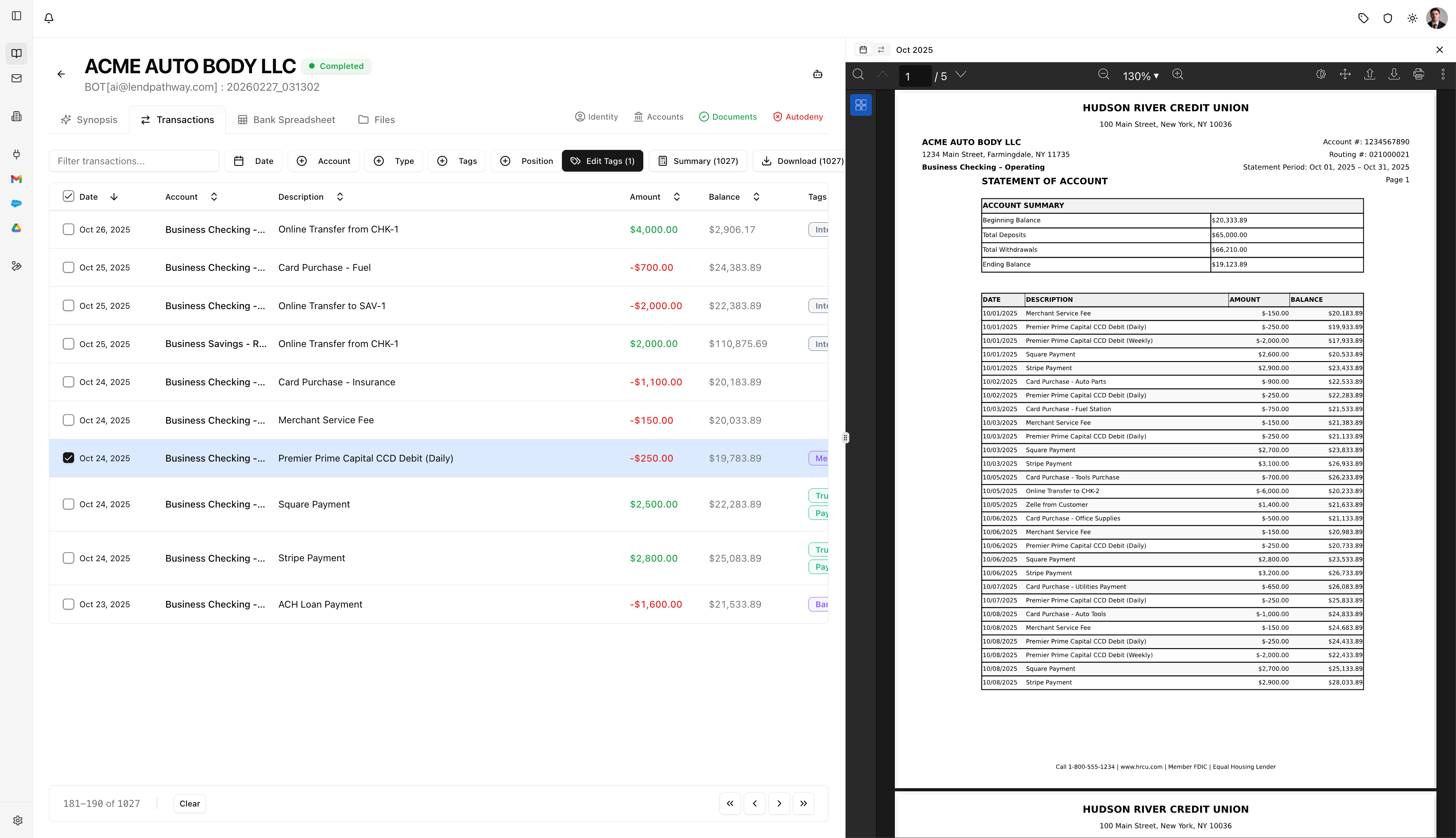
**Clicking a row** opens the source PDF document in the side panel so you can see exactly where the transaction came from.
***
### **Table Columns**
Each row is a single transaction. The columns are:
| Column | What it shows |
| :-------------- | :------------------------------------------------------------------------------------------------------------------------------------------------------------------------- |
| **Checkbox** | Select individual transactions (or select all/ multiple with the header checkbox) |
| **Date** | Transaction date (e.g. "Jan 15, 2024") |
| **Account** | Account name (shown when multiple accounts exist; hidden by default for single-account books) |
| **Description** | Full transaction description — search matches are highlighted |
| **Amount** | Dollar amount, color-coded: green for credits, red (with minus sign) for debits |
| **Balance** | Running ledger balance after this transaction (red if negative) |
| **Tags** | Color-coded badges showing the tags assigned to this transaction (e.g. "Merchant Cash Advance", "NSF", "Owner Draw"). Loan-type tags appear first, followed by other tags. |
| **Position** | If the transaction is assigned to a debt position, shows the funder name (with favicon if available) |
| **Doc ID** | First 8 characters of the source document ID (hidden by default) |
**Clicking a row** opens the source PDF document in the side panel so you can see exactly where the transaction came from.
 ***
### **Toolbar (Filtering & Search)**
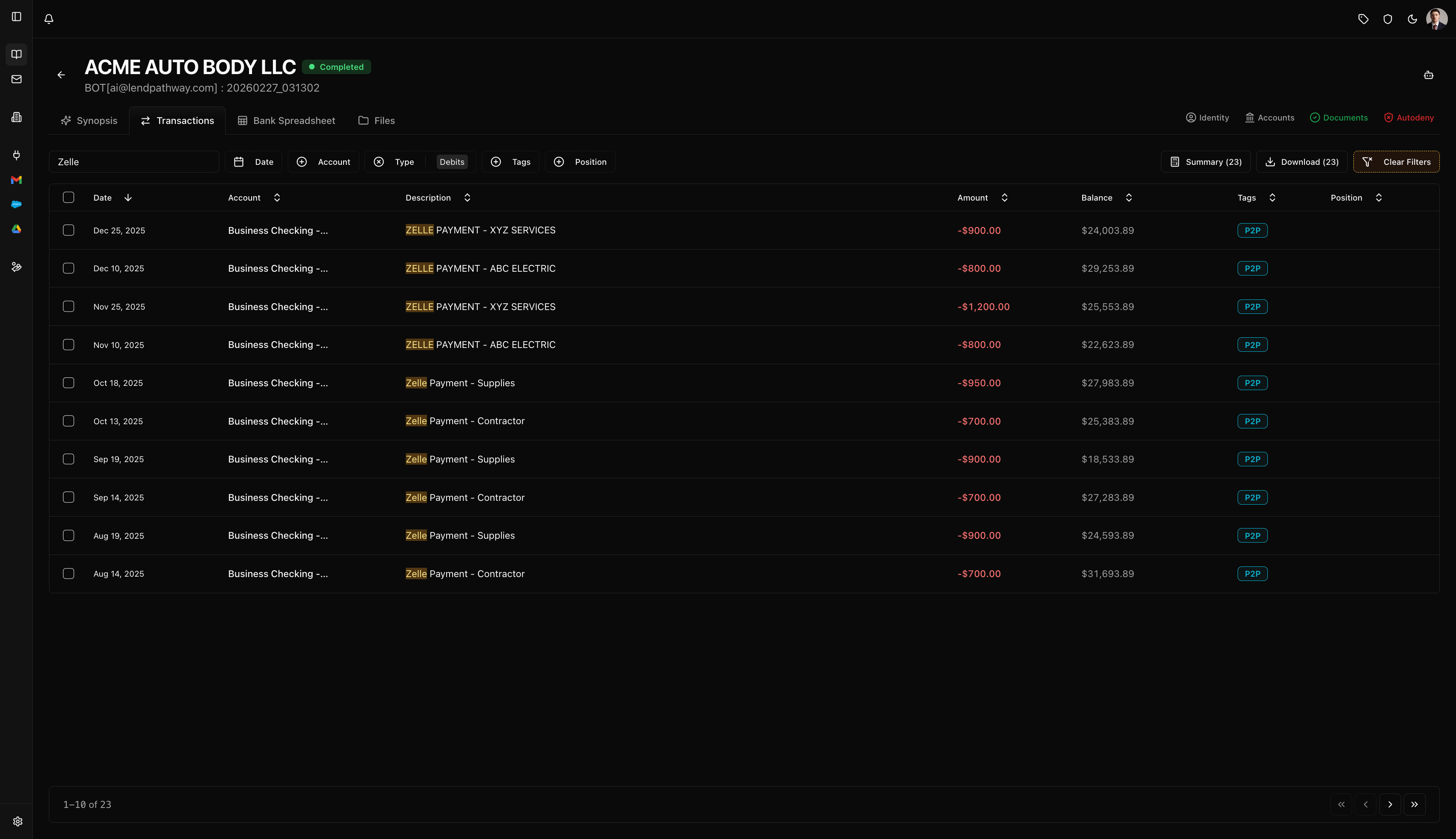
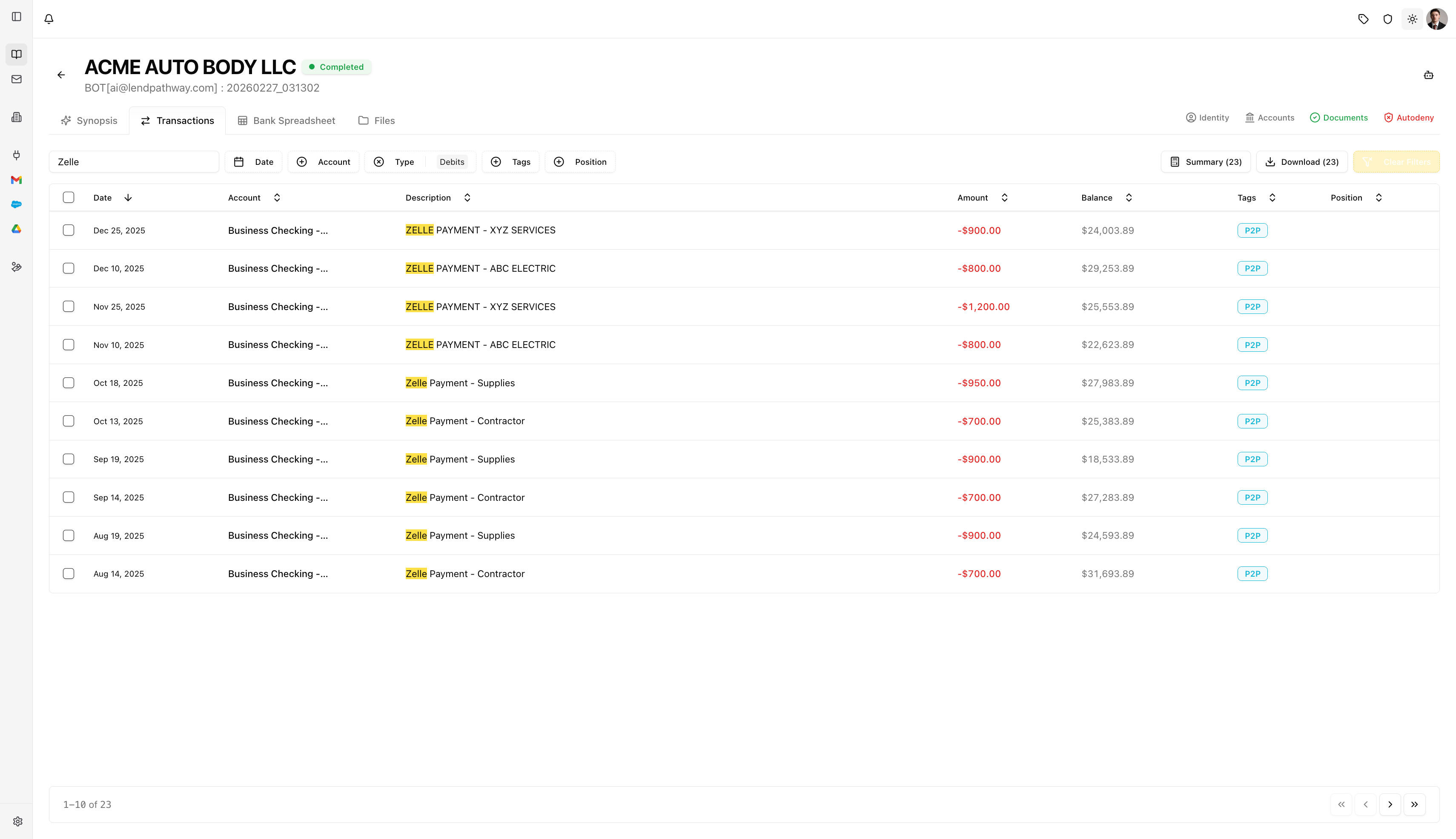
The toolbar sits above the table and lets you narrow down transactions:
| Filter | What it does |
| :------------ | :------------------------------------------------------------------------------------------------ |
| **Search** | Free-text filter on the Description column (type to search, e.g. "stripe" or "prime funding") |
| **Date** | Date range picker — only show transactions within a specific window |
| **Type** | Filter by Credits or Debits |
| **Account** | Filter by account (only appears when there are multiple bank accounts) |
| **Tags** | Filter by one or more tags — shows a list of all tags present in the data with transaction counts |
| **Positions** | Filter by debt position — shows all detected positions with transaction counts |
Filters stack — you can combine date + type + tag + search at the same time.
***
### **Toolbar (Filtering & Search)**
The toolbar sits above the table and lets you narrow down transactions:
| Filter | What it does |
| :------------ | :------------------------------------------------------------------------------------------------ |
| **Search** | Free-text filter on the Description column (type to search, e.g. "stripe" or "prime funding") |
| **Date** | Date range picker — only show transactions within a specific window |
| **Type** | Filter by Credits or Debits |
| **Account** | Filter by account (only appears when there are multiple bank accounts) |
| **Tags** | Filter by one or more tags — shows a list of all tags present in the data with transaction counts |
| **Positions** | Filter by debt position — shows all detected positions with transaction counts |
Filters stack — you can combine date + type + tag + search at the same time.
 ***
### **Actions (Right Side of Toolbar)**
Three buttons appear on the right side of the toolbar:
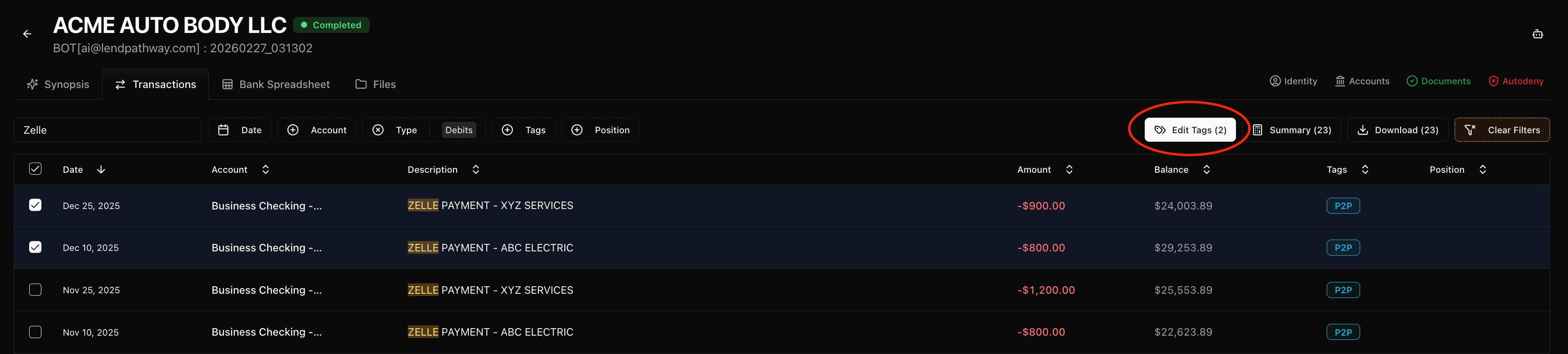
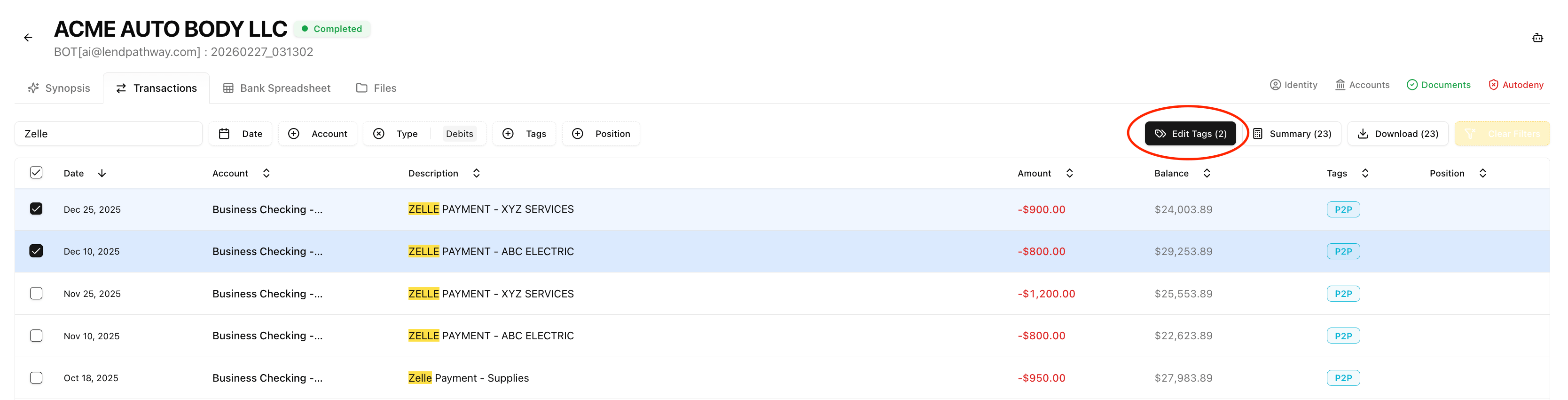
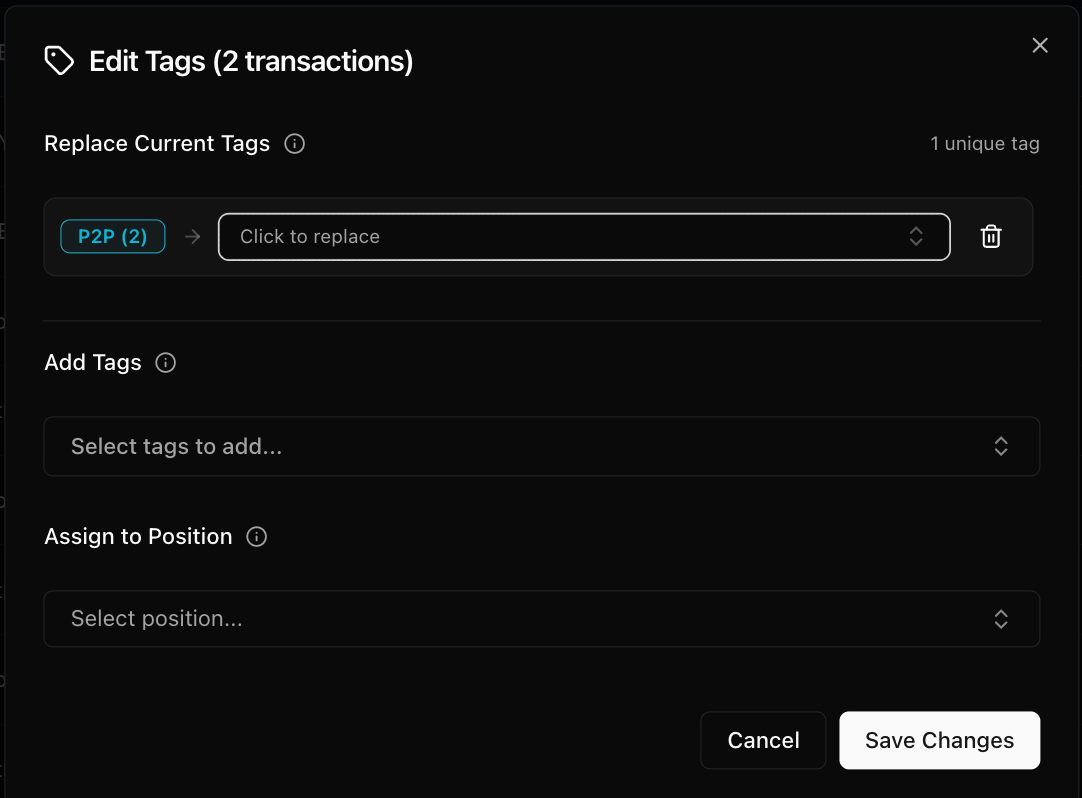
**1. Edit Tags (****)** — Select one or more transactions using the checkboxes, then click **Edit Tags**. This opens a modal titled **"Edit Tags (****)"** with three sections:
**Replace Current Tags**
Lists every unique tag across your selected transactions with a count (e.g. "Merchant Cash Advance (12)"). For each tag you can:
* Click the **arrow slot** to replace it with a different tag (searchable dropdown, grouped into "Loan Types" and "Other Tags")
* Click the **trash icon** to remove it entirely
**Add Tags**
A multi-select dropdown to add one or more new tags to all selected transactions. Tags are searchable.
**Assign to Position**
A dropdown listing all detected debt positions. Select a position to assign all selected transactions to it, or choose **"Unassign from all positions"** to remove the position assignment.
Click **Save Changes** to apply. All changes (tag replacements, additions, removals, and position reassignment) are saved in one action.
***
### **Actions (Right Side of Toolbar)**
Three buttons appear on the right side of the toolbar:
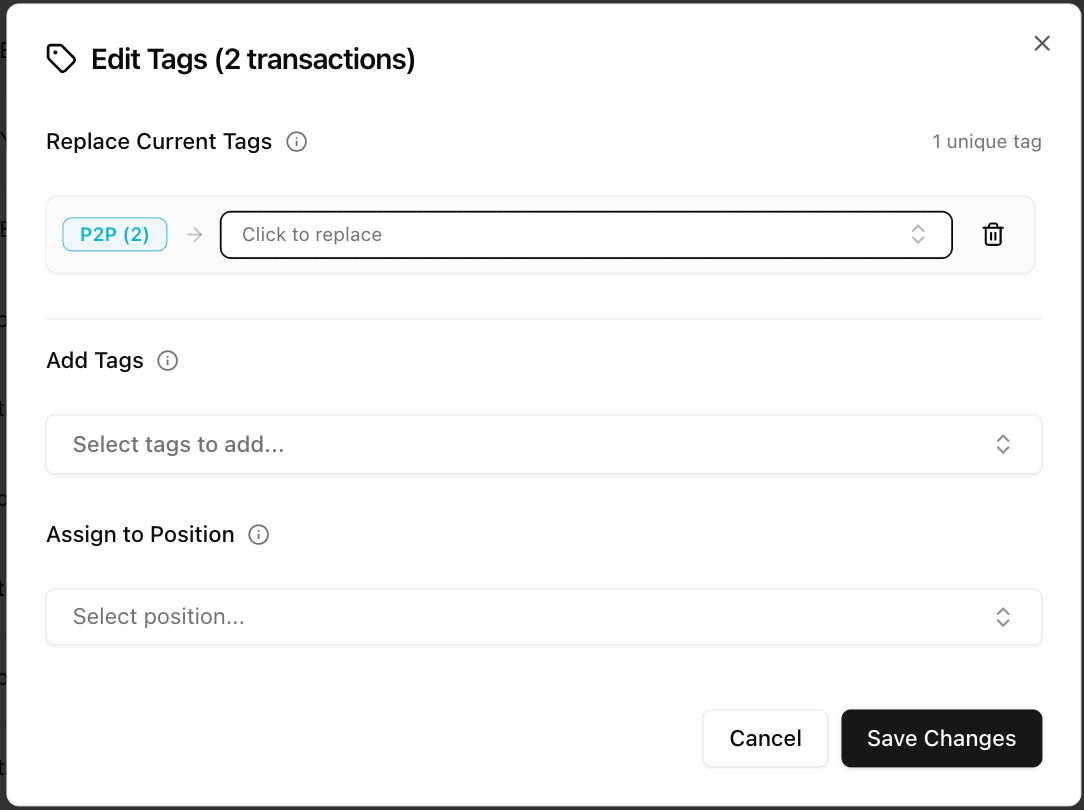
**1. Edit Tags (****)** — Select one or more transactions using the checkboxes, then click **Edit Tags**. This opens a modal titled **"Edit Tags (****)"** with three sections:
**Replace Current Tags**
Lists every unique tag across your selected transactions with a count (e.g. "Merchant Cash Advance (12)"). For each tag you can:
* Click the **arrow slot** to replace it with a different tag (searchable dropdown, grouped into "Loan Types" and "Other Tags")
* Click the **trash icon** to remove it entirely
**Add Tags**
A multi-select dropdown to add one or more new tags to all selected transactions. Tags are searchable.
**Assign to Position**
A dropdown listing all detected debt positions. Select a position to assign all selected transactions to it, or choose **"Unassign from all positions"** to remove the position assignment.
Click **Save Changes** to apply. All changes (tag replacements, additions, removals, and position reassignment) are saved in one action.
 **2. Summary (****)** — opens the Filtered Transactions Summary modal showing a quick breakdown of whatever transactions are currently visible (after filters). Displays:
* **Total Credits** — sum and count
* **Total Debits** — sum and count
* **Net Amount** — credits minus debits
* **Date Range** — first to last date and number of days
The number in the button reflects how many transactions match your current filters.
**3. Download (****)** — exports the currently filtered transactions as a **CSV** file with columns: Date, Description, Type, Amount, Balance, Tags, Account, and Document ID. The number shows how many rows will be exported.
**2. Summary (****)** — opens the Filtered Transactions Summary modal showing a quick breakdown of whatever transactions are currently visible (after filters). Displays:
* **Total Credits** — sum and count
* **Total Debits** — sum and count
* **Net Amount** — credits minus debits
* **Date Range** — first to last date and number of days
The number in the button reflects how many transactions match your current filters.
**3. Download (****)** — exports the currently filtered transactions as a **CSV** file with columns: Date, Description, Type, Amount, Balance, Tags, Account, and Document ID. The number shows how many rows will be exported.
 ***
### **Tag Reference (Global)**
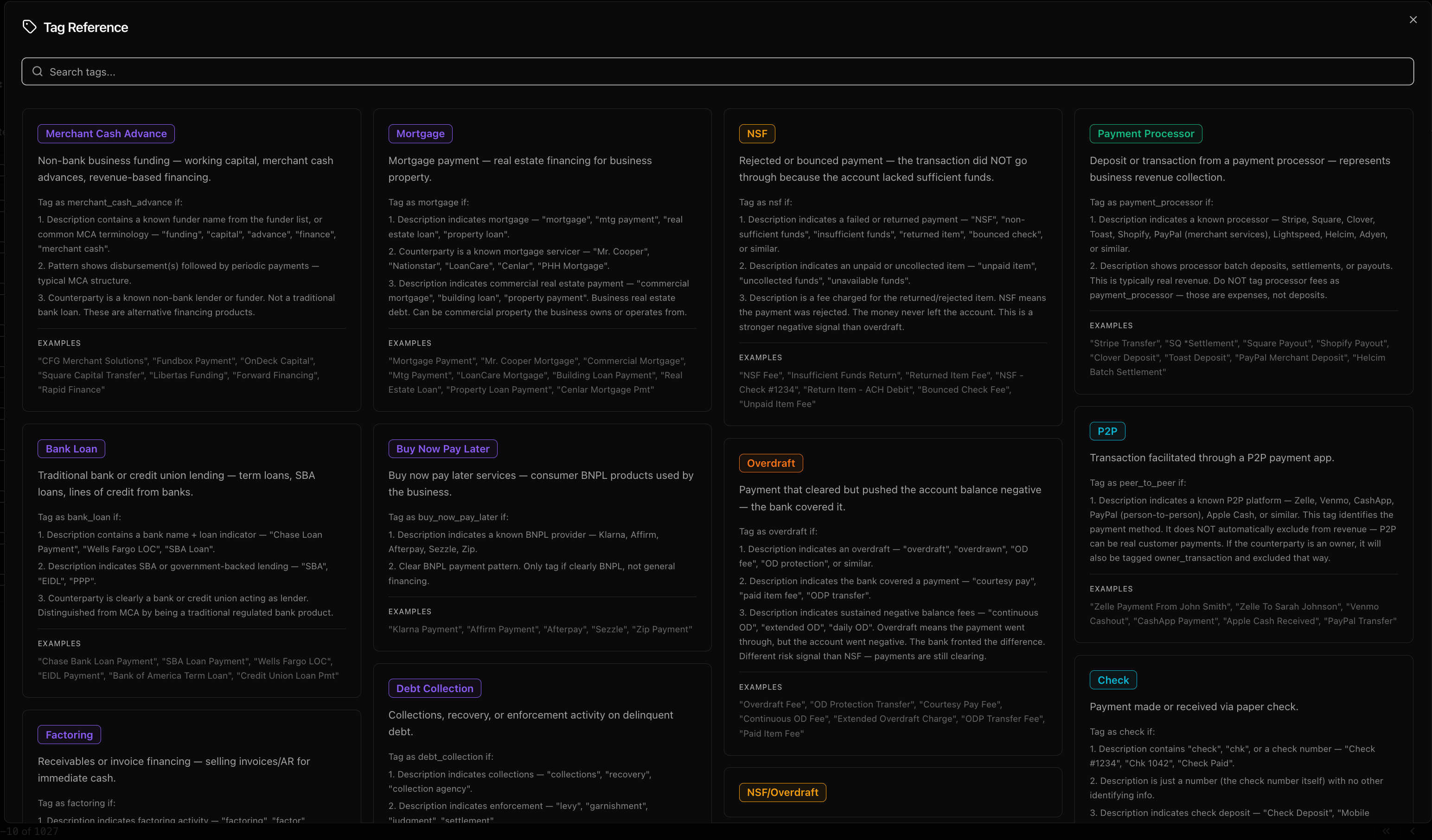
In the **top-right corner of the app header** (visible on every page, not just Transactions), there's a **tag icon** button. Clicking it opens the **Tag Reference** modal — a full gallery of every tag in your org's configuration.
Each tag card shows:
* **Tag name** with its color
* **Description** — what the tag means and the rules for when it's applied
* **Examples** — sample transaction descriptions that would receive this tag
You can **search** tags by name, description, or example text. Tags are organized with loan types first, then other tags.
This is useful when you're reviewing transactions and want to understand what a specific tag means or why a transaction was tagged a certain way.
***
### **Tag Reference (Global)**
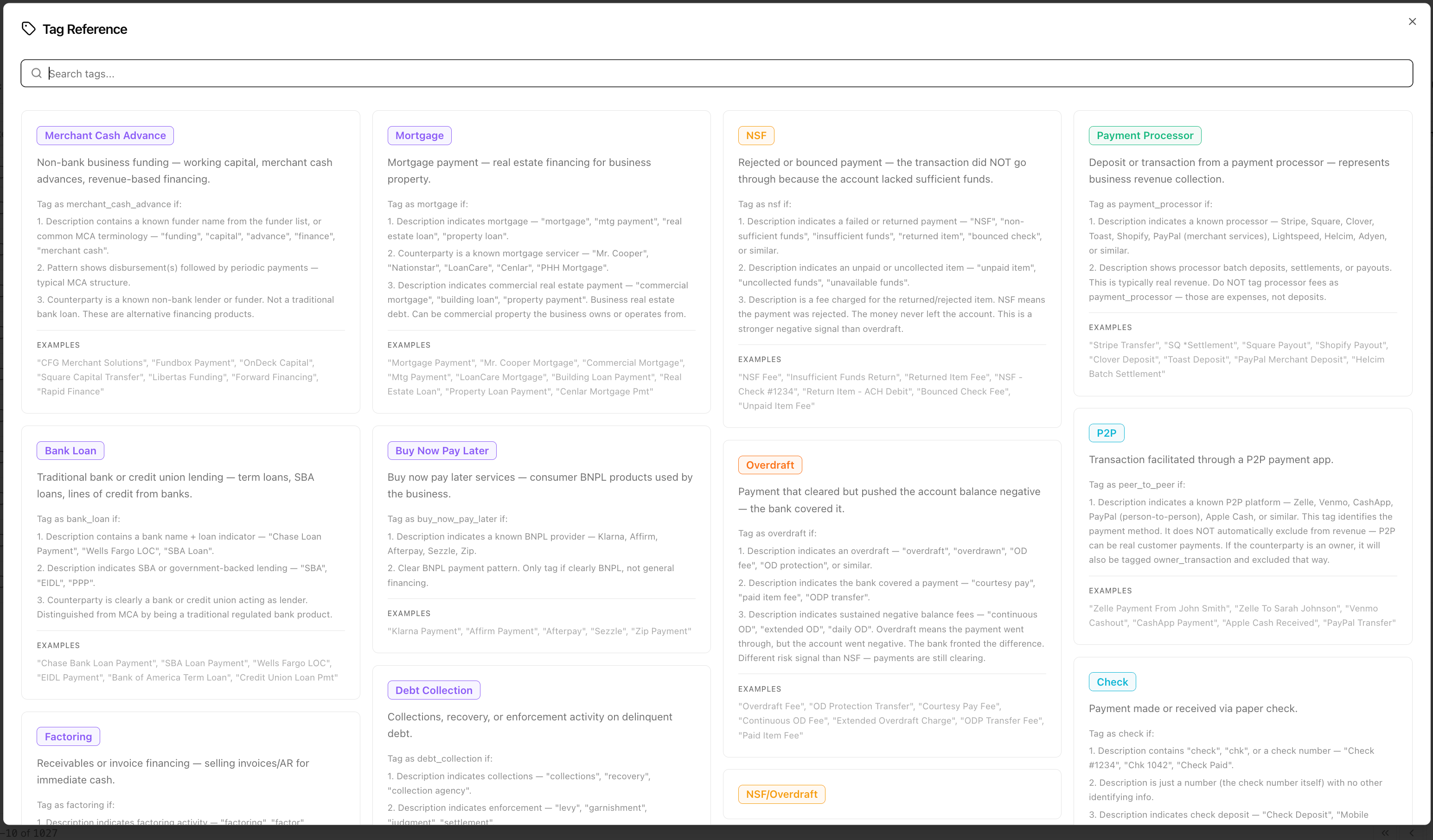
In the **top-right corner of the app header** (visible on every page, not just Transactions), there's a **tag icon** button. Clicking it opens the **Tag Reference** modal — a full gallery of every tag in your org's configuration.
Each tag card shows:
* **Tag name** with its color
* **Description** — what the tag means and the rules for when it's applied
* **Examples** — sample transaction descriptions that would receive this tag
You can **search** tags by name, description, or example text. Tags are organized with loan types first, then other tags.
This is useful when you're reviewing transactions and want to understand what a specific tag means or why a transaction was tagged a certain way.
 # Bank Spreadsheet Tab
> The Bank Spreadsheet tab shows an auto-generated Excel workbook built from the parsed bank statement data. It opens directly in the browser — no download required.
This tab only appears if your org has the Bank Spreadsheet enabled in settings.
***
### **Template Selector**
A **template selector** will appear in the floating toolbar at the bottom of the screen. Click it to switch between templates.
For bank statements, the available templates are:
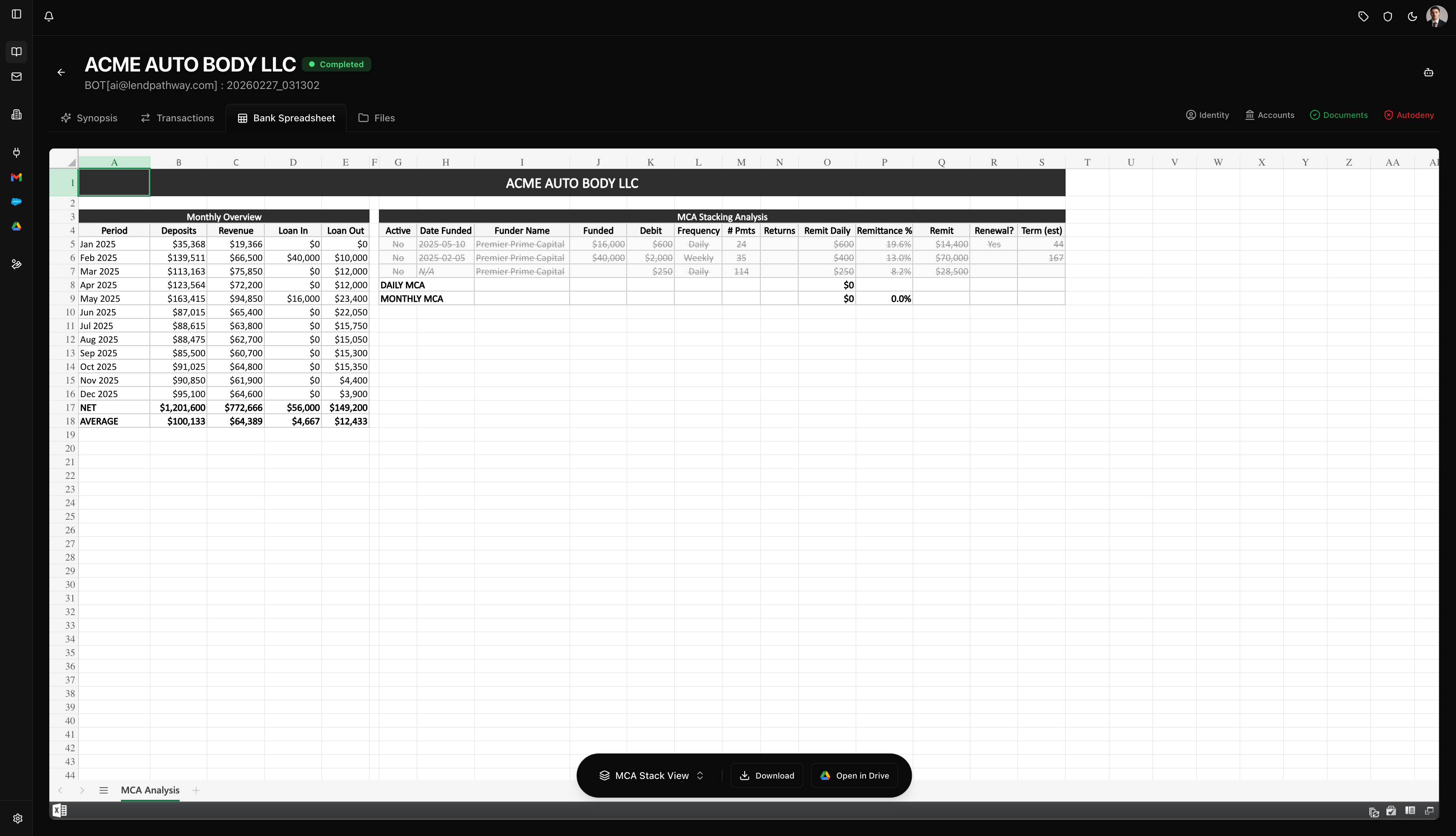
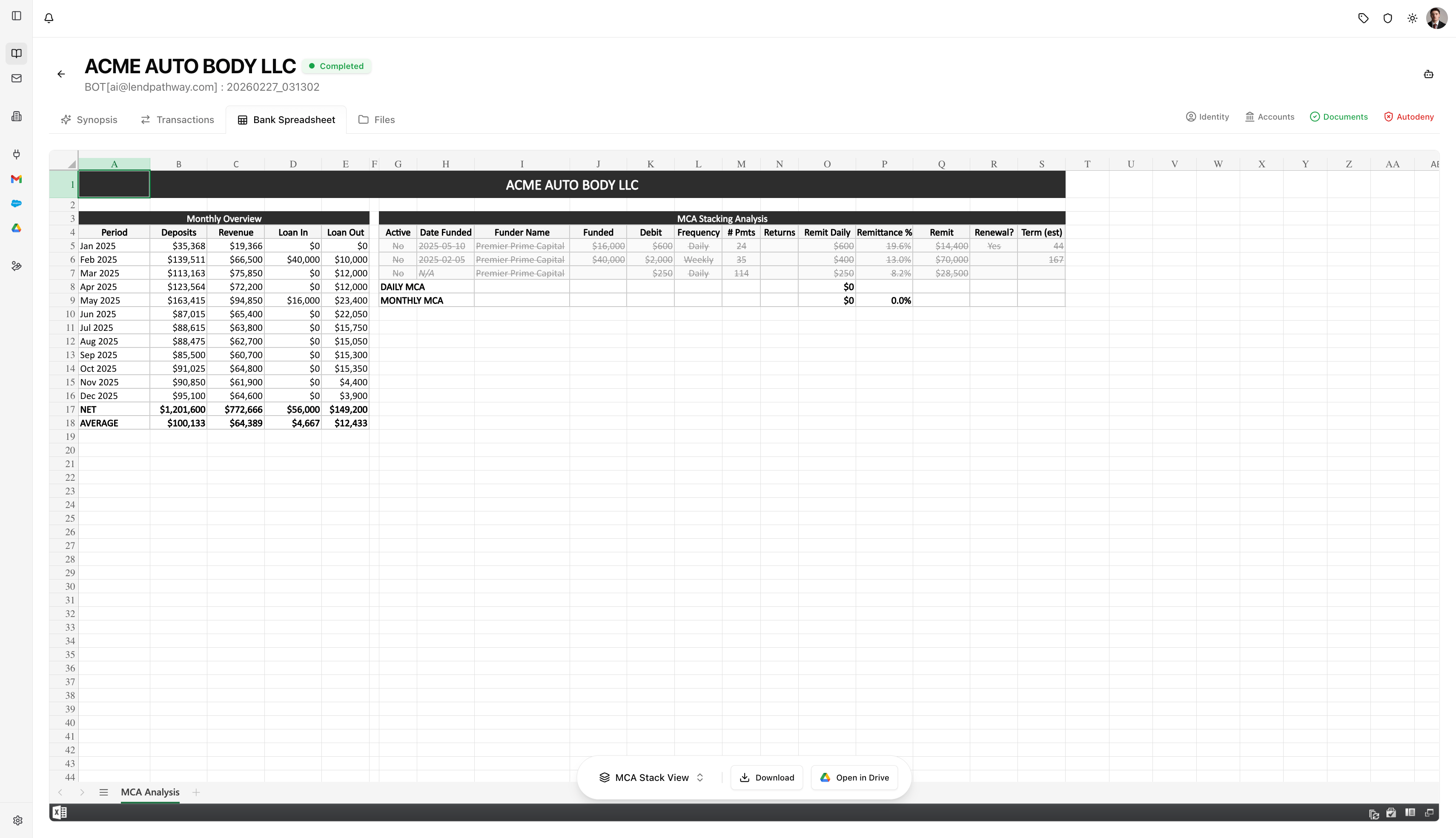
**1. MCA Stack View** — One row per payment schedule across all MCA positions: funder, amount funded, frequency, number of payments, returns, remit daily, remittance %, and active/renewal status.
# Bank Spreadsheet Tab
> The Bank Spreadsheet tab shows an auto-generated Excel workbook built from the parsed bank statement data. It opens directly in the browser — no download required.
This tab only appears if your org has the Bank Spreadsheet enabled in settings.
***
### **Template Selector**
A **template selector** will appear in the floating toolbar at the bottom of the screen. Click it to switch between templates.
For bank statements, the available templates are:
**1. MCA Stack View** — One row per payment schedule across all MCA positions: funder, amount funded, frequency, number of payments, returns, remit daily, remittance %, and active/renewal status.
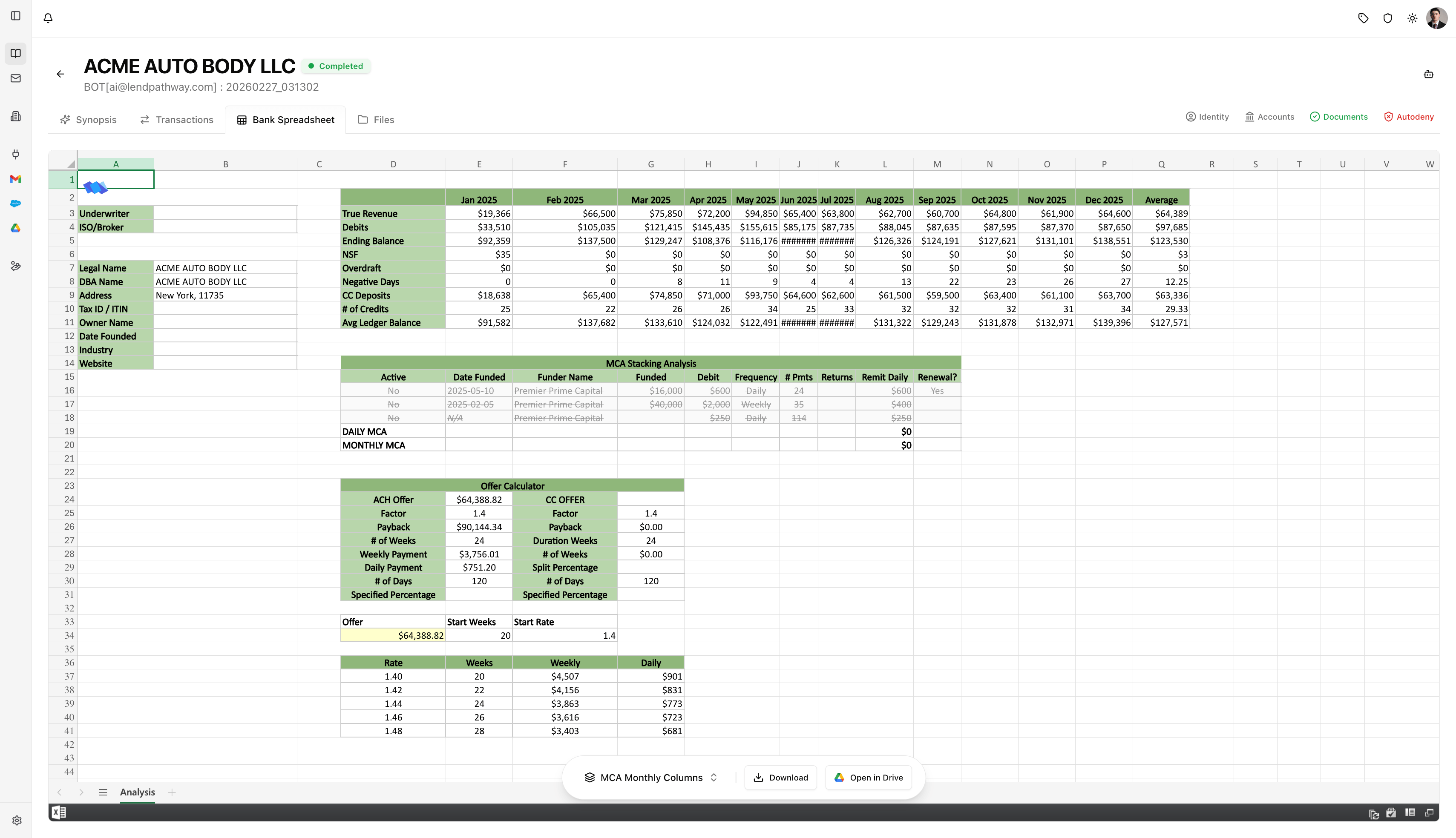
 **2. Monthly Columns** — Monthly deposit totals, true revenue, DTI metrics, ending balance, NSF, negative days, CC deposits, number of credits, average ledger balance — broken out by month. Also includes business identity fields (legal name, DBA, address, Tax ID, owner name), an MCA Stacking Analysis section, and an Offer Calculator.

 When you select a template, it becomes your **default** for bank spreadsheets going forward. The spreadsheet regenerates automatically with the new layout.
***
### **Toolbar Actions**
The floating toolbar sits at the bottom center of the spreadsheet view and has three controls:
**1. Template selector** — Switch between spreadsheet layouts (described above).
**2. Download** — Downloads the spreadsheet as an **.xlsx** file to your computer. Ready to send to a funder or attach to a file.
**3. Open in Drive** — Opens the spreadsheet in **Google Sheets** in a new tab. Requires the Google Drive integration to be connected (see Integrations). Creates a copy in your Google Drive that you can edit, share, or collaborate on.
When you select a template, it becomes your **default** for bank spreadsheets going forward. The spreadsheet regenerates automatically with the new layout.
***
### **Toolbar Actions**
The floating toolbar sits at the bottom center of the spreadsheet view and has three controls:
**1. Template selector** — Switch between spreadsheet layouts (described above).
**2. Download** — Downloads the spreadsheet as an **.xlsx** file to your computer. Ready to send to a funder or attach to a file.
**3. Open in Drive** — Opens the spreadsheet in **Google Sheets** in a new tab. Requires the Google Drive integration to be connected (see Integrations). Creates a copy in your Google Drive that you can edit, share, or collaborate on.

 # Files Tab
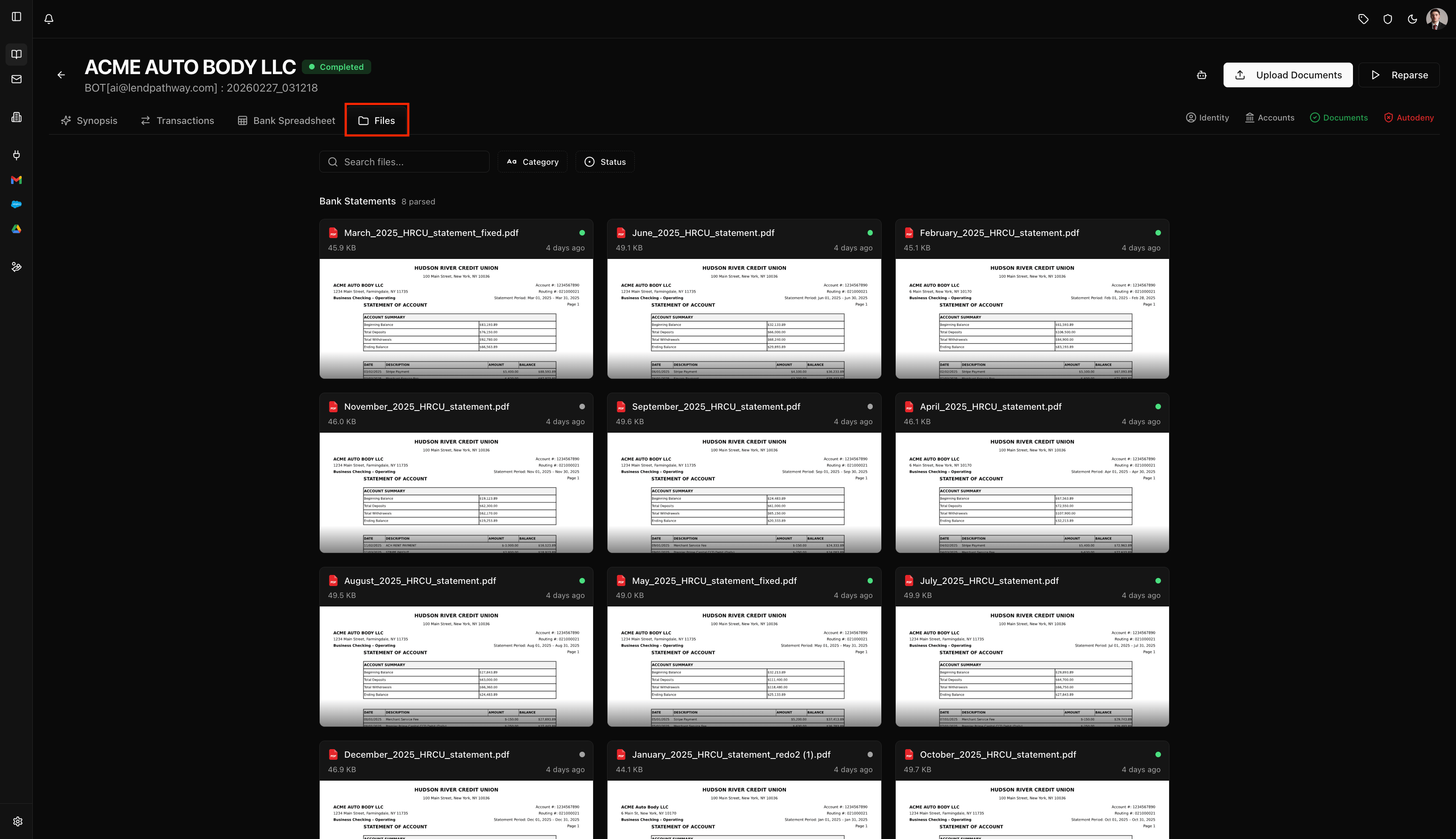
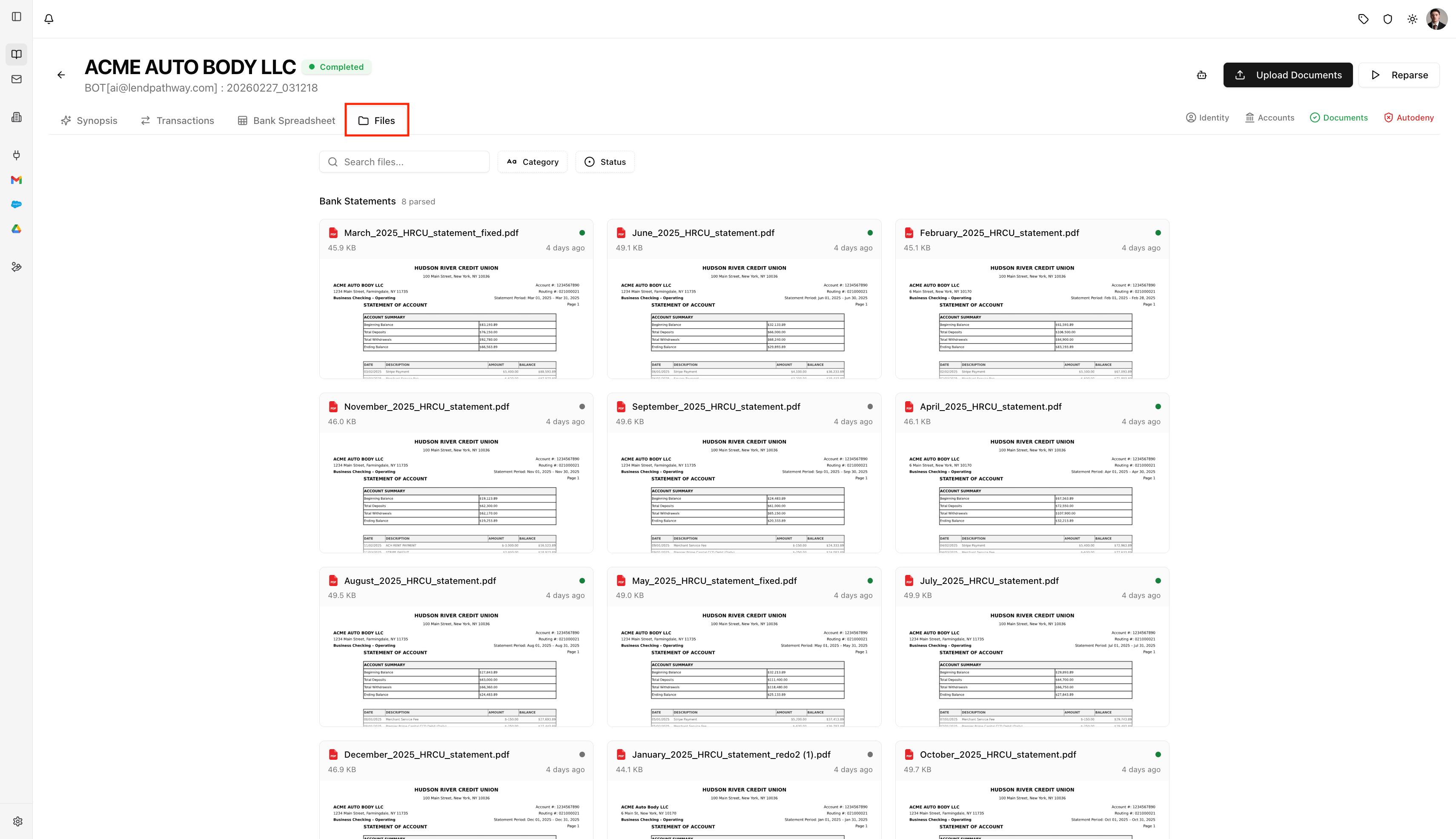
> The Files tab shows all uploaded documents in a visual grid with thumbnails. This is where you manage, preview, download, and exclude/include individual files.
The Files tab is always available, regardless of what document types were uploaded.
# Files Tab
> The Files tab shows all uploaded documents in a visual grid with thumbnails. This is where you manage, preview, download, and exclude/include individual files.
The Files tab is always available, regardless of what document types were uploaded.
 ***
### **Document Cards**
Each file is a card with a **thumbnail preview**, **filename**, **status dot** (green = parsed, red = failed), **file size**, and **upload time**.
* **Click** to select (for bulk actions). **Shift+click** to select a range.
* **Double-click** to open a full PDF preview modal.
Once parsed, files are automatically **grouped by category** (Bank Statements, Credit Reports, Tax Forms, Loan Applications, etc.) with counts.
***
### **Toolbar**
**1. Search** — Filter by filename.
**2. File Type** — Filter by extension (PDF, XLSX, etc.). Only shows when multiple types exist.
**3. Category** — Filter by document type (Bank Statement, Credit Report, etc.). Only shows after classification.
**4. Status** — Filter by Parsed, Failed, Processing, New.
***
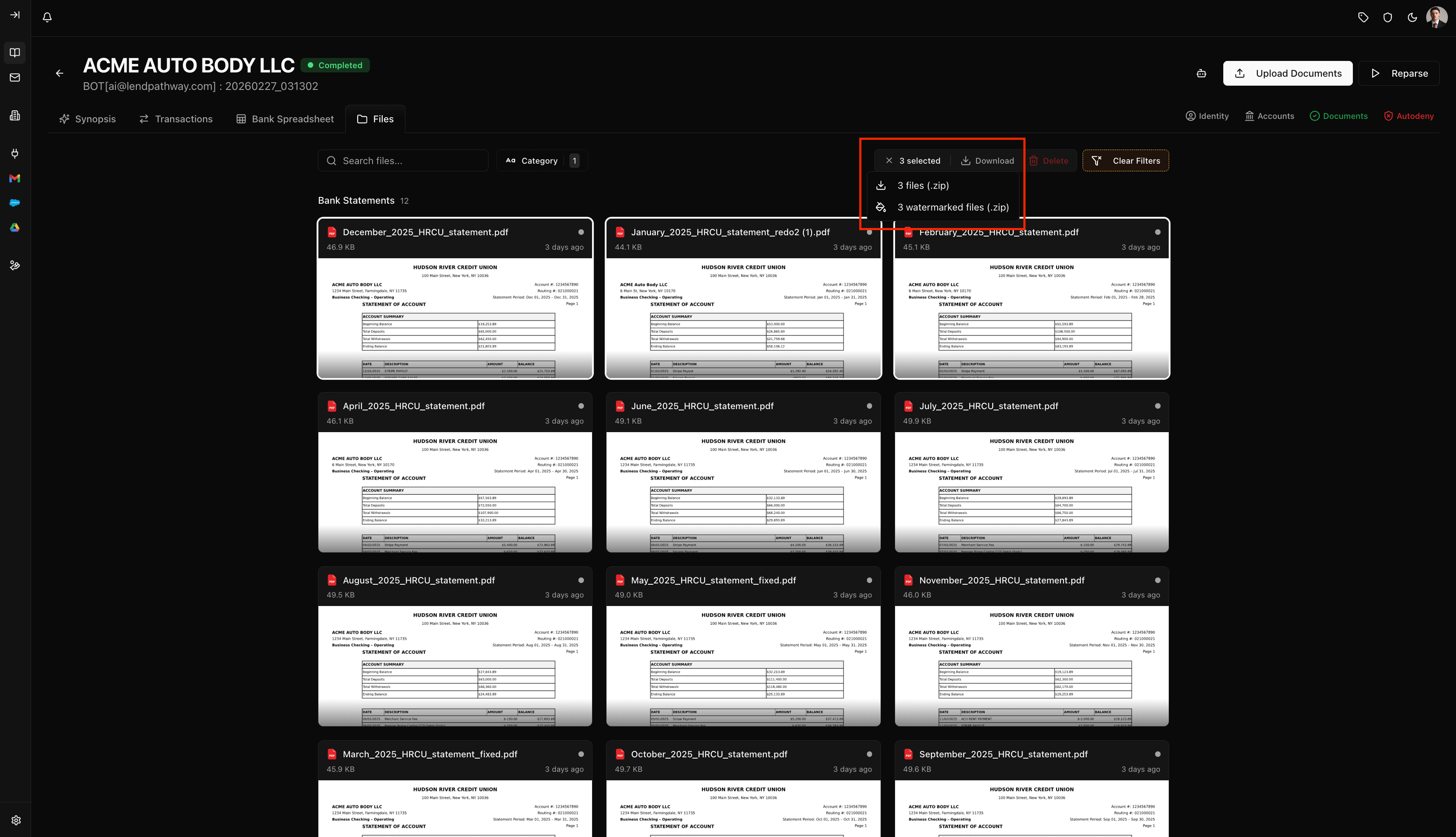
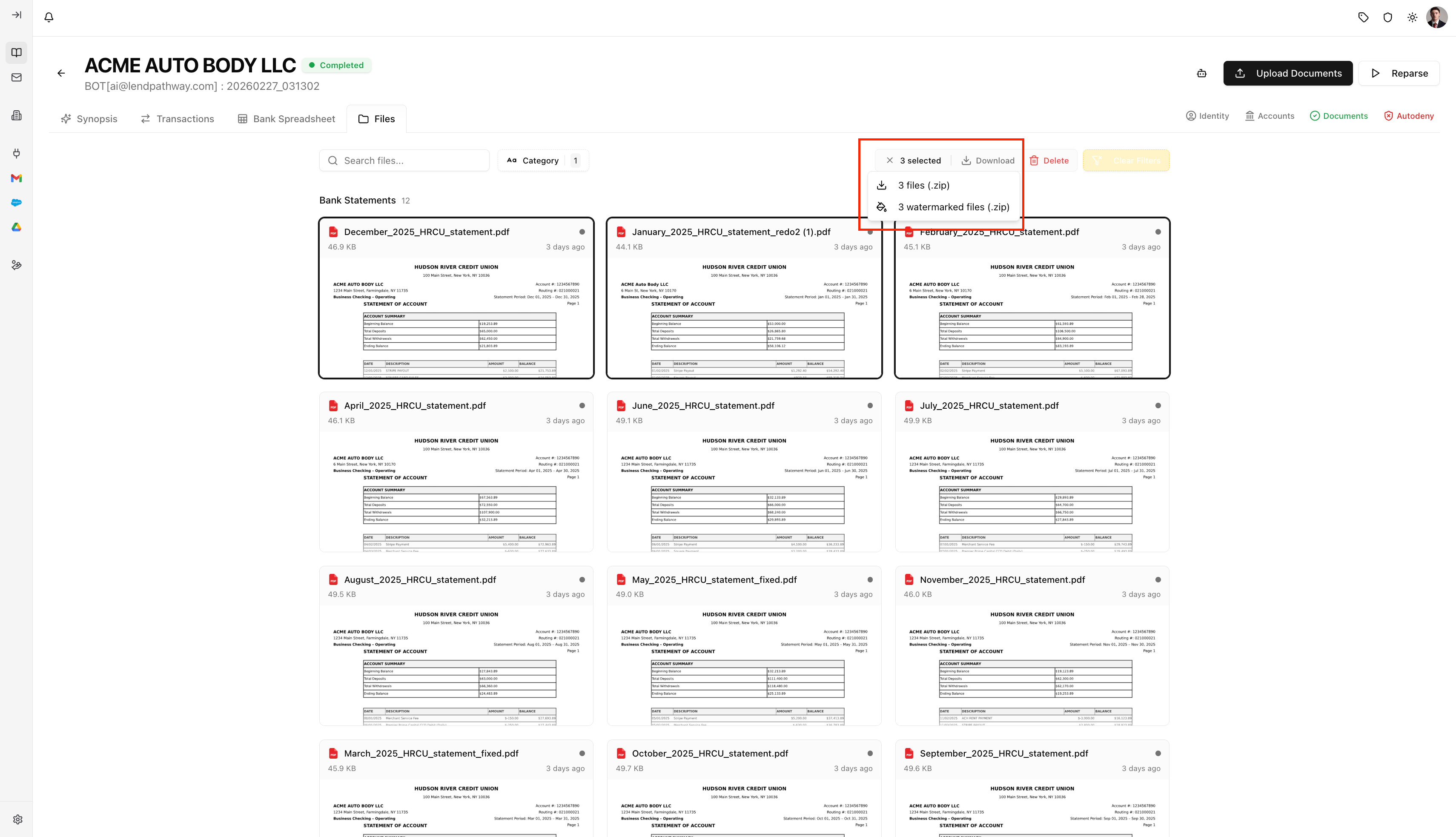
### **Selecting & Bulk Actions**
Select one or more cards and a toolbar appears:
**1. Download** — Two options: plain zip or **watermarked** zip (applies a watermark to each file).
**2. Show / Hide** — Exclude or re-include selected documents from analytics. Excluded documents appear dimmed with an X overlay. Same as toggling the eye icon from the Documents info badge.
**3. Delete** — Remove selected files from the book.
Press **Escape** to clear selection.
***
### **Document Cards**
Each file is a card with a **thumbnail preview**, **filename**, **status dot** (green = parsed, red = failed), **file size**, and **upload time**.
* **Click** to select (for bulk actions). **Shift+click** to select a range.
* **Double-click** to open a full PDF preview modal.
Once parsed, files are automatically **grouped by category** (Bank Statements, Credit Reports, Tax Forms, Loan Applications, etc.) with counts.
***
### **Toolbar**
**1. Search** — Filter by filename.
**2. File Type** — Filter by extension (PDF, XLSX, etc.). Only shows when multiple types exist.
**3. Category** — Filter by document type (Bank Statement, Credit Report, etc.). Only shows after classification.
**4. Status** — Filter by Parsed, Failed, Processing, New.
***
### **Selecting & Bulk Actions**
Select one or more cards and a toolbar appears:
**1. Download** — Two options: plain zip or **watermarked** zip (applies a watermark to each file).
**2. Show / Hide** — Exclude or re-include selected documents from analytics. Excluded documents appear dimmed with an X overlay. Same as toggling the eye icon from the Documents info badge.
**3. Delete** — Remove selected files from the book.
Press **Escape** to clear selection.