> ## Documentation Index
> Fetch the complete documentation index at: https://docs.lendpathway.com/llms.txt
> Use this file to discover all available pages before exploring further.
# Chat engine
> An agent with a compute sandbox, connected to your data.
> Every Book in Pathway has its own AI agent, Jack. It runs in a Linux sandbox with Python, a filesystem, and network access, and it works with your data using your exact permissions. This page explains how it works, from the context it starts with to the loop it runs.
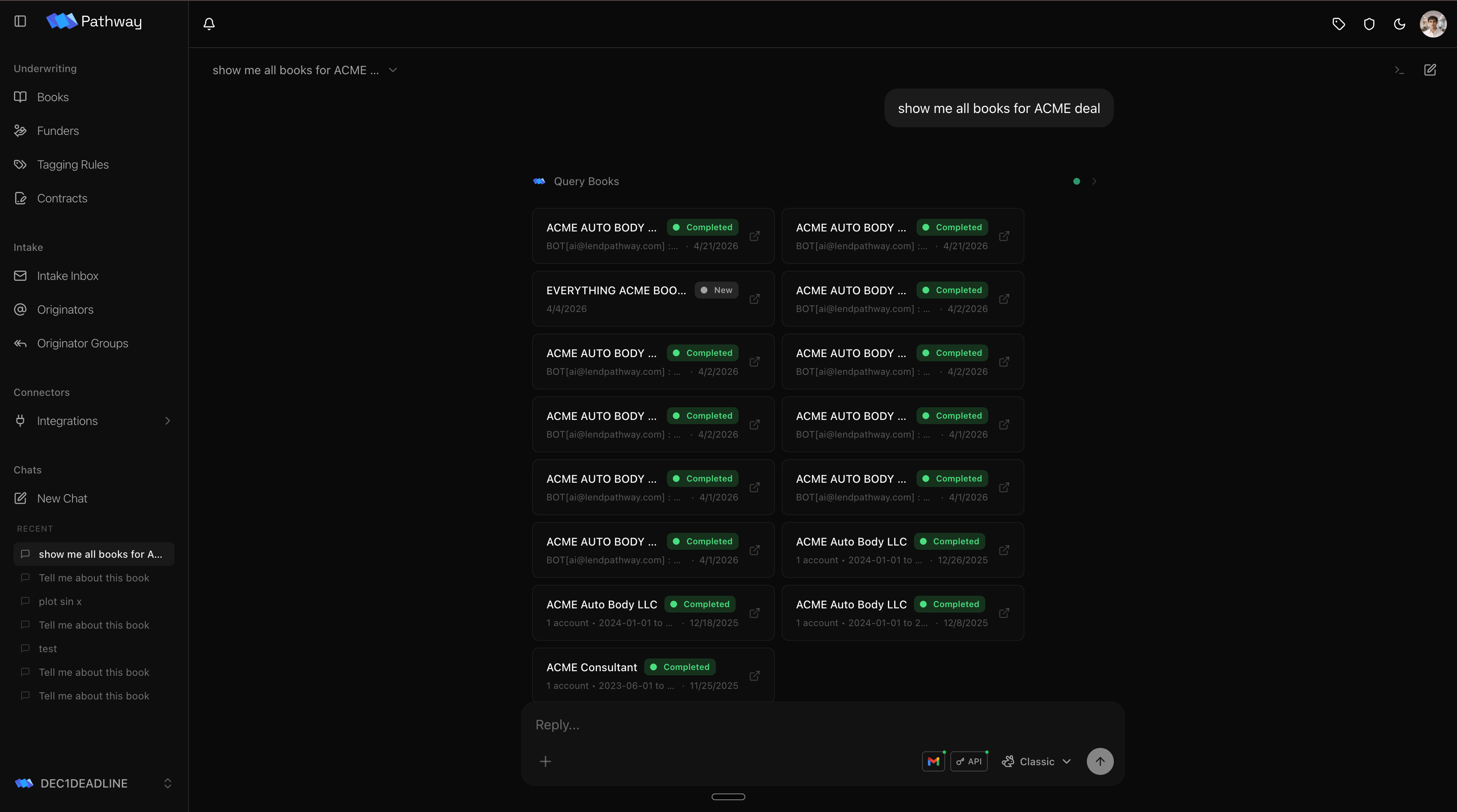 The parser turns documents into a structured Book. Jack is how you act on that structure. Ask a question across the data, build a chart or a spreadsheet, pull in an email, reconcile two sources, or run an analysis no fixed report covers.
The whole design follows from one decision: give the agent the same data access as the user, then give it a real computer. Scoped access keeps it safe. The computer makes it capable. Everything else on this page is detail underneath those two ideas.
## Using the chat
Open a new chat or any existing one. Three controls sit around the composer: what the agent can reach, which model runs it, and how to find past chats.
### Connectors
The **+** button opens the connector menu. Each toggle grants the agent one capability for this chat, and grants are per chat, so the same agent can be wired differently each time. Flip on Books and it can read your deals; add Gmail and it can read your inbox; add the Pathway API and it can query across everything you can access.
Turning a connector on does two things: it hands the agent the tools for that surface and adds the instructions for using it to the agent's context. Keep the set tight. The agent works best when it carries only what the task needs.
The parser turns documents into a structured Book. Jack is how you act on that structure. Ask a question across the data, build a chart or a spreadsheet, pull in an email, reconcile two sources, or run an analysis no fixed report covers.
The whole design follows from one decision: give the agent the same data access as the user, then give it a real computer. Scoped access keeps it safe. The computer makes it capable. Everything else on this page is detail underneath those two ideas.
## Using the chat
Open a new chat or any existing one. Three controls sit around the composer: what the agent can reach, which model runs it, and how to find past chats.
### Connectors
The **+** button opens the connector menu. Each toggle grants the agent one capability for this chat, and grants are per chat, so the same agent can be wired differently each time. Flip on Books and it can read your deals; add Gmail and it can read your inbox; add the Pathway API and it can query across everything you can access.
Turning a connector on does two things: it hands the agent the tools for that surface and adds the instructions for using it to the agent's context. Keep the set tight. The agent works best when it carries only what the task needs.
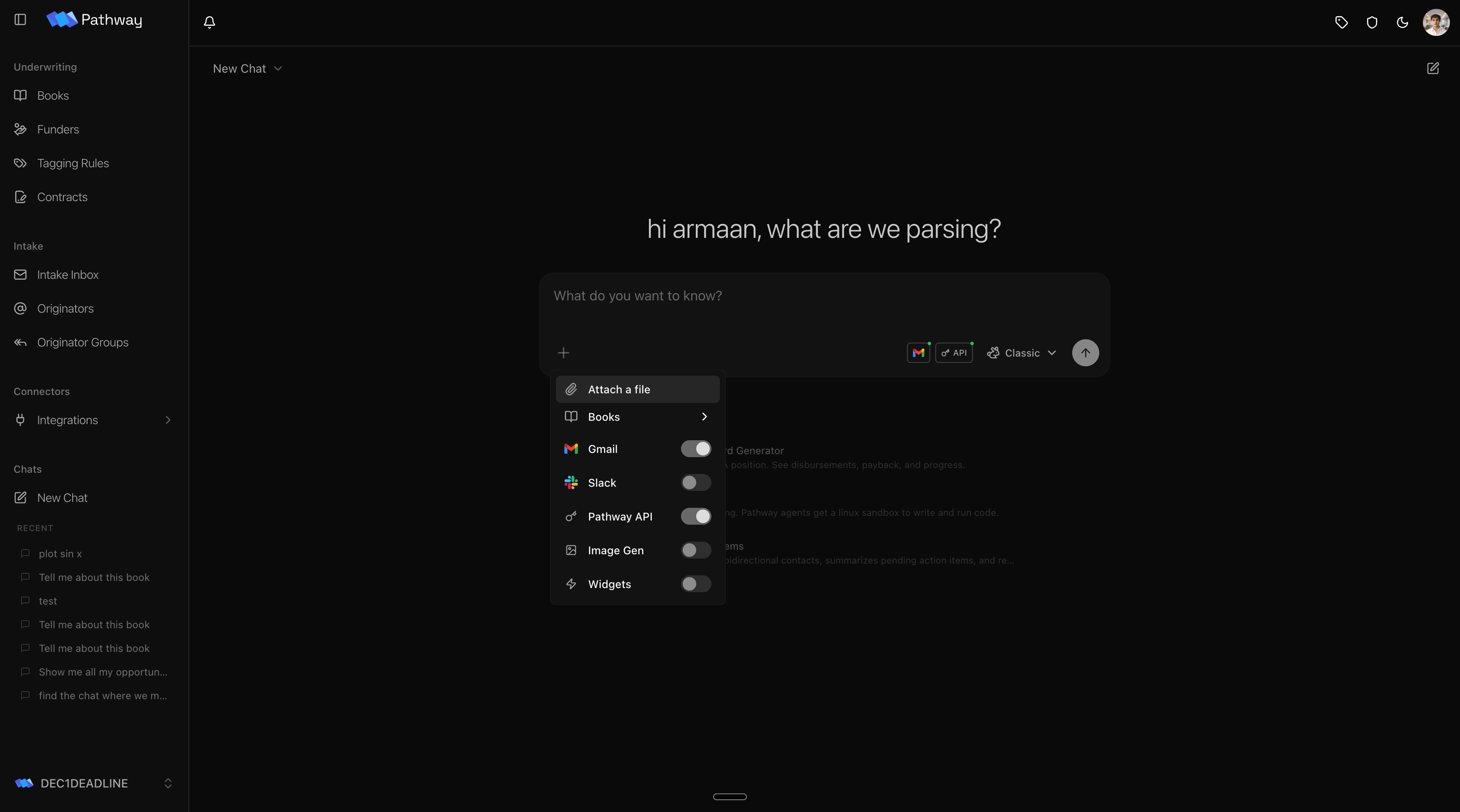 | Toggle | What it gives the agent |
| :---------------- | :--------------------------------------------------------------------------------------------------------------- |
| **Attach a file** | Upload a CSV, PDF, image, or spreadsheet into the chat for the agent to read |
| **Books** | Scope the chat to one or more Books so the agent reads their parsed data and analytics |
| **Gmail** | Read the connected inbox through the read-only proxy, plus the approval-gated `send_email` tool |
| **Slack** | Post messages to the org's connected Slack channels |
| **Pathway API** | The read-only platform API: query Books, documents, analytics, funders, and more across what the user can access |
| **Image Gen** | Generate images from a prompt |
| **Widgets** | Render interactive UI back into the chat |
Connectors map directly to the context the agent receives. Each one you enable appends its instructions to the system prompt, which is why a focused set of toggles keeps the agent sharp. See [What the model sees](#what-the-model-sees).
### Chatting about a Book
Open a chat from inside a Book and that Book is attached automatically. The agent starts scoped to the deal in front of you, so you can ask about it right away.
| Toggle | What it gives the agent |
| :---------------- | :--------------------------------------------------------------------------------------------------------------- |
| **Attach a file** | Upload a CSV, PDF, image, or spreadsheet into the chat for the agent to read |
| **Books** | Scope the chat to one or more Books so the agent reads their parsed data and analytics |
| **Gmail** | Read the connected inbox through the read-only proxy, plus the approval-gated `send_email` tool |
| **Slack** | Post messages to the org's connected Slack channels |
| **Pathway API** | The read-only platform API: query Books, documents, analytics, funders, and more across what the user can access |
| **Image Gen** | Generate images from a prompt |
| **Widgets** | Render interactive UI back into the chat |
Connectors map directly to the context the agent receives. Each one you enable appends its instructions to the system prompt, which is why a focused set of toggles keeps the agent sharp. See [What the model sees](#what-the-model-sees).
### Chatting about a Book
Open a chat from inside a Book and that Book is attached automatically. The agent starts scoped to the deal in front of you, so you can ask about it right away.
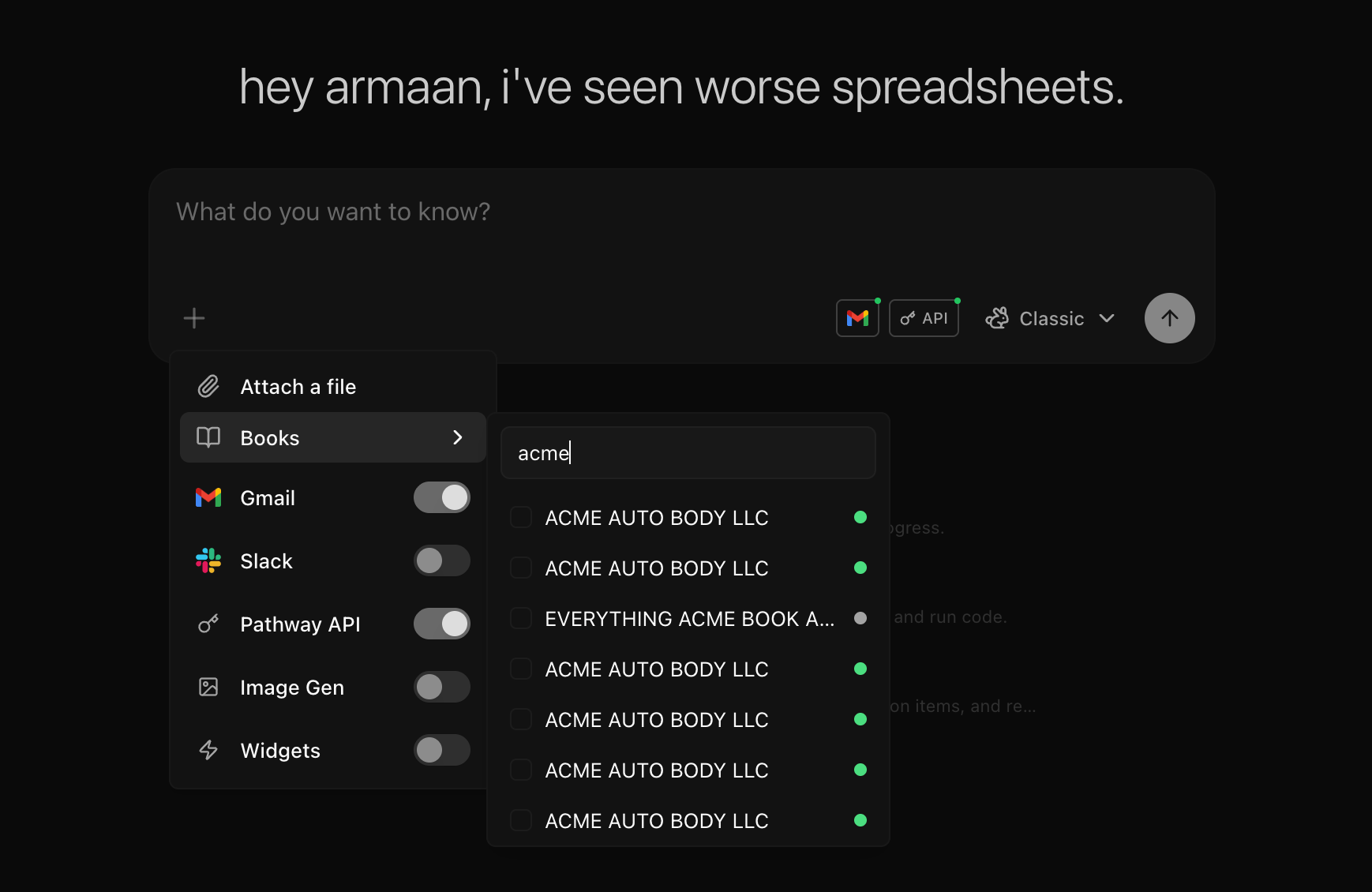
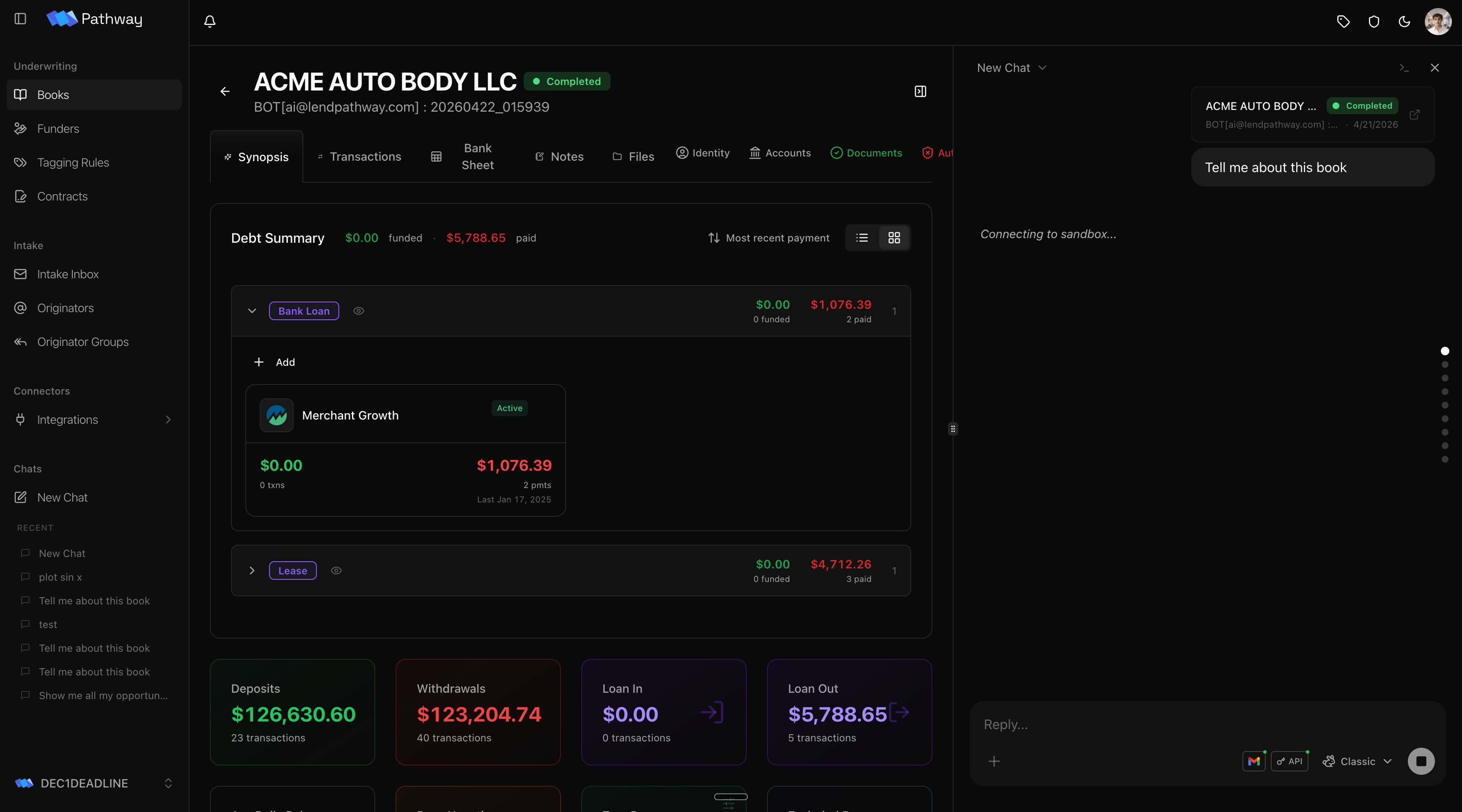 You can also attach Books to any chat. Open **Books** in the connector menu, search, and check the ones you want. Pull in several at once to compare deals or ask across a set.
 Inline `@` references to pull a Book into the middle of a message are coming soon.
### Model
The model selector sets which model runs the chat. Pathway runs the agent on Gemini across the board, by choice, and exposes the current lineup as three tiers.
Inline `@` references to pull a Book into the middle of a message are coming soon.
### Model
The model selector sets which model runs the chat. Pathway runs the agent on Gemini across the board, by choice, and exposes the current lineup as three tiers.
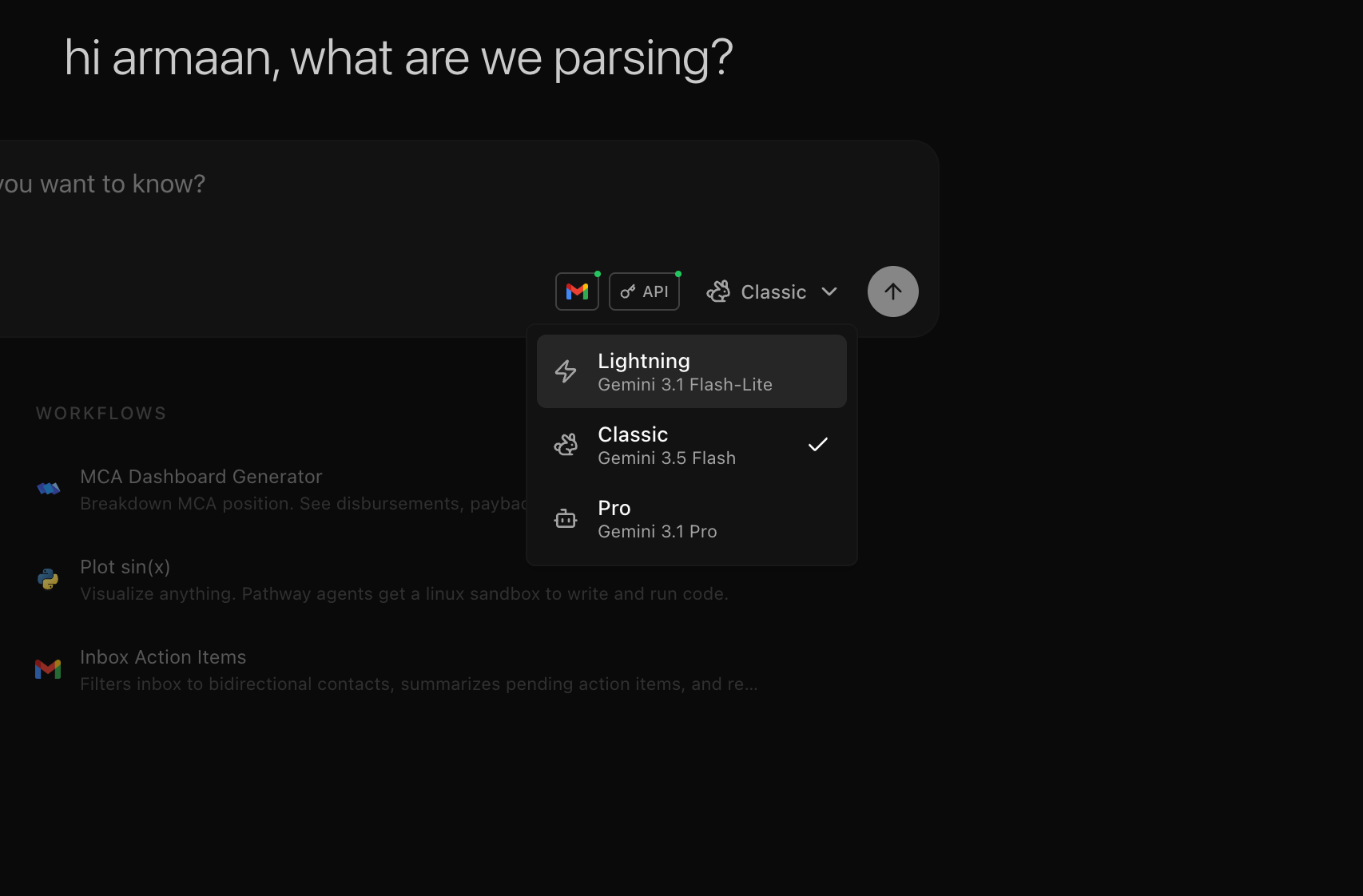 | Tier | Model | Use it for |
| :------------ | :-------------------- | :-------------------------------------------- |
| **Lightning** | Gemini 3.1 Flash-Lite | Fast, lightweight questions and quick edits |
| **Classic** | Gemini 3.5 Flash | The default balance of speed and depth |
| **Pro** | Gemini 3.1 Pro | The hardest reasoning and multi-step analysis |
### Find past chats
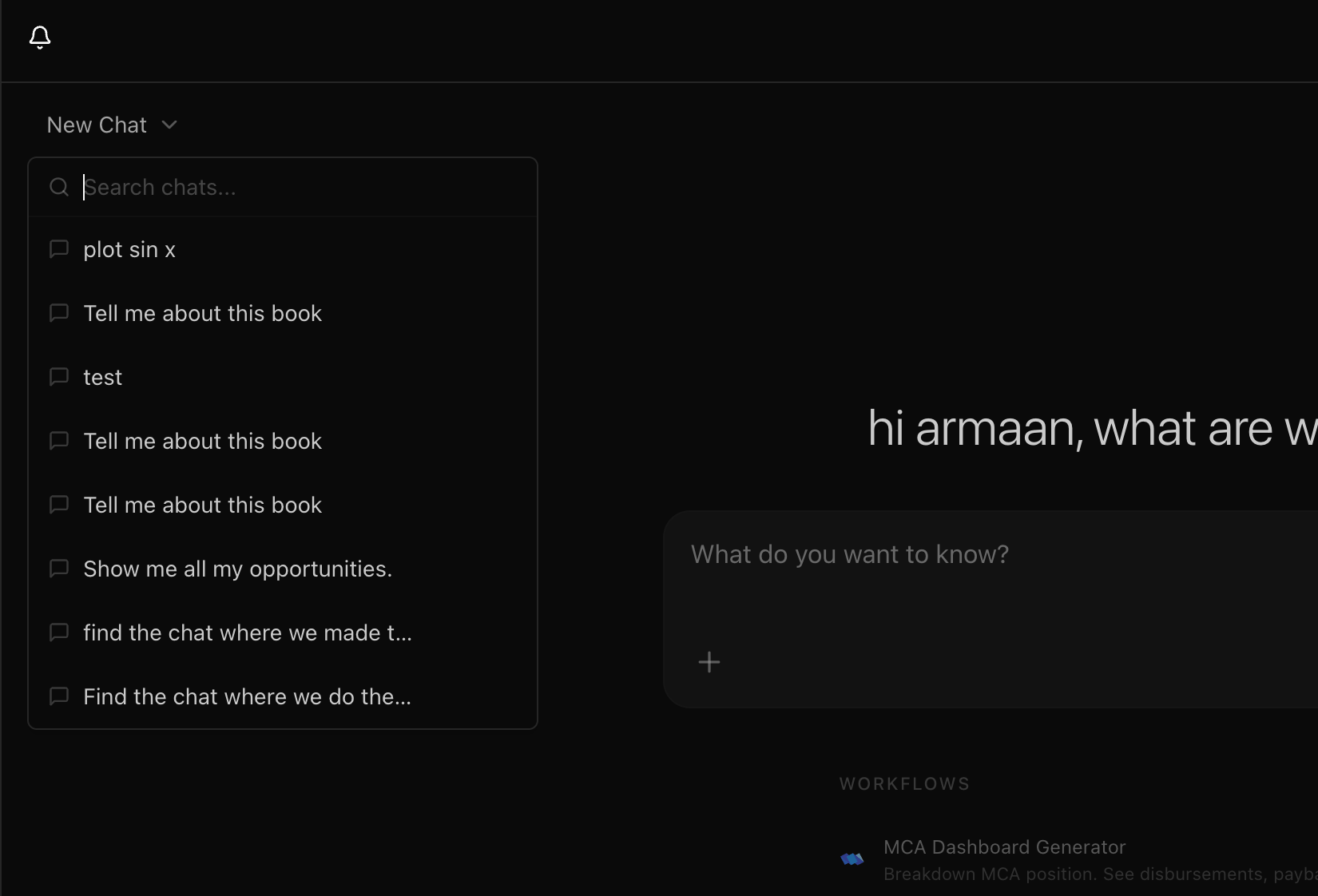
Open the **New Chat** dropdown to search and reopen earlier chats. The search box filters your history by title.
| Tier | Model | Use it for |
| :------------ | :-------------------- | :-------------------------------------------- |
| **Lightning** | Gemini 3.1 Flash-Lite | Fast, lightweight questions and quick edits |
| **Classic** | Gemini 3.5 Flash | The default balance of speed and depth |
| **Pro** | Gemini 3.1 Pro | The hardest reasoning and multi-step analysis |
### Find past chats
Open the **New Chat** dropdown to search and reopen earlier chats. The search box filters your history by title.
 ## What you can do
Total deposits, true revenue, debt-to-income, a single transaction, a counterparty breakdown. The agent computes from the source data, not from a summary.
Ask for a revenue trend, a cash flow heatmap, a custom Excel export, or an HTML report. The output renders inline in the chat.
Connect Gmail and the agent can search the inbox, read threads, download attachments, and compare them against Book data. Sending requires your approval.
Drop in a CSV, PDF, image, or spreadsheet. The agent reads it, parses it, and cross-references it against the Book.
Chats don't have to be attached to a Book. A standalone chat gets the same sandbox and tools, just without a Book to read from. Use them for general computation or analysis.
## How it works
Three pieces make up the engine.
The agent reads only what the current user can read. Its permissions are the user's permissions.
A Linux workspace where the agent runs code, writes files, and keeps its working memory.
Any file the agent produces can be saved as an artifact and shown back in the chat.
A turn runs as a loop over those pieces. You send a message, the model thinks, calls a tool, reads the result, and repeats until it has an answer.
```mermaid theme={null}
flowchart LR
U([You]) --> M(Model)
subgraph loop [agent loop]
direction LR
M -->|tool call| T(Run tool)
T -->|result| M
end
M -->|done| R([Answer])
classDef endpoint fill:#18181B,stroke:#18181B,color:#fff,rx:8,ry:8;
classDef node fill:#F7F5F3,stroke:#D4D4D8,color:#18181B,rx:8,ry:8;
class U,R endpoint;
class M,T node;
style loop fill:none,stroke:#D4D4D8,stroke-dasharray:4 4,color:#71717A;
```
A tool call executes, mostly against the sandbox, its result feeds back in, and the model decides what to do next. The loop continues until the model responds with text only or hits the round limit. Text and tool calls stream to the screen as they happen, and because the filesystem persists across the whole turn, each step builds on the last.
The rest of this page walks through the parts: the context the model starts with, the sandbox it works in, the tools it holds, and how it reaches your data.
## What the model sees
Before any tool runs, the backend assembles the context for the turn. It is built fresh each time, in a fixed order.
The current date and time, and a line identifying the user and org by name and ID. This grounds the agent in who it is acting for.
The core system prompt: how to use the sandbox, the tool conventions, and the rules for sharing files and computing instead of guessing.
One line per skill, name and description. The full text is pulled on demand with `read_skill`.
A section is appended for each capability the chat has enabled. Each one teaches the agent how to use that surface.
Every prior message, tool call, and tool result, in order, so the agent has the full thread.
The capability sections are the important part. A chat only carries instructions for what it can actually do, which keeps the prompt focused and the agent reliable.
| Capability | What gets injected |
| :--------------- | :------------------------------------------------------------------------------------------------------------------------------------------------------------------------------------------- |
| Pathway API | The full read-only API reference: how to read the token, list and filter Books, fetch `book_meta` and analytics, pull documents, and follow provenance back to an email thread or CRM record |
| Gmail | The read-only Gmail proxy, its endpoints, and Gmail search syntax, plus the approval-gated `send_email` tool |
| Salesforce | How to run read-only SOQL with `query_salesforce` and page large results into the sandbox with `export_salesforce_to_sandbox` |
| Slack | The connected channels and the `post_to_slack` block format |
| Image generation | The `generate_image` tool |
| Widgets | How to render interactive UI back into the chat |
The base instructions and skills index are always present. The rows above are added only when that capability is on for the chat. The result is that two chats can hold the same agent but see different context: a Book chat with Gmail connected gets the API and Gmail sections; a standalone chat with neither gets just the base.
The whole assembled prompt is sent as the first message of the turn, followed by the conversation history. The agent reads live data through the injected APIs rather than from a frozen snapshot, so it always works against the current state of a Book.
## The sandbox
Each chat gets a fresh sandbox, created from a cached snapshot in seconds. It runs Amazon Linux with Python 3.13 and full `sudo`. `pandas`, `numpy`, `matplotlib`, `seaborn`, `openpyxl`, `xlsxwriter`, `scipy`, `tabulate`, `duckdb`, `streamlit`, and `plotly` are pre-installed. Anything else installs with `pip`, and system packages install with `dnf`. The filesystem is rooted at `/tmp/`, and the network is open.
Two things are placed in the sandbox before the first message:
| Path | Contents |
| :---------------- | :----------------------------------------------------------------------------------------------------- |
| `/tmp/.api_token` | A read-only API token for the current user. The agent uses it to call Pathway APIs and the Gmail proxy |
| `/tmp/uploads/` | Files the user attached to the conversation |
Everything else, the agent creates: scripts, query results, charts, spreadsheets, and exports all land under `/tmp/`. Book data is not dumped to disk up front. The agent reads it live through the API when it needs it, which keeps the workspace small and the data current.
Sandboxes are ephemeral. They live for the conversation and are destroyed after. If one times out mid-conversation, a new one is created from the snapshot, the token and uploads are restored, and the conversation continues.
The first sandbox on the platform bootstraps the package set and takes a snapshot. The snapshot is cached in Redis with a 29-day TTL and refreshed before it expires, so every later sandbox starts from it.
## The filesystem is the memory
The agent does not pass data between steps through a message protocol. It writes files and reads them back. The filesystem is its working memory.
It pulls a Book's analytics from the API and saves the response to a file. It downloads a document and opens it with `view`. It writes an intermediate result and finds it again later with `ls`, `cat`, `grep`, or a script. State that matters is on disk, not held in the prompt.
This is why cross-domain work needs no special integration. Asked to compare bank deposits against invoices from email, the agent:
Calls the Gmail proxy to find the thread, then downloads the attachments to the sandbox.
Fetches analytics from the Pathway API and saves the response to a file.
A Python script reads both sets of files and produces the comparison.
The email, the PDF, the parsed ledger, and the script all end up as files in the same namespace. Tools compose because they share the filesystem, the same way shell commands compose because they share stdio.
## Tools
The core tools are built on two primitives: the shell and the filesystem.
The primary tool. Runs scripts, installs packages with `pip` or `dnf`, calls endpoints with `curl`, pipes output. stdout and stderr come back as text. Long output is truncated at the midpoint to keep the context window manageable.
Writes content to a path, creating parent directories as needed. For Python scripts the agent usually writes through a `bash` heredoc instead, which keeps the script and its run in one step.
Replaces a known string in an existing file. Used to revise a script or file in place after the agent has read it.
Reads a file. Text comes back with line numbers. Images and PDFs are rendered into the model's visual context, so the agent can actually see them.
Reads a file from the sandbox, uploads it to permanent storage, and returns a URL through the asset proxy. The agent embeds the URL in its response. Images render inline, HTML in a sandboxed iframe, Excel as a live Office Online preview, everything else as a download link.
Two of these serve different readers. `save_artifact` is for the user: a permanent URL rendered in the response. `view` is for the agent: bytes in the context window for visual reasoning.
That second one closes the loop. The agent can write a script, generate a chart or spreadsheet, `view` the result, fix the script, and run it again before it ever responds.
## Skills
A skill is a written set of instructions for a task the agent does often: generating a PDF with Typst, extracting tables from a scanned statement, publishing an interactive dashboard, doing web research. Skills keep the agent reliable on hard tasks without bloating its context.
Each skill appears in the system prompt as a single line: a name and a short description. The full instructions stay out of context until the agent decides it needs them, then it loads them with `read_skill`.
```text theme={null}
read_skill("pdf_generation")
→ full Typst instructions, examples, and tips
```
This is the same lazy-loading idea as the filesystem. The agent carries a small index of what it can do, and pulls the detail on demand. Skills today cover PDF generation, table extraction from PDFs, interactive dashboards, web research, and reading these docs.
## Extending the agent with code
The agent does not need a custom plugin for every system. It has a real computer, so reaching something new is usually just code.
* **Any API**: the agent can `curl` an endpoint or `pip install` a client and call it from Python. Anything with an HTTP interface, including MCP servers, is reachable from the sandbox.
* **Reusable instructions**: drop a Markdown file or a Python snippet into the Book, and the agent reads it like any other file. A documented procedure becomes something the agent can follow; a helper script becomes something it can run.
* **New packages and tools**: `pip install` for Python, `sudo dnf install` for system packages. If a task needs a library that isn't preinstalled, the agent installs it.
The point is that capability is not gated behind integration work. The sandbox is a general computer with your data in it, and most "can it do X" questions reduce to "can you do X with code," where the answer is usually yes.
## Scoped platform access
Every chat carries a temporary, read-only API token for the current user, written to `/tmp/.api_token`. It lets the agent call Pathway's own APIs under the user's access control: Books, documents, analytics, funders, screening settings, emails, and organization data. The Gmail proxy uses the same token.
This is how the agent reasons across many Books without loading the whole organization into the prompt. It finds the Books it needs with the `query_books` tool, fetches analytics for the relevant ones from the API, and runs Python over what it is allowed to read.
The token is read-only. Writes return `403`, and it is revoked when the chat ends. The agent can analyze your data but cannot change it.
## Gmail
When a user connects Gmail, the agent reads the inbox through a read-only proxy at `/api/google-inbox/proxy/`, using the same API token. The proxy only accepts `GET` requests, so reading is read-only by design. Any Gmail read endpoint works through it: search messages, fetch a message or thread, list labels, download an attachment.
```python theme={null}
import requests
with open("/tmp/.api_token") as f:
token = f.read().strip()
headers = {"Authorization": f"Bearer {token}"}
gmail = "https://api.lendpathway.com/api/google-inbox/proxy"
# Search, then read each match
r = requests.get(f"{gmail}/messages", headers=headers,
params={"q": "from:john subject:invoice", "maxResults": 10})
for msg in r.json().get("messages", []):
detail = requests.get(f"{gmail}/messages/{msg['id']}",
headers=headers, params={"format": "full"}).json()
```
This is the pattern throughout: email is not a bespoke set of tools, it is an HTTP surface the agent reaches with code. It searches, reads the threads that matter, downloads attachments to the sandbox, and processes them with the core tools. A CSV gets loaded into `pandas`, a PDF gets inspected with `view`, an invoice image gets read visually by the model.
Sending is the one exception. It runs through the `send_email` tool, which composes a message and attaches sandbox files, and the user must approve it before it goes out.
Reading is read-only through the proxy. Sending requires explicit user approval on each email.
## Book data
A Book chat is pointed at a Book, and the agent reads that Book's data from the Pathway API. Two endpoints carry most of it.
`GET /api/books/{id}` returns the Book including `book_meta`: business identity, owner details, bank account metadata, ledger transactions with dates and descriptions, loan positions with matched disbursements and payment schedules, web research, and tampering analysis.
`GET /api/books/{id}/analytics` returns the metrics: total deposits, true revenue, average daily balance, days negative, NSF and overdraft counts, debt-to-income ratio, per-statement breakdowns by account, counterparty clusters, and loan summaries by type.
The Book overview tab, the Salesforce sync, and the spreadsheet generator all read from this same data. The agent reads it too, with the user's permissions. It can answer a metric question directly, or go further: cross-reference transactions across accounts, build a visualization, run a regression, or produce a report in a format the structured UI does not offer.
Tags are the single input that everything downstream derives from. When you re-tag a transaction, marking a deposit as an internal transfer or assigning a payment to a position, the analytics recompute. The agent reads the updated numbers on its next call, the spreadsheets regenerate, and the Salesforce metrics update.
The parser owns the structured Book. The agent works on top of it. It does not replace deterministic parsing, reconciliation, or analytics. It gives you a way to ask new questions and produce new artifacts without waiting for a new product workflow.
## Artifacts and the asset proxy
Every file in the platform lives in S3 and is served through one endpoint: `/api/assets/{s3_key}`. The key holds an unguessable UUID, so the endpoint needs no separate login. It signs a short-lived URL and returns a redirect.
The frontend receives a URL, checks the mime type, and renders the matching preview: images inline, PDFs in a viewer, HTML in a sandboxed iframe, Excel in Office Online, everything else as a download link. It does not distinguish between a chart the agent just made and a spreadsheet the parser produced. Both are just files behind the same proxy.
For Excel files, adding `?embed=office` returns a fresh Office Online embed URL instead of a redirect. This powers the interactive spreadsheet previews in chat, in the Book's spreadsheet tab, and in the embed API.
## State
Two things hold the state of a chat: the sandbox filesystem and the conversation history. Files on disk, messages in the database.
That is the whole system. A shell, a filesystem, and two additions on top: `save_artifact` to publish a file, and `view` to let the agent see one. Simple primitives that compose into the work.
## What you can do
Total deposits, true revenue, debt-to-income, a single transaction, a counterparty breakdown. The agent computes from the source data, not from a summary.
Ask for a revenue trend, a cash flow heatmap, a custom Excel export, or an HTML report. The output renders inline in the chat.
Connect Gmail and the agent can search the inbox, read threads, download attachments, and compare them against Book data. Sending requires your approval.
Drop in a CSV, PDF, image, or spreadsheet. The agent reads it, parses it, and cross-references it against the Book.
Chats don't have to be attached to a Book. A standalone chat gets the same sandbox and tools, just without a Book to read from. Use them for general computation or analysis.
## How it works
Three pieces make up the engine.
The agent reads only what the current user can read. Its permissions are the user's permissions.
A Linux workspace where the agent runs code, writes files, and keeps its working memory.
Any file the agent produces can be saved as an artifact and shown back in the chat.
A turn runs as a loop over those pieces. You send a message, the model thinks, calls a tool, reads the result, and repeats until it has an answer.
```mermaid theme={null}
flowchart LR
U([You]) --> M(Model)
subgraph loop [agent loop]
direction LR
M -->|tool call| T(Run tool)
T -->|result| M
end
M -->|done| R([Answer])
classDef endpoint fill:#18181B,stroke:#18181B,color:#fff,rx:8,ry:8;
classDef node fill:#F7F5F3,stroke:#D4D4D8,color:#18181B,rx:8,ry:8;
class U,R endpoint;
class M,T node;
style loop fill:none,stroke:#D4D4D8,stroke-dasharray:4 4,color:#71717A;
```
A tool call executes, mostly against the sandbox, its result feeds back in, and the model decides what to do next. The loop continues until the model responds with text only or hits the round limit. Text and tool calls stream to the screen as they happen, and because the filesystem persists across the whole turn, each step builds on the last.
The rest of this page walks through the parts: the context the model starts with, the sandbox it works in, the tools it holds, and how it reaches your data.
## What the model sees
Before any tool runs, the backend assembles the context for the turn. It is built fresh each time, in a fixed order.
The current date and time, and a line identifying the user and org by name and ID. This grounds the agent in who it is acting for.
The core system prompt: how to use the sandbox, the tool conventions, and the rules for sharing files and computing instead of guessing.
One line per skill, name and description. The full text is pulled on demand with `read_skill`.
A section is appended for each capability the chat has enabled. Each one teaches the agent how to use that surface.
Every prior message, tool call, and tool result, in order, so the agent has the full thread.
The capability sections are the important part. A chat only carries instructions for what it can actually do, which keeps the prompt focused and the agent reliable.
| Capability | What gets injected |
| :--------------- | :------------------------------------------------------------------------------------------------------------------------------------------------------------------------------------------- |
| Pathway API | The full read-only API reference: how to read the token, list and filter Books, fetch `book_meta` and analytics, pull documents, and follow provenance back to an email thread or CRM record |
| Gmail | The read-only Gmail proxy, its endpoints, and Gmail search syntax, plus the approval-gated `send_email` tool |
| Salesforce | How to run read-only SOQL with `query_salesforce` and page large results into the sandbox with `export_salesforce_to_sandbox` |
| Slack | The connected channels and the `post_to_slack` block format |
| Image generation | The `generate_image` tool |
| Widgets | How to render interactive UI back into the chat |
The base instructions and skills index are always present. The rows above are added only when that capability is on for the chat. The result is that two chats can hold the same agent but see different context: a Book chat with Gmail connected gets the API and Gmail sections; a standalone chat with neither gets just the base.
The whole assembled prompt is sent as the first message of the turn, followed by the conversation history. The agent reads live data through the injected APIs rather than from a frozen snapshot, so it always works against the current state of a Book.
## The sandbox
Each chat gets a fresh sandbox, created from a cached snapshot in seconds. It runs Amazon Linux with Python 3.13 and full `sudo`. `pandas`, `numpy`, `matplotlib`, `seaborn`, `openpyxl`, `xlsxwriter`, `scipy`, `tabulate`, `duckdb`, `streamlit`, and `plotly` are pre-installed. Anything else installs with `pip`, and system packages install with `dnf`. The filesystem is rooted at `/tmp/`, and the network is open.
Two things are placed in the sandbox before the first message:
| Path | Contents |
| :---------------- | :----------------------------------------------------------------------------------------------------- |
| `/tmp/.api_token` | A read-only API token for the current user. The agent uses it to call Pathway APIs and the Gmail proxy |
| `/tmp/uploads/` | Files the user attached to the conversation |
Everything else, the agent creates: scripts, query results, charts, spreadsheets, and exports all land under `/tmp/`. Book data is not dumped to disk up front. The agent reads it live through the API when it needs it, which keeps the workspace small and the data current.
Sandboxes are ephemeral. They live for the conversation and are destroyed after. If one times out mid-conversation, a new one is created from the snapshot, the token and uploads are restored, and the conversation continues.
The first sandbox on the platform bootstraps the package set and takes a snapshot. The snapshot is cached in Redis with a 29-day TTL and refreshed before it expires, so every later sandbox starts from it.
## The filesystem is the memory
The agent does not pass data between steps through a message protocol. It writes files and reads them back. The filesystem is its working memory.
It pulls a Book's analytics from the API and saves the response to a file. It downloads a document and opens it with `view`. It writes an intermediate result and finds it again later with `ls`, `cat`, `grep`, or a script. State that matters is on disk, not held in the prompt.
This is why cross-domain work needs no special integration. Asked to compare bank deposits against invoices from email, the agent:
Calls the Gmail proxy to find the thread, then downloads the attachments to the sandbox.
Fetches analytics from the Pathway API and saves the response to a file.
A Python script reads both sets of files and produces the comparison.
The email, the PDF, the parsed ledger, and the script all end up as files in the same namespace. Tools compose because they share the filesystem, the same way shell commands compose because they share stdio.
## Tools
The core tools are built on two primitives: the shell and the filesystem.
The primary tool. Runs scripts, installs packages with `pip` or `dnf`, calls endpoints with `curl`, pipes output. stdout and stderr come back as text. Long output is truncated at the midpoint to keep the context window manageable.
Writes content to a path, creating parent directories as needed. For Python scripts the agent usually writes through a `bash` heredoc instead, which keeps the script and its run in one step.
Replaces a known string in an existing file. Used to revise a script or file in place after the agent has read it.
Reads a file. Text comes back with line numbers. Images and PDFs are rendered into the model's visual context, so the agent can actually see them.
Reads a file from the sandbox, uploads it to permanent storage, and returns a URL through the asset proxy. The agent embeds the URL in its response. Images render inline, HTML in a sandboxed iframe, Excel as a live Office Online preview, everything else as a download link.
Two of these serve different readers. `save_artifact` is for the user: a permanent URL rendered in the response. `view` is for the agent: bytes in the context window for visual reasoning.
That second one closes the loop. The agent can write a script, generate a chart or spreadsheet, `view` the result, fix the script, and run it again before it ever responds.
## Skills
A skill is a written set of instructions for a task the agent does often: generating a PDF with Typst, extracting tables from a scanned statement, publishing an interactive dashboard, doing web research. Skills keep the agent reliable on hard tasks without bloating its context.
Each skill appears in the system prompt as a single line: a name and a short description. The full instructions stay out of context until the agent decides it needs them, then it loads them with `read_skill`.
```text theme={null}
read_skill("pdf_generation")
→ full Typst instructions, examples, and tips
```
This is the same lazy-loading idea as the filesystem. The agent carries a small index of what it can do, and pulls the detail on demand. Skills today cover PDF generation, table extraction from PDFs, interactive dashboards, web research, and reading these docs.
## Extending the agent with code
The agent does not need a custom plugin for every system. It has a real computer, so reaching something new is usually just code.
* **Any API**: the agent can `curl` an endpoint or `pip install` a client and call it from Python. Anything with an HTTP interface, including MCP servers, is reachable from the sandbox.
* **Reusable instructions**: drop a Markdown file or a Python snippet into the Book, and the agent reads it like any other file. A documented procedure becomes something the agent can follow; a helper script becomes something it can run.
* **New packages and tools**: `pip install` for Python, `sudo dnf install` for system packages. If a task needs a library that isn't preinstalled, the agent installs it.
The point is that capability is not gated behind integration work. The sandbox is a general computer with your data in it, and most "can it do X" questions reduce to "can you do X with code," where the answer is usually yes.
## Scoped platform access
Every chat carries a temporary, read-only API token for the current user, written to `/tmp/.api_token`. It lets the agent call Pathway's own APIs under the user's access control: Books, documents, analytics, funders, screening settings, emails, and organization data. The Gmail proxy uses the same token.
This is how the agent reasons across many Books without loading the whole organization into the prompt. It finds the Books it needs with the `query_books` tool, fetches analytics for the relevant ones from the API, and runs Python over what it is allowed to read.
The token is read-only. Writes return `403`, and it is revoked when the chat ends. The agent can analyze your data but cannot change it.
## Gmail
When a user connects Gmail, the agent reads the inbox through a read-only proxy at `/api/google-inbox/proxy/`, using the same API token. The proxy only accepts `GET` requests, so reading is read-only by design. Any Gmail read endpoint works through it: search messages, fetch a message or thread, list labels, download an attachment.
```python theme={null}
import requests
with open("/tmp/.api_token") as f:
token = f.read().strip()
headers = {"Authorization": f"Bearer {token}"}
gmail = "https://api.lendpathway.com/api/google-inbox/proxy"
# Search, then read each match
r = requests.get(f"{gmail}/messages", headers=headers,
params={"q": "from:john subject:invoice", "maxResults": 10})
for msg in r.json().get("messages", []):
detail = requests.get(f"{gmail}/messages/{msg['id']}",
headers=headers, params={"format": "full"}).json()
```
This is the pattern throughout: email is not a bespoke set of tools, it is an HTTP surface the agent reaches with code. It searches, reads the threads that matter, downloads attachments to the sandbox, and processes them with the core tools. A CSV gets loaded into `pandas`, a PDF gets inspected with `view`, an invoice image gets read visually by the model.
Sending is the one exception. It runs through the `send_email` tool, which composes a message and attaches sandbox files, and the user must approve it before it goes out.
Reading is read-only through the proxy. Sending requires explicit user approval on each email.
## Book data
A Book chat is pointed at a Book, and the agent reads that Book's data from the Pathway API. Two endpoints carry most of it.
`GET /api/books/{id}` returns the Book including `book_meta`: business identity, owner details, bank account metadata, ledger transactions with dates and descriptions, loan positions with matched disbursements and payment schedules, web research, and tampering analysis.
`GET /api/books/{id}/analytics` returns the metrics: total deposits, true revenue, average daily balance, days negative, NSF and overdraft counts, debt-to-income ratio, per-statement breakdowns by account, counterparty clusters, and loan summaries by type.
The Book overview tab, the Salesforce sync, and the spreadsheet generator all read from this same data. The agent reads it too, with the user's permissions. It can answer a metric question directly, or go further: cross-reference transactions across accounts, build a visualization, run a regression, or produce a report in a format the structured UI does not offer.
Tags are the single input that everything downstream derives from. When you re-tag a transaction, marking a deposit as an internal transfer or assigning a payment to a position, the analytics recompute. The agent reads the updated numbers on its next call, the spreadsheets regenerate, and the Salesforce metrics update.
The parser owns the structured Book. The agent works on top of it. It does not replace deterministic parsing, reconciliation, or analytics. It gives you a way to ask new questions and produce new artifacts without waiting for a new product workflow.
## Artifacts and the asset proxy
Every file in the platform lives in S3 and is served through one endpoint: `/api/assets/{s3_key}`. The key holds an unguessable UUID, so the endpoint needs no separate login. It signs a short-lived URL and returns a redirect.
The frontend receives a URL, checks the mime type, and renders the matching preview: images inline, PDFs in a viewer, HTML in a sandboxed iframe, Excel in Office Online, everything else as a download link. It does not distinguish between a chart the agent just made and a spreadsheet the parser produced. Both are just files behind the same proxy.
For Excel files, adding `?embed=office` returns a fresh Office Online embed URL instead of a redirect. This powers the interactive spreadsheet previews in chat, in the Book's spreadsheet tab, and in the embed API.
## State
Two things hold the state of a chat: the sandbox filesystem and the conversation history. Files on disk, messages in the database.
That is the whole system. A shell, a filesystem, and two additions on top: `save_artifact` to publish a file, and `view` to let the agent see one. Simple primitives that compose into the work.