> ## Documentation Index
> Fetch the complete documentation index at: https://docs.lendpathway.com/llms.txt
> Use this file to discover all available pages before exploring further.
# Inbox
Receive deal submissions by email. Pathway creates and parses the book automatically.
When someone sends documents to your org's unique email address, Pathway creates a Book, uploads the attachments, classifies them, and starts parsing. No manual upload needed.
Find the Inbox in the left sidebar under **Documents > Inbox**.
***
## Setup
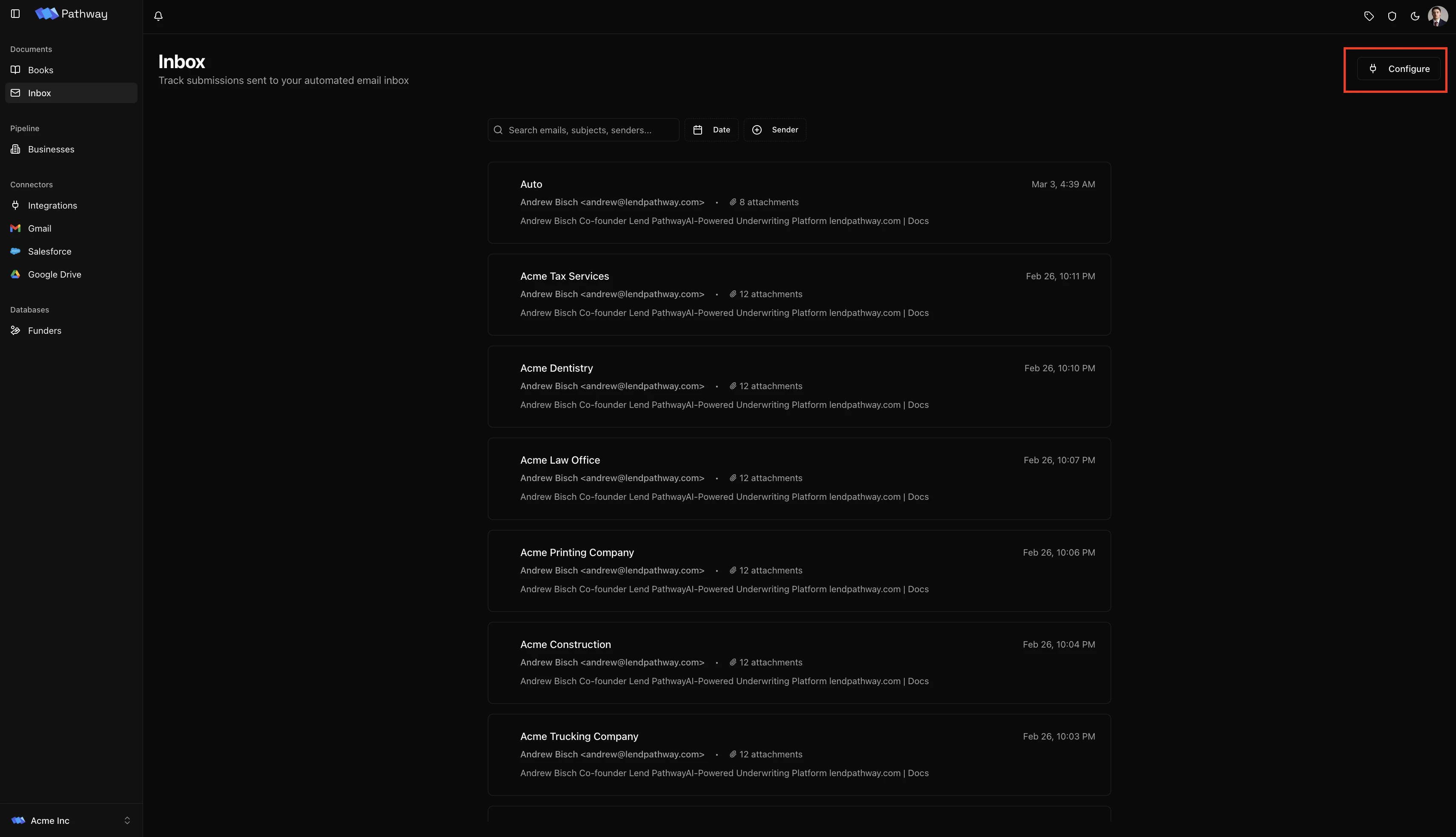
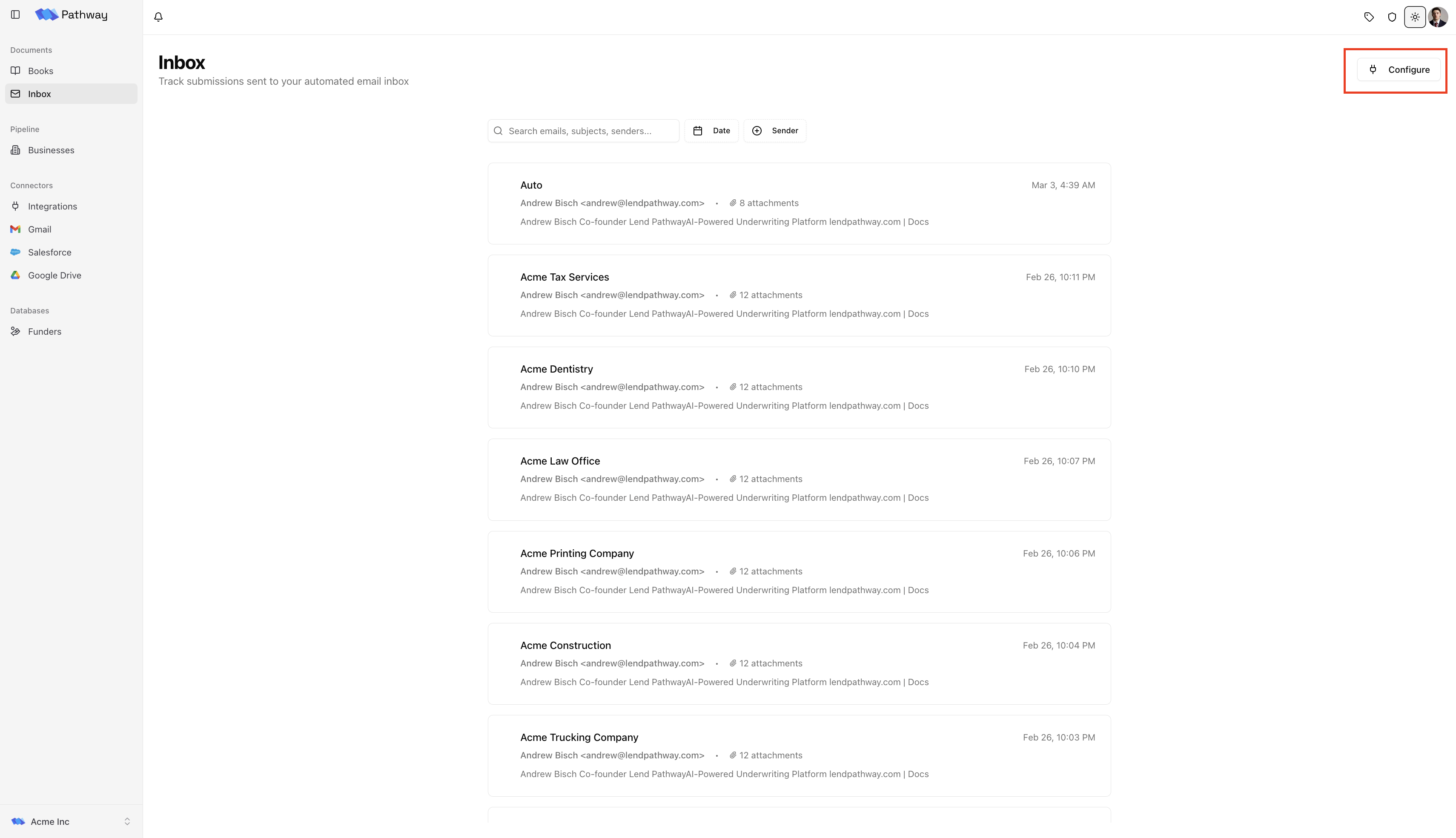
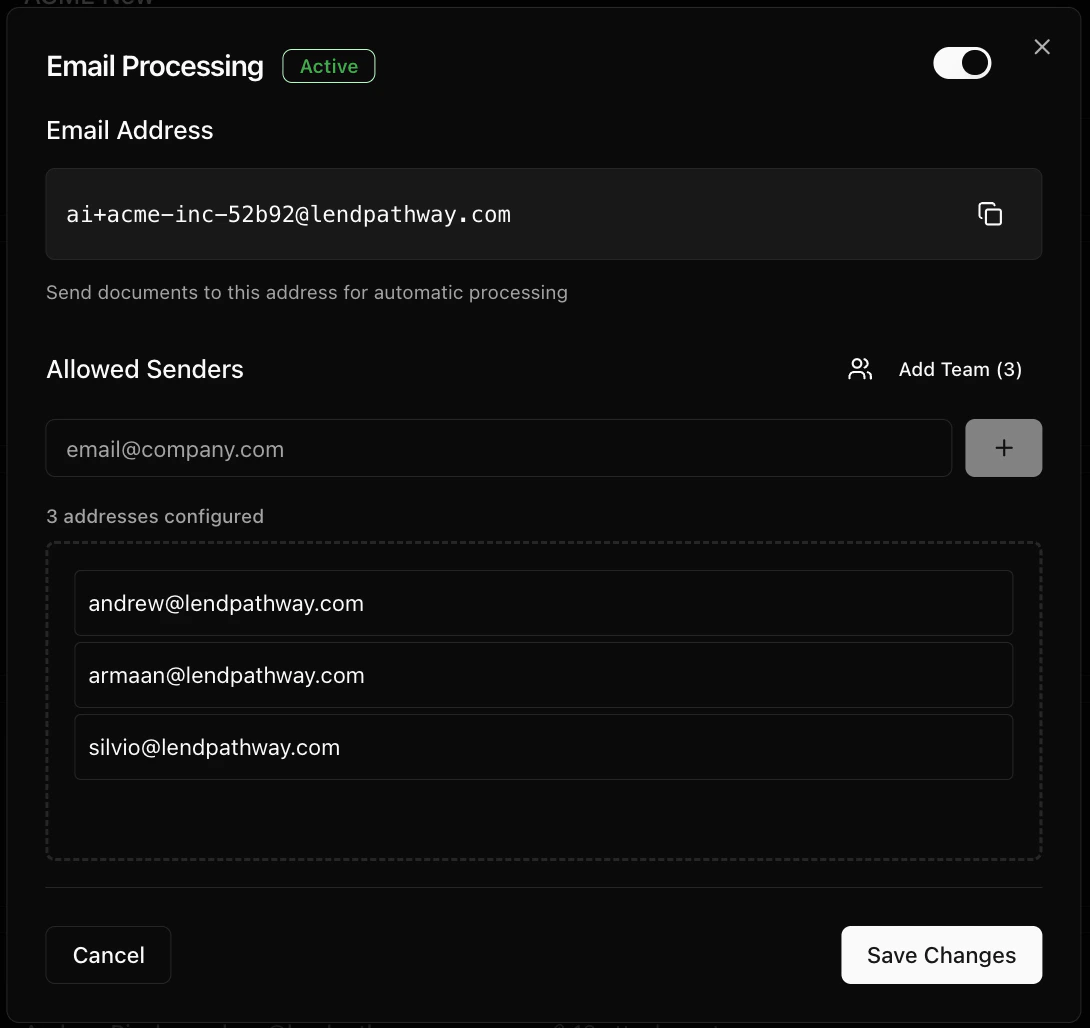
Click **Configure** in the top-right corner of the Inbox page to open Email Processing settings.
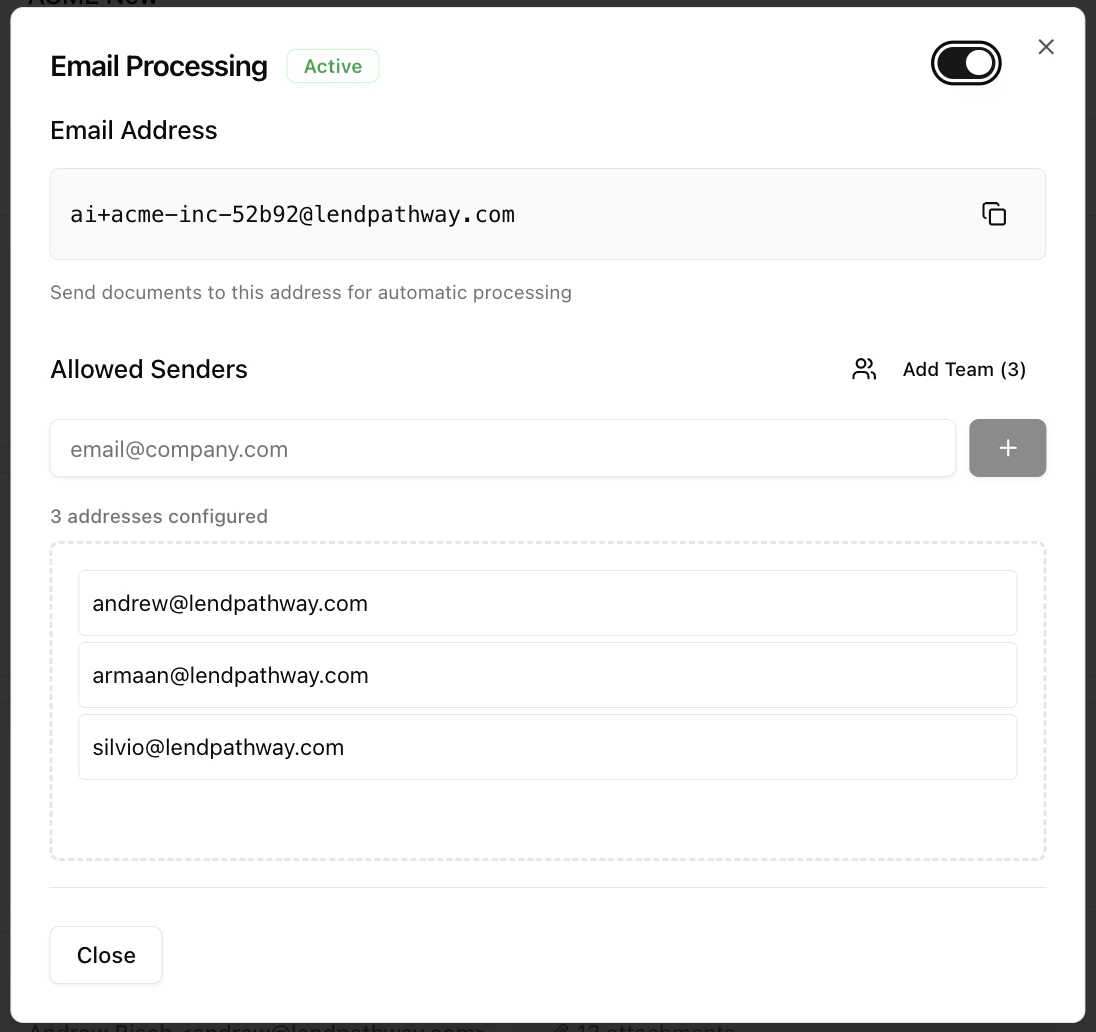
 **1. Enable email processing**
Toggle the switch to **Active**. When disabled, incoming emails are ignored.
**2. Configure allowed senders**
Only emails from whitelisted addresses are processed. This prevents random or spam emails from creating Books.
* Type an email address and click **+** (or press Enter) to add it
* Click **Add Team** to bulk-add all org members at once
* Hover over any address and click **X** to remove it
**3. Copy your org's email address**
Each organization gets a unique address in the format:
`ai+@lendpathway.com`
For example: `ai+acme-inc-52b92@lendpathway.com`. This is the address people send documents to.
Click **Save Changes** before closing. Unsaved changes are lost.
**1. Enable email processing**
Toggle the switch to **Active**. When disabled, incoming emails are ignored.
**2. Configure allowed senders**
Only emails from whitelisted addresses are processed. This prevents random or spam emails from creating Books.
* Type an email address and click **+** (or press Enter) to add it
* Click **Add Team** to bulk-add all org members at once
* Hover over any address and click **X** to remove it
**3. Copy your org's email address**
Each organization gets a unique address in the format:
`ai+@lendpathway.com`
For example: `ai+acme-inc-52b92@lendpathway.com`. This is the address people send documents to.
Click **Save Changes** before closing. Unsaved changes are lost.
 ***
## How it works
1. A sender on the allowed list sends an email with PDF attachments to your org's email address
2. Pathway creates a Book, uploads all attachments, classifies each file, and starts parsing
3. The thread appears in the Inbox with its processing status
4. The sender receives a reply email with the parsed results
Emails from senders not on the allowed list are ignored.
Document classification is automatic. Mix bank statements, credit reports, tax forms, and loan applications in a single email and Pathway classifies each one correctly.
***
## Inbox view
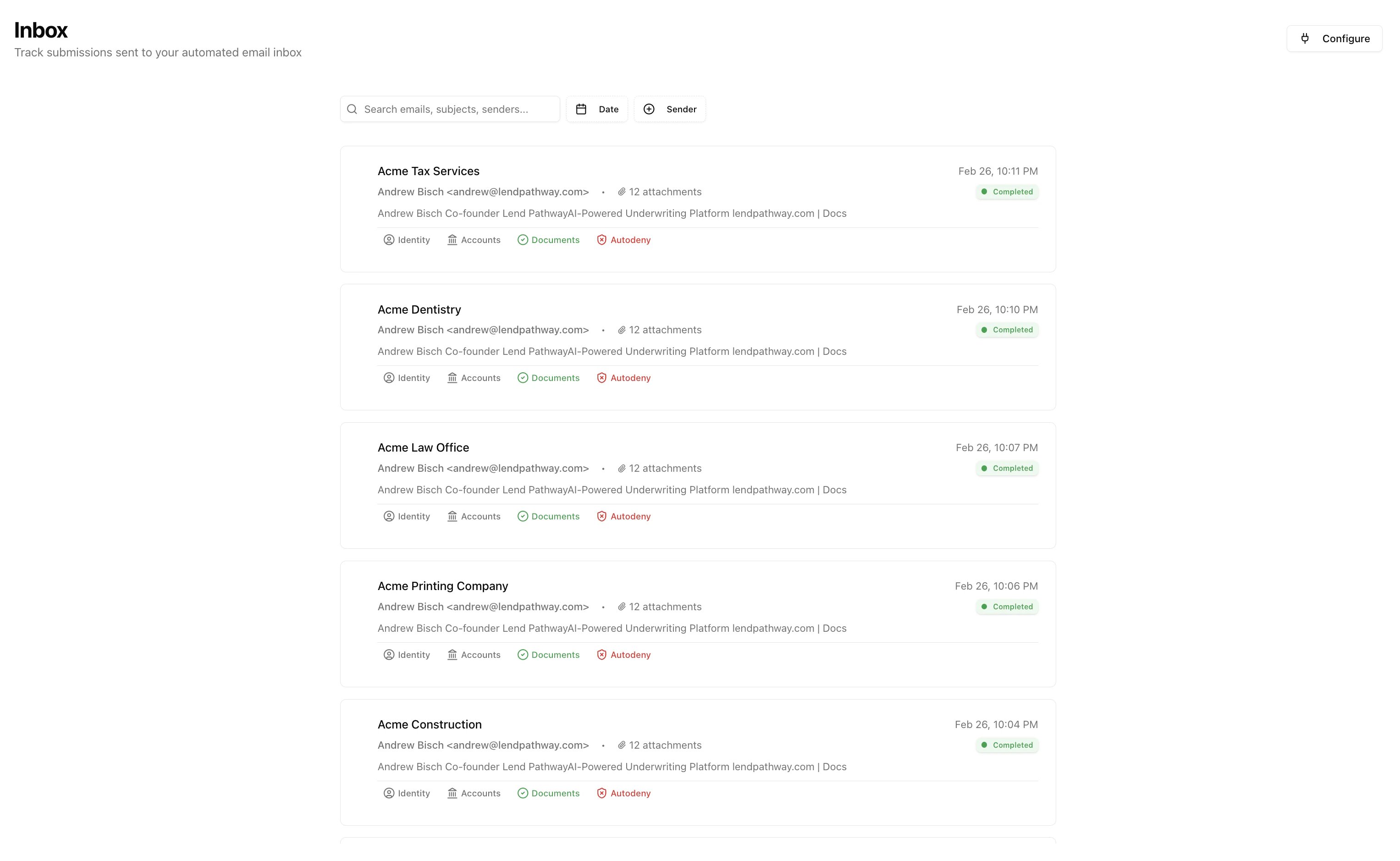
The Inbox lists email threads sorted newest first.
**Toolbar:**
* **Search**: filter by subject, sender name, sender email, or snippet
* **Date** filter: filter by date range
* **Sender** filter: filter by specific sender
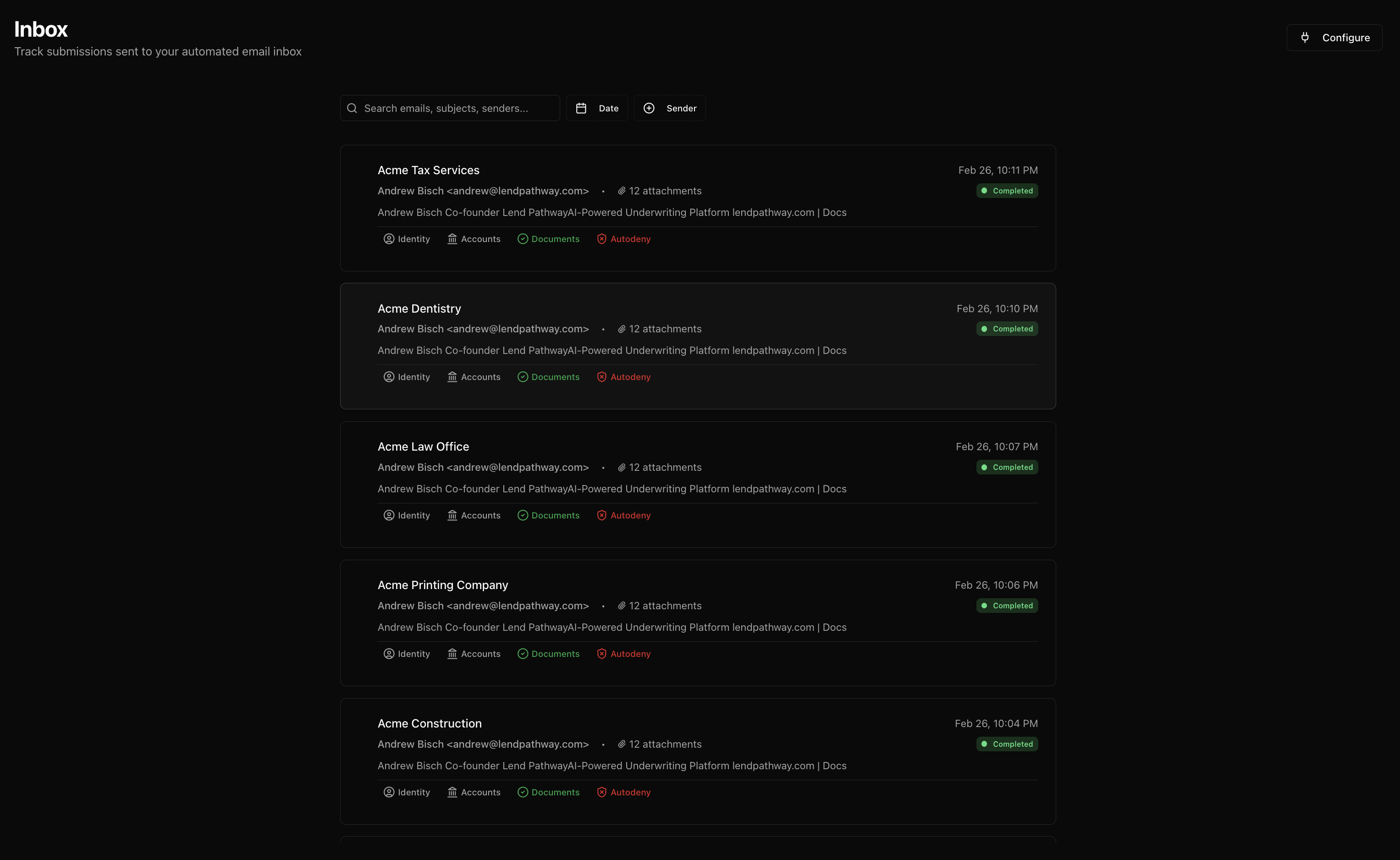
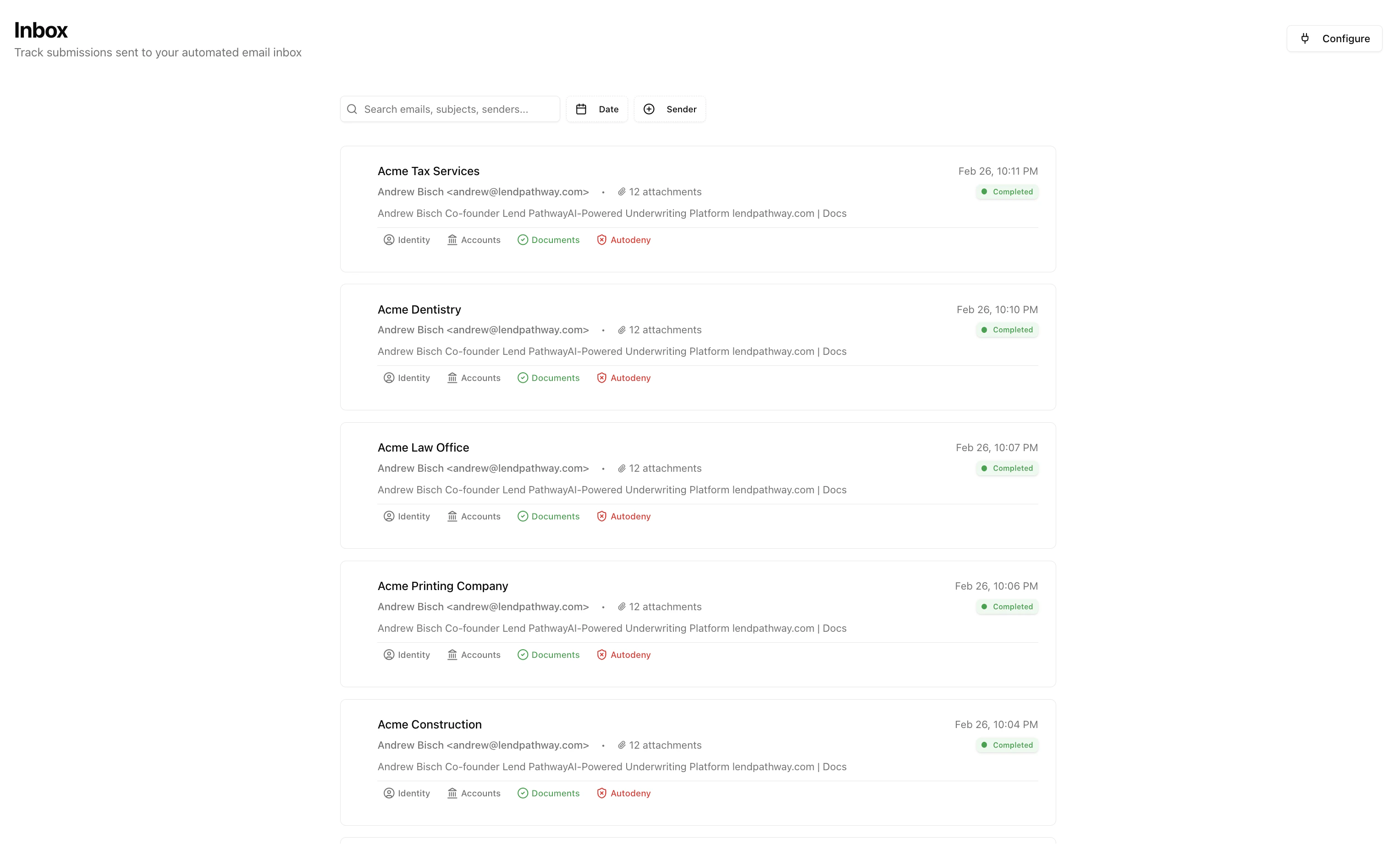
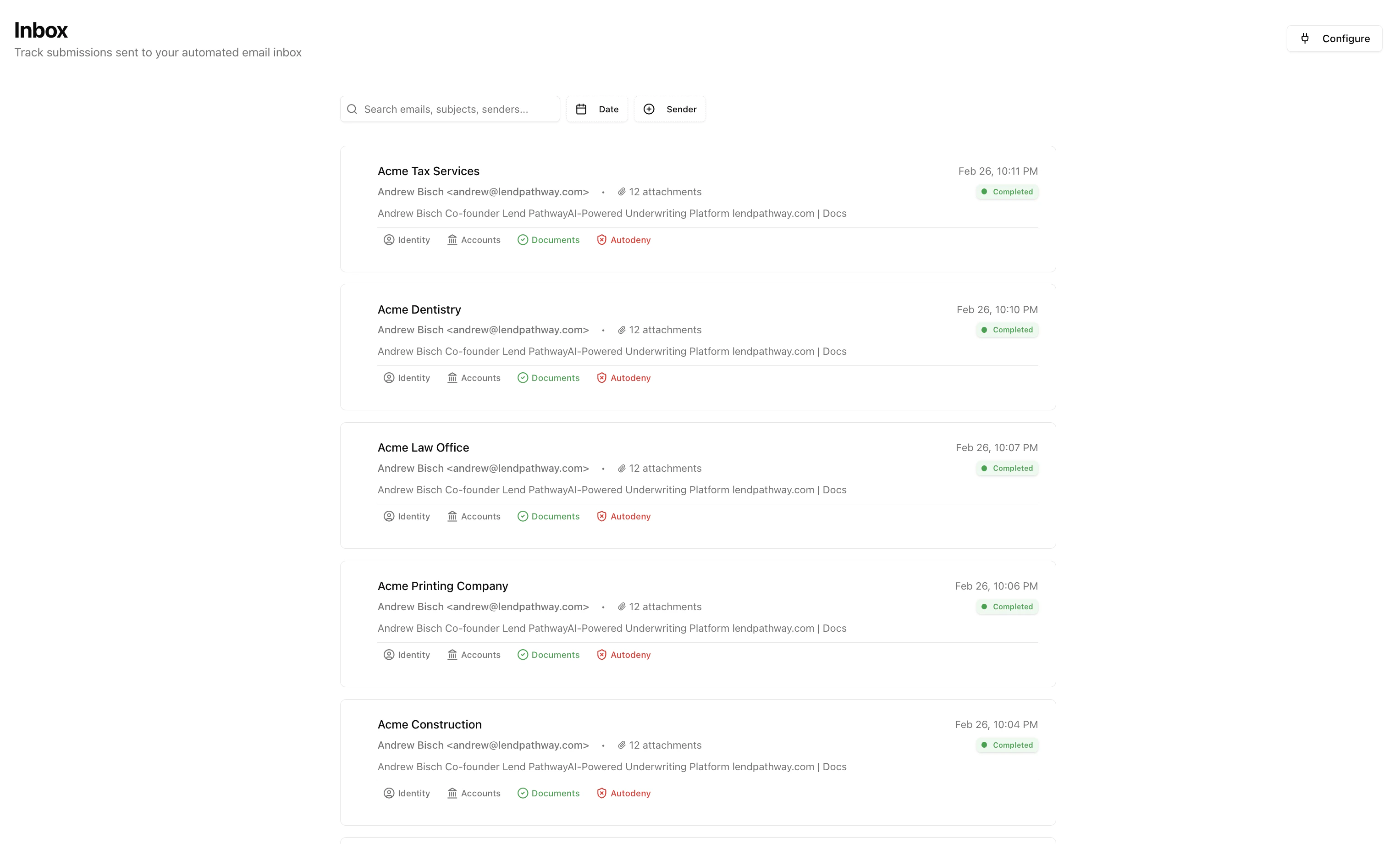
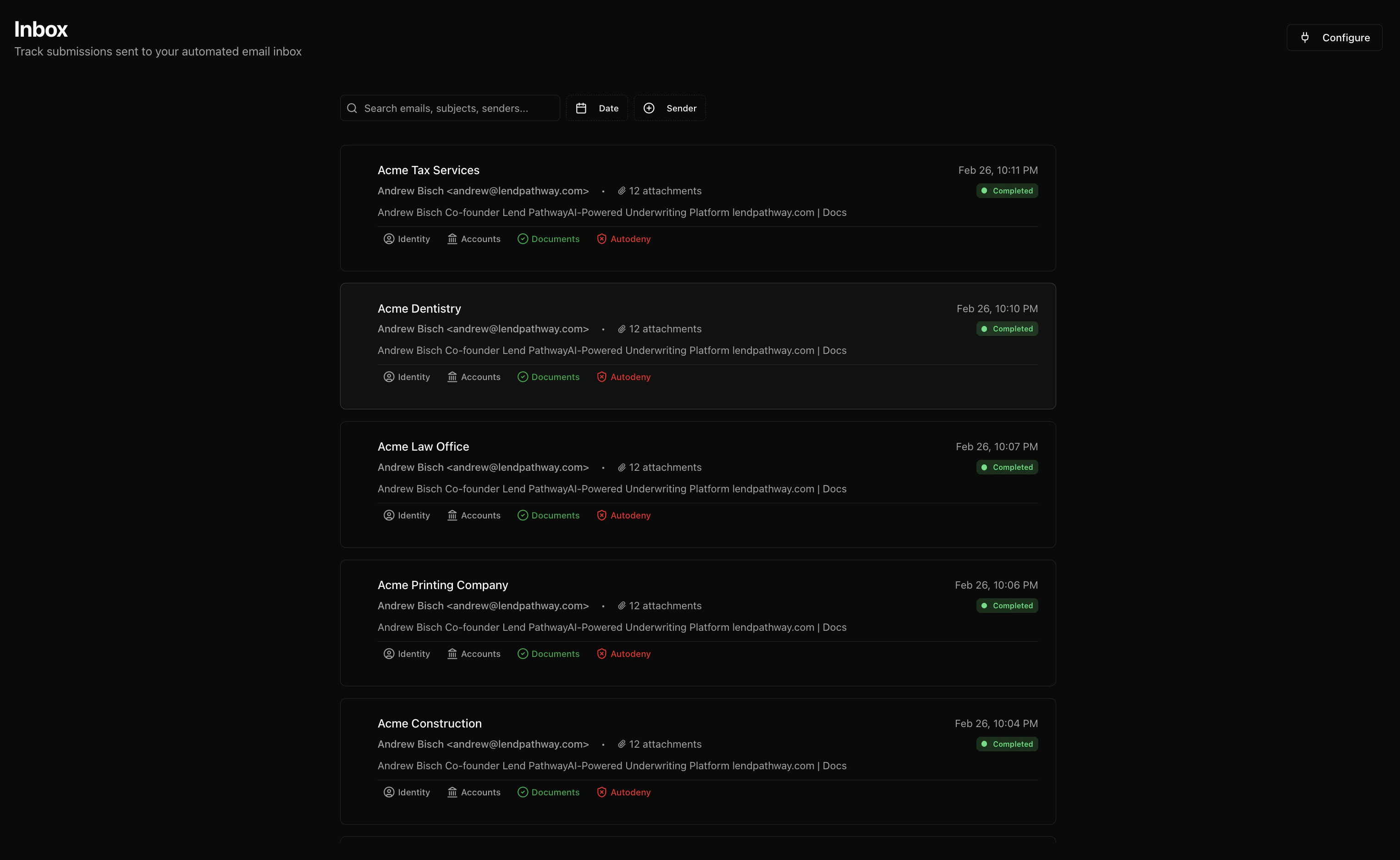
**Each thread row shows:**
| Element | Description |
| :--------------- | :--------------------------------------------------------------------------------- |
| **Subject** | Email subject line |
| **Sender** | Name and email address |
| **Attachments** | Count of attachments |
| **Date** | When the latest message arrived |
| **Status badge** | **Completed** (green), **Failed** (red), or **Cancelled** (yellow) |
| **Info badges** | Once parsed: Identity, Accounts, Documents, and Pass/Autodeny badges appear inline |
Clicking a thread with a linked Book navigates to that Book's page. Unread threads with no linked Book show a blue dot.
***
## How it works
1. A sender on the allowed list sends an email with PDF attachments to your org's email address
2. Pathway creates a Book, uploads all attachments, classifies each file, and starts parsing
3. The thread appears in the Inbox with its processing status
4. The sender receives a reply email with the parsed results
Emails from senders not on the allowed list are ignored.
Document classification is automatic. Mix bank statements, credit reports, tax forms, and loan applications in a single email and Pathway classifies each one correctly.
***
## Inbox view
The Inbox lists email threads sorted newest first.
**Toolbar:**
* **Search**: filter by subject, sender name, sender email, or snippet
* **Date** filter: filter by date range
* **Sender** filter: filter by specific sender
**Each thread row shows:**
| Element | Description |
| :--------------- | :--------------------------------------------------------------------------------- |
| **Subject** | Email subject line |
| **Sender** | Name and email address |
| **Attachments** | Count of attachments |
| **Date** | When the latest message arrived |
| **Status badge** | **Completed** (green), **Failed** (red), or **Cancelled** (yellow) |
| **Info badges** | Once parsed: Identity, Accounts, Documents, and Pass/Autodeny badges appear inline |
Clicking a thread with a linked Book navigates to that Book's page. Unread threads with no linked Book show a blue dot.
 ***
## Reply email
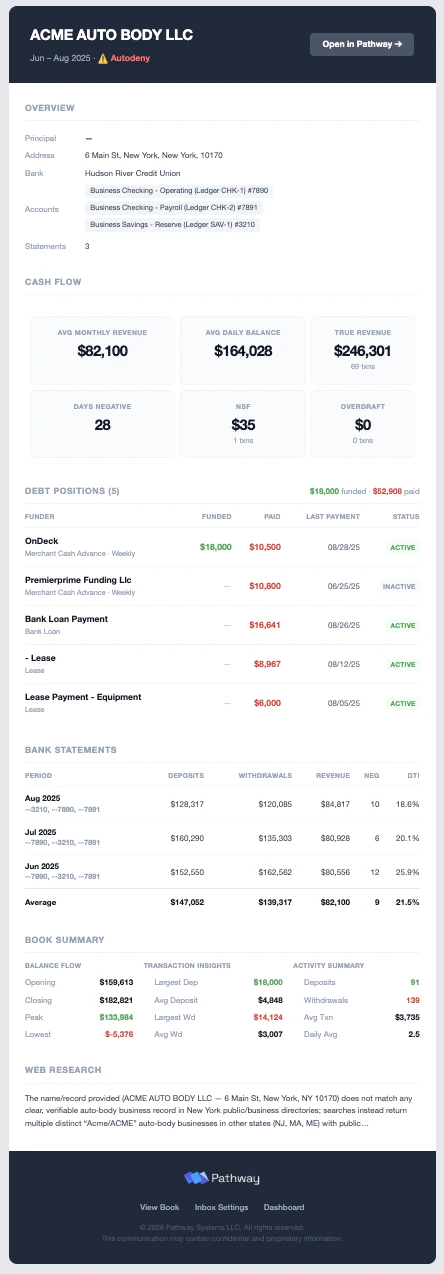
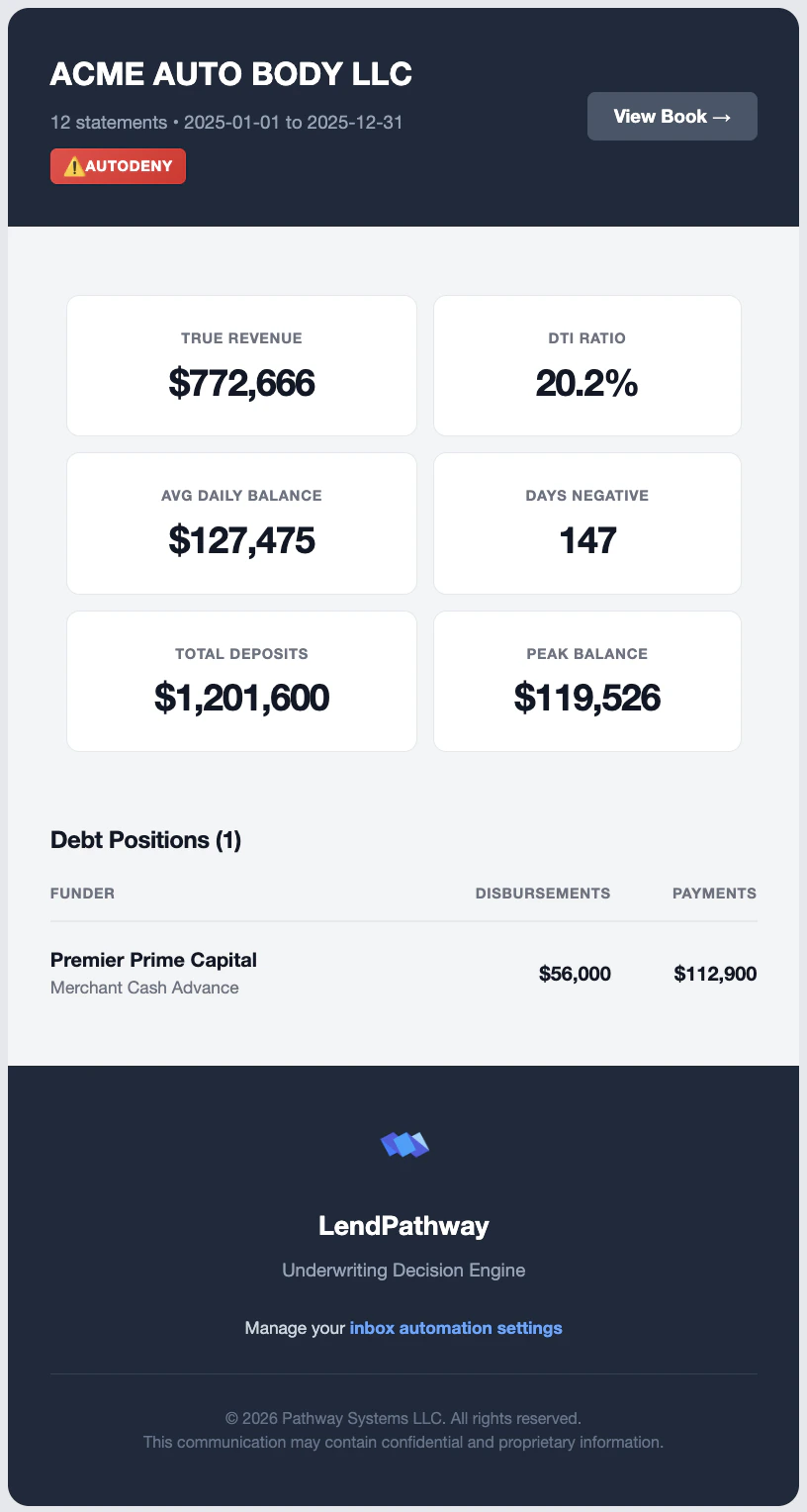
When bank statements are parsed successfully, the original sender receives a reply in the same thread with a synopsis of the results.
The reply includes:
* Business name, statement count, and date range
* Autodeny or Pass screening badge (if screening is configured)
* Link to the full Book in Pathway
* Six KPI cards: Avg Monthly Revenue, Avg Daily Balance, True Revenue, Days Negative, NSF, & Overdraft
* Debt positions table if MCA positions were detected
* Breakdown by month
* Book Summary Chart
***
## Reply email
When bank statements are parsed successfully, the original sender receives a reply in the same thread with a synopsis of the results.
The reply includes:
* Business name, statement count, and date range
* Autodeny or Pass screening badge (if screening is configured)
* Link to the full Book in Pathway
* Six KPI cards: Avg Monthly Revenue, Avg Daily Balance, True Revenue, Days Negative, NSF, & Overdraft
* Debt positions table if MCA positions were detected
* Breakdown by month
* Book Summary Chart
 ***
## Triage
After parsing, each thread row shows Identity, Accounts, Documents, and Screening badges inline. This lets you triage submissions from the Inbox without opening the Book.
* **Completed + Pass**: parsed and cleared screening
* **Completed + Autodeny**: parsed but failed screening rules
* **Failed**: error during parsing
***
## Triage
After parsing, each thread row shows Identity, Accounts, Documents, and Screening badges inline. This lets you triage submissions from the Inbox without opening the Book.
* **Completed + Pass**: parsed and cleared screening
* **Completed + Autodeny**: parsed but failed screening rules
* **Failed**: error during parsing