> ## Documentation Index
> Fetch the complete documentation index at: https://docs.lendpathway.com/llms.txt
> Use this file to discover all available pages before exploring further.
# Integrations
> LendPathway connects to the tools your team already uses. All integrations live under the **Connectors** section in the sidebar.
***
## **Gmail**
Connect your Google account to manage email directly inside LendPathway. Each user connects their own inbox via OAuth — LendPathway never stores your password.
### **Connecting**
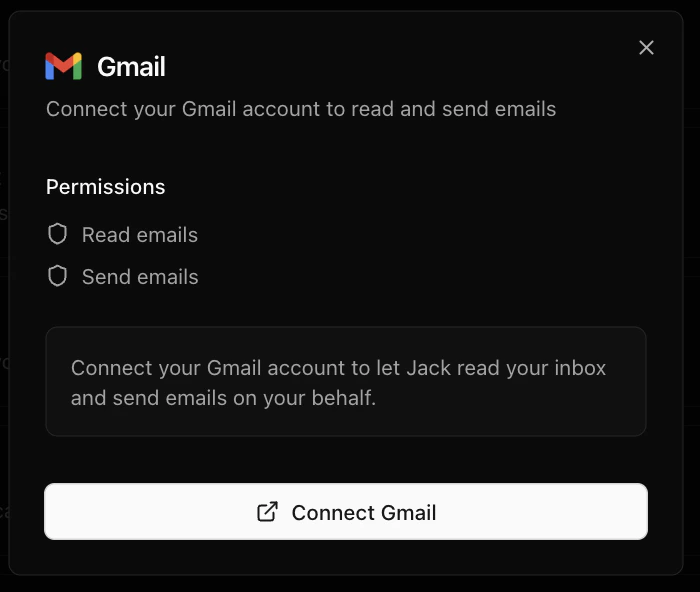
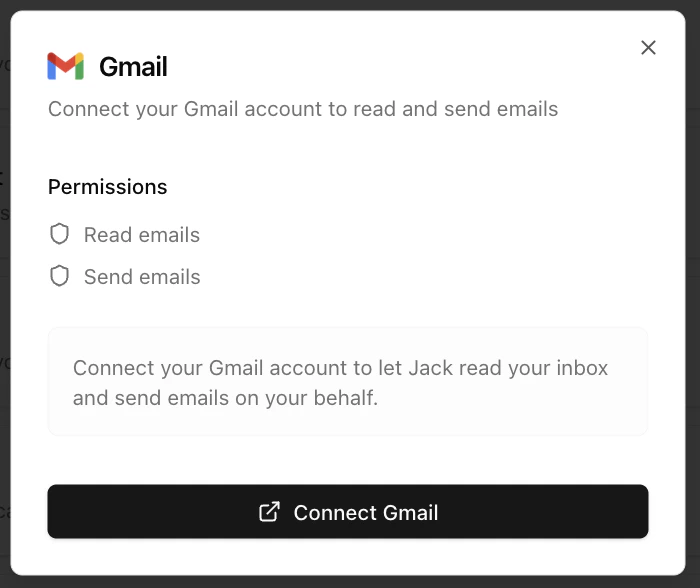
1. Go to the **Integrations** page (under Connectors in the sidebar)
2. Click the **Gmail** card
3. Sign in with Google and grant read and send access
4. When the popup closes, your inbox is connected
 You can disconnect at any time from the same Integrations page. Disconnecting removes stored tokens immediately.
### **What you can do**
Once connected, click **Gmail** in the sidebar to open your inbox.
You can disconnect at any time from the same Integrations page. Disconnecting removes stored tokens immediately.
### **What you can do**
Once connected, click **Gmail** in the sidebar to open your inbox.
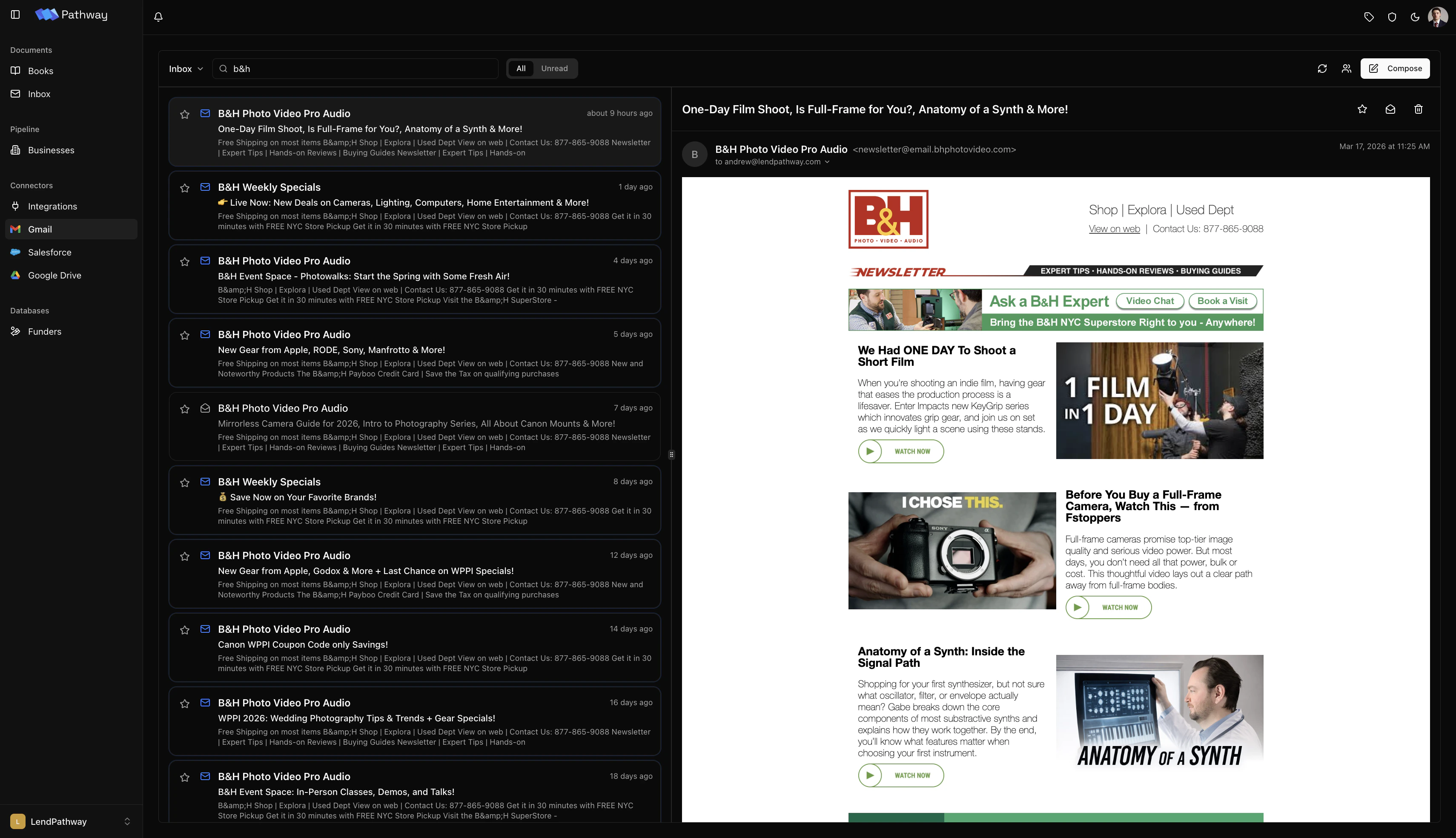
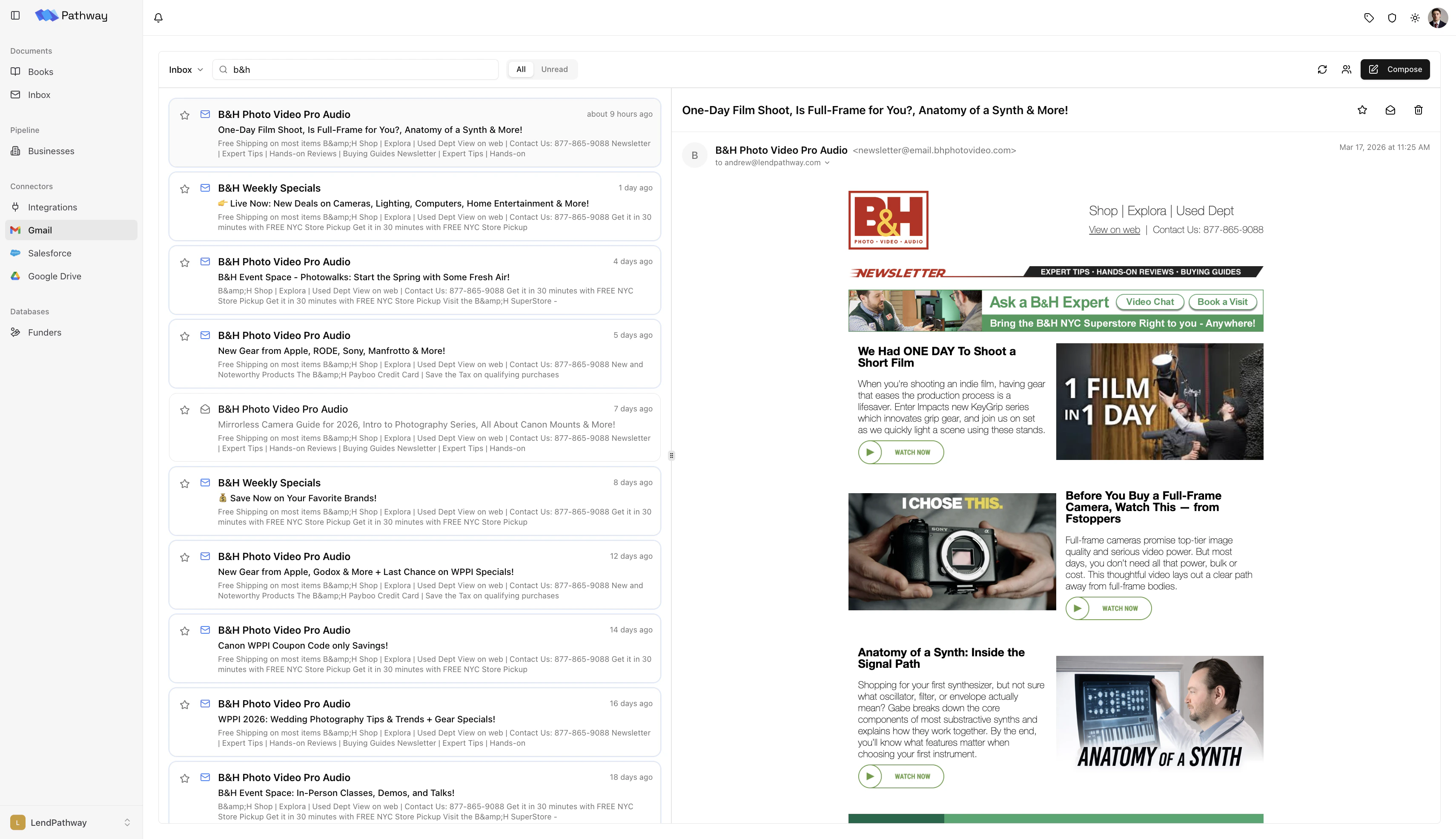 * **Browse messages** — Switch between Inbox, Sent, Starred, and Trash. Search across all messages. Filter by All or Unread.
* **Read threads** — Open any email thread and view the full conversation. Download attachments directly.
* **Send and reply** — Compose new emails or reply inline with support for CC, BCC, and file attachments.
* **Browse messages** — Switch between Inbox, Sent, Starred, and Trash. Search across all messages. Filter by All or Unread.
* **Read threads** — Open any email thread and view the full conversation. Download attachments directly.
* **Send and reply** — Compose new emails or reply inline with support for CC, BCC, and file attachments.
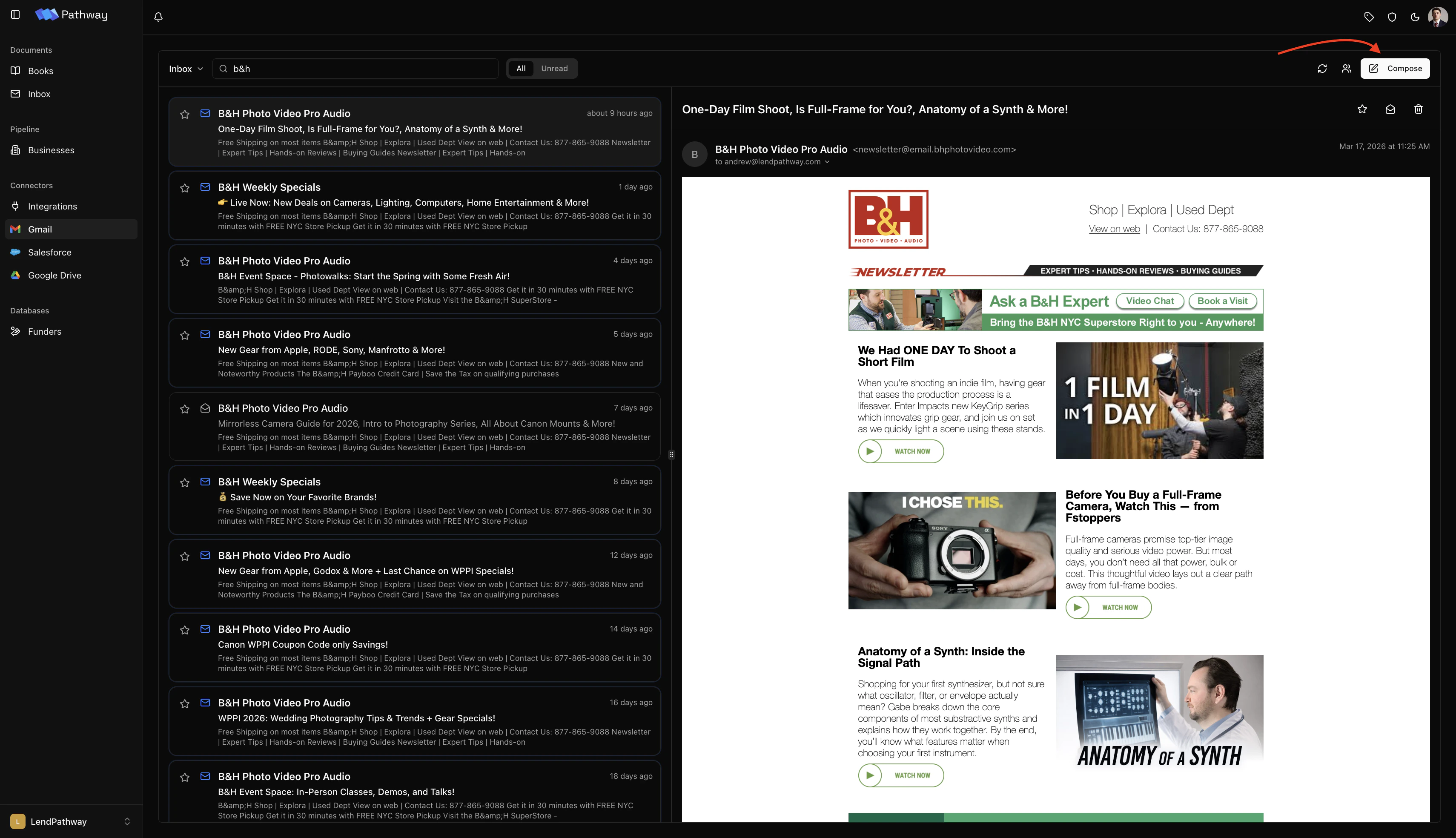
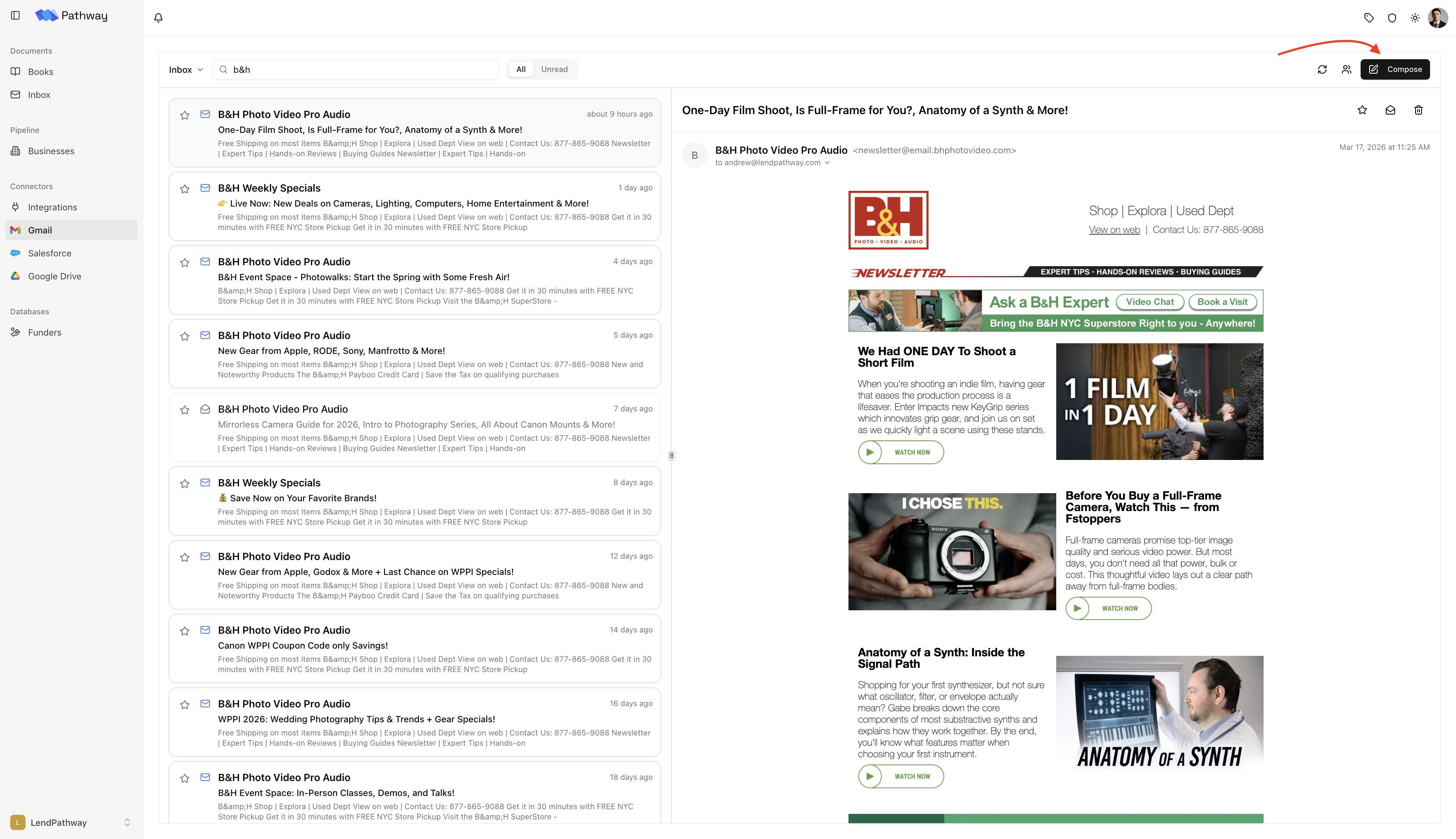 * **Contacts** — LendPathway syncs contacts from the last six months of your inbox (From, To, and CC fields). You can also add contacts manually.
 ***
## **Google Drive**
Export any generated spreadsheet to Google Drive as a native Google Sheet.
### **Connecting**
1. Go to the **Integrations** page (under Connectors in the sidebar)
2. Click the **Google Drive** card
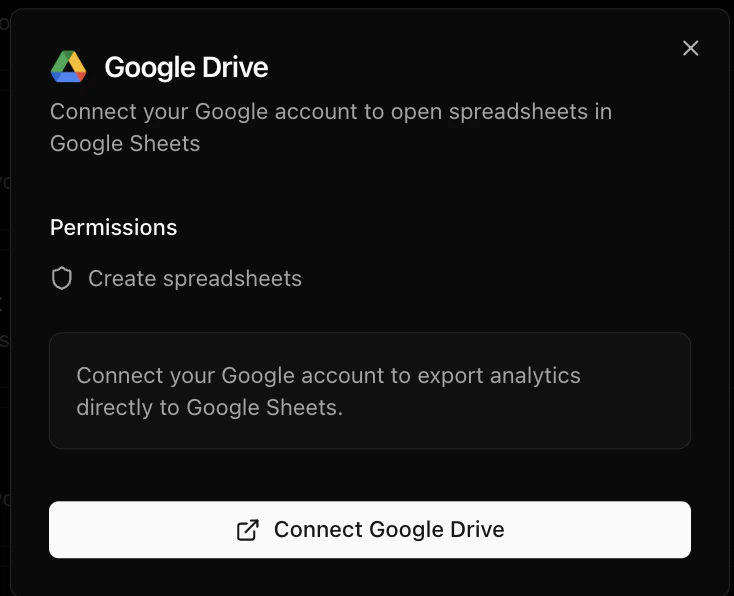
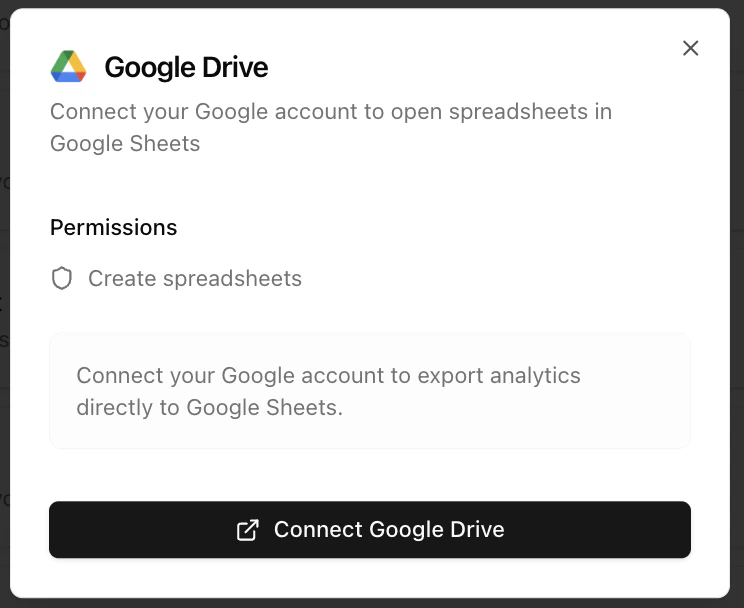
3. Authorize LendPathway to create files in your Drive
You can also connect from the **Google Drive** page itself — if you're not connected yet, a **Connect Drive** button appears at the top.
LendPathway only requests the `drive.file` scope, which limits access to files LendPathway creates. It cannot read or modify your existing Drive files.
***
## **Google Drive**
Export any generated spreadsheet to Google Drive as a native Google Sheet.
### **Connecting**
1. Go to the **Integrations** page (under Connectors in the sidebar)
2. Click the **Google Drive** card
3. Authorize LendPathway to create files in your Drive
You can also connect from the **Google Drive** page itself — if you're not connected yet, a **Connect Drive** button appears at the top.
LendPathway only requests the `drive.file` scope, which limits access to files LendPathway creates. It cannot read or modify your existing Drive files.
 ### **Exporting a spreadsheet**
1. Open a book with completed analytics
2. Go to the **Bank Spreadsheet**, **Credit Sheet**, or **Tax Sheet** tab
3. Click **Open in Drive** in the floating toolbar at the bottom
4. LendPathway uploads the workbook and converts it to a native Google Sheet
5. The Sheet opens in a new tab
Available for Excel-based templates only. If your access token expires, LendPathway refreshes it automatically — no need to reconnect.
### **Google Drive page**
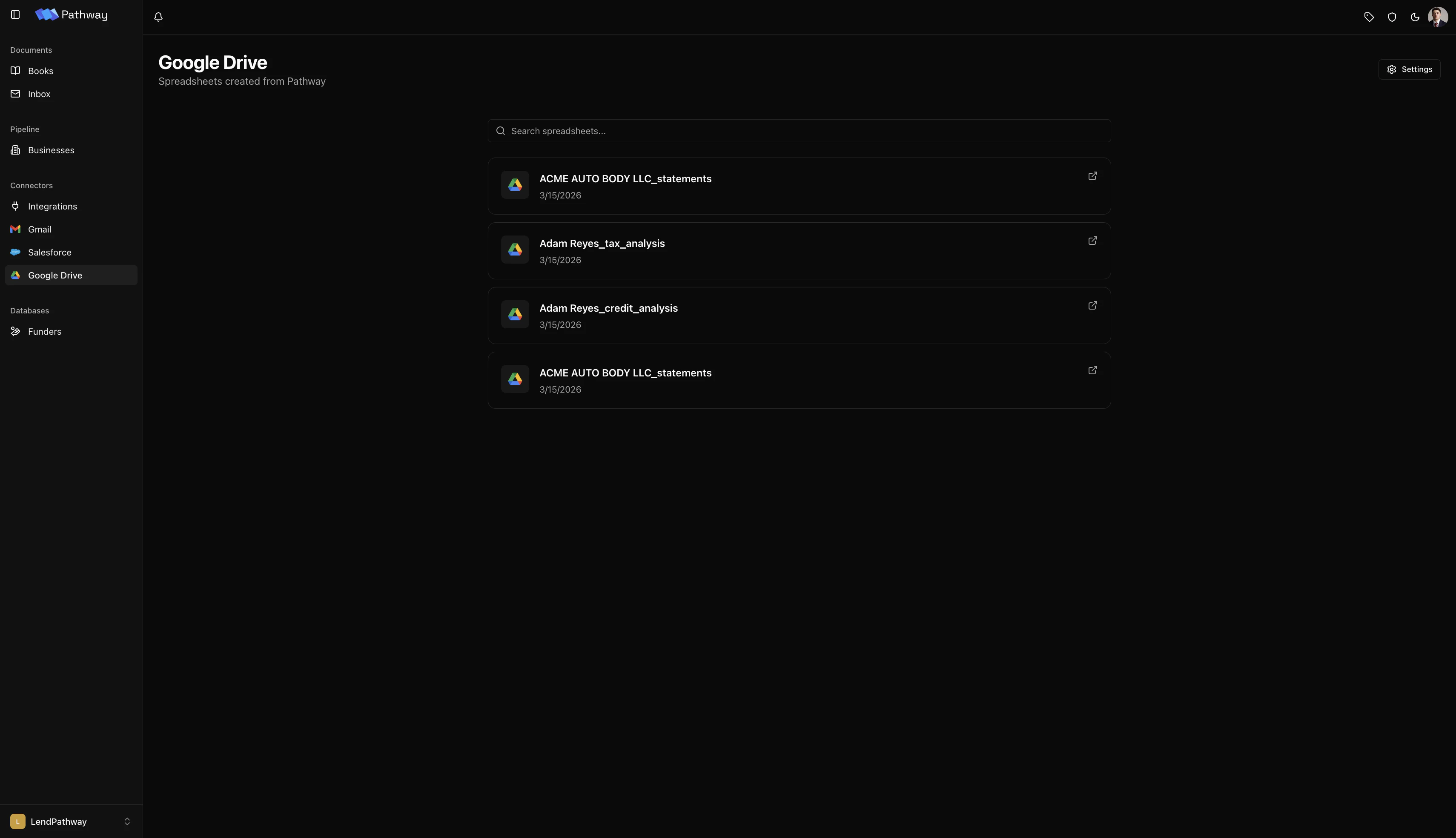
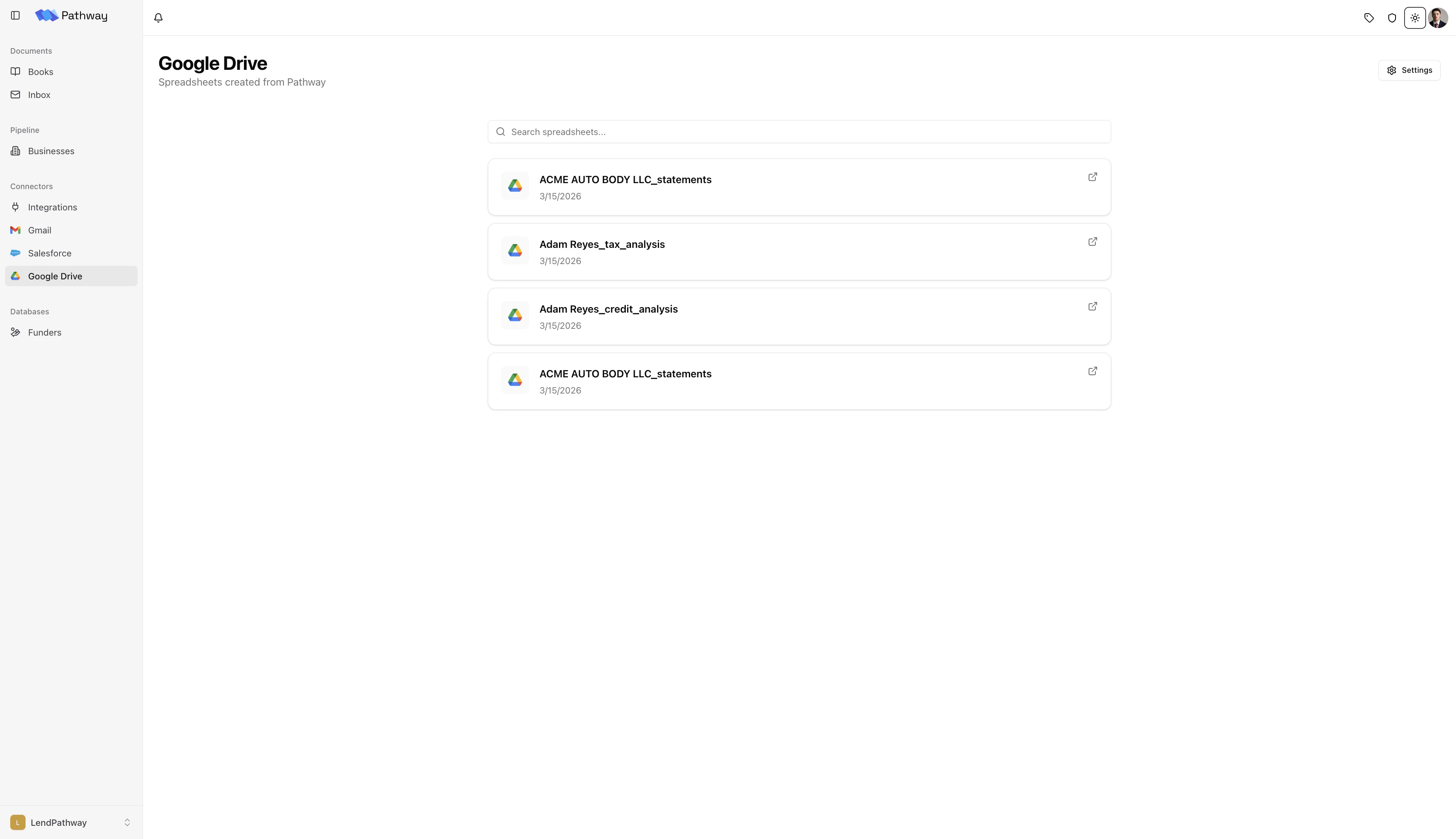
Click **Google Drive** in the sidebar to see all spreadsheets LendPathway has exported to your Drive. You can search by name and click any file to open it in Google Sheets.
### **Exporting a spreadsheet**
1. Open a book with completed analytics
2. Go to the **Bank Spreadsheet**, **Credit Sheet**, or **Tax Sheet** tab
3. Click **Open in Drive** in the floating toolbar at the bottom
4. LendPathway uploads the workbook and converts it to a native Google Sheet
5. The Sheet opens in a new tab
Available for Excel-based templates only. If your access token expires, LendPathway refreshes it automatically — no need to reconnect.
### **Google Drive page**
Click **Google Drive** in the sidebar to see all spreadsheets LendPathway has exported to your Drive. You can search by name and click any file to open it in Google Sheets.
 ***
## **Salesforce**
Sync parsed deal data to Salesforce Opportunities. Map LendPathway metrics to your existing fields, and optionally let LendPathway auto-parse new deals as they enter your pipeline.
### **Connecting**
> [See the Salesforce Connector page for more information](https://docs.lendpathway.com/platform/salesforce-connector)
### **Browsing Opportunities**
Once connected, click **Salesforce** in the sidebar to browse Opportunities.
* **Filter** by stage, owner, or search by name
* **Sort** by recently modified or oldest created
* **Select an Opportunity** to view its details and attached files in a side panel
* **Create a book** from an Opportunity's files — with an optional **Auto-parse** checkbox that starts parsing immediately and syncs results back to Salesforce when done
(image of the Salesforce page showing the Opportunities list with an Opportunity selected and detail panel open)
### **Field Mappings**
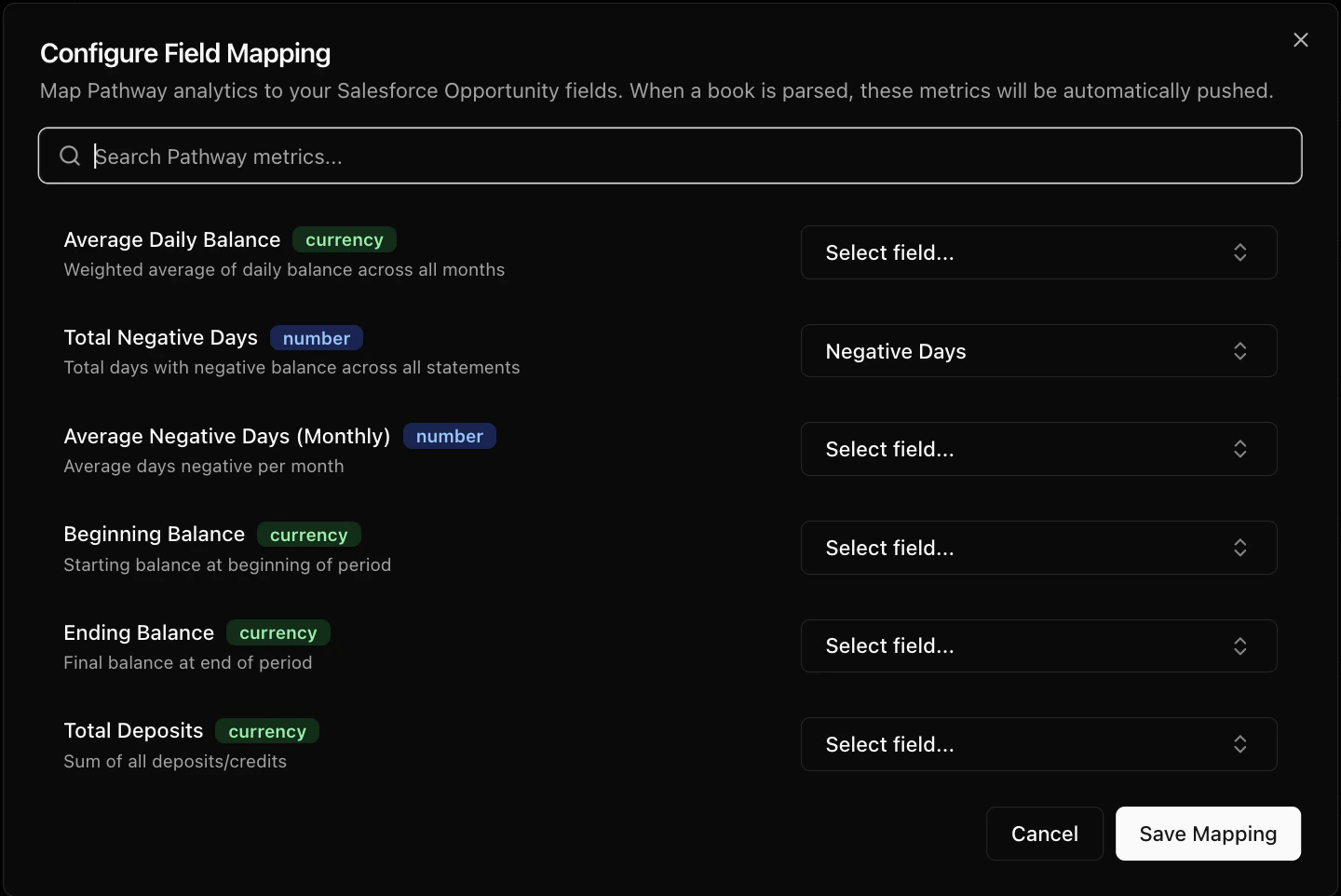
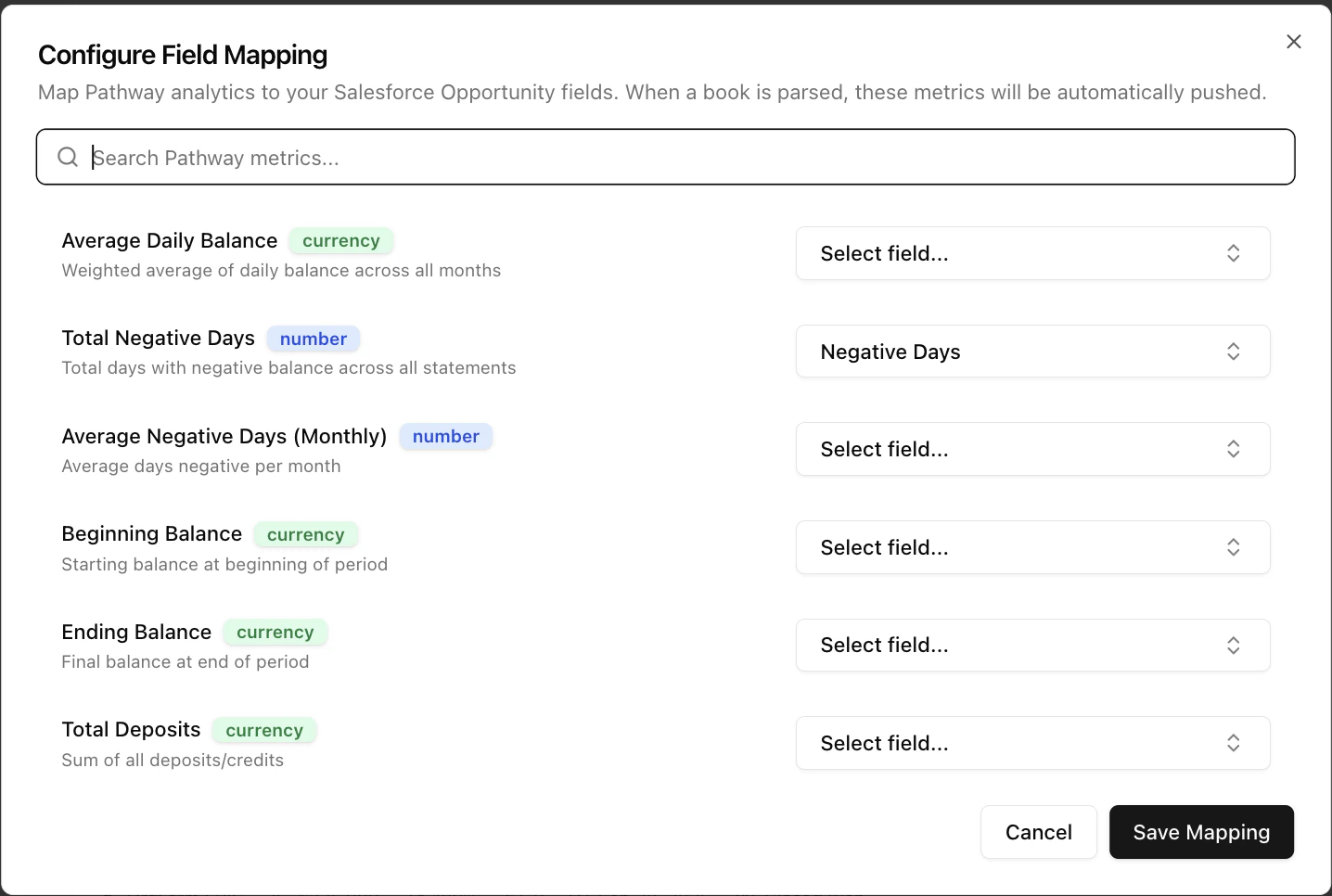
Map LendPathway analytics to Salesforce Opportunity fields so parsed results push back to your CRM.
1. On the **Salesforce** page, click **Configure Attributes** in the top-right toolbar
2. For each LendPathway metric, select the target Salesforce field
3. LendPathway validates that the Salesforce field type is compatible before saving
Available metrics:
| **Metric** | **Type** |
| :------------------------------ | :------- |
| Average Daily Balance | Currency |
| Total Negative Days | Number |
| Average Negative Days (Monthly) | Number |
| Beginning Balance | Currency |
| Ending Balance | Currency |
| Total Deposits | Currency |
| Average Monthly Deposits | Currency |
| Average Monthly Withdrawals | Currency |
| Average Monthly Deposit Count | Number |
| Total True Revenue | Currency |
| Average Monthly True Revenue | Currency |
| Total Revenue Transactions | Number |
| Total Loan Payments | Currency |
| Average Monthly Loan Payments | Currency |
| Business Name | String |
***
## **Salesforce**
Sync parsed deal data to Salesforce Opportunities. Map LendPathway metrics to your existing fields, and optionally let LendPathway auto-parse new deals as they enter your pipeline.
### **Connecting**
> [See the Salesforce Connector page for more information](https://docs.lendpathway.com/platform/salesforce-connector)
### **Browsing Opportunities**
Once connected, click **Salesforce** in the sidebar to browse Opportunities.
* **Filter** by stage, owner, or search by name
* **Sort** by recently modified or oldest created
* **Select an Opportunity** to view its details and attached files in a side panel
* **Create a book** from an Opportunity's files — with an optional **Auto-parse** checkbox that starts parsing immediately and syncs results back to Salesforce when done
(image of the Salesforce page showing the Opportunities list with an Opportunity selected and detail panel open)
### **Field Mappings**
Map LendPathway analytics to Salesforce Opportunity fields so parsed results push back to your CRM.
1. On the **Salesforce** page, click **Configure Attributes** in the top-right toolbar
2. For each LendPathway metric, select the target Salesforce field
3. LendPathway validates that the Salesforce field type is compatible before saving
Available metrics:
| **Metric** | **Type** |
| :------------------------------ | :------- |
| Average Daily Balance | Currency |
| Total Negative Days | Number |
| Average Negative Days (Monthly) | Number |
| Beginning Balance | Currency |
| Ending Balance | Currency |
| Total Deposits | Currency |
| Average Monthly Deposits | Currency |
| Average Monthly Withdrawals | Currency |
| Average Monthly Deposit Count | Number |
| Total True Revenue | Currency |
| Average Monthly True Revenue | Currency |
| Total Revenue Transactions | Number |
| Total Loan Payments | Currency |
| Average Monthly Loan Payments | Currency |
| Business Name | String |
 ### **Pushing Results**
After a book is parsed, you have two options:
* **Manual push** — Open the book, click the **Salesforce badge** in the top-right info badges, and confirm.
* **Automatic sync** — If the book was created from a Salesforce Opportunity with **Auto-parse** enabled, analytics push automatically after parsing completes.
### **Auto-Parse**
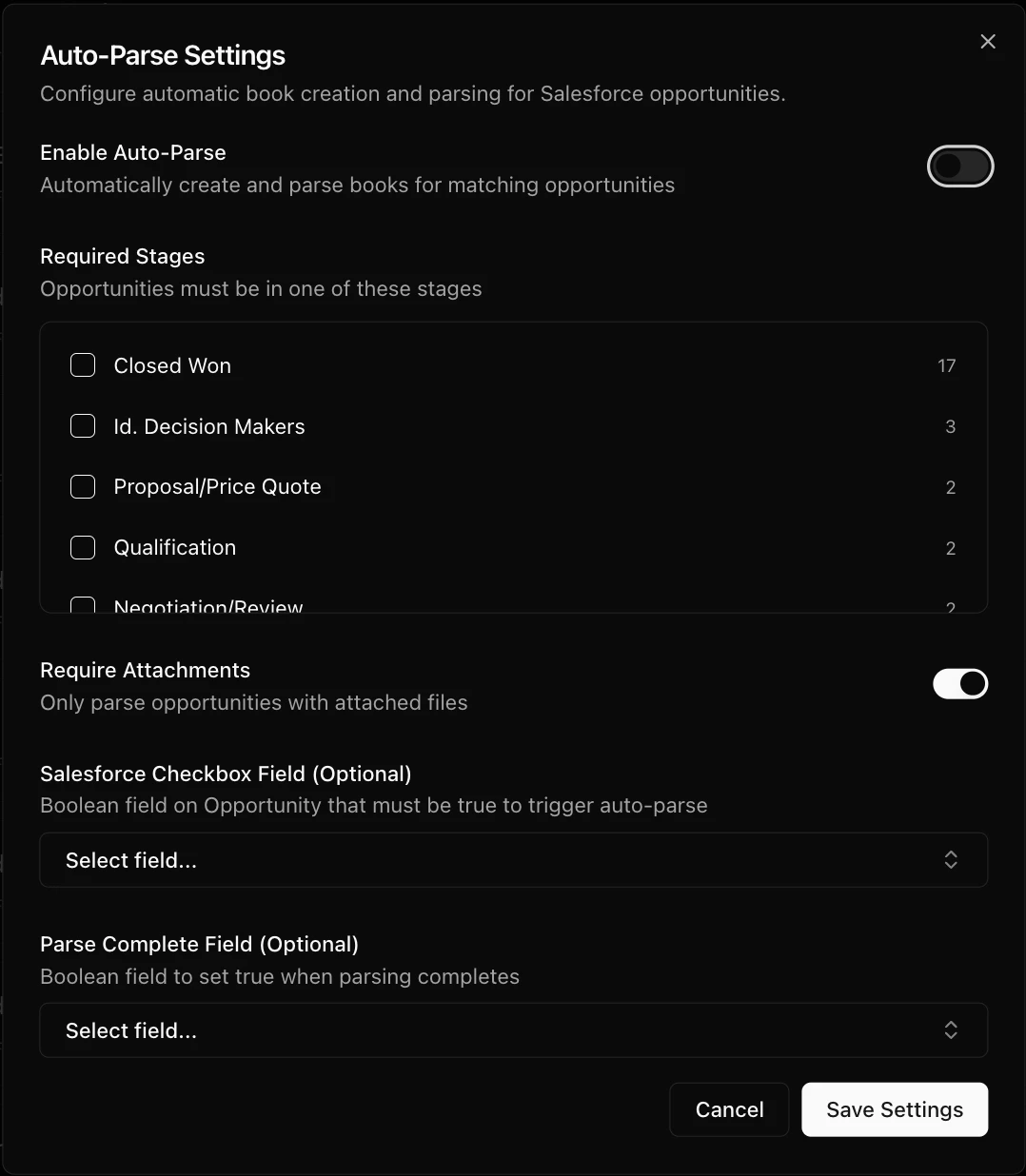
Auto-parse monitors your Salesforce pipeline and creates books for new Opportunities that match your criteria.
1. On the **Salesforce** page, click **Auto-Parse** in the top-right toolbar
2. Configure:
* **Required stages** — Only Opportunities in these stages are picked up
* **Require attachments** — Skip Opportunities with no files
* **Checkbox field** (optional) — A Salesforce checkbox that must be true to trigger
* **Parse complete field** (optional) — A Salesforce field LendPathway sets to true when parsing finishes
LendPathway polls every 5 minutes. New matching Opportunities are created as books, parsed, and synced back without manual intervention.
Auto-parse creates books and consumes usage. Monitor your usage to avoid unexpected overages.
### **Pushing Results**
After a book is parsed, you have two options:
* **Manual push** — Open the book, click the **Salesforce badge** in the top-right info badges, and confirm.
* **Automatic sync** — If the book was created from a Salesforce Opportunity with **Auto-parse** enabled, analytics push automatically after parsing completes.
### **Auto-Parse**
Auto-parse monitors your Salesforce pipeline and creates books for new Opportunities that match your criteria.
1. On the **Salesforce** page, click **Auto-Parse** in the top-right toolbar
2. Configure:
* **Required stages** — Only Opportunities in these stages are picked up
* **Require attachments** — Skip Opportunities with no files
* **Checkbox field** (optional) — A Salesforce checkbox that must be true to trigger
* **Parse complete field** (optional) — A Salesforce field LendPathway sets to true when parsing finishes
LendPathway polls every 5 minutes. New matching Opportunities are created as books, parsed, and synced back without manual intervention.
Auto-parse creates books and consumes usage. Monitor your usage to avoid unexpected overages.
 ***
## **Embed API**
Build LendPathway into your own application. Submit documents via the API, embed parsed results in an iframe, and receive webhooks when processing completes.
The Embed API uses **Personal Access Tokens (PATs)**, not OAuth. See the [API Reference](vscode-file://vscode-app/api-reference) for full endpoint documentation.
### **Authentication**
To create a PAT:
1. Click your **org name** at the bottom of the sidebar to open the org switcher
2. Click **Settings**
3. On the **Account** tab, scroll to **API Access Tokens**
4. Click **New Token**, give it a name, and copy the token
Include the token in every request as a Bearer token in the `Authorization` header.
Tokens are hashed at rest — LendPathway stores only the SHA-256 hash, not the raw token. Treat your token like a password.
(image of the API Access Tokens section in Settings showing a token and the New Token button)
### **Submitting Documents**
`POST /api/submit-book` accepts multipart form data.
| **Field** | **Required** | **Description** |
| :------------ | :----------- | :---------------------------------------------- |
| `files` | Yes | One or more PDF files |
| `book_name` | Yes | Name for the book |
| `description` | No | Optional description |
| `webhook_url` | No | URL to receive a callback when parsing finishes |
LendPathway creates a book, uploads the files, and starts parsing in the background. The response returns immediately with the new `book_id`.
### **Webhooks**
If you provide a `webhook_url`, LendPathway sends a POST request when processing finishes:
```json theme={null}
{
"book_id": "uuid",
"status": "completed",
"book_url": "https://app.lendpathway.com/books/"
}
```
If parsing failed, an `error` field is included with a description.
### **Embedding Results**
Embed parsed analytics in your UI with token-authenticated iframes.
1. Create an embed token: `POST /api/embed/token` with `book_id`. Tokens expire after 24 hours by default. Pass `permanent: true` for tokens that don't expire.
2. Build the iframe URL: `https://app.lendpathway.com/embed/book/{embed_token}`
3. Drop that URL into an `
***
## **Embed API**
Build LendPathway into your own application. Submit documents via the API, embed parsed results in an iframe, and receive webhooks when processing completes.
The Embed API uses **Personal Access Tokens (PATs)**, not OAuth. See the [API Reference](vscode-file://vscode-app/api-reference) for full endpoint documentation.
### **Authentication**
To create a PAT:
1. Click your **org name** at the bottom of the sidebar to open the org switcher
2. Click **Settings**
3. On the **Account** tab, scroll to **API Access Tokens**
4. Click **New Token**, give it a name, and copy the token
Include the token in every request as a Bearer token in the `Authorization` header.
Tokens are hashed at rest — LendPathway stores only the SHA-256 hash, not the raw token. Treat your token like a password.
(image of the API Access Tokens section in Settings showing a token and the New Token button)
### **Submitting Documents**
`POST /api/submit-book` accepts multipart form data.
| **Field** | **Required** | **Description** |
| :------------ | :----------- | :---------------------------------------------- |
| `files` | Yes | One or more PDF files |
| `book_name` | Yes | Name for the book |
| `description` | No | Optional description |
| `webhook_url` | No | URL to receive a callback when parsing finishes |
LendPathway creates a book, uploads the files, and starts parsing in the background. The response returns immediately with the new `book_id`.
### **Webhooks**
If you provide a `webhook_url`, LendPathway sends a POST request when processing finishes:
```json theme={null}
{
"book_id": "uuid",
"status": "completed",
"book_url": "https://app.lendpathway.com/books/"
}
```
If parsing failed, an `error` field is included with a description.
### **Embedding Results**
Embed parsed analytics in your UI with token-authenticated iframes.
1. Create an embed token: `POST /api/embed/token` with `book_id`. Tokens expire after 24 hours by default. Pass `permanent: true` for tokens that don't expire.
2. Build the iframe URL: `https://app.lendpathway.com/embed/book/{embed_token}`
3. Drop that URL into an `