> ## Documentation Index
> Fetch the complete documentation index at: https://docs.lendpathway.com/llms.txt
> Use this file to discover all available pages before exploring further.
# Salesforce Connector
Connect Salesforce to LendPathway to sync Opportunities and push parsed analytics back to your CRM.
Once connected, the [chat engine](/platform/chat-engine) can query your Salesforce data with SOQL and pull records into its sandbox, scoped to your access. The connector handles the sync; the agent handles ad-hoc questions across it.
## Create a connected app in Salesforce
LendPathway needs a Connected App to authenticate. This is a one-time setup in Salesforce.
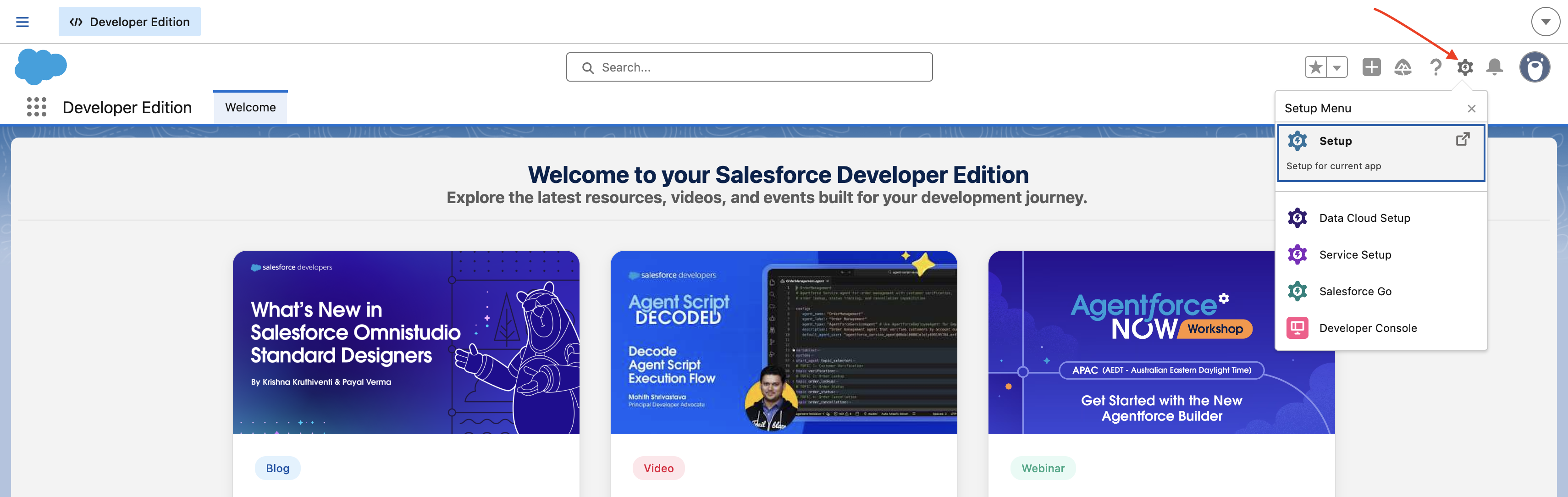
1. In Salesforce, click the **gear icon** → **Setup**
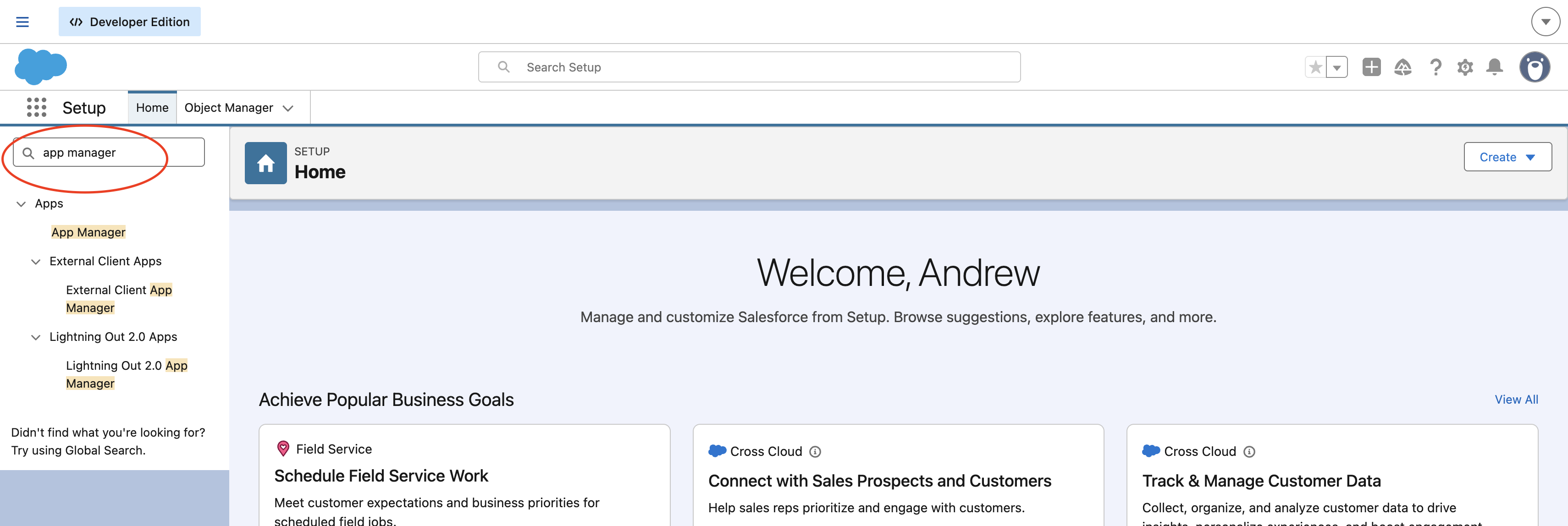
 2. Search **App Manager** in Quick Find, click it
 3. Click **"New External Client App"**
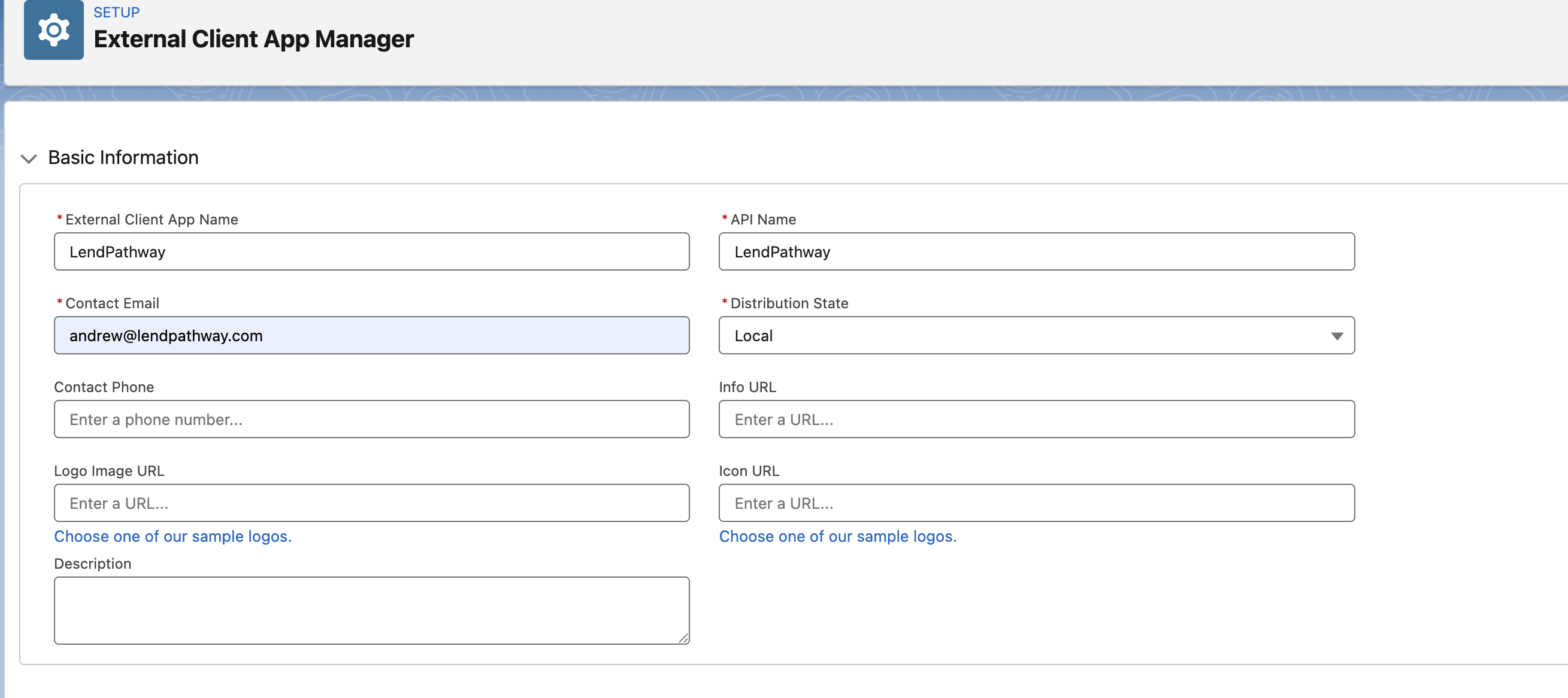
 4. Fill in:
* **Connected App Name**: `LendPathway`
* **Contact Email**: your email
4. Fill in:
* **Connected App Name**: `LendPathway`
* **Contact Email**: your email
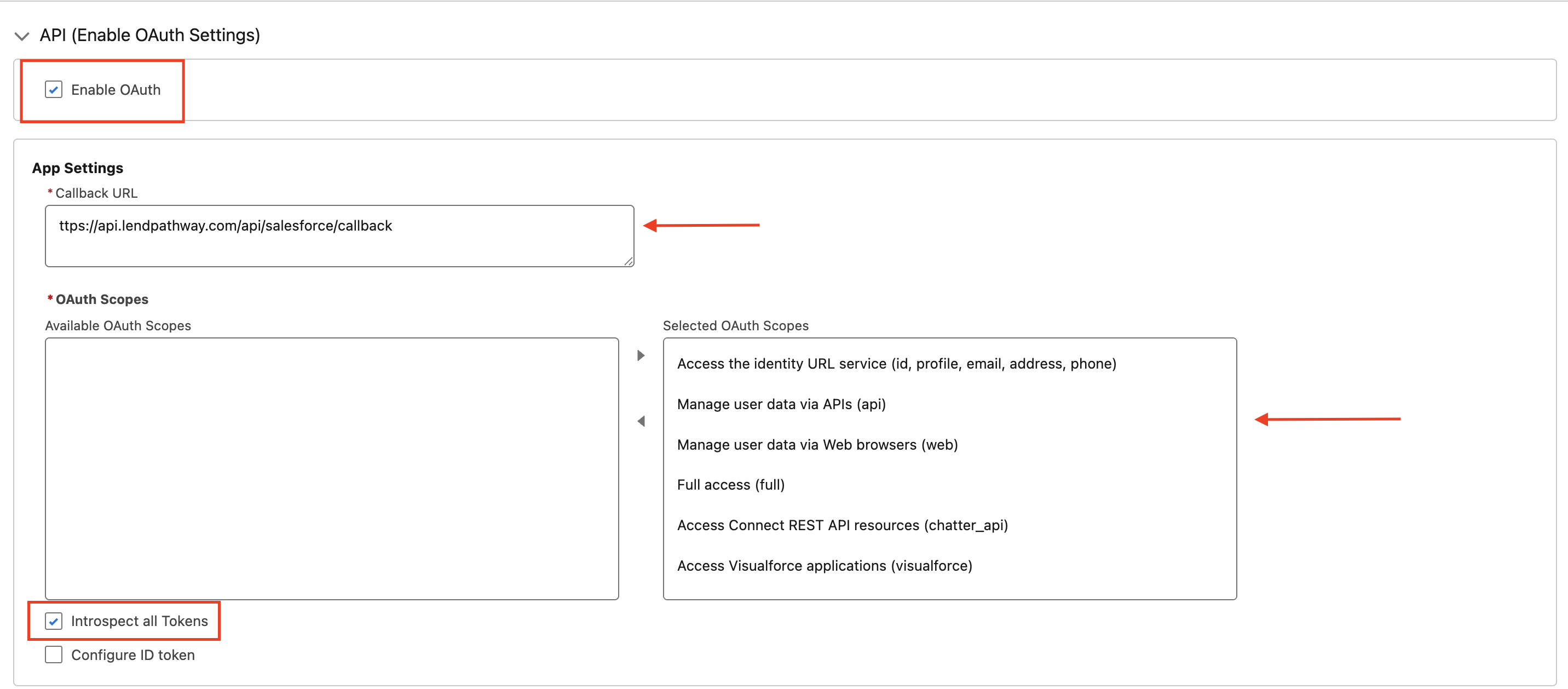
 5. Check **Enable OAuth Settings** and configure:
* **Callback URL**: `https://api.lendpathway.com/api/salesforce/callback`
* **OAuth Scopes**: Enable OAuth and grant access to scopes. We recommend granting **All scopes**.
* Check **“Introspect all Tokens”** to True.
5. Check **Enable OAuth Settings** and configure:
* **Callback URL**: `https://api.lendpathway.com/api/salesforce/callback`
* **OAuth Scopes**: Enable OAuth and grant access to scopes. We recommend granting **All scopes**.
* Check **“Introspect all Tokens”** to True.
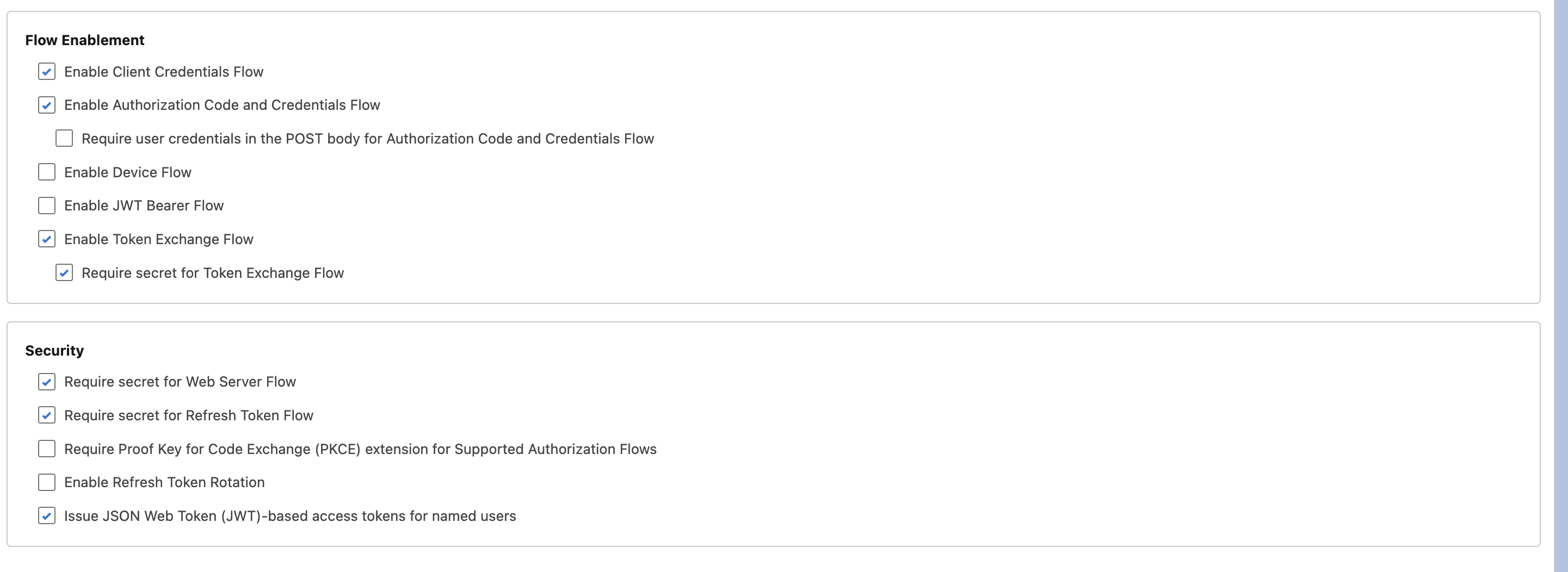
 6. Use the following **Flow Enablement** and **Security** settings:
 7. Click **Create**. Wait 2-10 minutes for Salesforce to propagate.
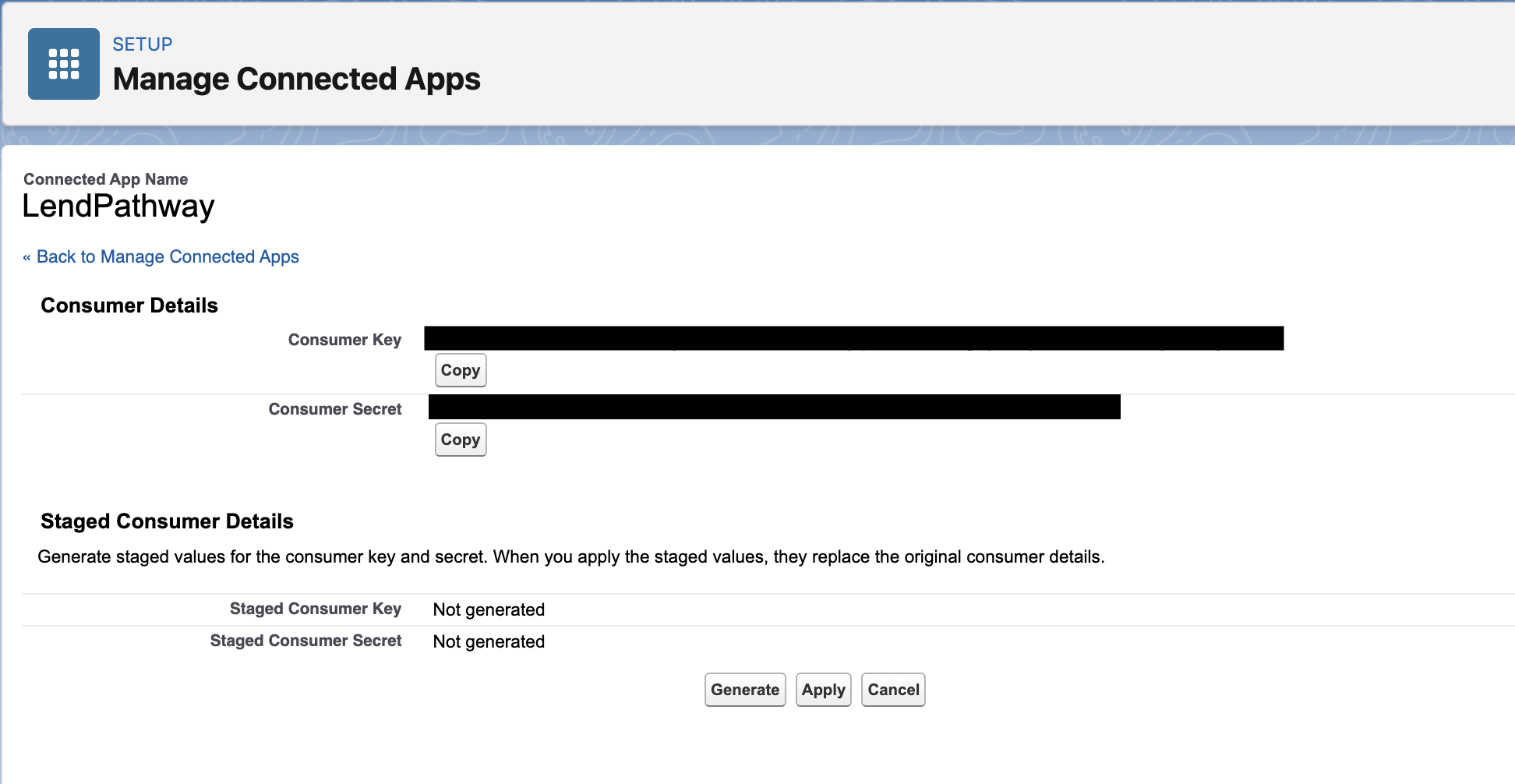
8. Go back to **App Manager** → find your app → **View** → **Manage Consumer Details**. Copy the **Consumer Key** and **Consumer Secret**.
7. Click **Create**. Wait 2-10 minutes for Salesforce to propagate.
8. Go back to **App Manager** → find your app → **View** → **Manage Consumer Details**. Copy the **Consumer Key** and **Consumer Secret**.
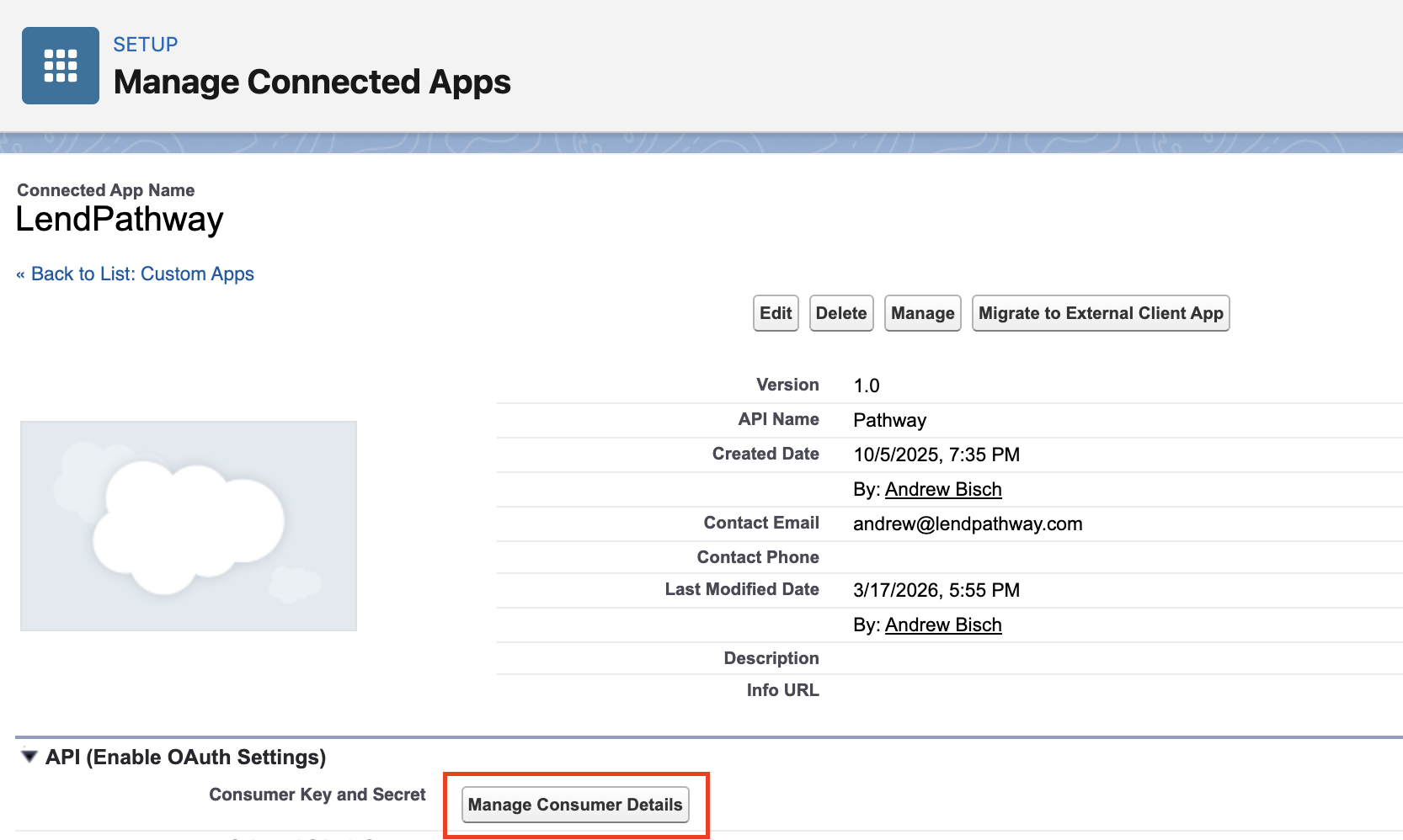 9. Authenticate
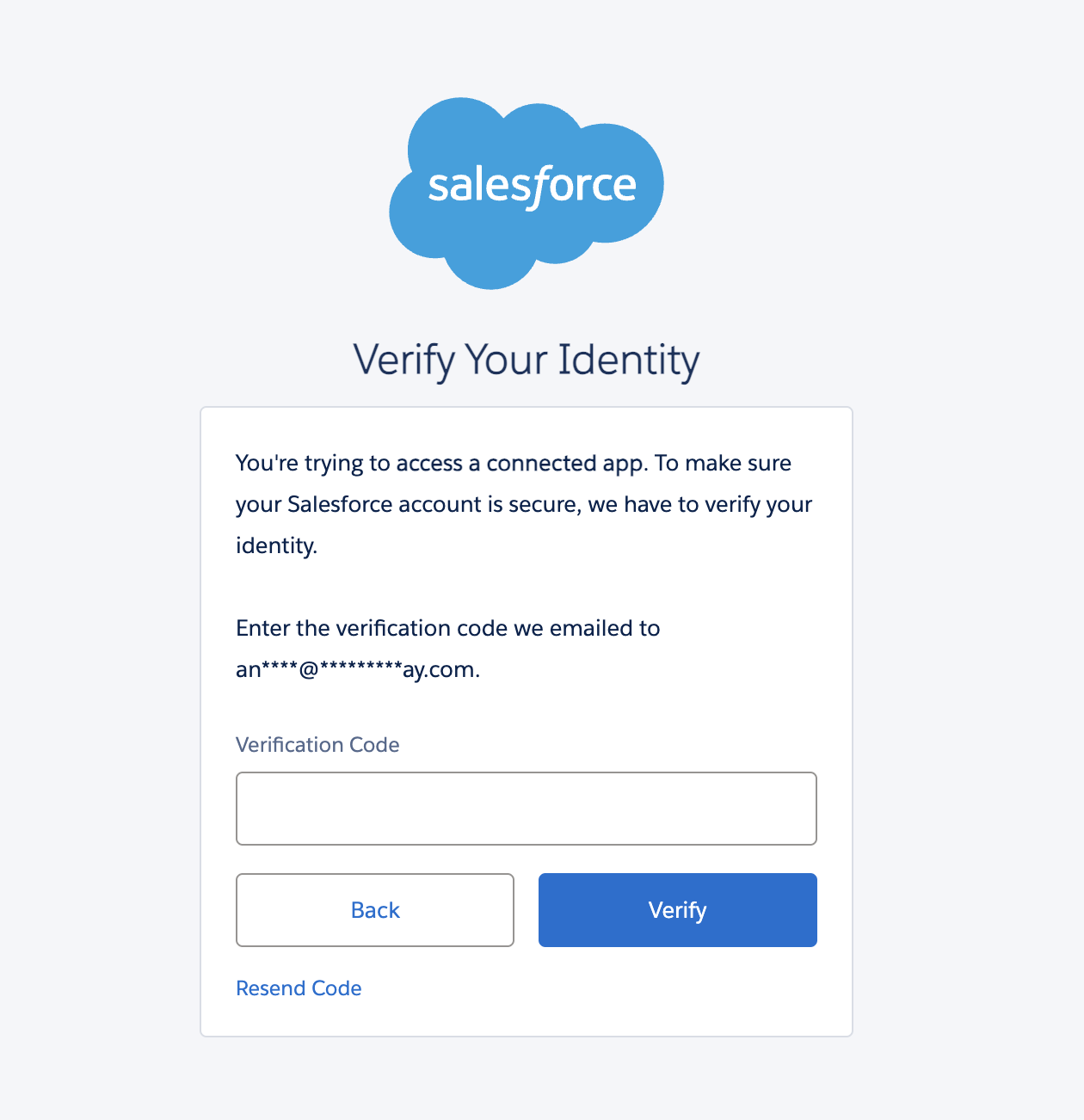 10. Copy the **Consumer Key** and **Consumer Secret**, you’ll need them for the following steps.
 ## **Connect in LendPathway**
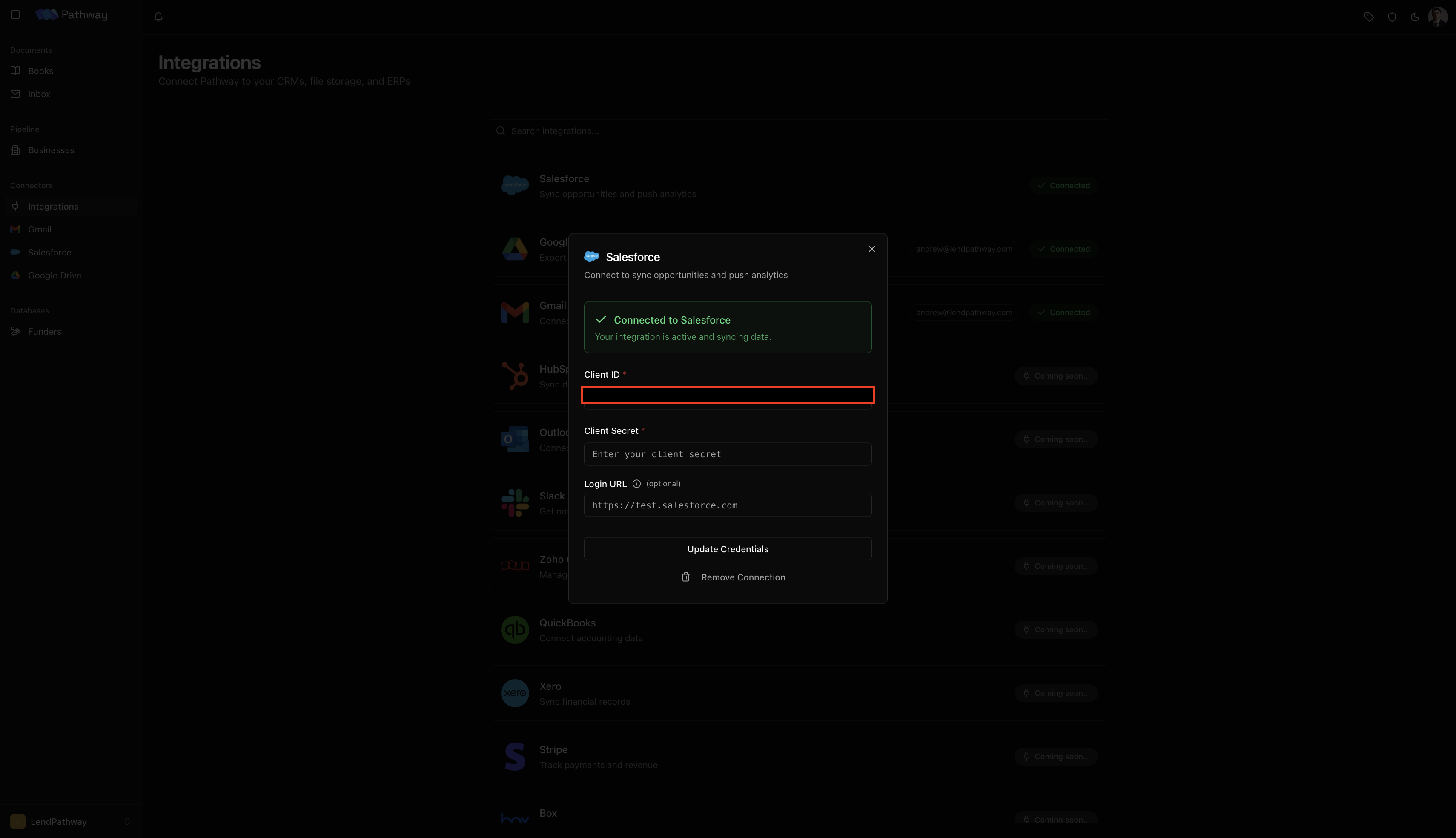
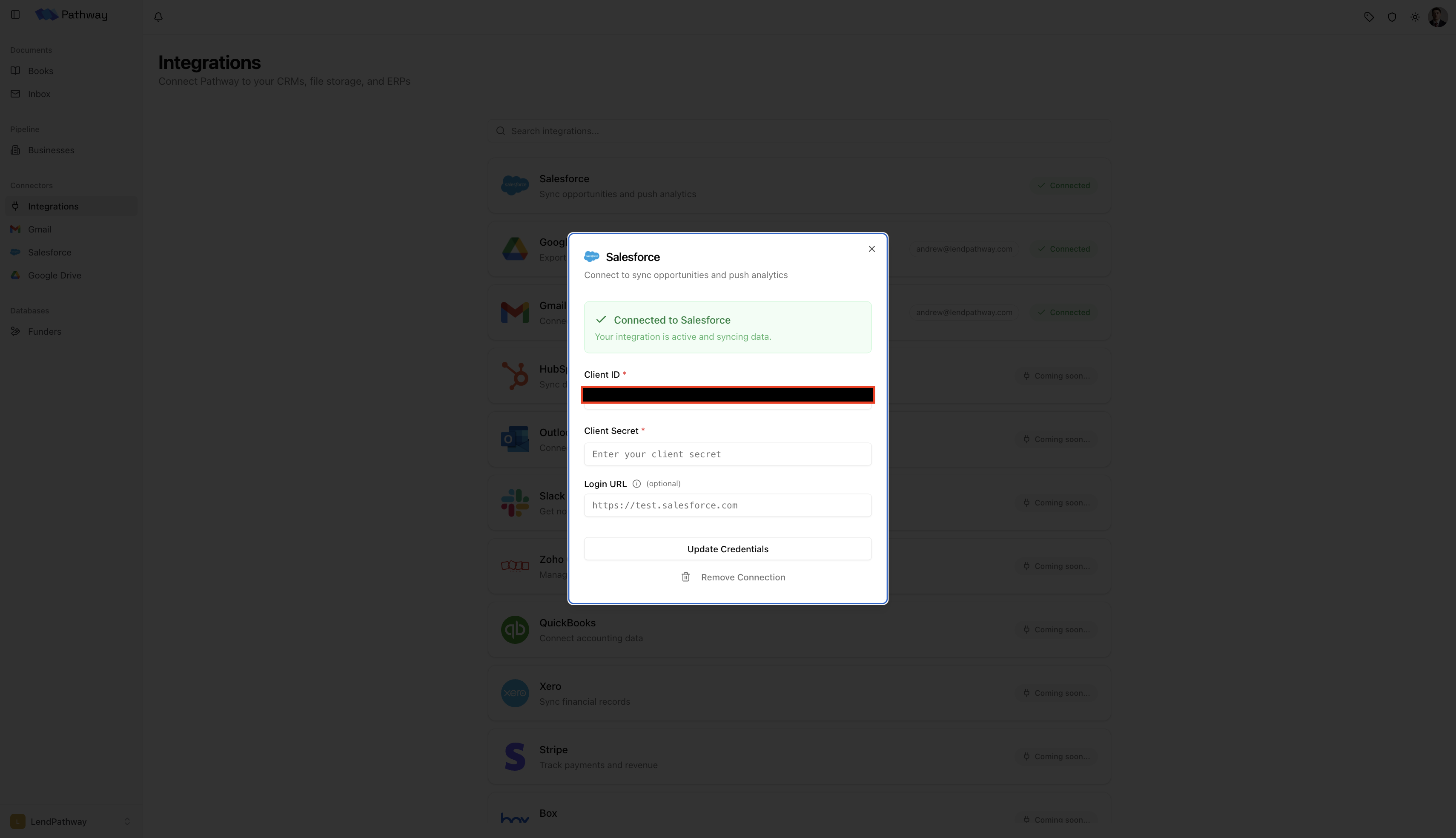
1. Go to **Connectors → Integrations** in the sidebar, click the **Salesforce** card
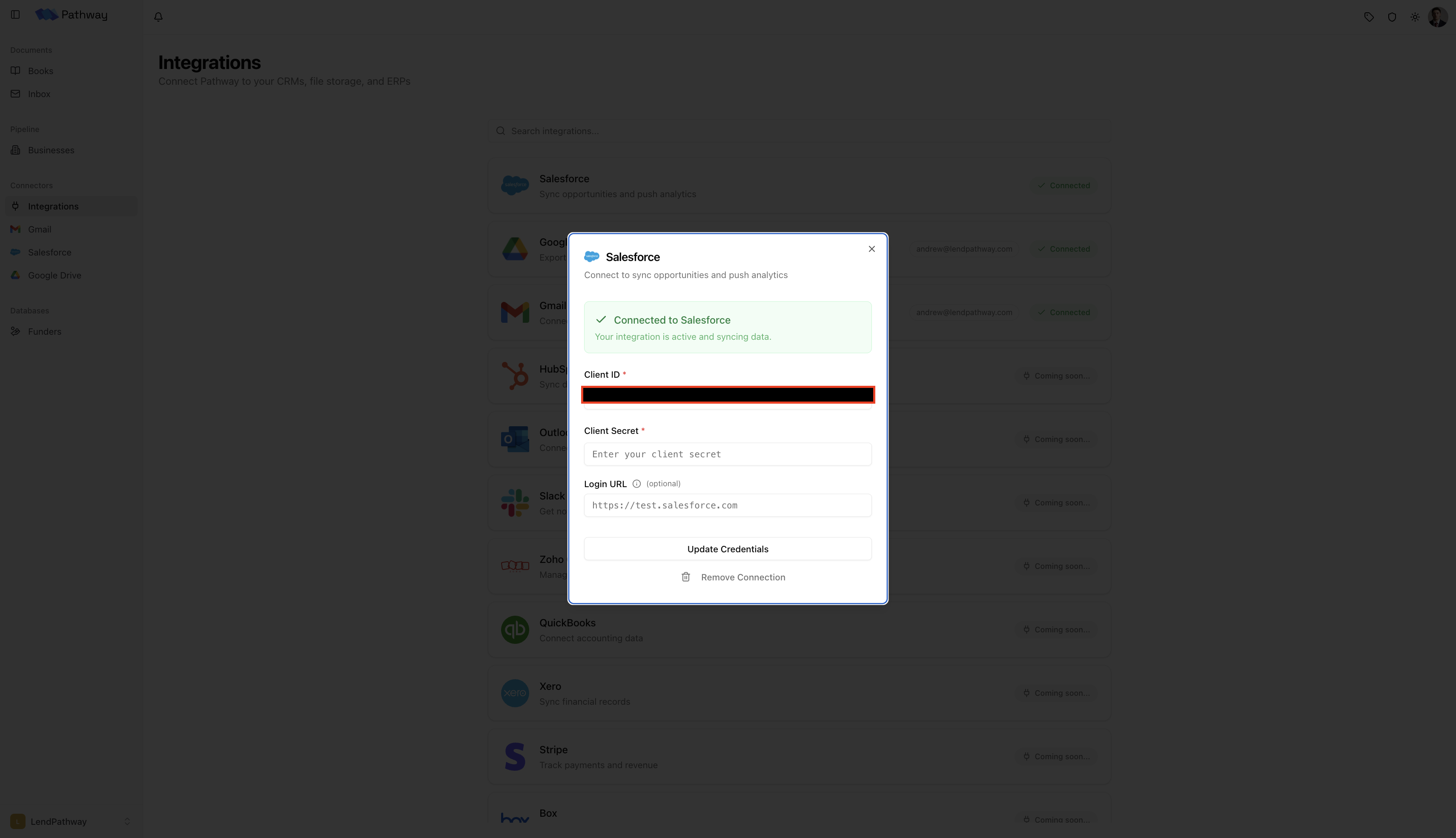
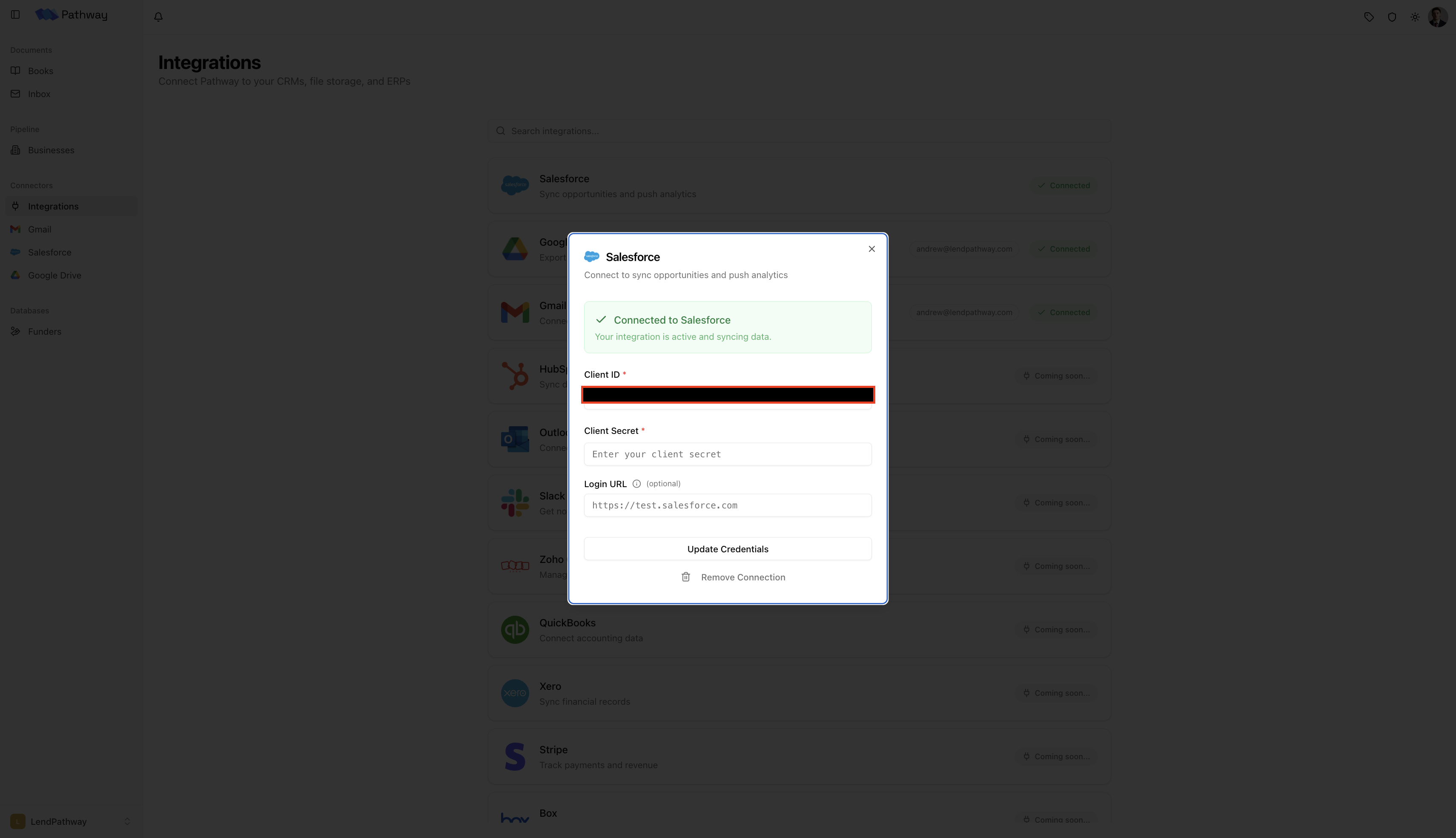
2. Enter your **Client ID** (Consumer Key), **Client Secret** (Consumer Secret), and optionally a **Login URL**
3. Click **Save & Continue**
4. Click **Authenticate with Salesforce**. Log in in the popup and click **Allow**. The popup closes and you'll see a green **Connected** confirmation.
## **Connect in LendPathway**
1. Go to **Connectors → Integrations** in the sidebar, click the **Salesforce** card
2. Enter your **Client ID** (Consumer Key), **Client Secret** (Consumer Secret), and optionally a **Login URL**
3. Click **Save & Continue**
4. Click **Authenticate with Salesforce**. Log in in the popup and click **Allow**. The popup closes and you'll see a green **Connected** confirmation.
 ***
# Once connected
## Browsing Opportunities
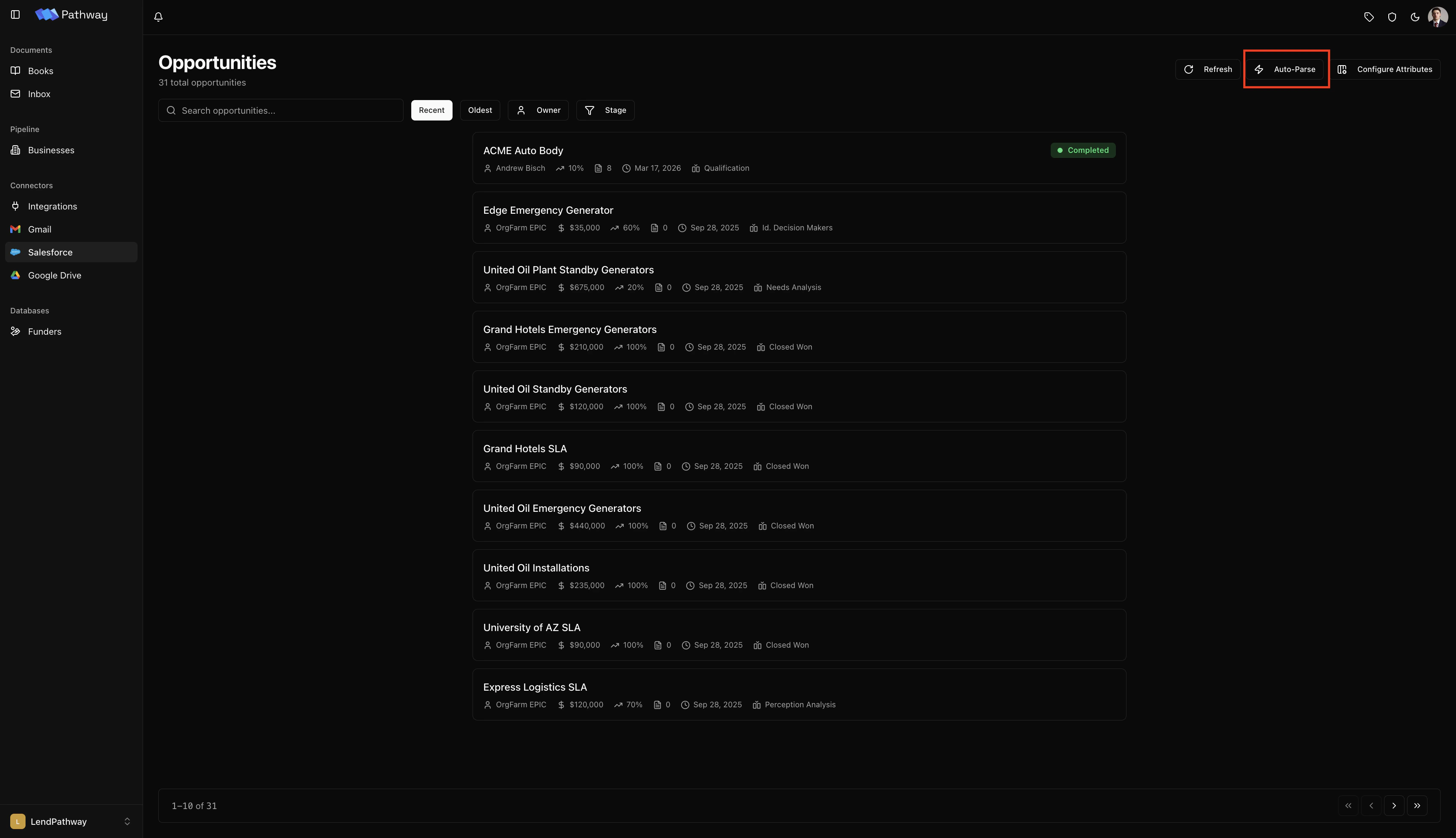
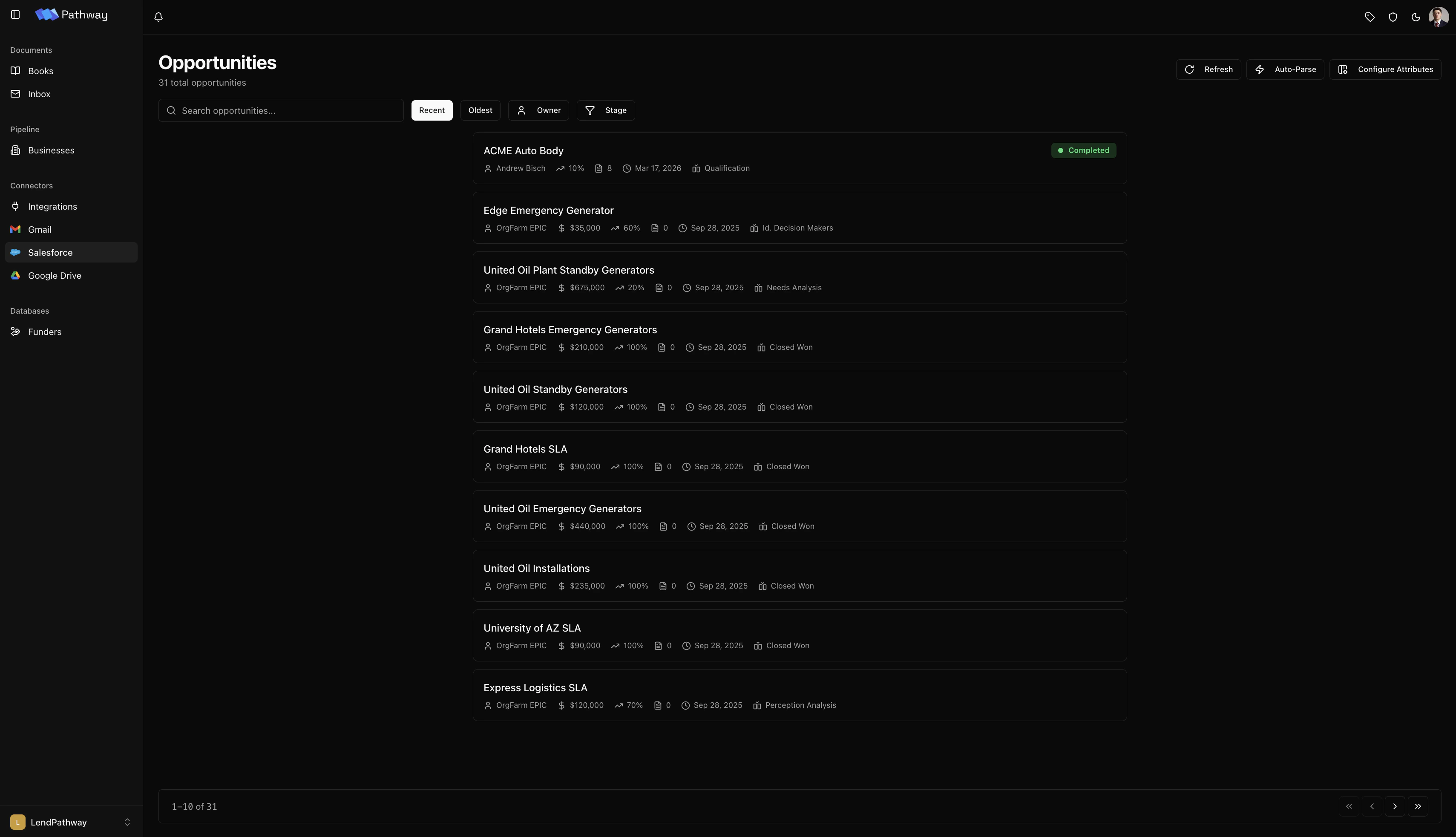
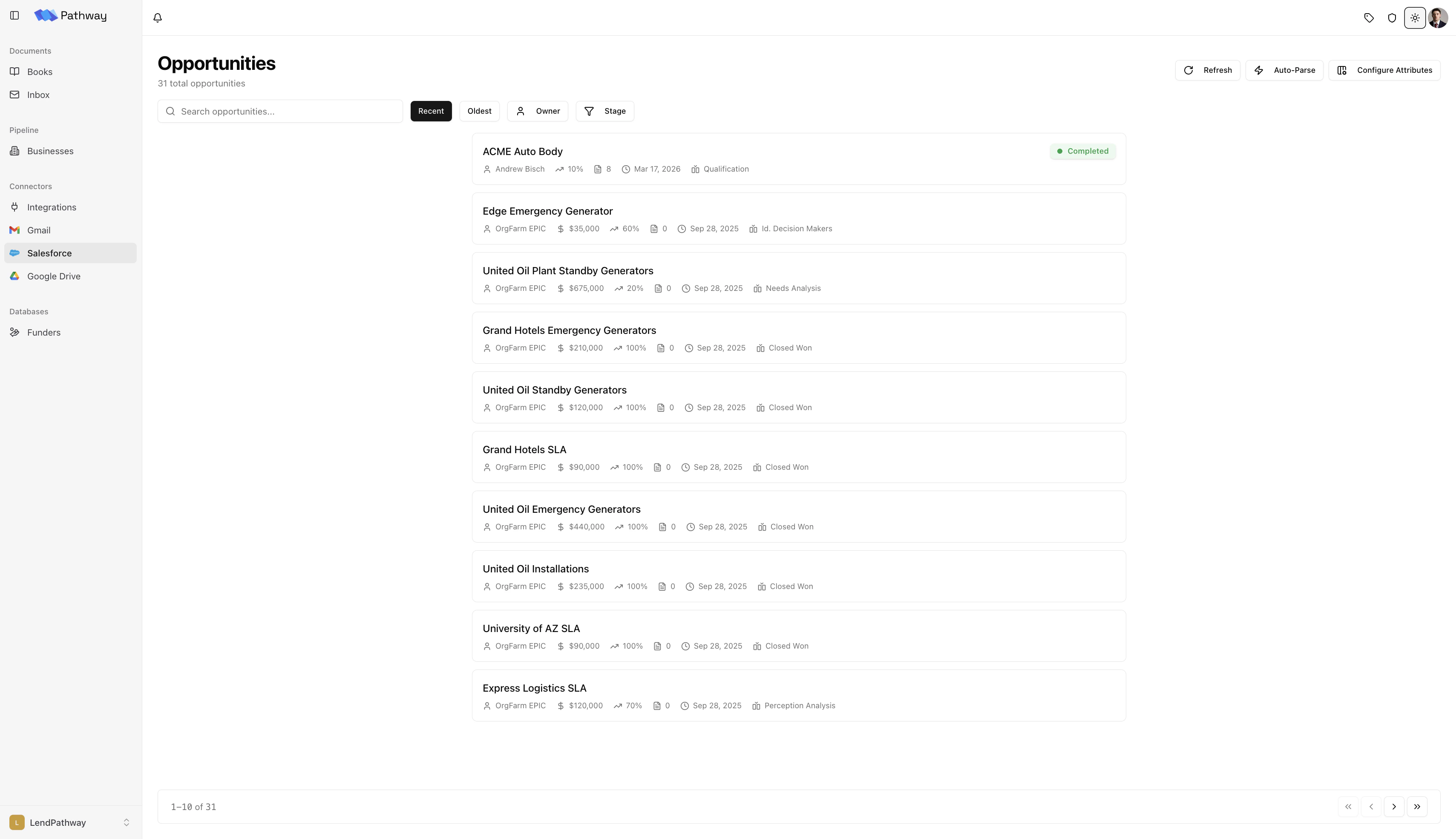
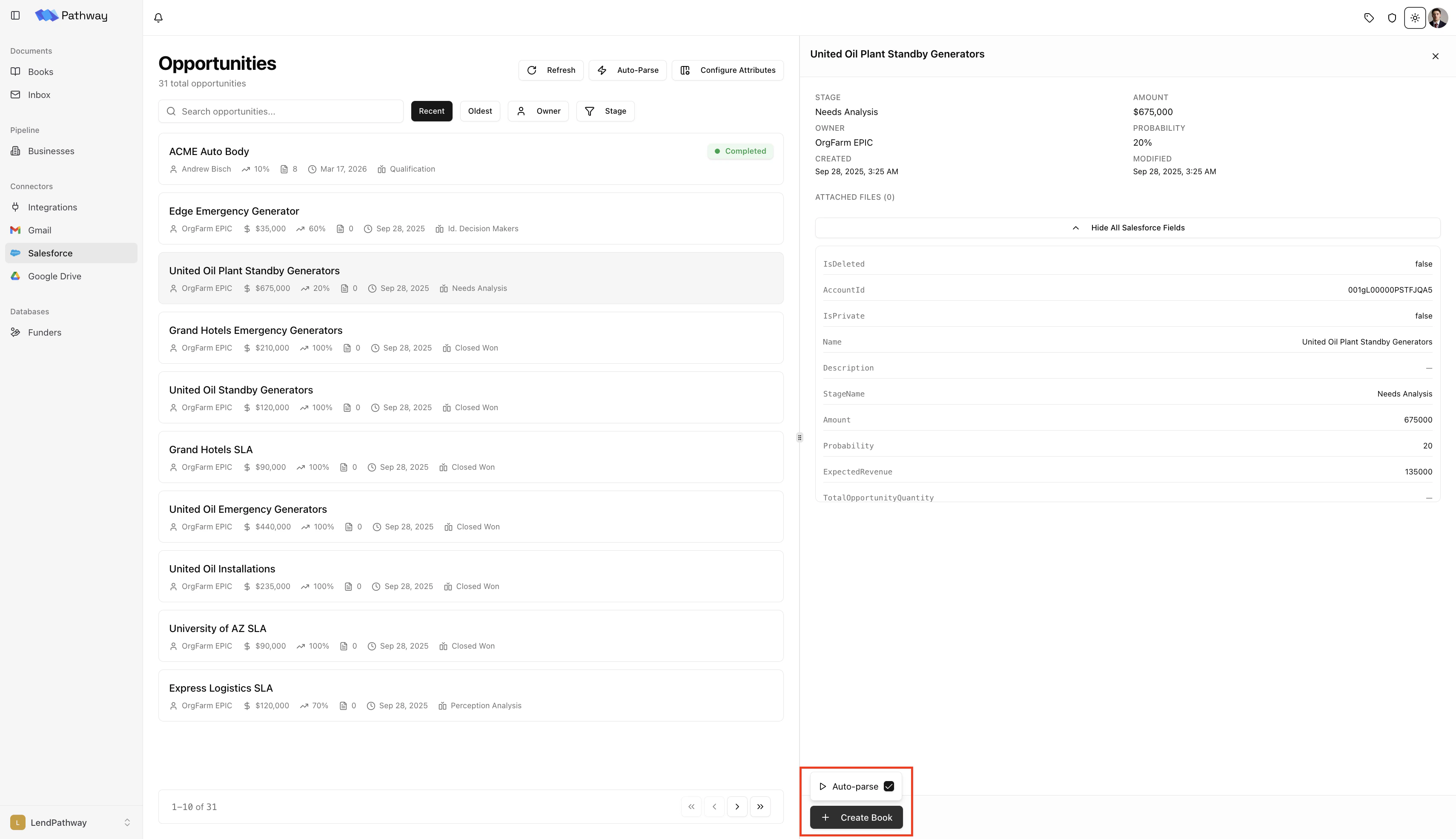
Once connected, click **Salesforce** in the sidebar to open the Opportunities page.
The page shows a paginated list of your Salesforce Opportunities. Use the toolbar to:
* **Filter by stage** — multi-select from your org's stage values
* **Filter by owner** — narrow to a specific rep
* **Search** — find Opportunities by name
* **Sort** — by recently modified or oldest created
* **Refresh** — clear cached data and reload from Salesforce
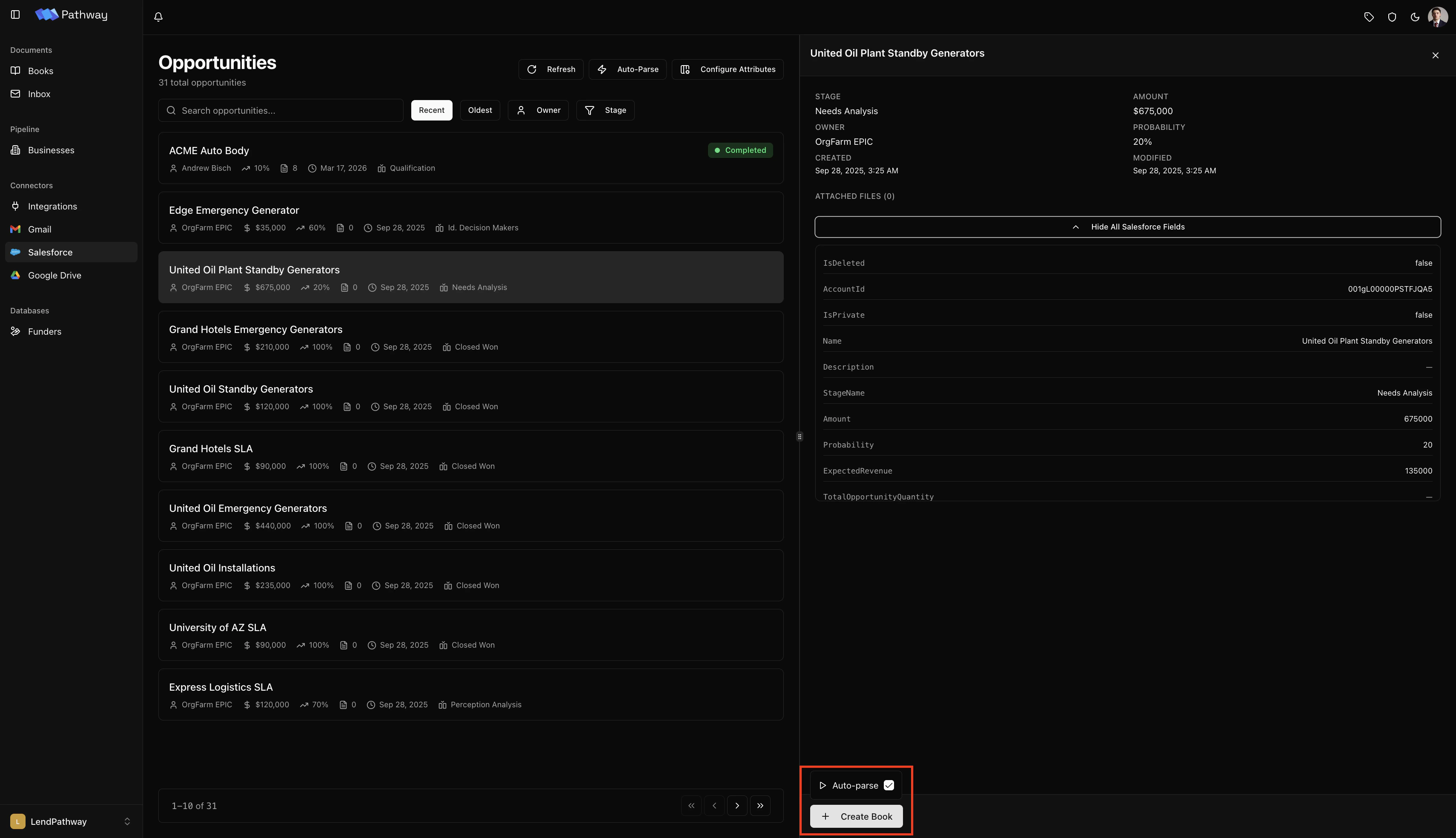
Click any Opportunity to open a detail panel on the right showing its attached files.
***
# Once connected
## Browsing Opportunities
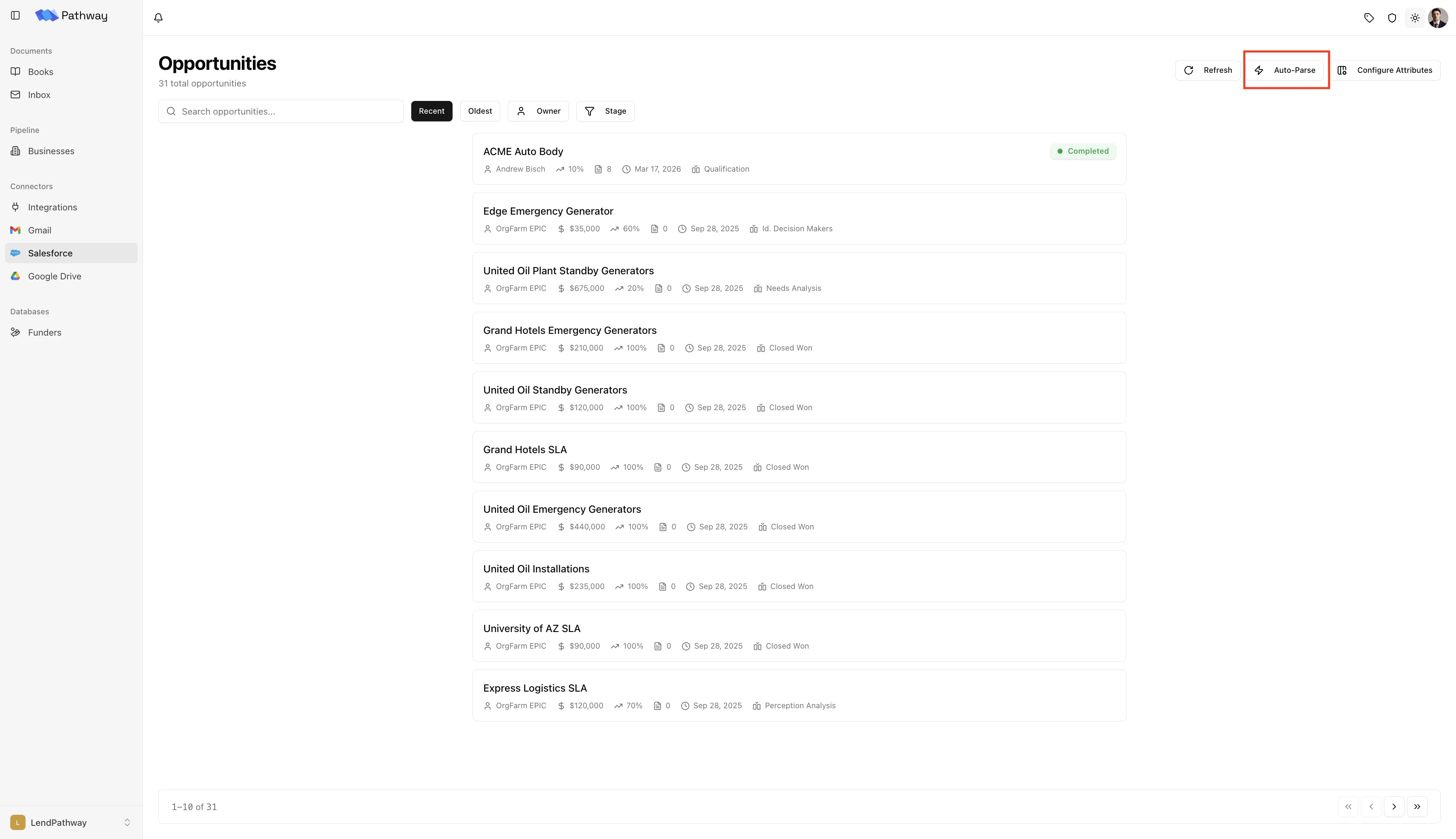
Once connected, click **Salesforce** in the sidebar to open the Opportunities page.
The page shows a paginated list of your Salesforce Opportunities. Use the toolbar to:
* **Filter by stage** — multi-select from your org's stage values
* **Filter by owner** — narrow to a specific rep
* **Search** — find Opportunities by name
* **Sort** — by recently modified or oldest created
* **Refresh** — clear cached data and reload from Salesforce
Click any Opportunity to open a detail panel on the right showing its attached files.
 ## **Creating a Book from an Opportunity**
From the detail panel of any Opportunity:
1. Click **Create Book**
2. Optionally check **Auto-parse** — this starts parsing immediately and pushes results back to Salesforce when done
3. LendPathway downloads all files attached to the Opportunity, creates a book, and uploads them
If Auto-parse is off, the book is created with the files but you'll need to click Parse manually.
## **Creating a Book from an Opportunity**
From the detail panel of any Opportunity:
1. Click **Create Book**
2. Optionally check **Auto-parse** — this starts parsing immediately and pushes results back to Salesforce when done
3. LendPathway downloads all files attached to the Opportunity, creates a book, and uploads them
If Auto-parse is off, the book is created with the files but you'll need to click Parse manually.
 ## Field Mappings
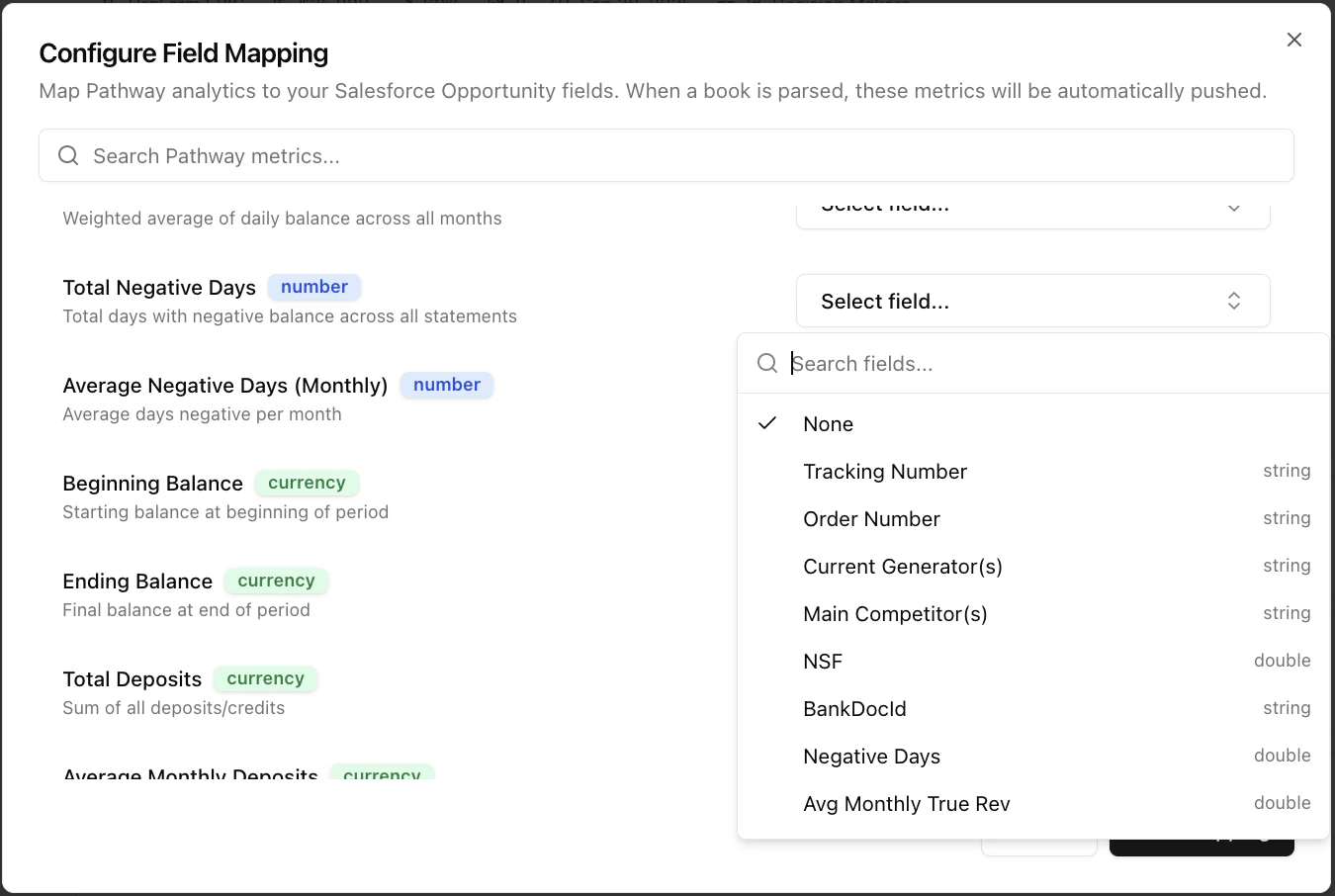
Field mappings control which LendPathway metrics get pushed to which Salesforce Opportunity fields.
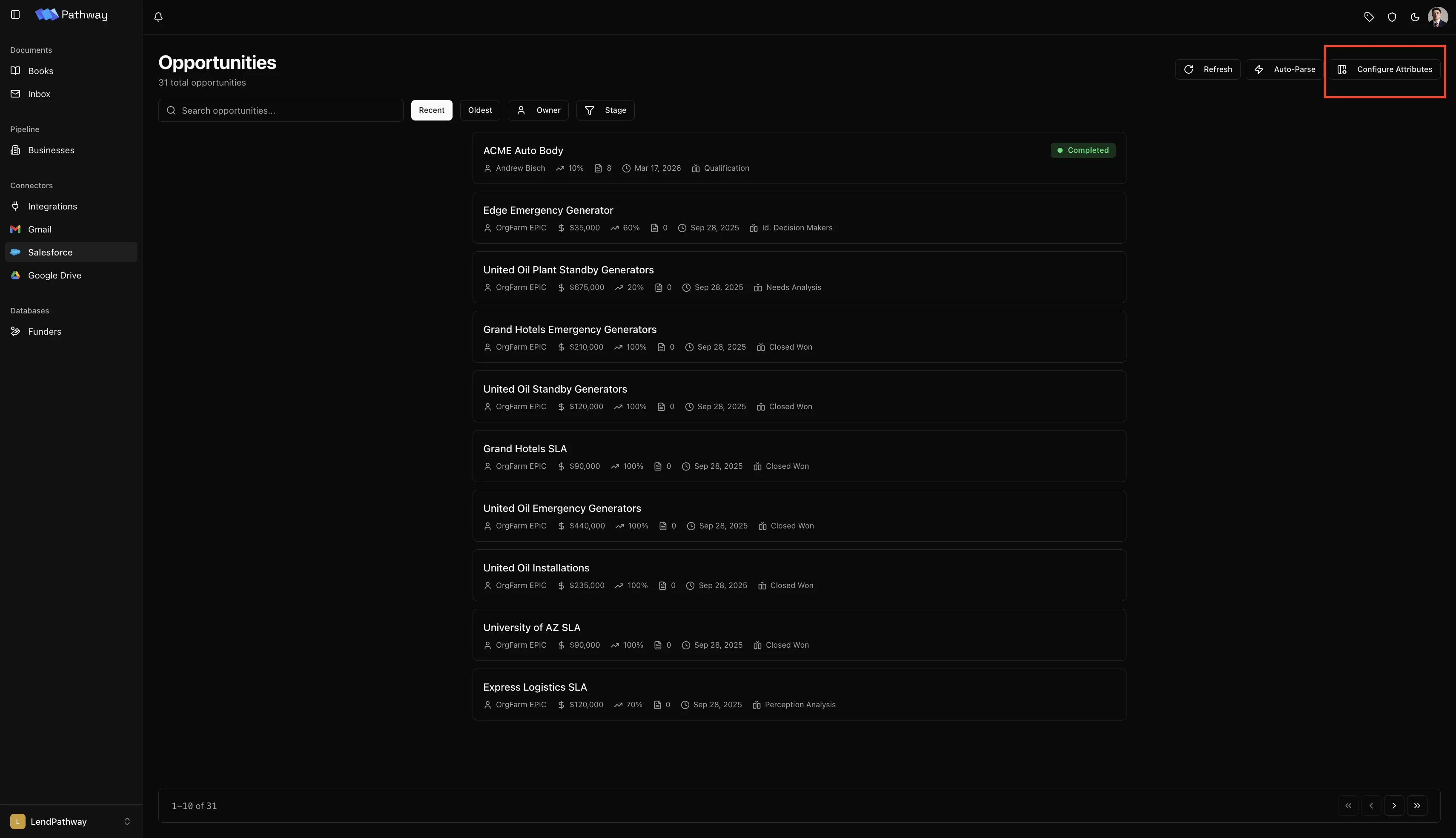
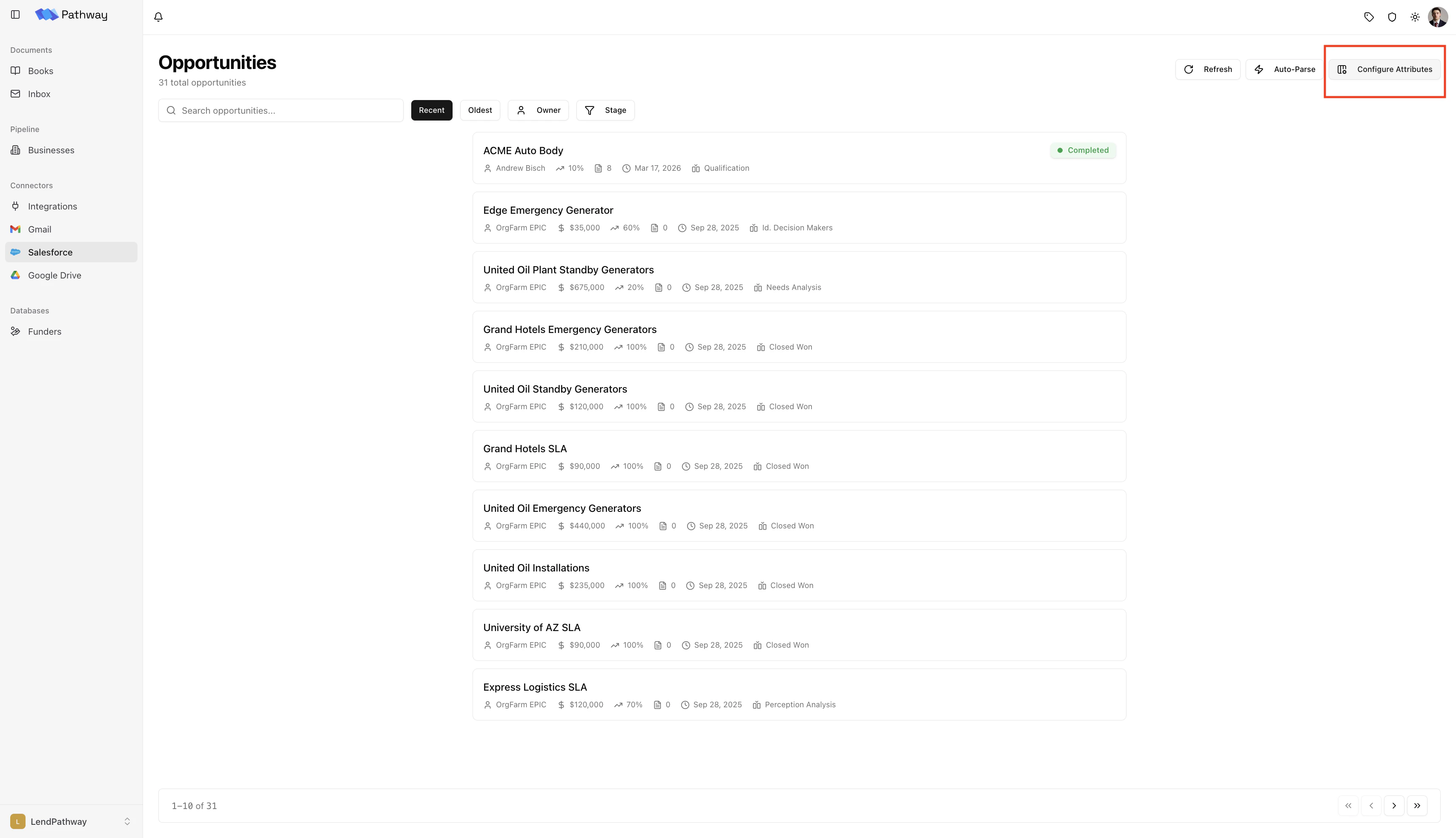
1. On the **Salesforce** page, click **Configure Attributes** in the top-right toolbar
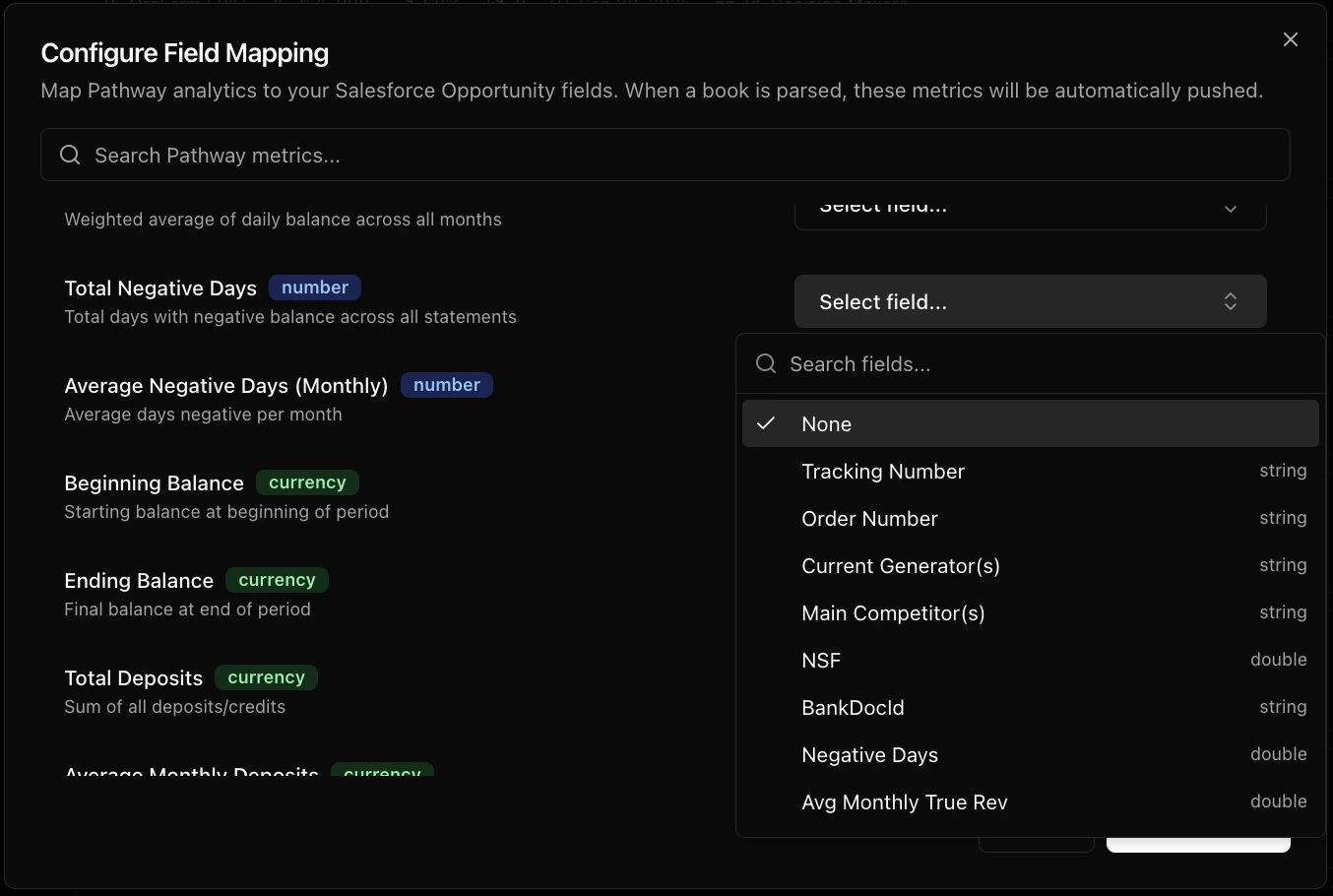
2. For each metric, select the target Salesforce field from the dropdown
3. LendPathway validates type compatibility — currency metrics can map to currency, double, or text fields; number metrics to number, double, or text fields; and so on
4. Click **Save**
## Field Mappings
Field mappings control which LendPathway metrics get pushed to which Salesforce Opportunity fields.
1. On the **Salesforce** page, click **Configure Attributes** in the top-right toolbar
2. For each metric, select the target Salesforce field from the dropdown
3. LendPathway validates type compatibility — currency metrics can map to currency, double, or text fields; number metrics to number, double, or text fields; and so on
4. Click **Save**
 ## Pushing Results
After a book is parsed, there are two ways to push analytics to Salesforce:
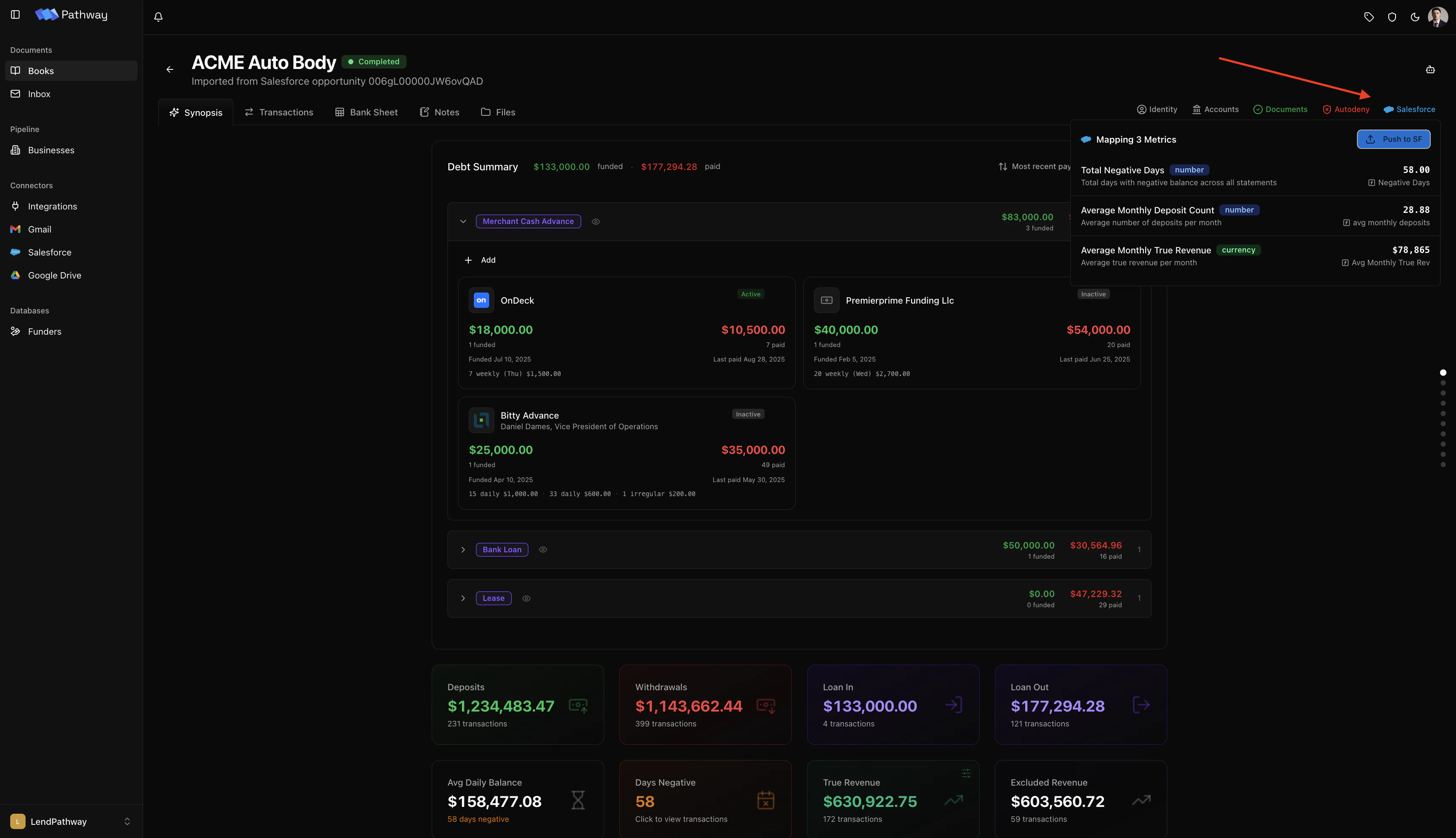
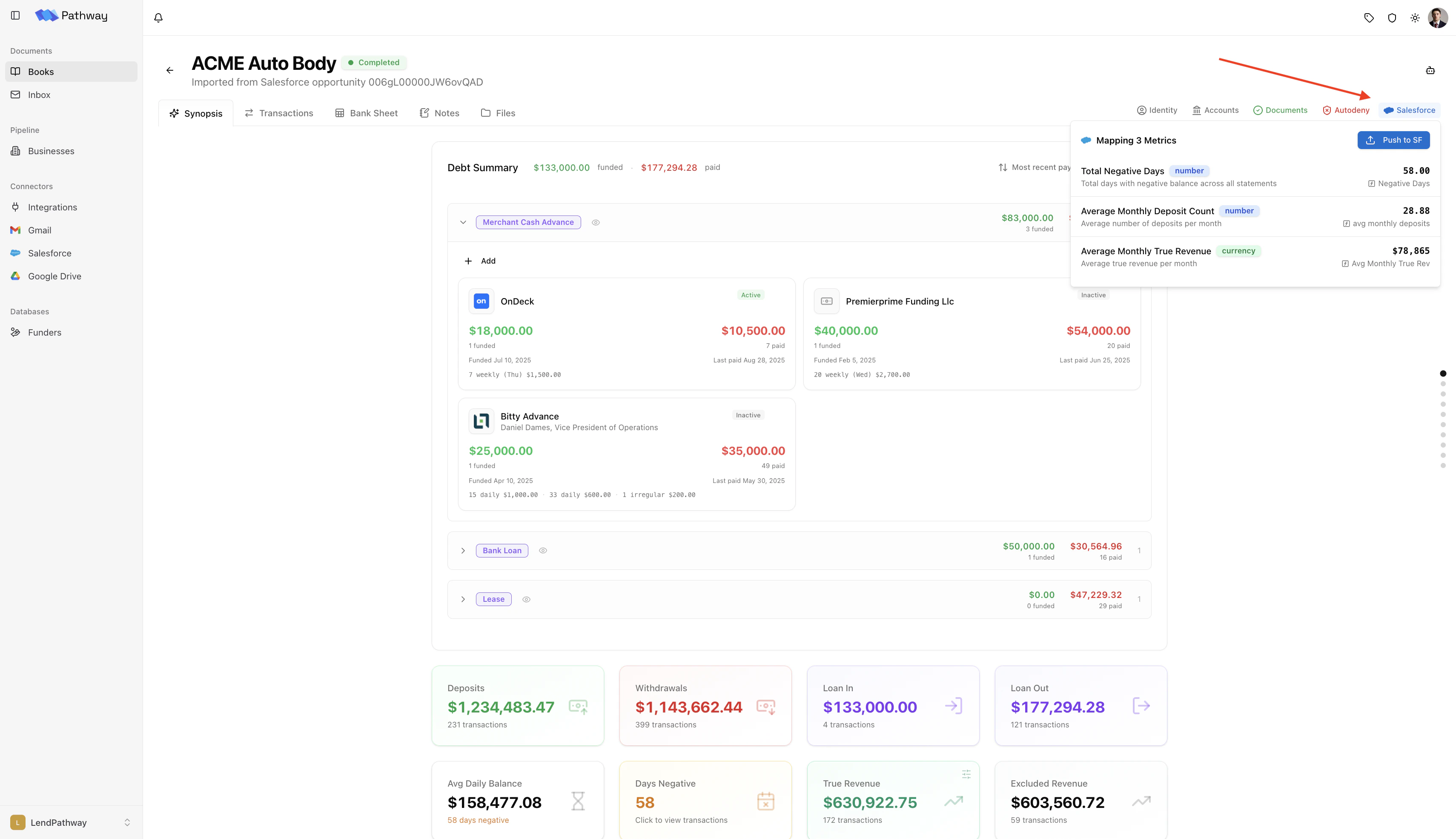
**Manual** — Open the book, click the **Salesforce badge** in the top-right info badges, and confirm. Only available for books linked to a Salesforce Opportunity.
## Pushing Results
After a book is parsed, there are two ways to push analytics to Salesforce:
**Manual** — Open the book, click the **Salesforce badge** in the top-right info badges, and confirm. Only available for books linked to a Salesforce Opportunity.
 **Automatic** — If the book was created from an Opportunity with **Auto-parse** enabled, results push automatically when parsing completes. The parse complete field (if configured in Auto-Parse settings) is set to `true`.
## Auto-Parse
Auto-parse monitors your Salesforce pipeline and automatically creates and parses books for new Opportunities — no manual intervention needed.
1. On the **Salesforce** page, click **Auto-Parse** in the top-right toolbar
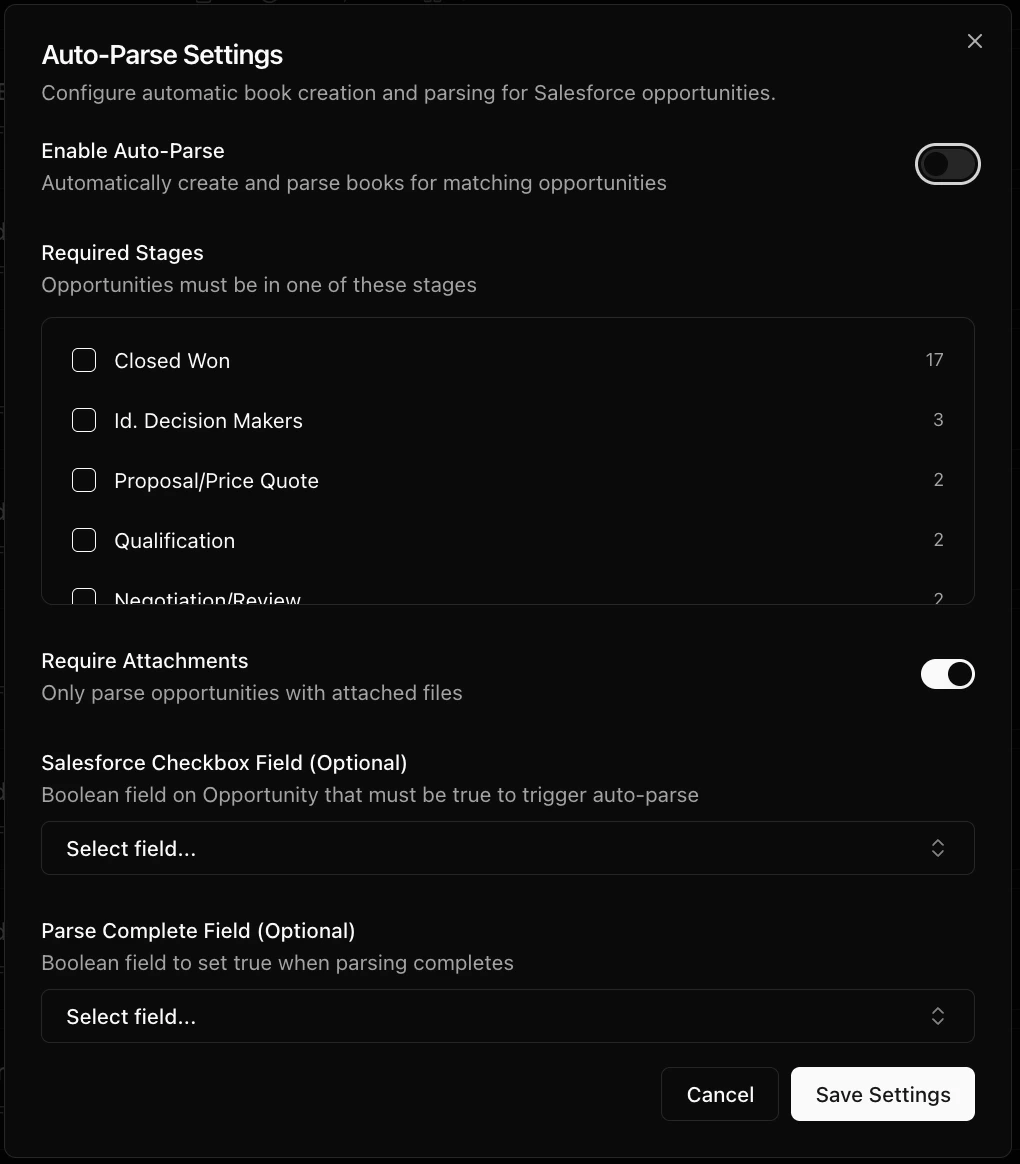
2. Toggle it on and configure:
* **Required stages** — only Opportunities in these stages are picked up
* **Require attachments** — skip Opportunities that have no files
* **Checkbox field** (optional) — a Salesforce checkbox field that must be `true` for the Opportunity to be picked up
* **Parse complete field** (optional) — a Salesforce field that LendPathway sets to `true` when parsing and sync are done
LendPathway polls Salesforce every 5 minutes. Matching Opportunities are created as books, parsed, and synced back automatically.
Auto-parse creates books and consumes usage.
**Automatic** — If the book was created from an Opportunity with **Auto-parse** enabled, results push automatically when parsing completes. The parse complete field (if configured in Auto-Parse settings) is set to `true`.
## Auto-Parse
Auto-parse monitors your Salesforce pipeline and automatically creates and parses books for new Opportunities — no manual intervention needed.
1. On the **Salesforce** page, click **Auto-Parse** in the top-right toolbar
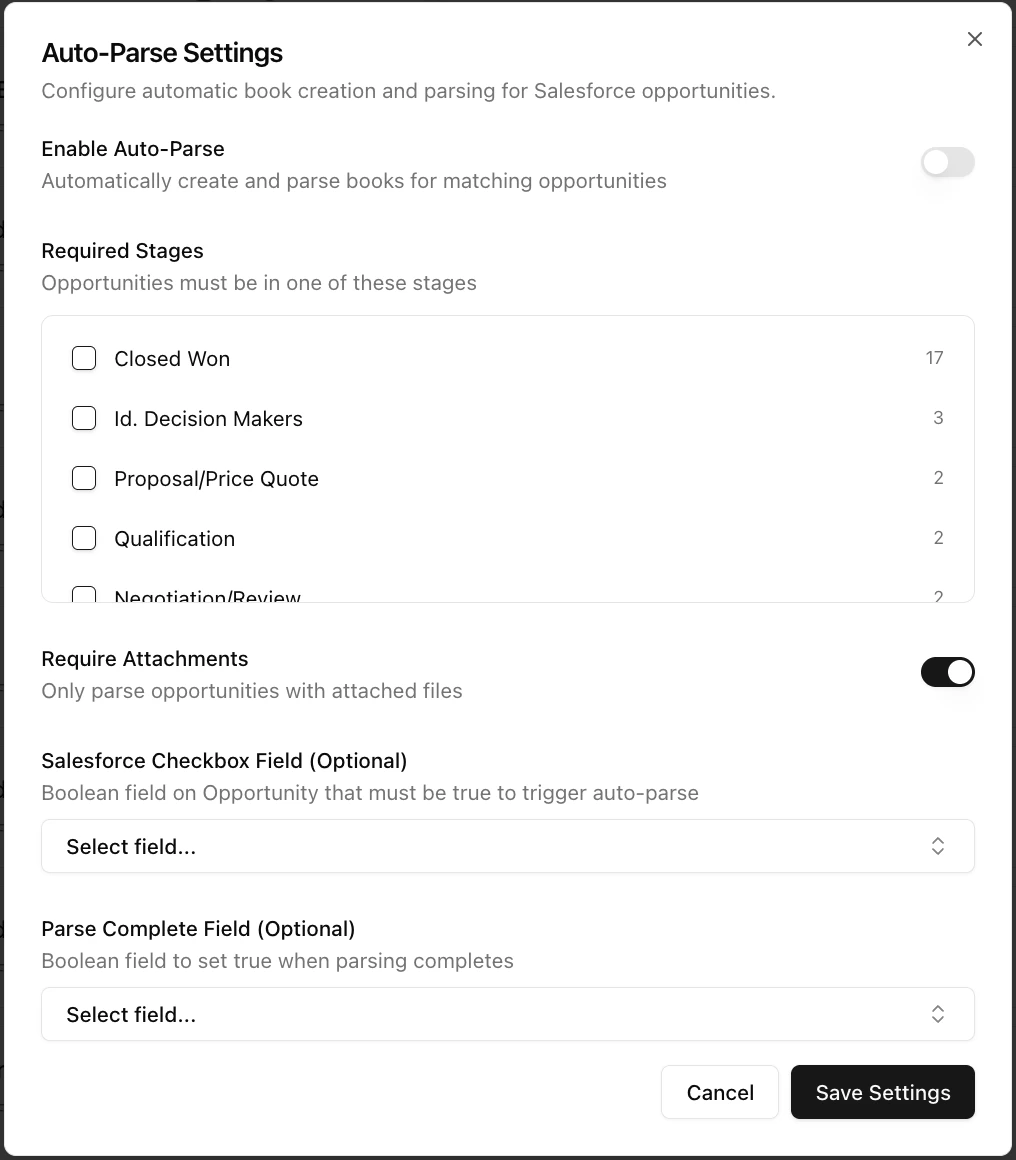
2. Toggle it on and configure:
* **Required stages** — only Opportunities in these stages are picked up
* **Require attachments** — skip Opportunities that have no files
* **Checkbox field** (optional) — a Salesforce checkbox field that must be `true` for the Opportunity to be picked up
* **Parse complete field** (optional) — a Salesforce field that LendPathway sets to `true` when parsing and sync are done
LendPathway polls Salesforce every 5 minutes. Matching Opportunities are created as books, parsed, and synced back automatically.
Auto-parse creates books and consumes usage.