

LendPathway connects to the tools your team already uses. All integrations live under the Connectors section in the sidebar.
Gmail
Connect your Google account to manage email directly inside LendPathway. Each user connects their own inbox via OAuth — LendPathway never stores your password.Connecting
- Go to the Integrations page (under Connectors in the sidebar)
- Click the Gmail card
- Sign in with Google and grant read and send access
- When the popup closes, your inbox is connected
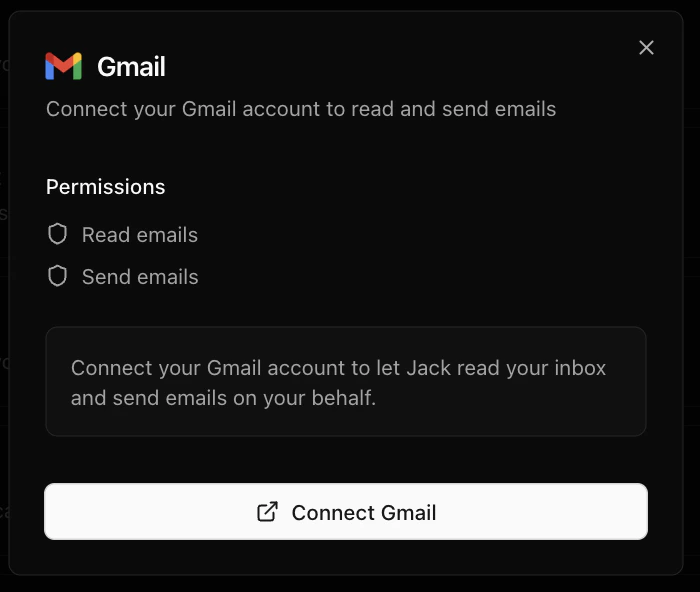
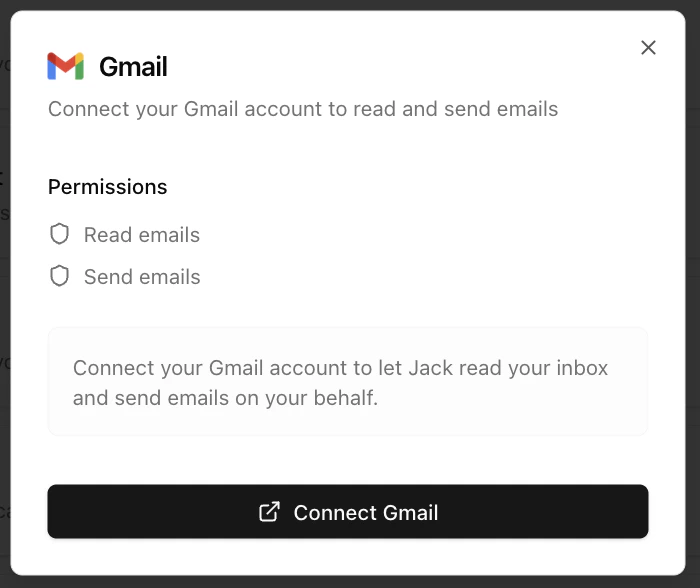
Gmail Connector
What you can do
Once connected, click Gmail in the sidebar to open your inbox.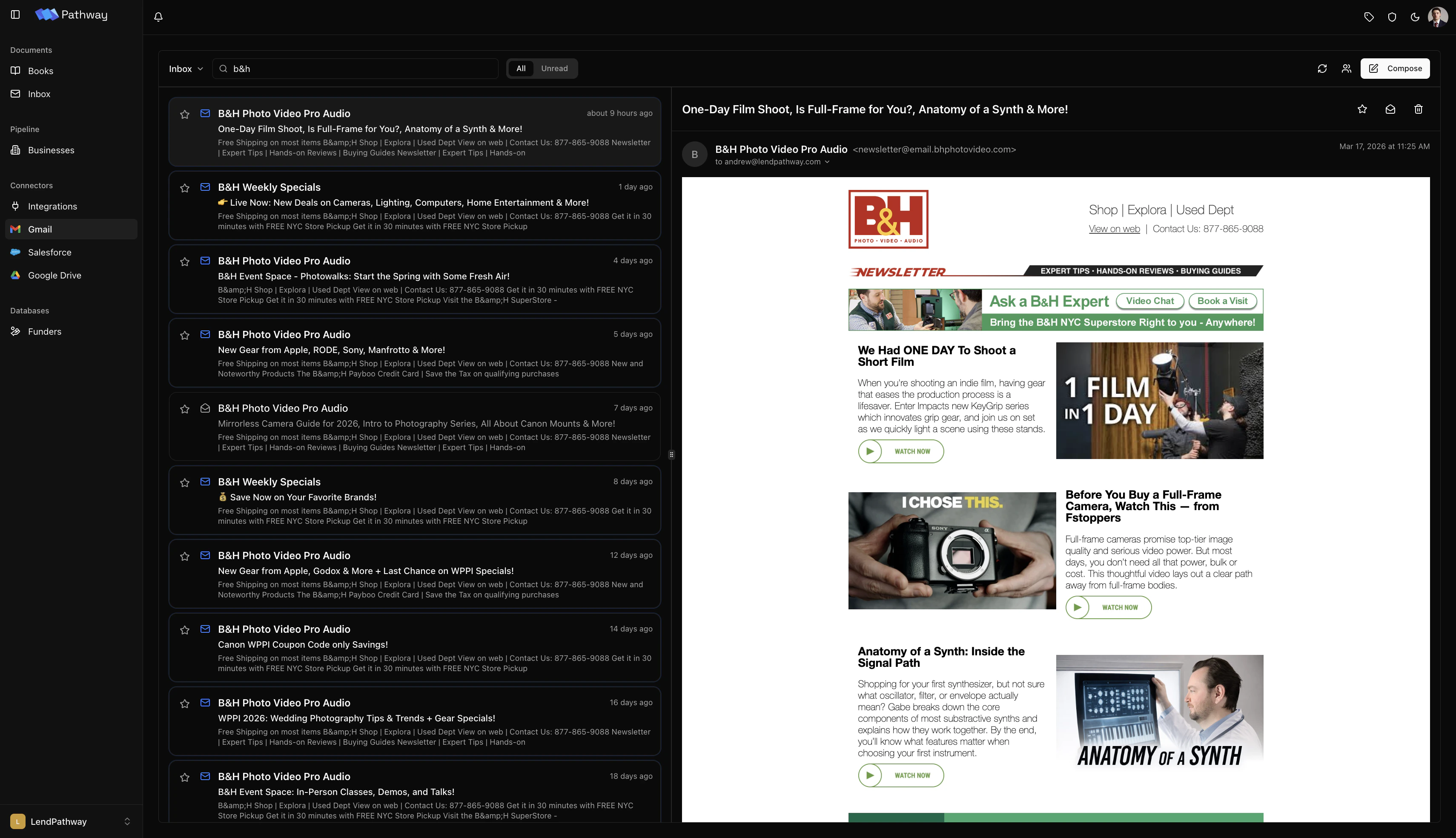
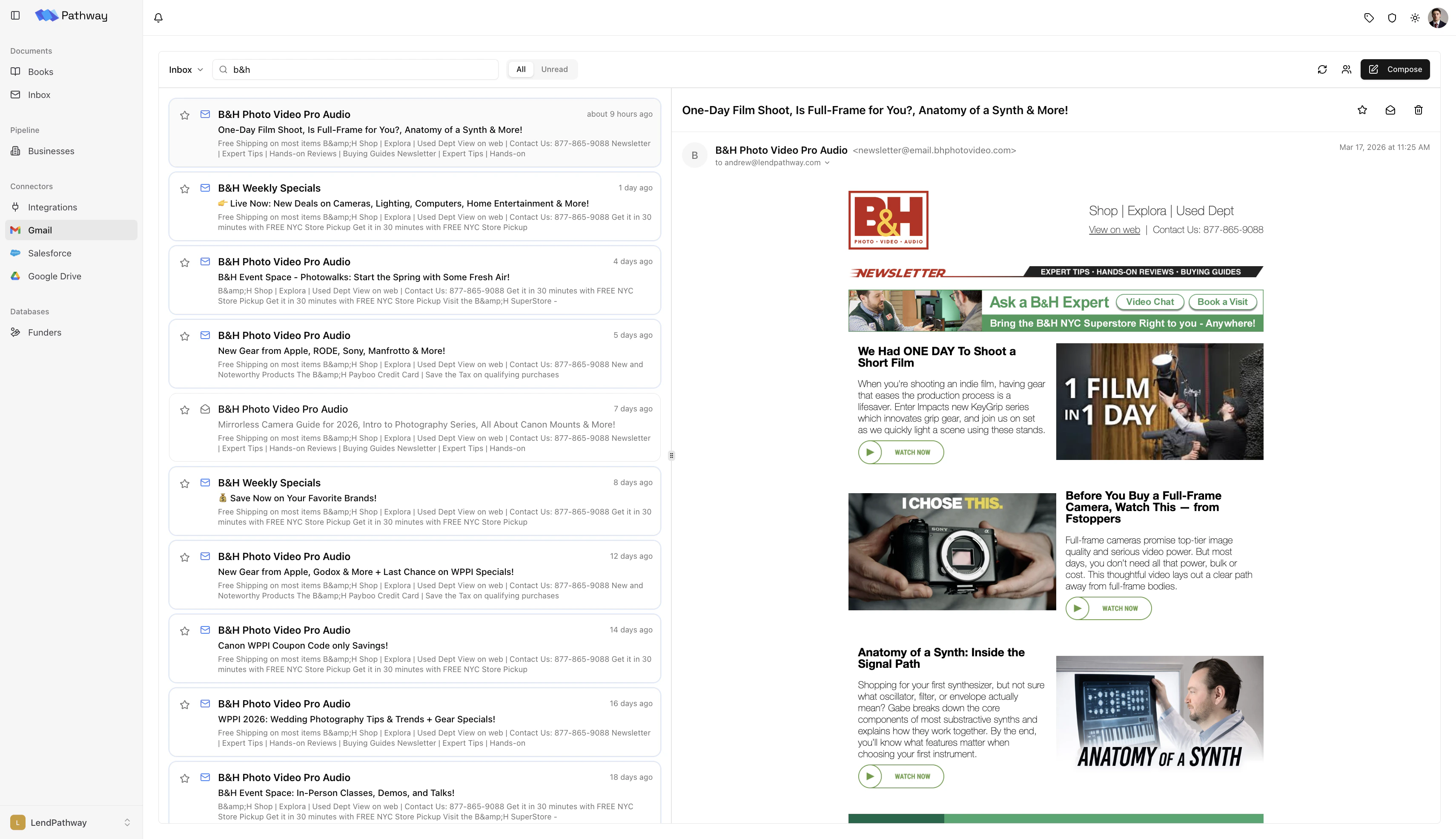
Gmail Inbox Tab
- Browse messages — Switch between Inbox, Sent, Starred, and Trash. Search across all messages. Filter by All or Unread.
- Read threads — Open any email thread and view the full conversation. Download attachments directly.
-
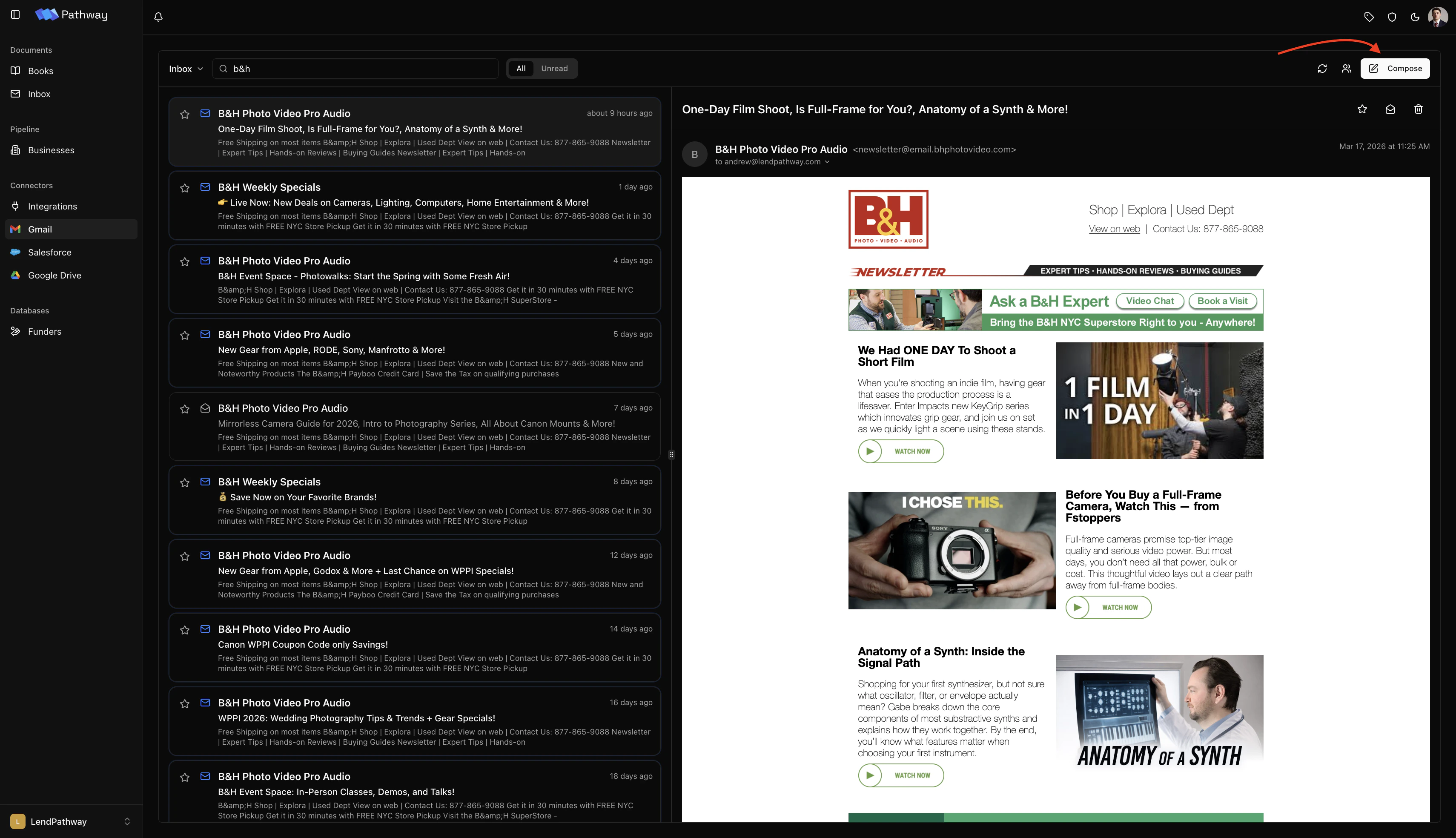
Send and reply — Compose new emails or reply inline with support for CC, BCC, and file attachments.
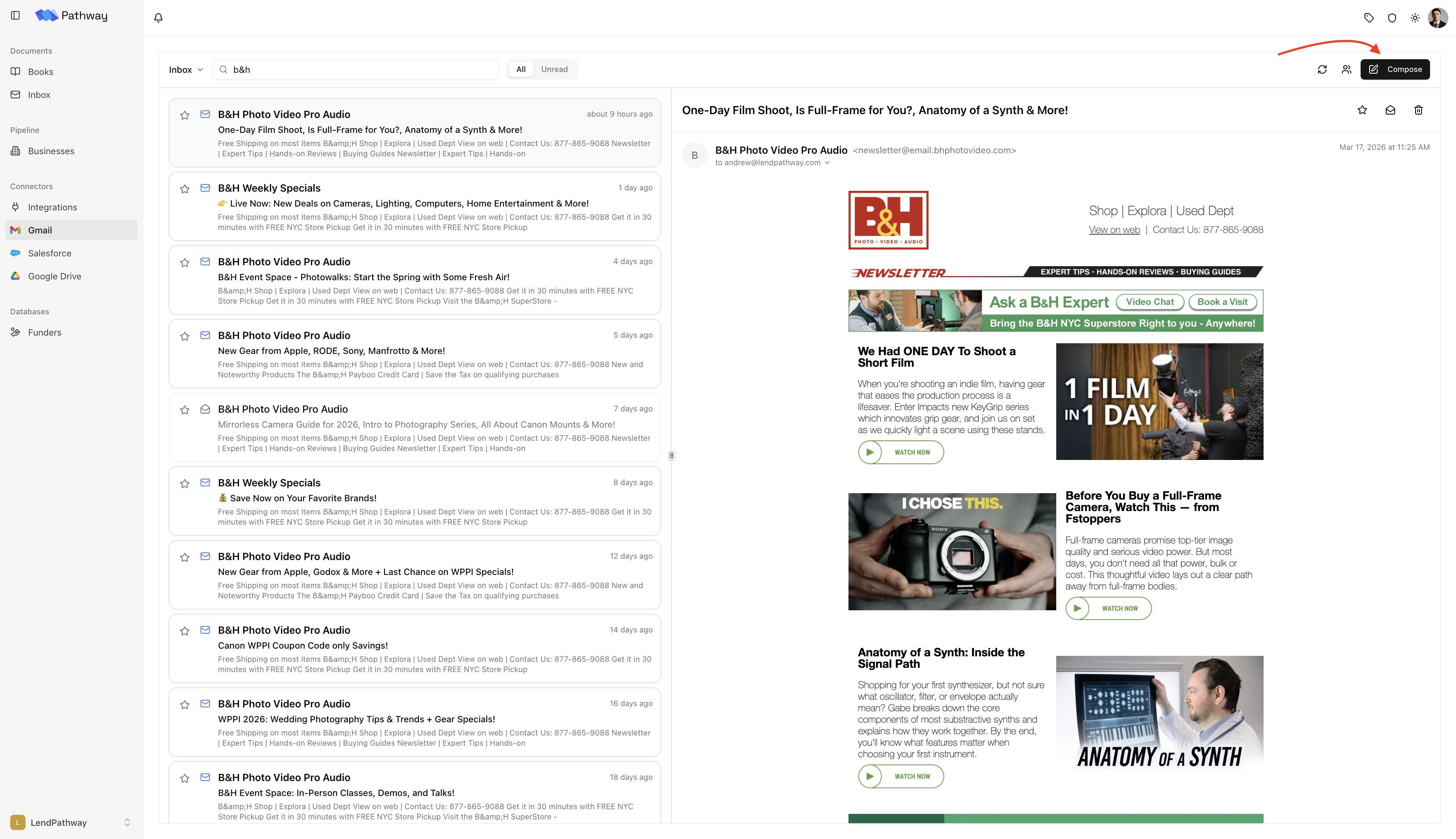
Compose Email Within Gmail Inbox Tab
-
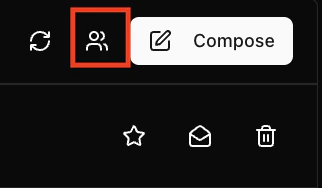
Contacts — LendPathway syncs contacts from the last six months of your inbox (From, To, and CC fields). You can also add contacts manually.
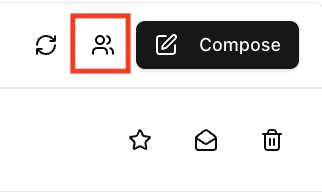
Contacts Button Within Gmail Inbox Tab
Google Drive
Export any generated spreadsheet to Google Drive as a native Google Sheet.Connecting
- Go to the Integrations page (under Connectors in the sidebar)
- Click the Google Drive card
- Authorize LendPathway to create files in your Drive
drive.file scope, which limits access to files LendPathway creates. It cannot read or modify your existing Drive files.
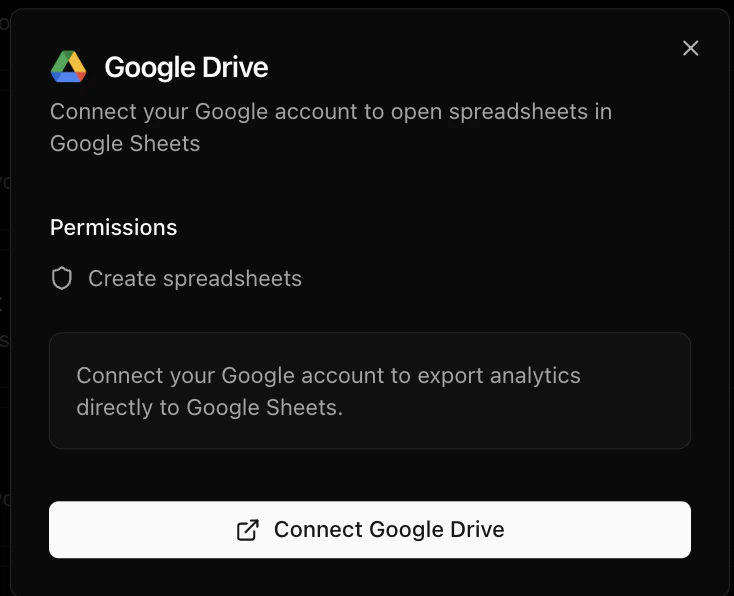
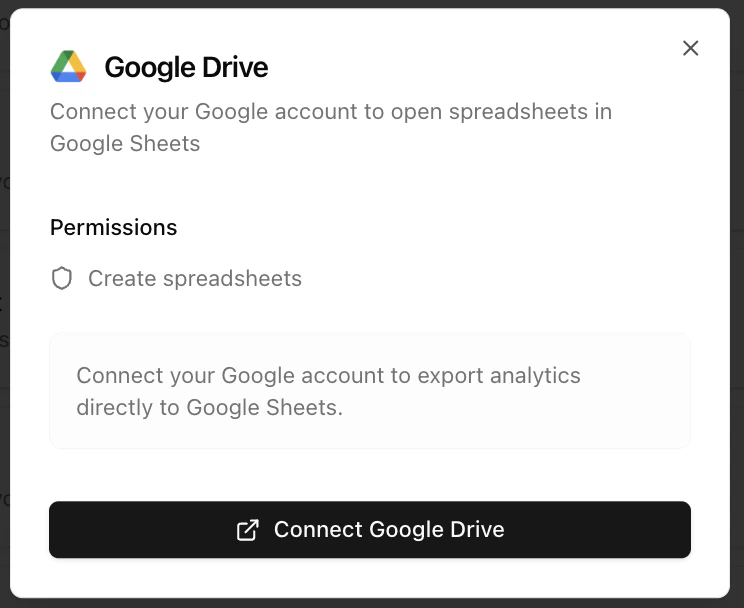
Google Drive Connector
Exporting a spreadsheet
- Open a book with completed analytics
- Go to the Bank Spreadsheet, Credit Sheet, or Tax Sheet tab
- Click Open in Drive in the floating toolbar at the bottom
- LendPathway uploads the workbook and converts it to a native Google Sheet
- The Sheet opens in a new tab
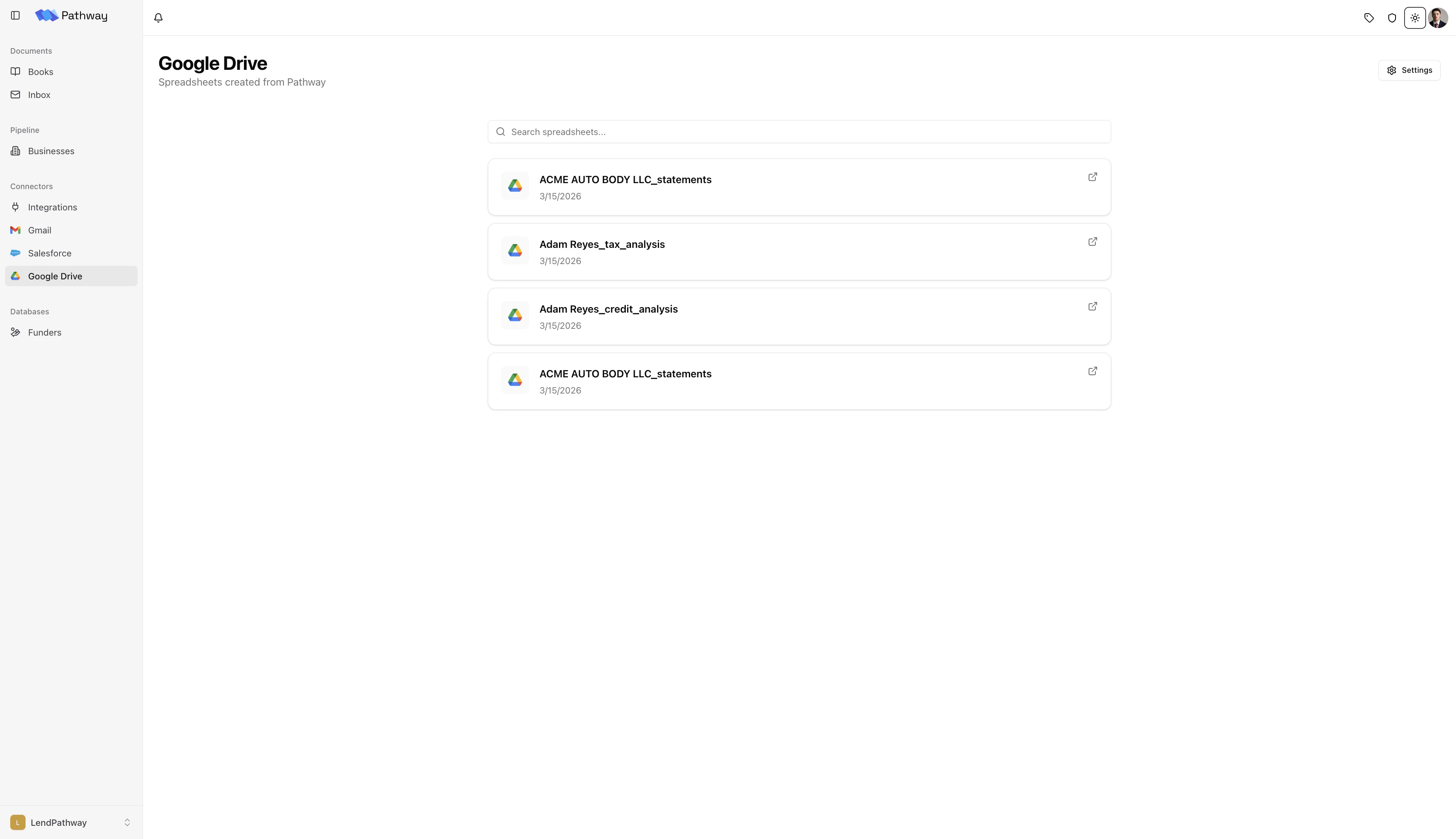
Google Drive page
Click Google Drive in the sidebar to see all spreadsheets LendPathway has exported to your Drive. You can search by name and click any file to open it in Google Sheets.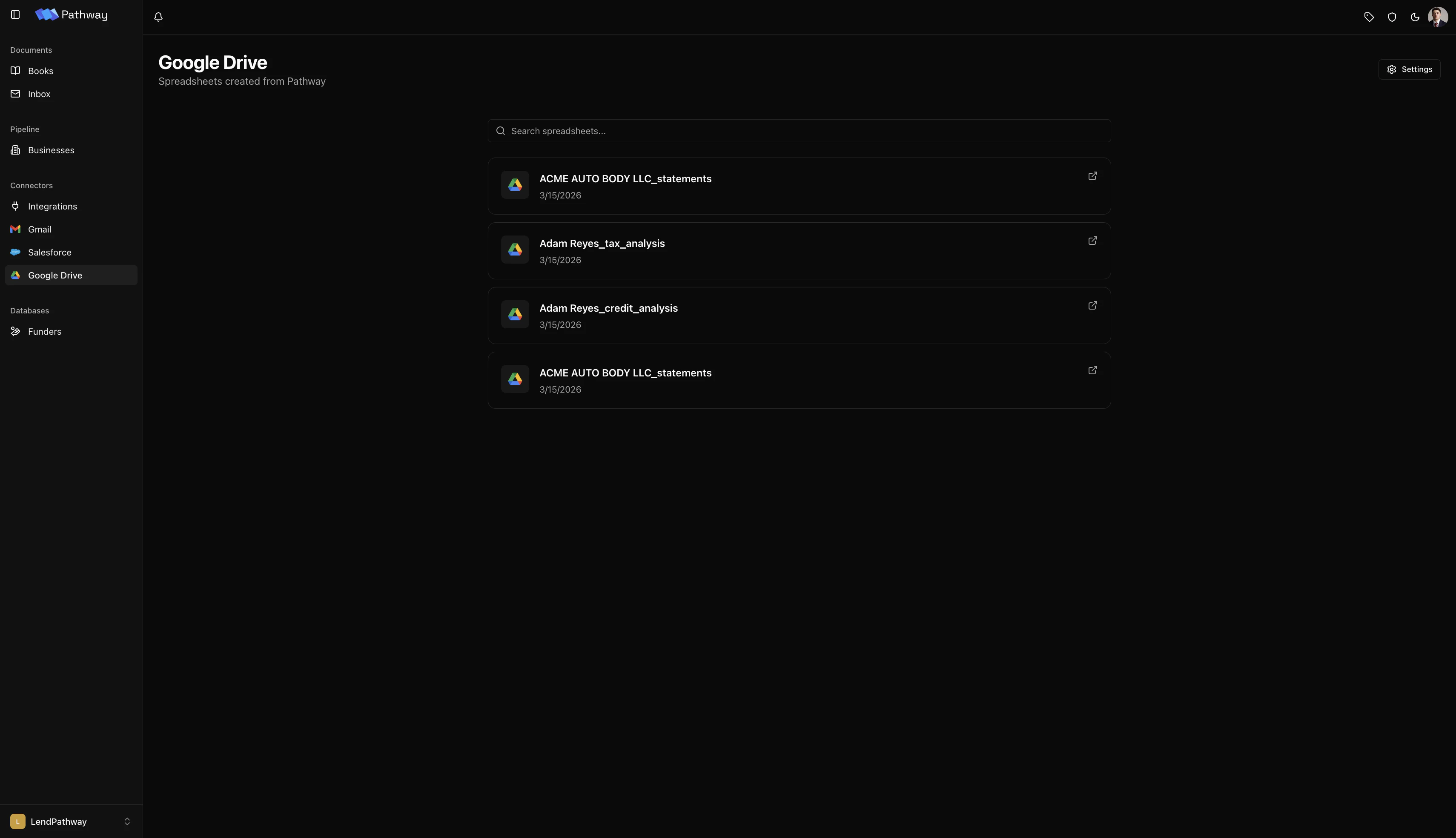
Google Drive Page
Salesforce
Sync parsed deal data to Salesforce Opportunities. Map LendPathway metrics to your existing fields, and optionally let LendPathway auto-parse new deals as they enter your pipeline.Connecting
See the Salesforce Connector page for more information
Browsing Opportunities
Once connected, click Salesforce in the sidebar to browse Opportunities.- Filter by stage, owner, or search by name
- Sort by recently modified or oldest created
- Select an Opportunity to view its details and attached files in a side panel
- Create a book from an Opportunity’s files — with an optional Auto-parse checkbox that starts parsing immediately and syncs results back to Salesforce when done
Field Mappings
Map LendPathway analytics to Salesforce Opportunity fields so parsed results push back to your CRM.- On the Salesforce page, click Configure Attributes in the top-right toolbar
- For each LendPathway metric, select the target Salesforce field
- LendPathway validates that the Salesforce field type is compatible before saving
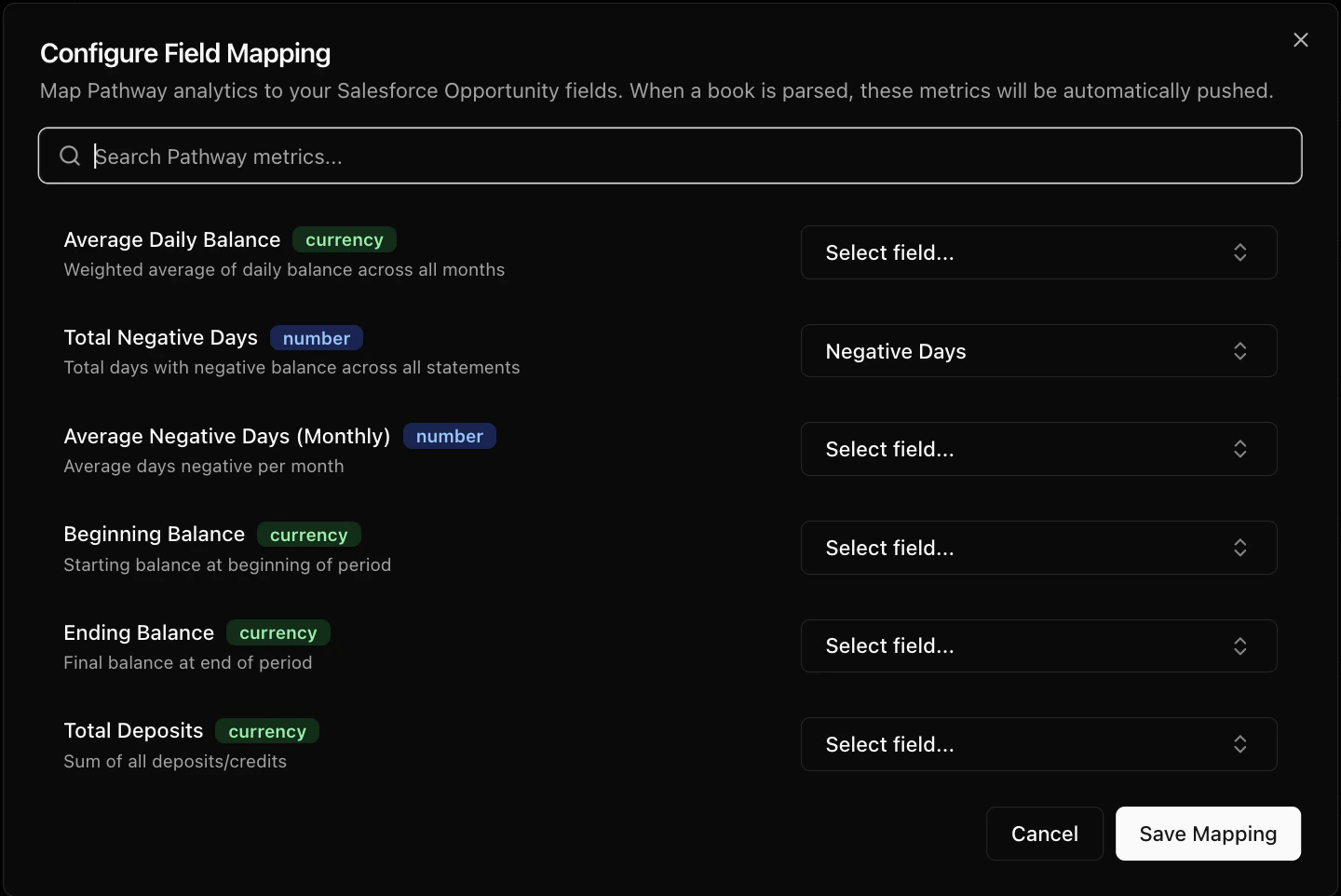
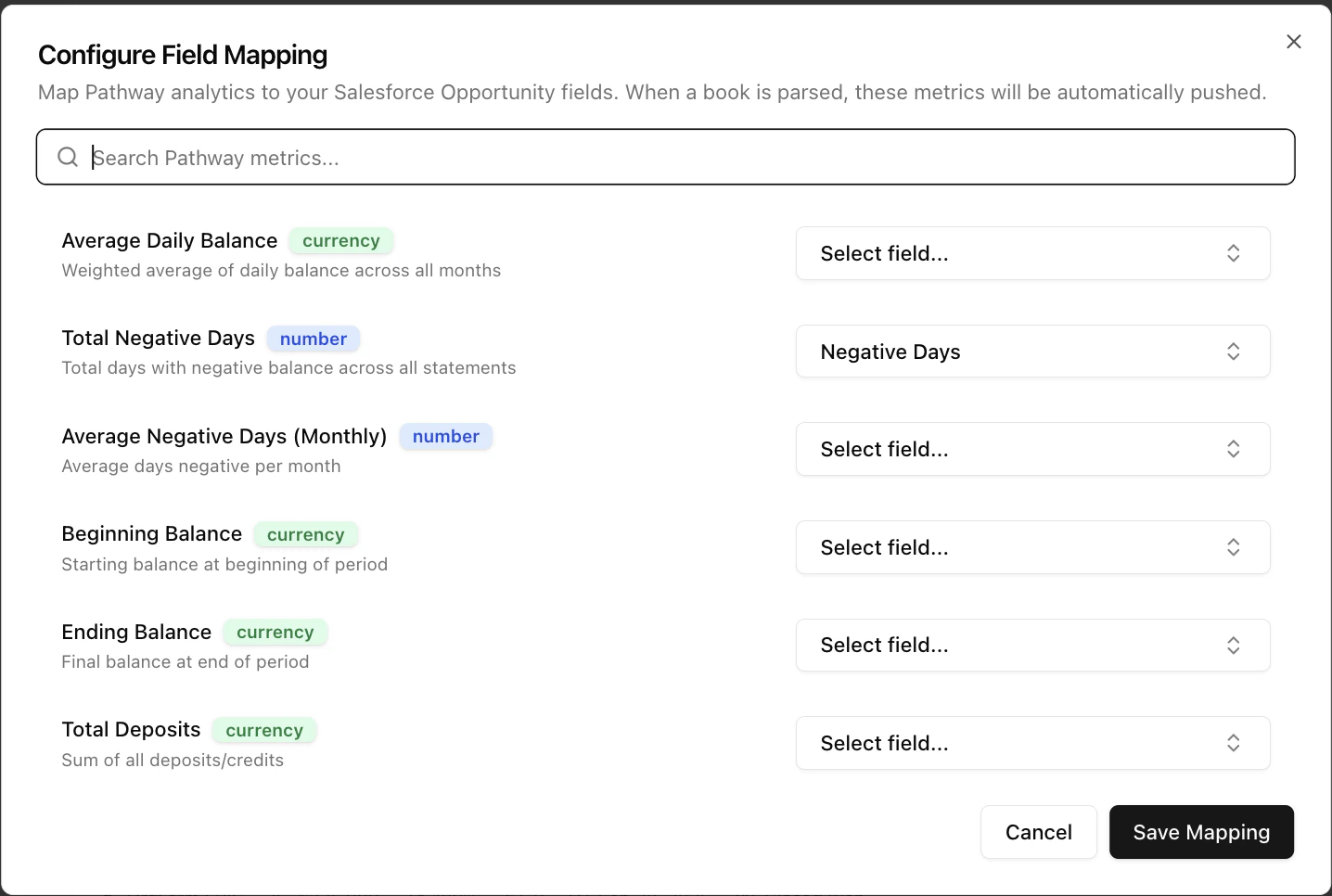
Field Mapping Configuration Modal
Pushing Results
After a book is parsed, you have two options:- Manual push — Open the book, click the Salesforce badge in the top-right info badges, and confirm.
- Automatic sync — If the book was created from a Salesforce Opportunity with Auto-parse enabled, analytics push automatically after parsing completes.
Auto-Parse
Auto-parse monitors your Salesforce pipeline and creates books for new Opportunities that match your criteria.- On the Salesforce page, click Auto-Parse in the top-right toolbar
- Configure:
- Required stages — Only Opportunities in these stages are picked up
- Require attachments — Skip Opportunities with no files
- Checkbox field (optional) — A Salesforce checkbox that must be true to trigger
- Parse complete field (optional) — A Salesforce field LendPathway sets to true when parsing finishes
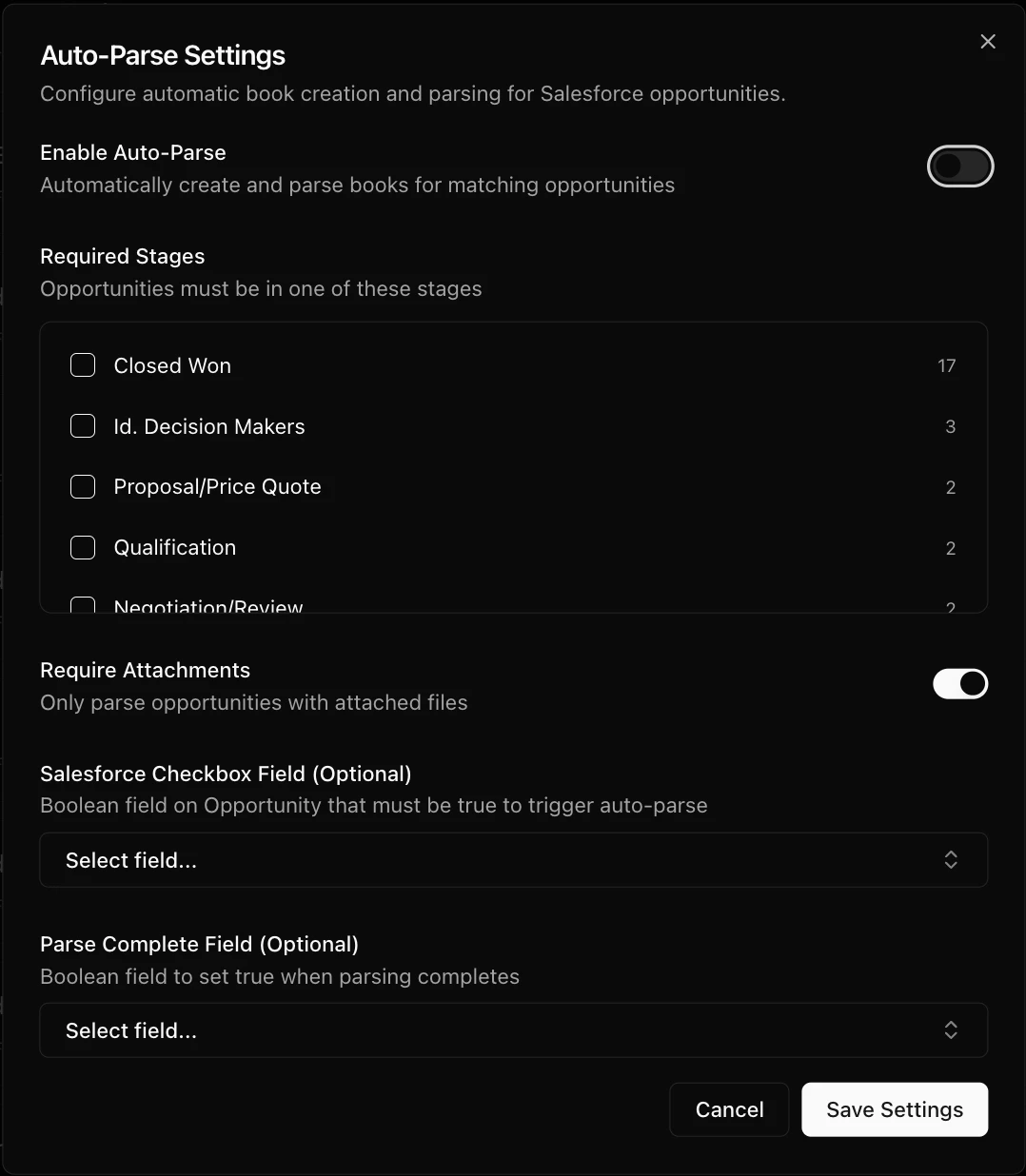
Auto-Parse Settings Modal
Baselayer
Verify businesses (KYB) and optionally run lien and litigation checks from books or the Baselayer page.Connecting
See the Baselayer page for the full guide
- Go to Connectors → Integrations
- Click the Baselayer card
- Turn Enabled on, optionally set a Monthly budget, and click Save
Using Baselayer
- On a deal — Open a book → Actions → Baselayer. Confirm prefilled business details and click Verify business.
- Ad-hoc — Open Baselayer in the sidebar to run a search that is not tied to a book.
- Optional checks — After verification completes, order Lien search or Litigation and bankruptcy only if the deal needs them.
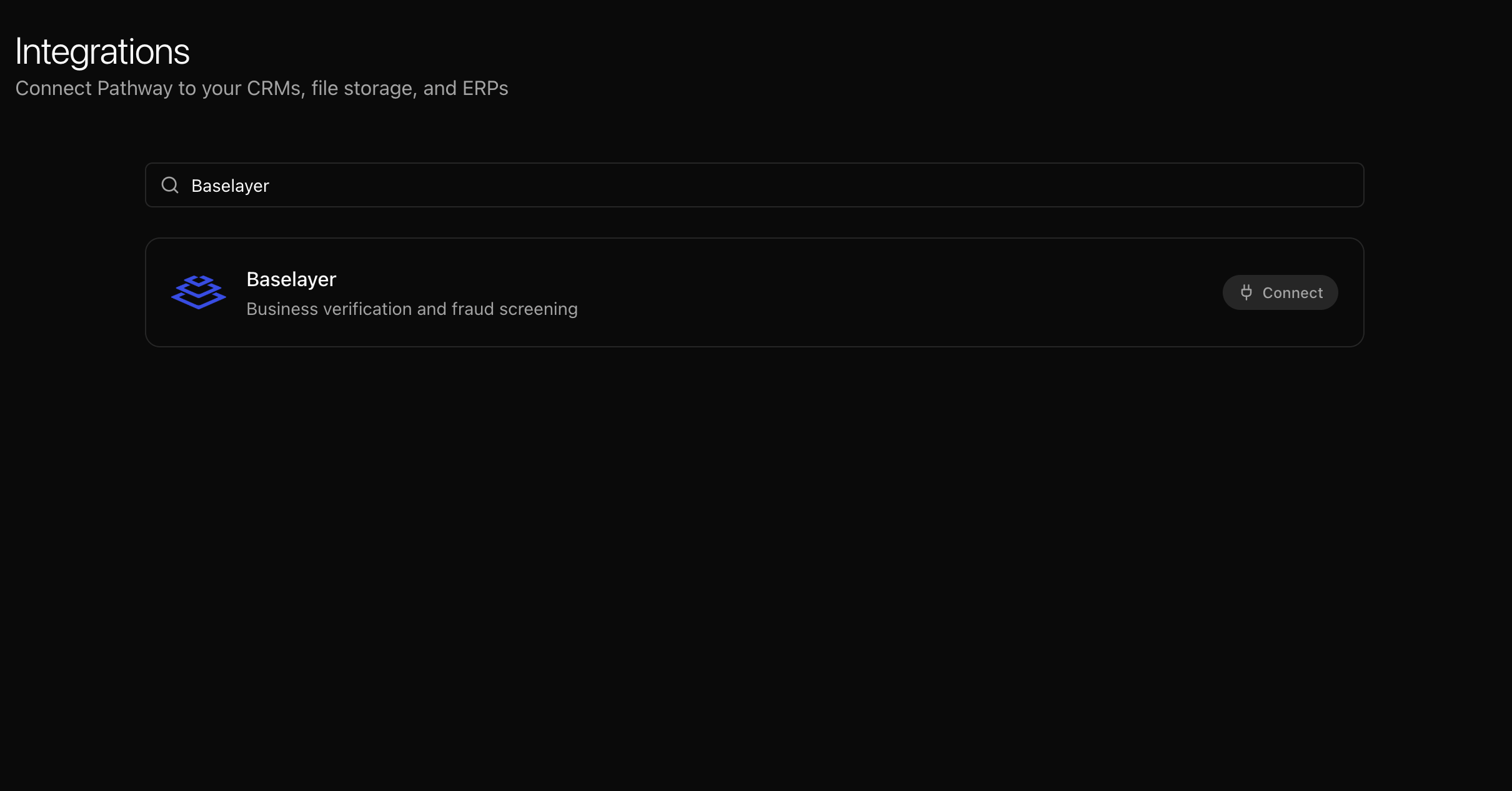
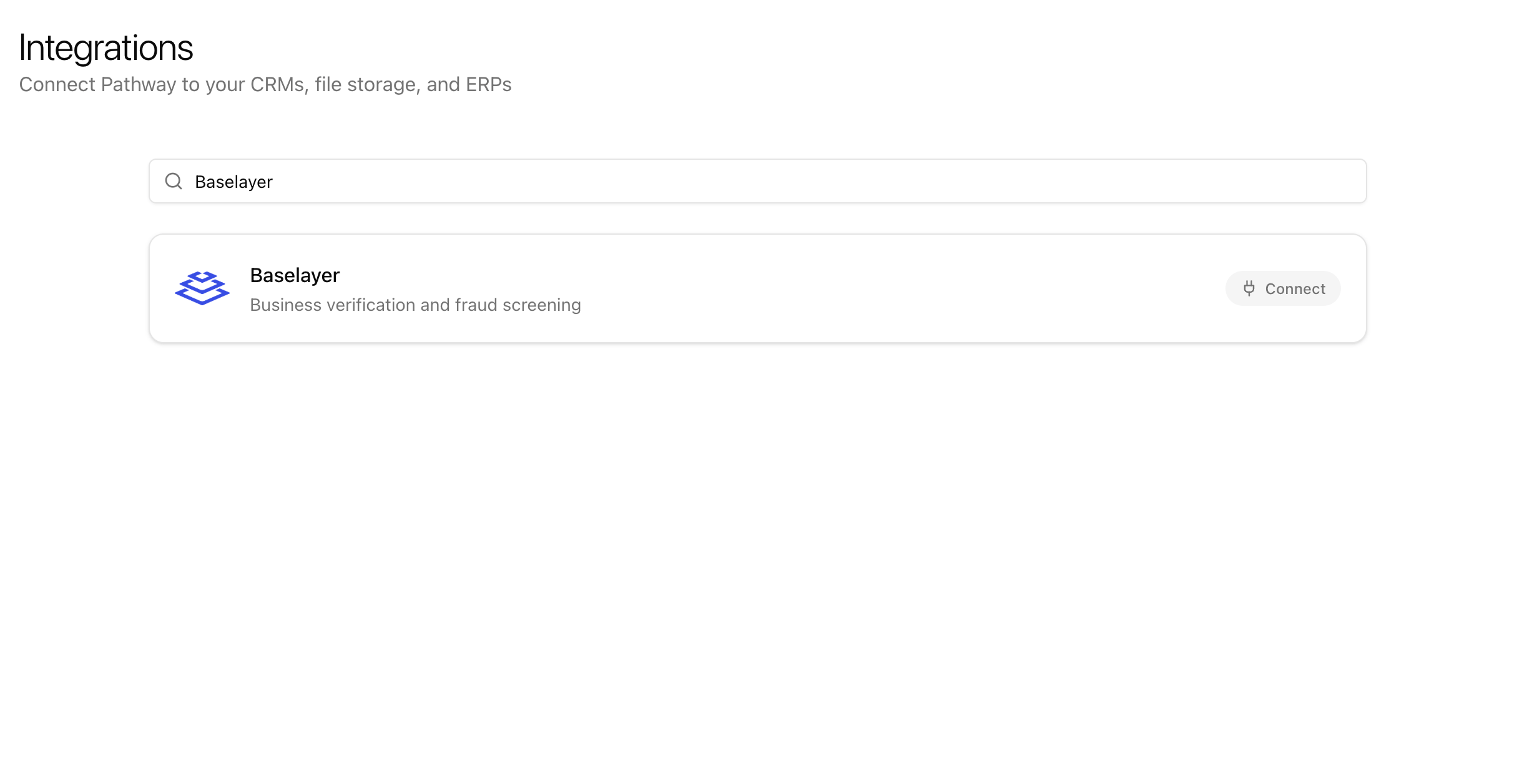
Baselayer on Integrations
Embed API
Build LendPathway into your own application. Submit documents via the API, embed parsed results in an iframe, and receive webhooks when processing completes. The Embed API uses Personal Access Tokens (PATs), not OAuth. See the API Reference for full endpoint documentation.Authentication
To create a PAT:- Click your org name at the bottom of the sidebar to open the org switcher
- Click Settings
- On the Account tab, scroll to API Access Tokens
- Click New Token, give it a name, and copy the token
Authorization header.
Tokens are hashed at rest — LendPathway stores only the SHA-256 hash, not the raw token. Treat your token like a password.
(image of the API Access Tokens section in Settings showing a token and the New Token button)
Submitting Documents
POST /api/submit-book accepts multipart form data.
LendPathway creates a book, uploads the files, and starts parsing in the background. The response returns immediately with the new
book_id.
Webhooks
If you provide awebhook_url, LendPathway sends a POST request when processing finishes:
error field is included with a description.
Embedding Results
Embed parsed analytics in your UI with token-authenticated iframes.- Create an embed token:
POST /api/embed/tokenwithbook_id. Tokens expire after 24 hours by default. Passpermanent: truefor tokens that don’t expire. - Build the iframe URL:
https://app.lendpathway.com/embed/book/{embed_token} - Drop that URL into an
<iframe>on your page. The iframe renders the full analytics dashboard — no login required for the end user.
Typical Flow
- Your app uploads files via
POST /api/submit-bookand gets back abook_idimmediately - LendPathway parses in the background
- When done, LendPathway hits your
webhook_url - Your app creates an embed token and renders the iframe for the end user