Setup
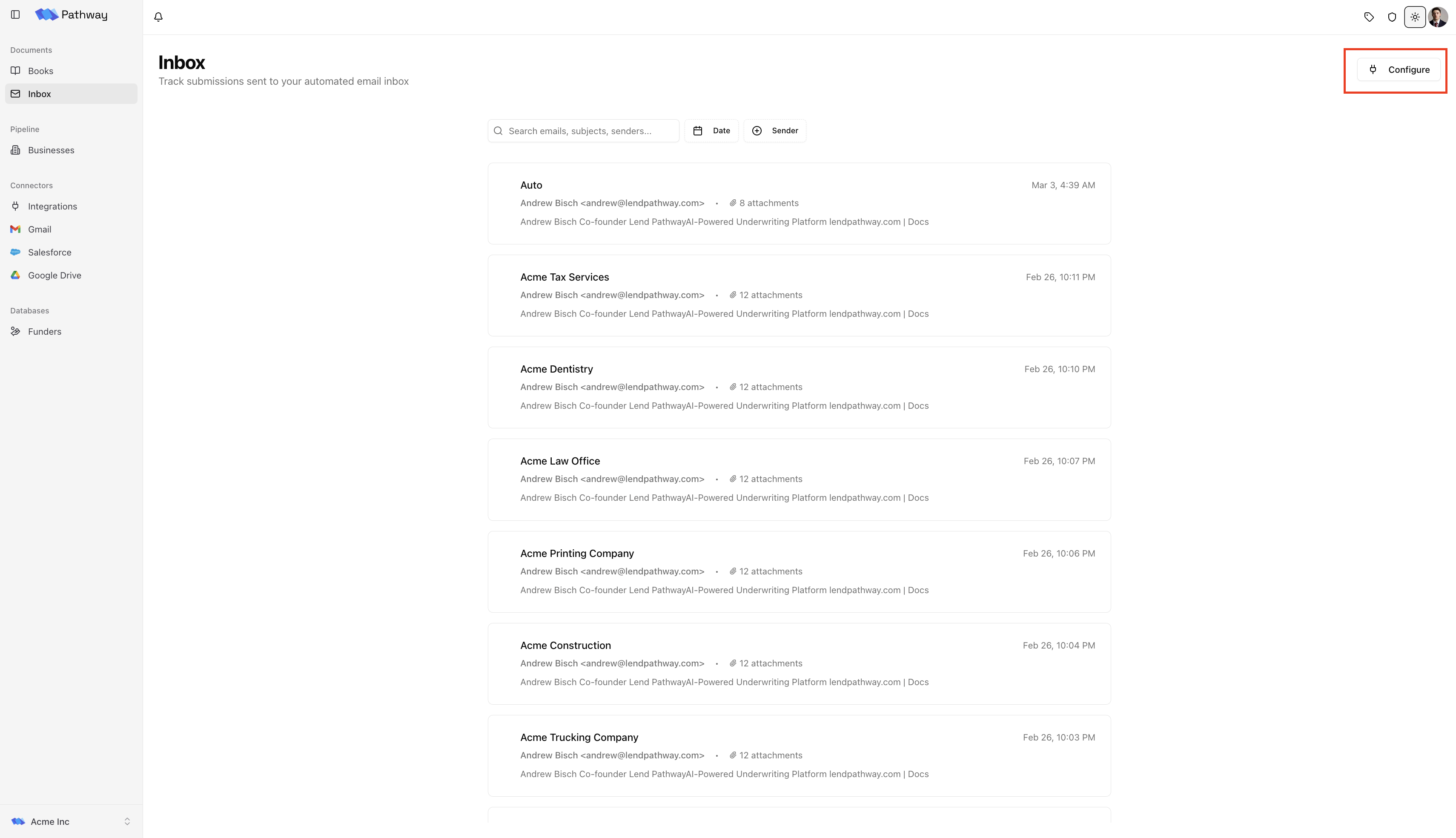
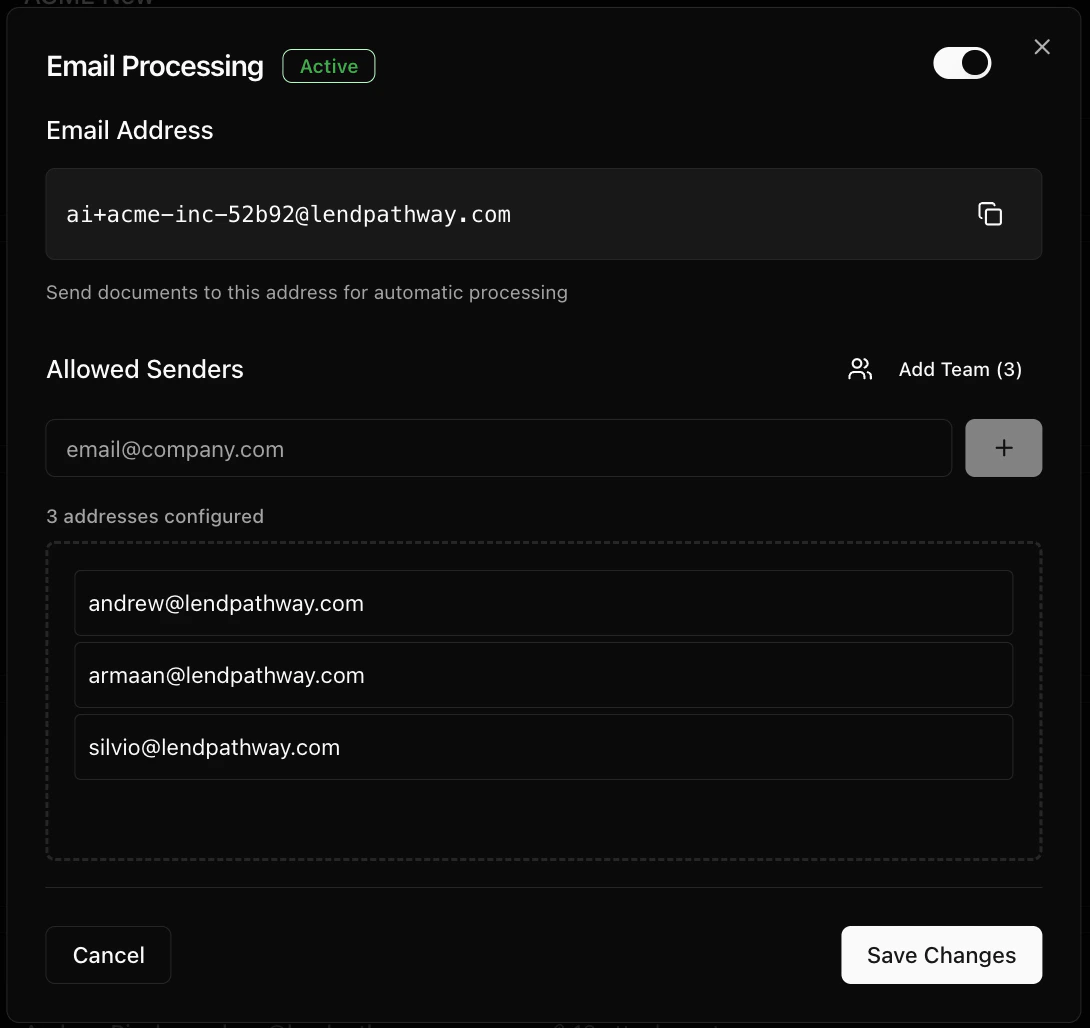
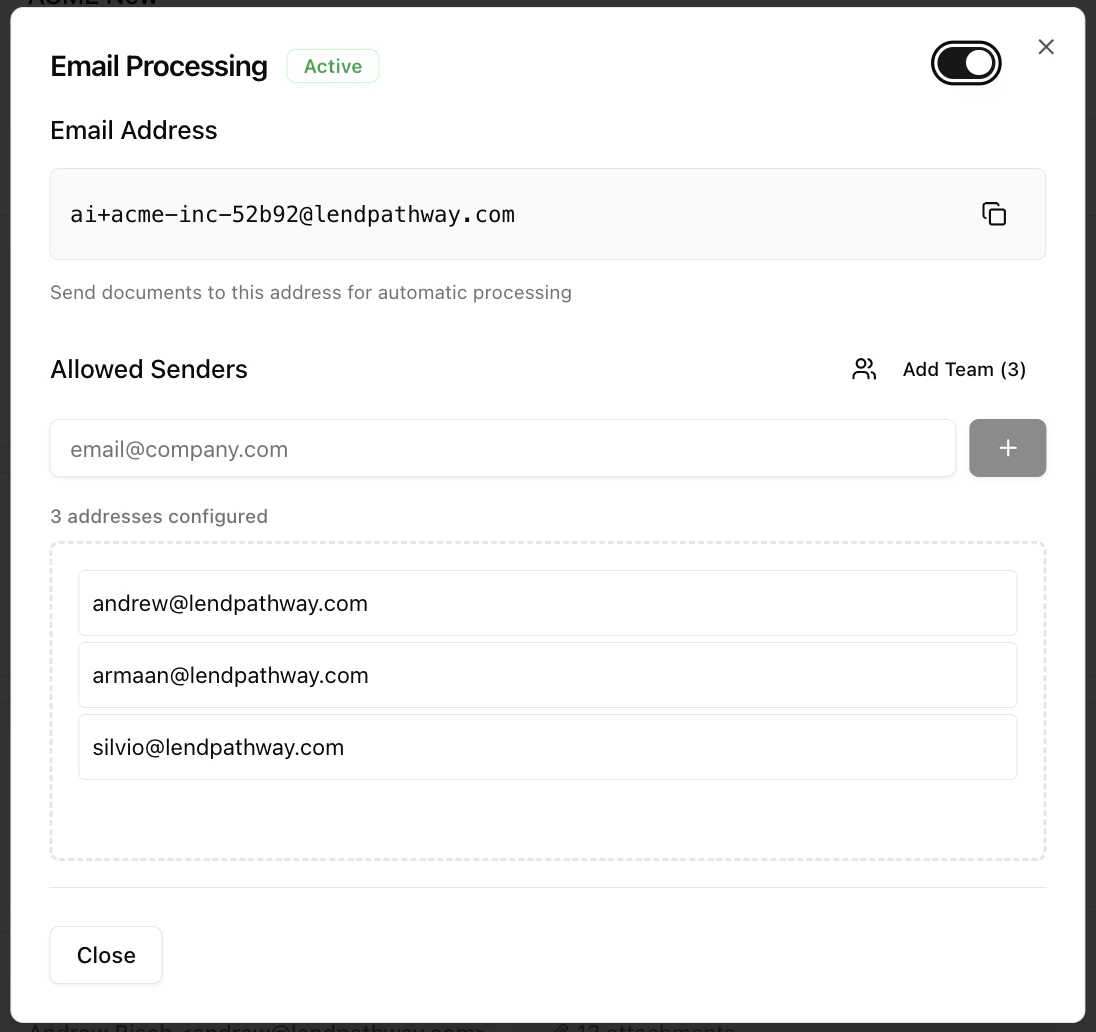
Click Configure in the top-right corner of the Inbox page to open Email Processing settings.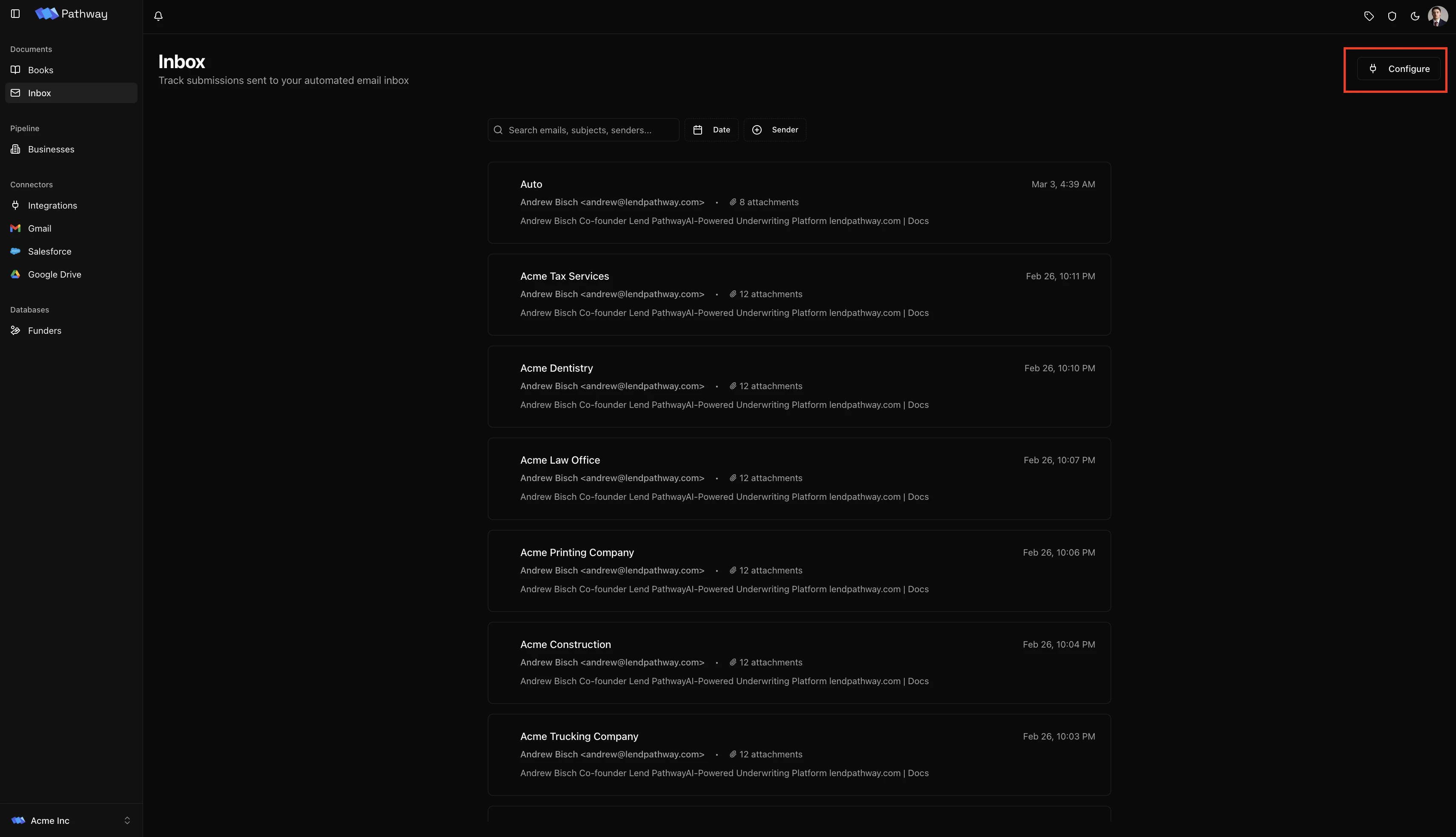
- Type an email address and click + (or press Enter) to add it
- Click Add Team to bulk-add all org members at once
- Hover over any address and click X to remove it
ai+<your-org-slug>@lendpathway.com
For example: [email protected]. This is the address people send documents to.
How it works
- A sender on the allowed list sends an email with PDF attachments to your org’s email address
- Pathway creates a Book, uploads all attachments, classifies each file, and starts parsing
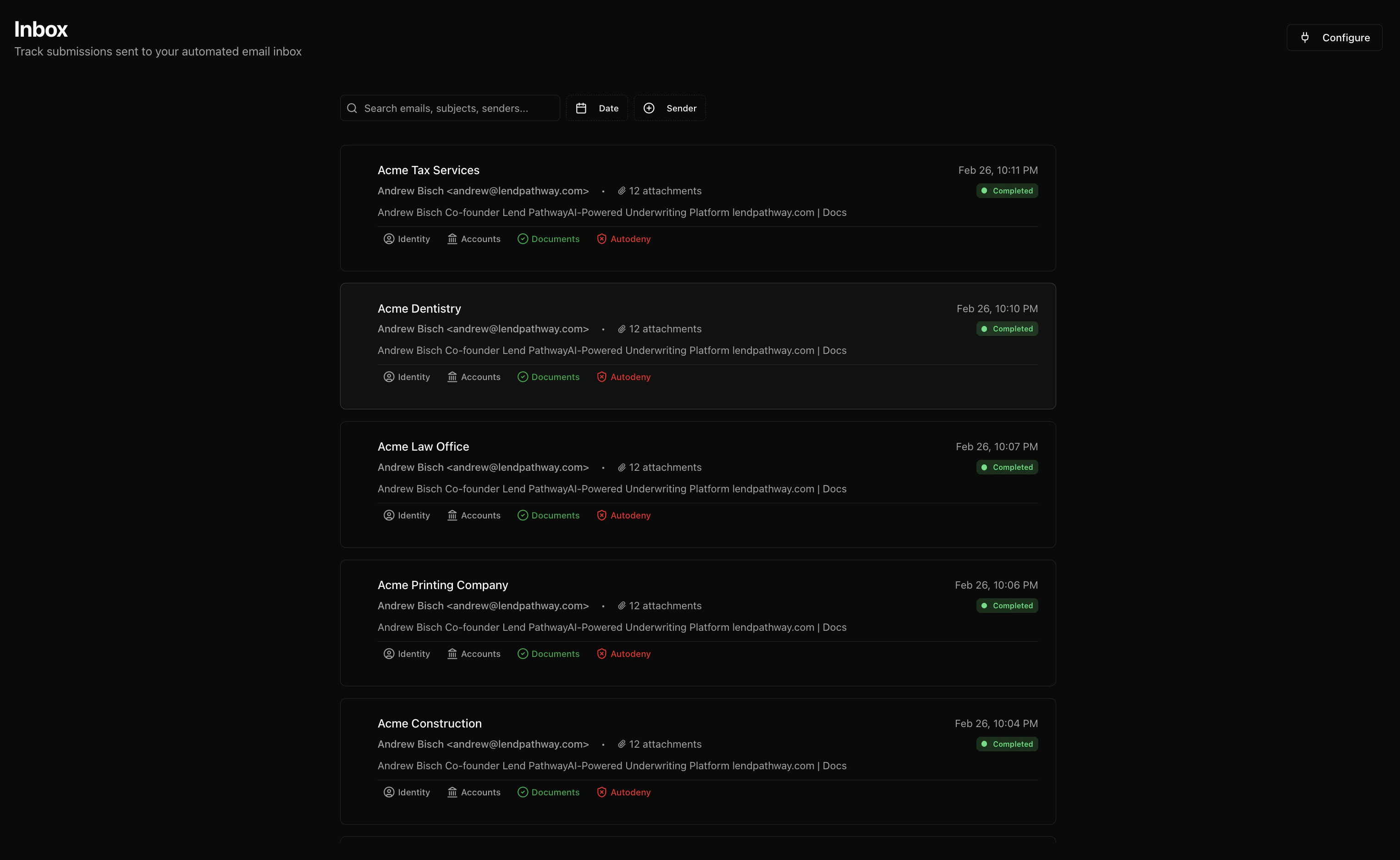
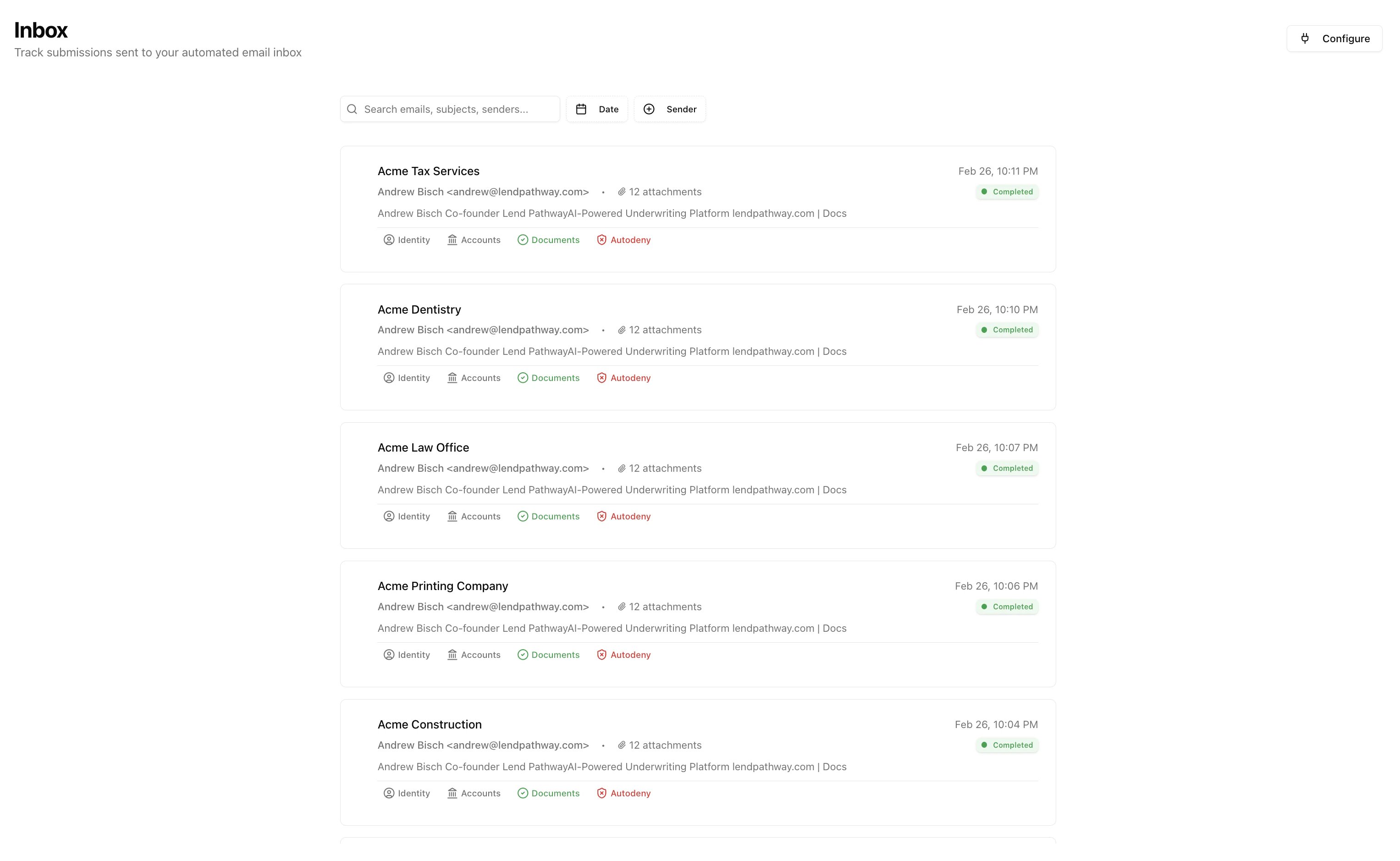
- The thread appears in the Inbox with its processing status
- The sender receives a reply email with the parsed results
Inbox view
The Inbox lists email threads sorted newest first. Toolbar:- Search: filter by subject, sender name, sender email, or snippet
- Date filter: filter by date range
- Sender filter: filter by specific sender
Clicking a thread with a linked Book navigates to that Book’s page. Unread threads with no linked Book show a blue dot.
Reply email
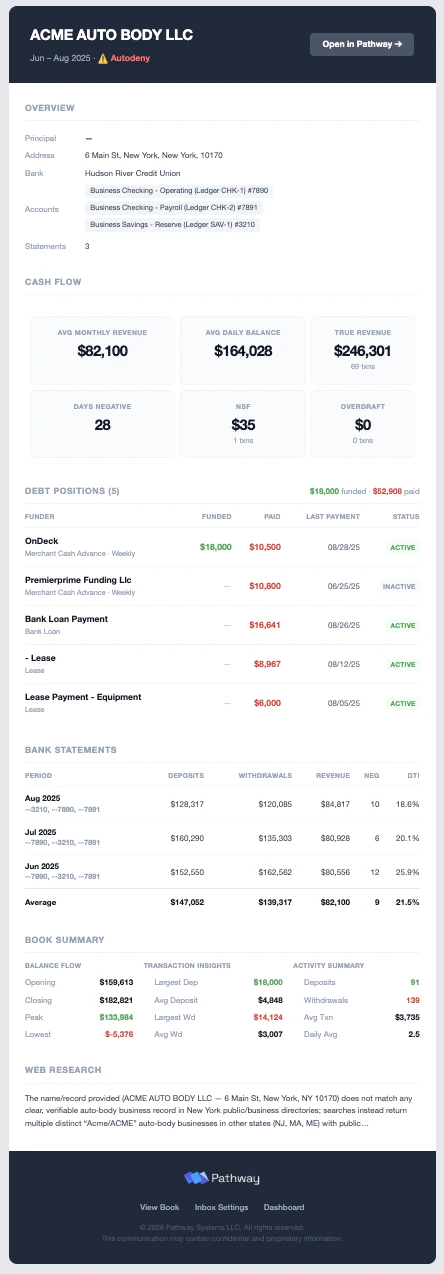
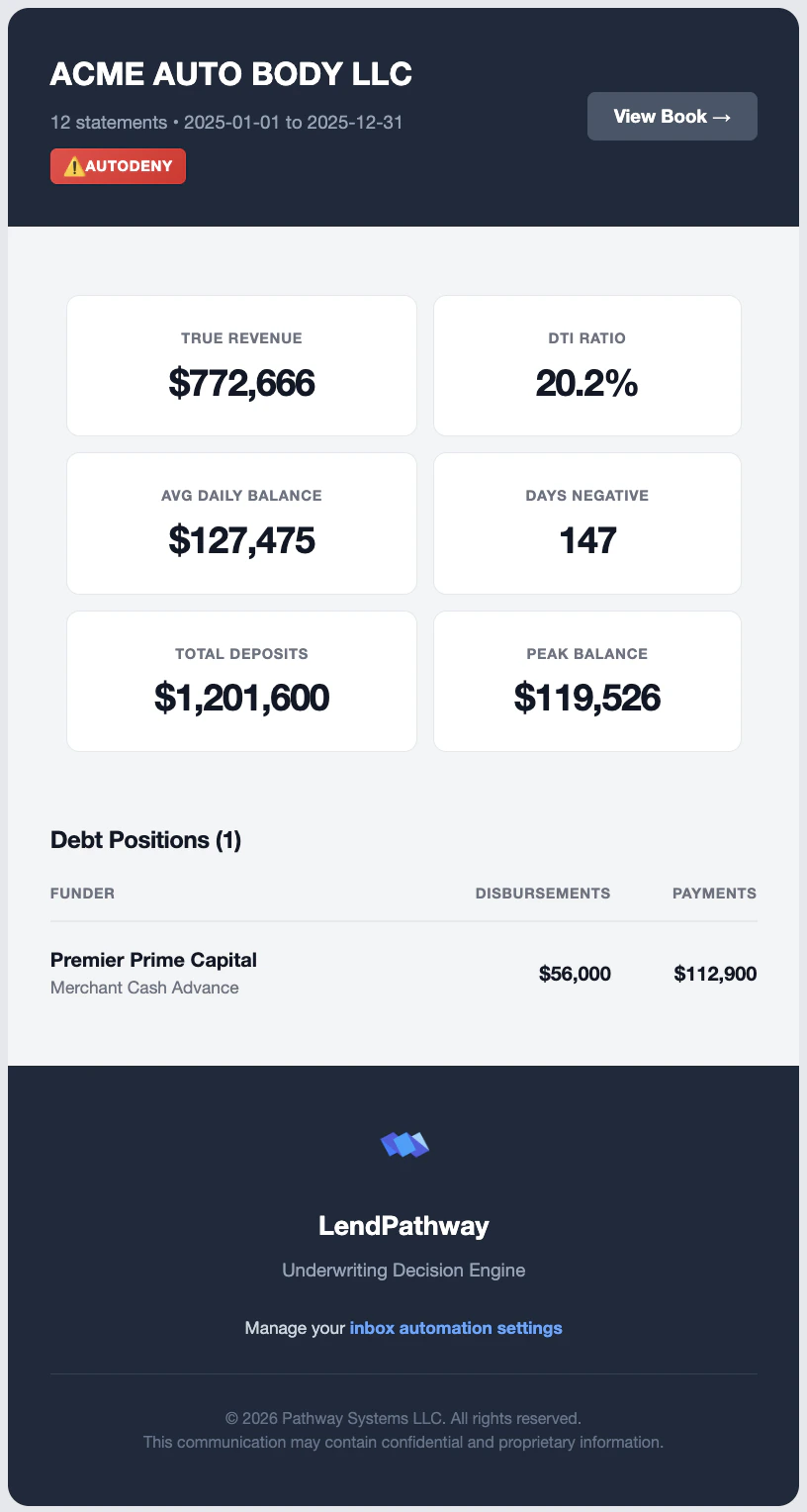
When bank statements are parsed successfully, the original sender receives a reply in the same thread with a synopsis of the results. The reply includes:- Business name, statement count, and date range
- Autodeny or Pass screening badge (if screening is configured)
- Link to the full Book in Pathway
- Six KPI cards: Avg Monthly Revenue, Avg Daily Balance, True Revenue, Days Negative, NSF, & Overdraft
- Debt positions table if MCA positions were detected
- Breakdown by month
- Book Summary Chart
Triage
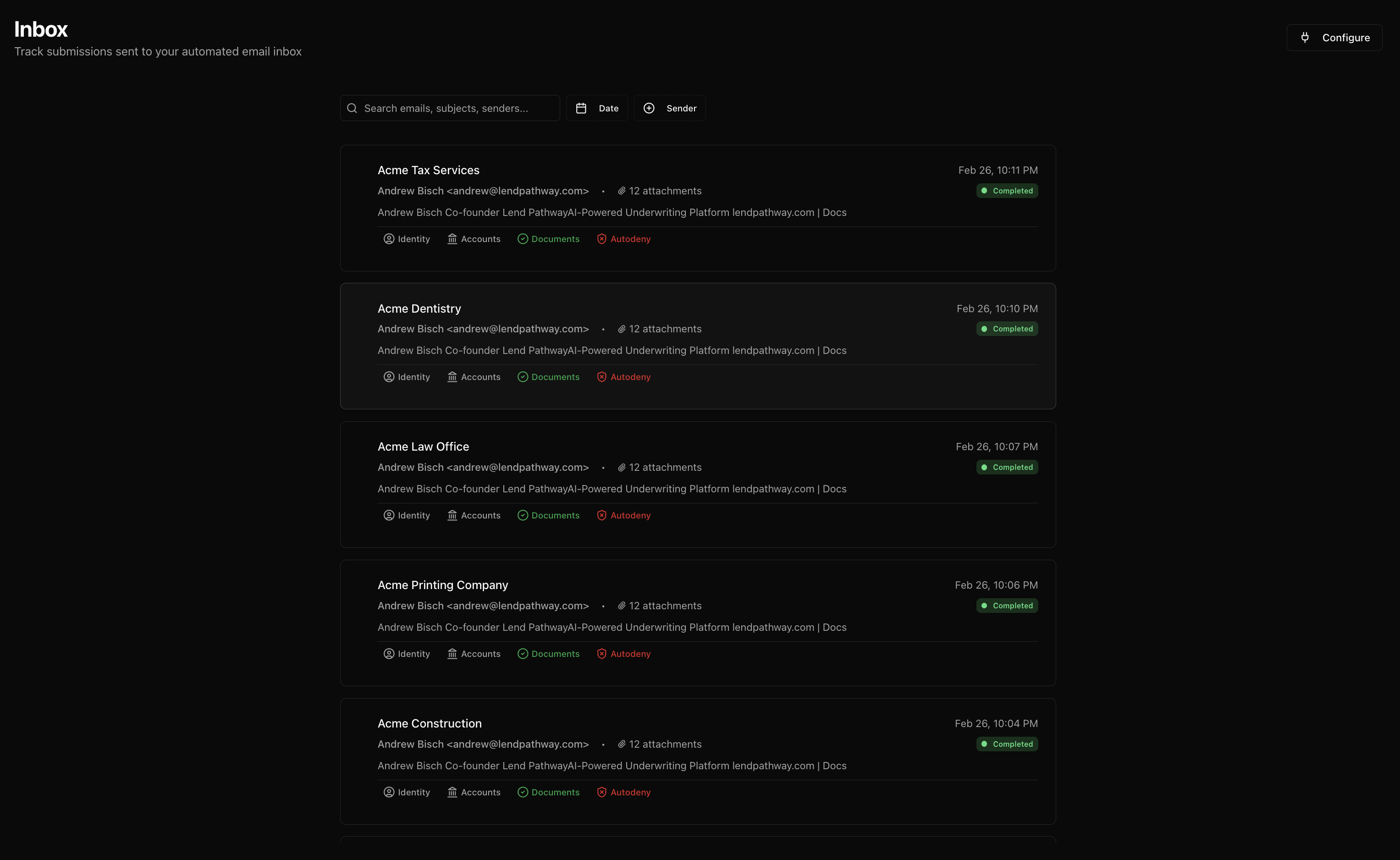
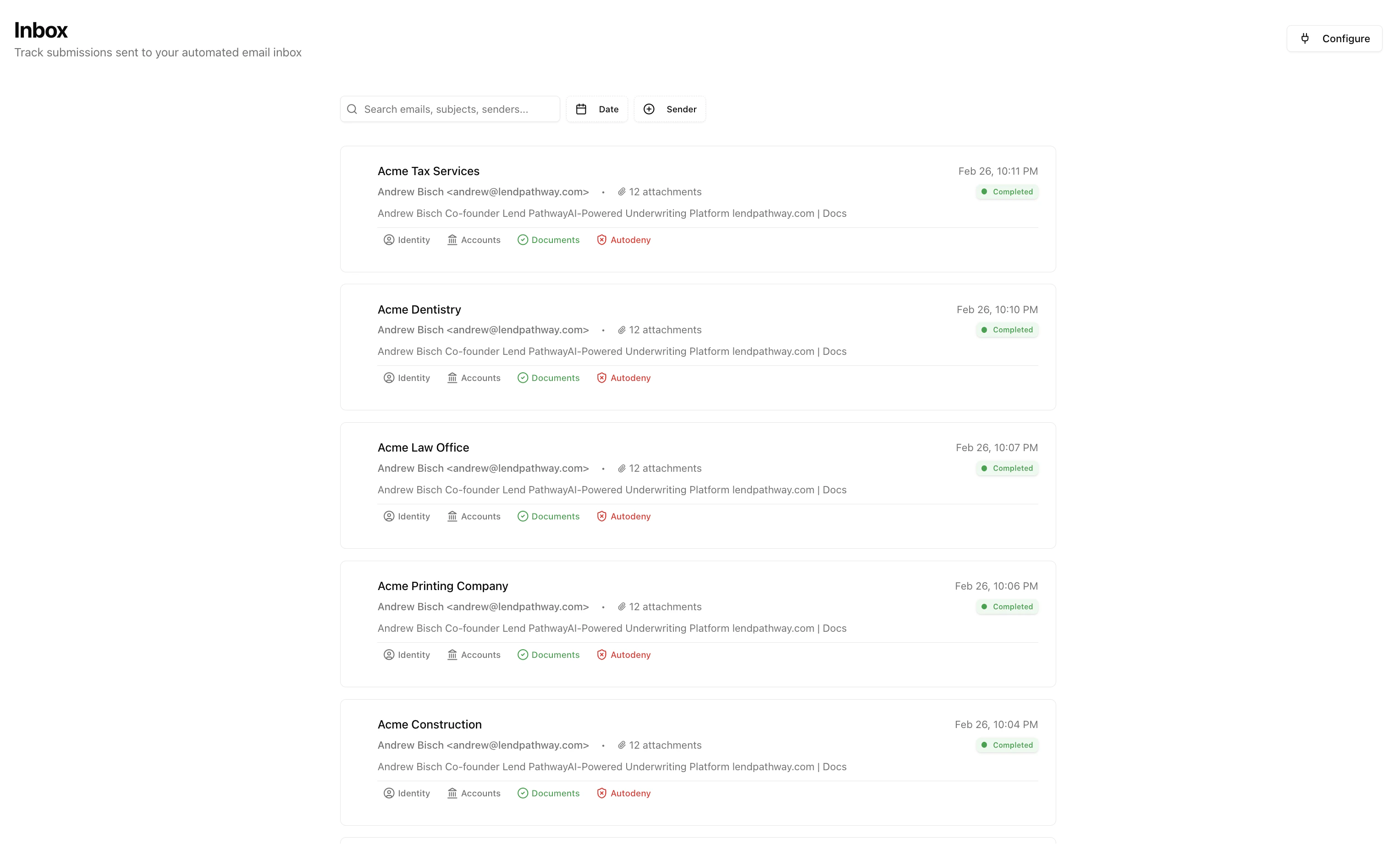
After parsing, each thread row shows Identity, Accounts, Documents, and Screening badges inline. This lets you triage submissions from the Inbox without opening the Book.- Completed + Pass: parsed and cleared screening
- Completed + Autodeny: parsed but failed screening rules
- Failed: error during parsing