

Core flow
- Enable Baselayer for your organization under Connectors → Integrations.
- Verify the business from a book under Actions → Baselayer, where the details are prefilled from the bank statements and application.
- Review the result: the matched legal entity, its grades, and anything flagged.
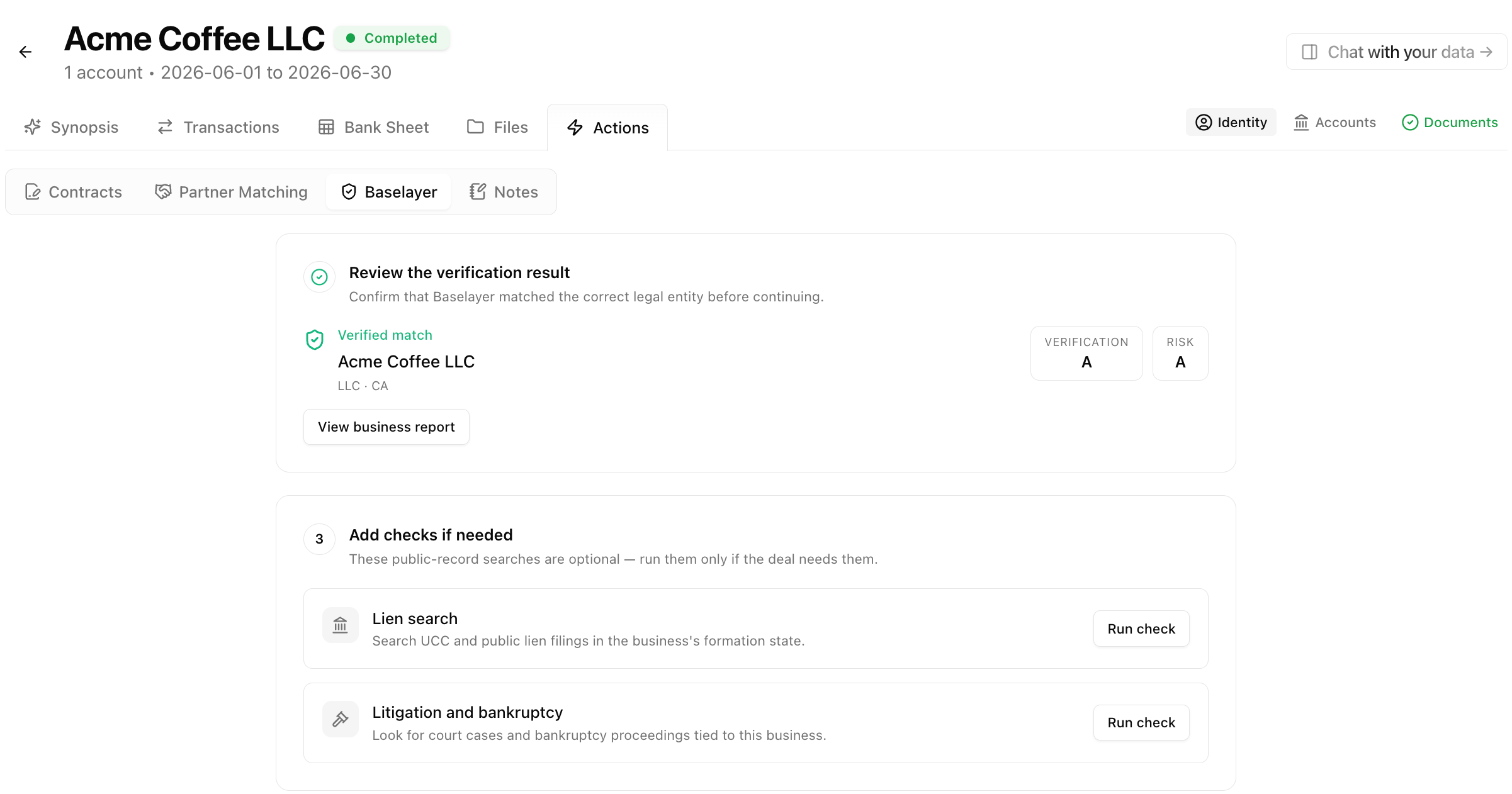
- Order checks when the deal needs them — liens, litigation and bankruptcy, the full docket for a specific case, and an owner check against the application’s owners.
- Download the report — Baselayer’s PDF business report, with everything ordered on the business.
What you send
Legal name and address are required. Everything else sharpens the match or unlocks a check:What you see
Verification result
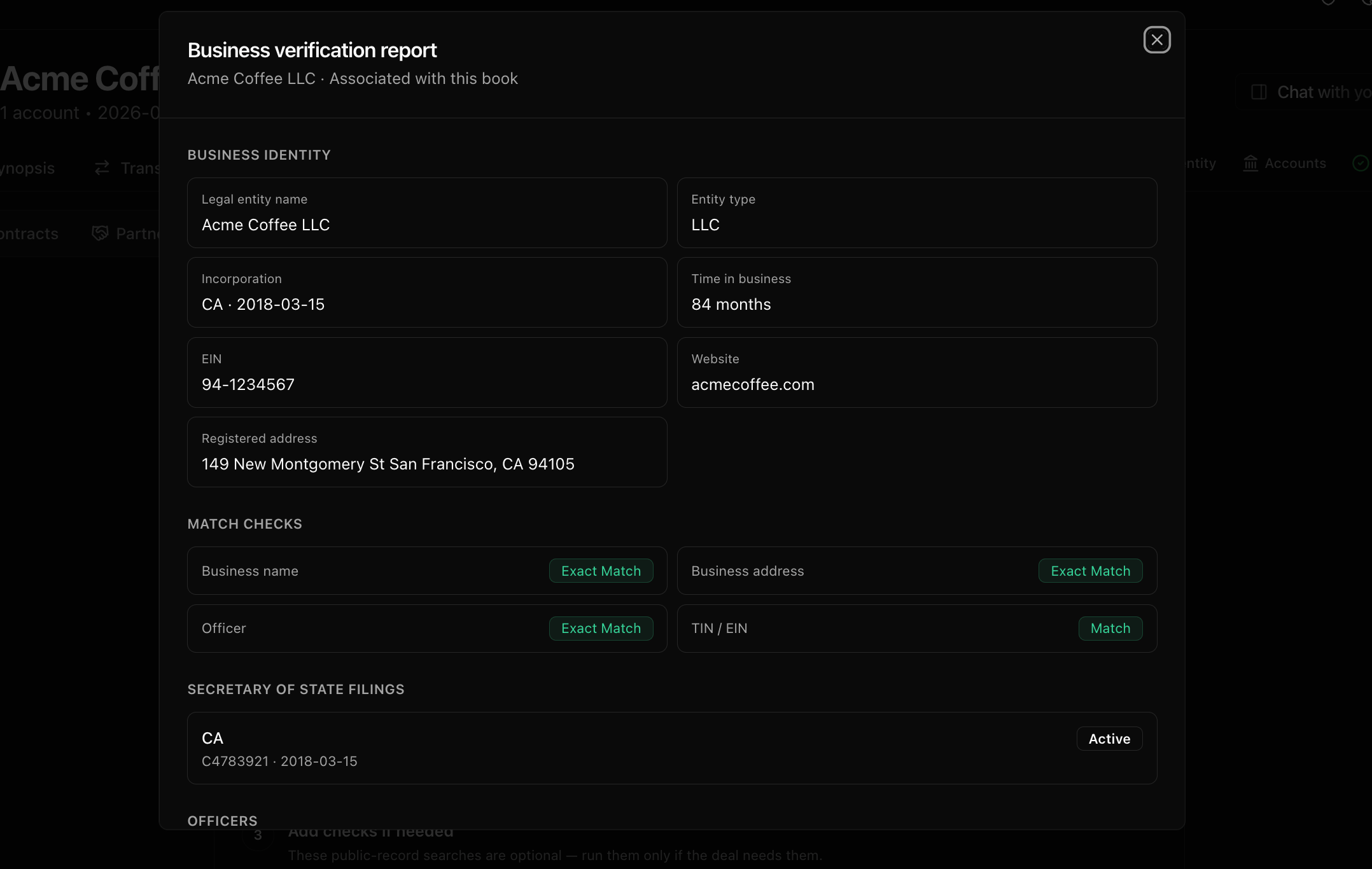
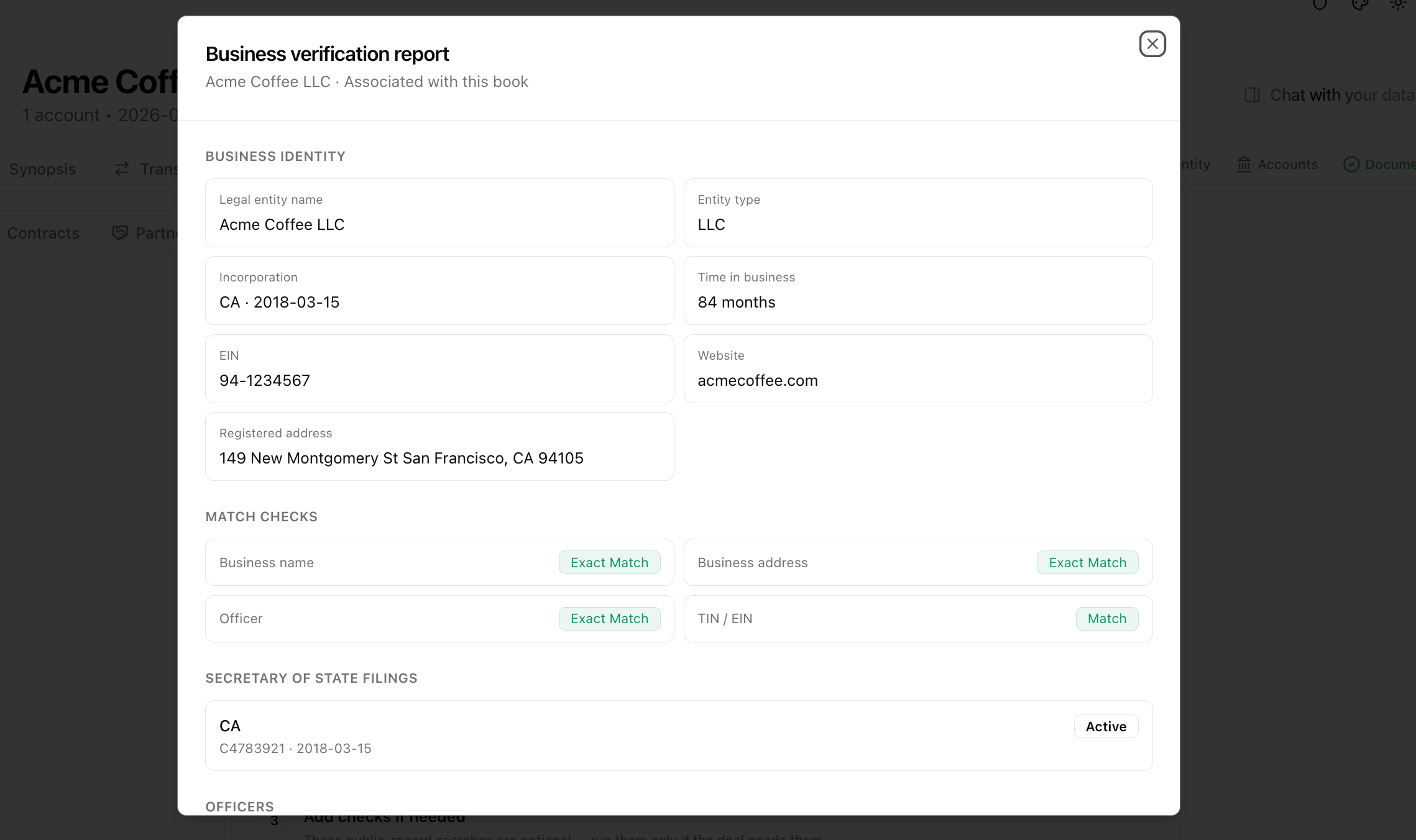
- Verified match or Review this match — whether the entity Baselayer found is conclusive.
- Verification and Risk grades, A–F, with the underlying 0–100 score. Verification is how strongly your inputs match a registered entity. Risk folds in liens, litigation, business age, industry and how many other lenders have pulled this business recently.
- Flags, only when there is something to act on: a watchlist hit, an EIN that belongs to a different entity, an inactive or dissolved registration, an address that could not be validated, a virtual-office or PO-box address, or an IRS check that is still pending (Baselayer retries and the result updates on its own).
- Match checks for name, address, TIN, owners and website.
- Filings, officers and addresses — every Secretary of State registration with status and standing, every officer with their titles, every address on record with USPS flags, and the watchlists screened.
- Download report (PDF) and Open in Baselayer.
Verification result
Lien search
Runs against the business in its state of formation, and against every owner named on the verification in the owner’s home state from the application (plus the business’s state when it differs). Every UCC, tax and judgment filing comes back with its parties, dates, collateral and amendment history. LendPathway shows:- Effective / lapsed / terminated counts, using Baselayer’s rule (active status and a lapse date in the future, or a recent continuation).
- First position — the earliest effective UCC filing and who holds it, so stacking is visible at a glance.
- Tax and judgment liens called out separately.
- Each filing’s secured party, filing number, dates, collateral and debtors; View filing (PDF) where the state provides the document.
- Filings that matched an owner rather than the business, labeled with the owner’s name. An owner’s personal lien never counts as the business’s first position.
Litigation and bankruptcy
Runs for the business and the owners you named, and returns each case with Baselayer’s risk level, its bankruptcy chapter when applicable, open/closed status, and how confident the name match is. Cases are ordered highest risk first, and a case that matched an owner rather than the business is labeled as such. Get case details on any case pulls the full docket — filings, hearings, motions and orders — into the row. It bills separately, once per case.Owner checks
Below the business result on a book, Owner checks verifies a person rather than the entity. Pick an owner named on the application or the bank statements (name, SSN, home address, date of birth and phone are prefilled from whichever document has them) and run the check. It screens OFAC and PEP lists, confirms the SSN against IRS records, and searches personal liens (in the home address’s state), litigation and bankruptcy. The SSN is sent only when you run the check and is stored masked to its last four digits. Each owner check is ordered and billed separately from the business verification, and every check stays on the book.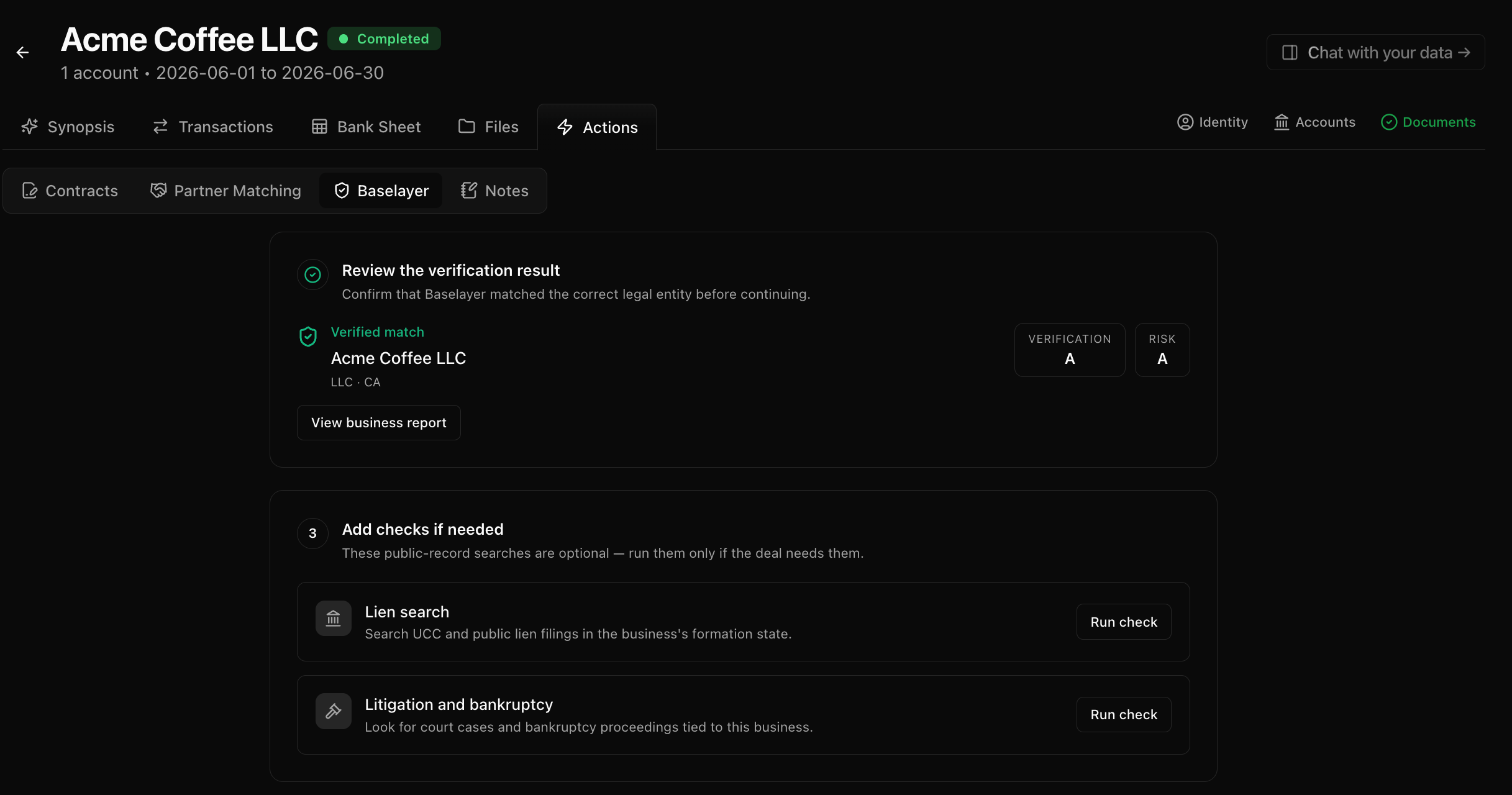
Lien and litigation checks
Optional checks require a completed verification with a matched entity. They bill separately and only run when you click them. A green “none found” line always names what was searched.
Enable Baselayer
Baselayer is per organization. An org admin must turn it on before anyone can run searches.- Go to Connectors → Integrations in the sidebar.
- Click the Baselayer card.
- Turn Enabled on.
- Optionally set a Monthly budget (dollar cap). Leave blank for no cap.
- Click Save.
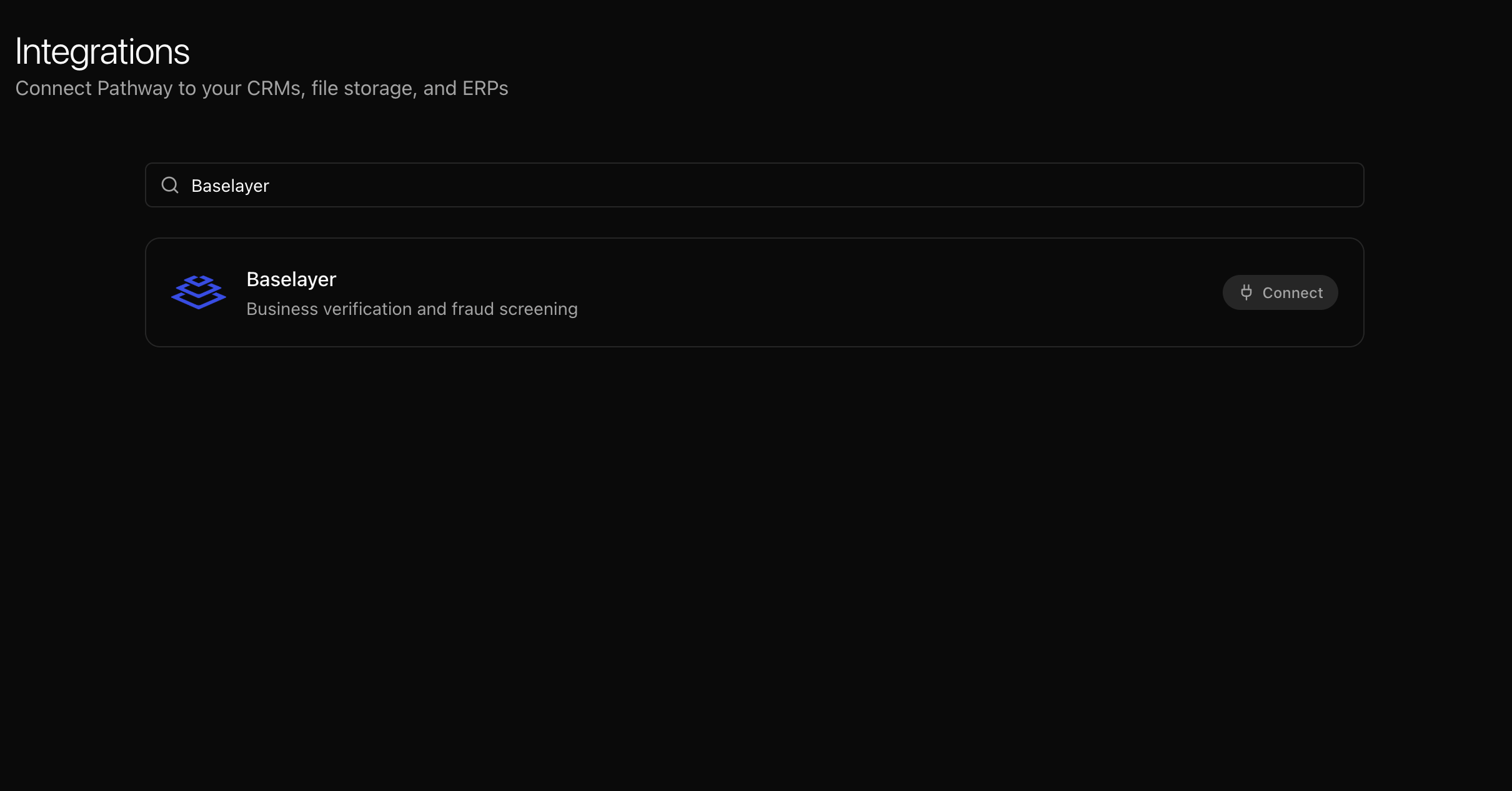
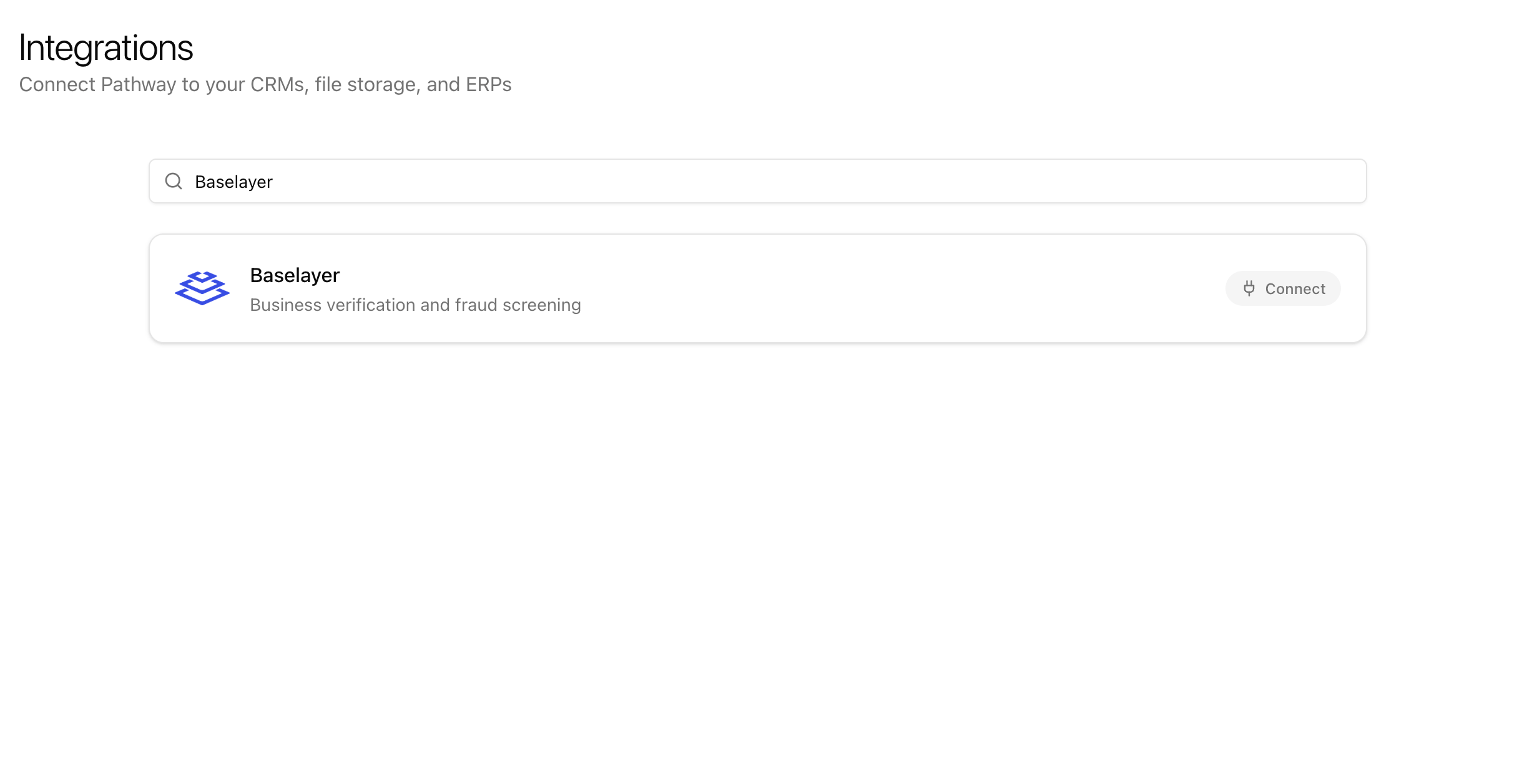
Baselayer on Integrations
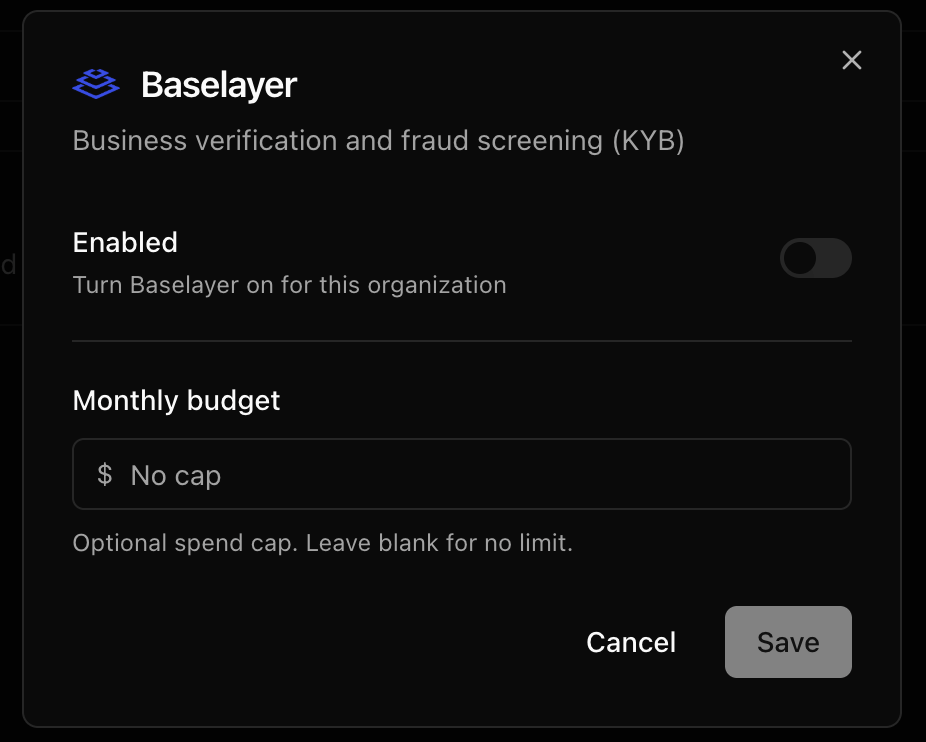
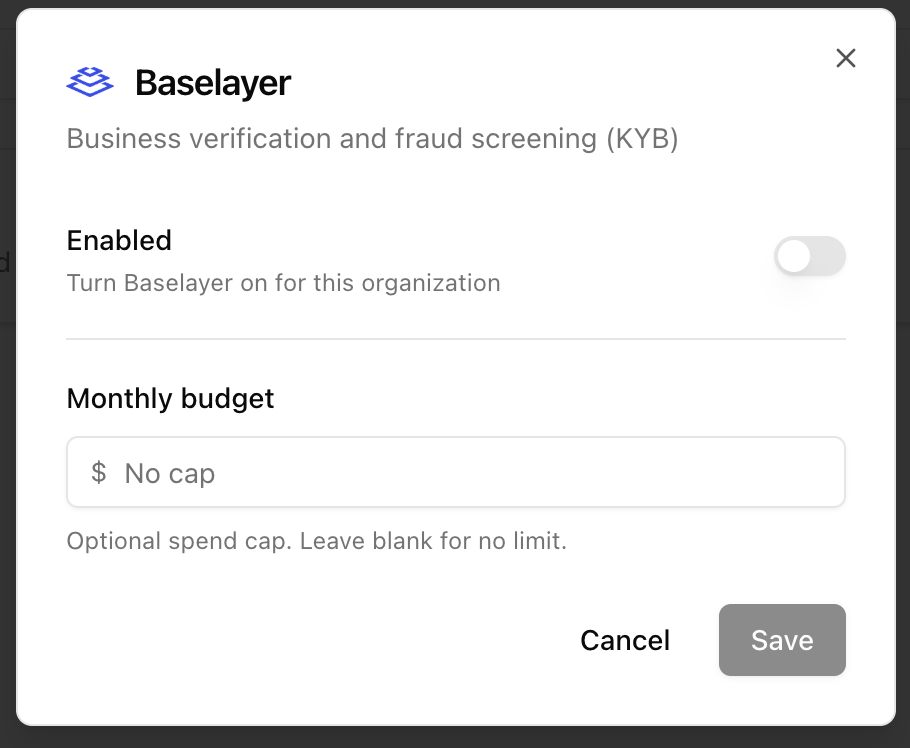
Enable Baselayer
Verify a business from a book
- Open a book and go to Actions → Baselayer.
- Check the prefilled details against the application. Reset to book details brings back the prefill if you changed something.
- Click Verify business. Results usually land in a few seconds.
- Review the matched entity, then order checks as needed.
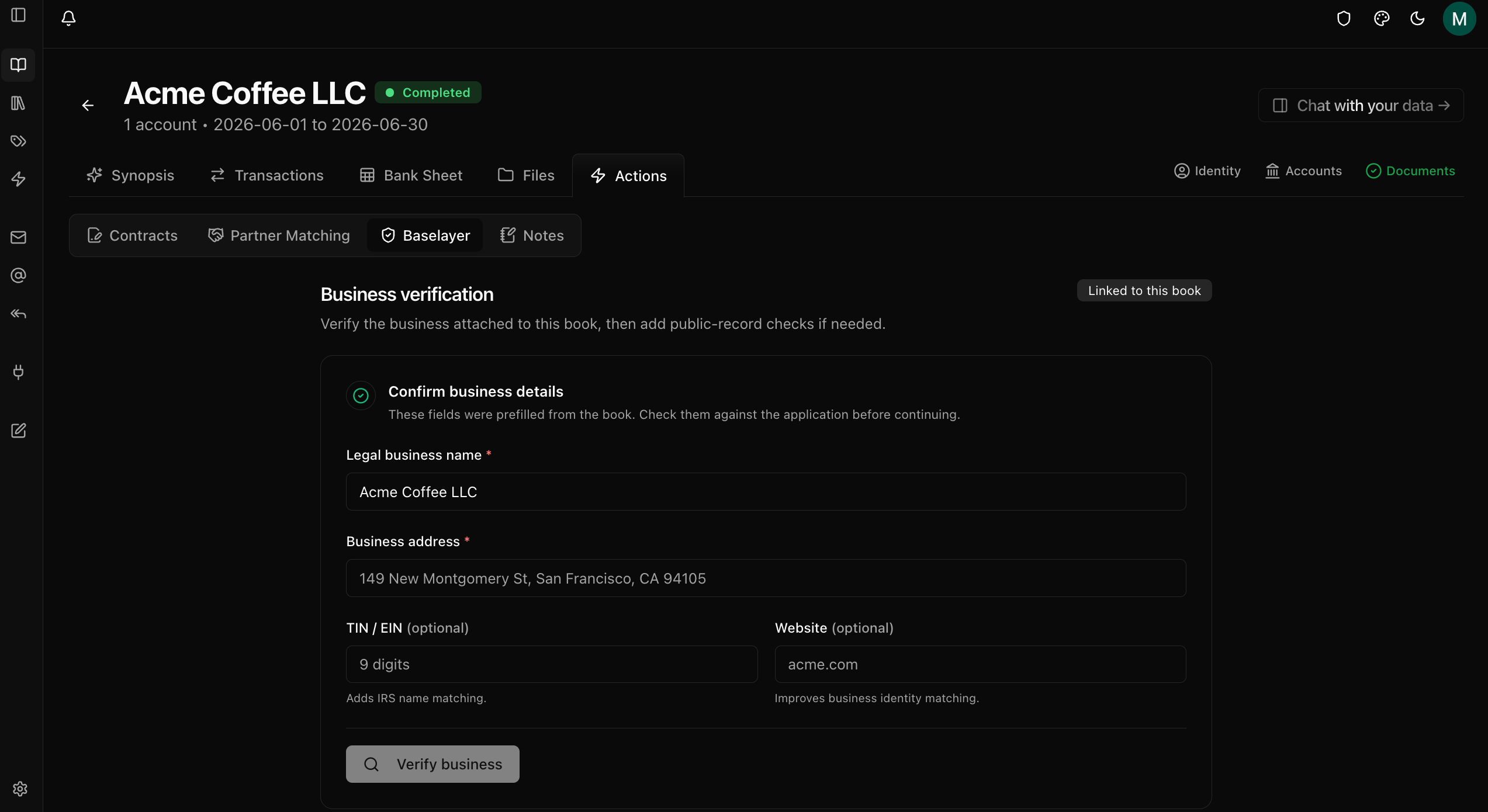
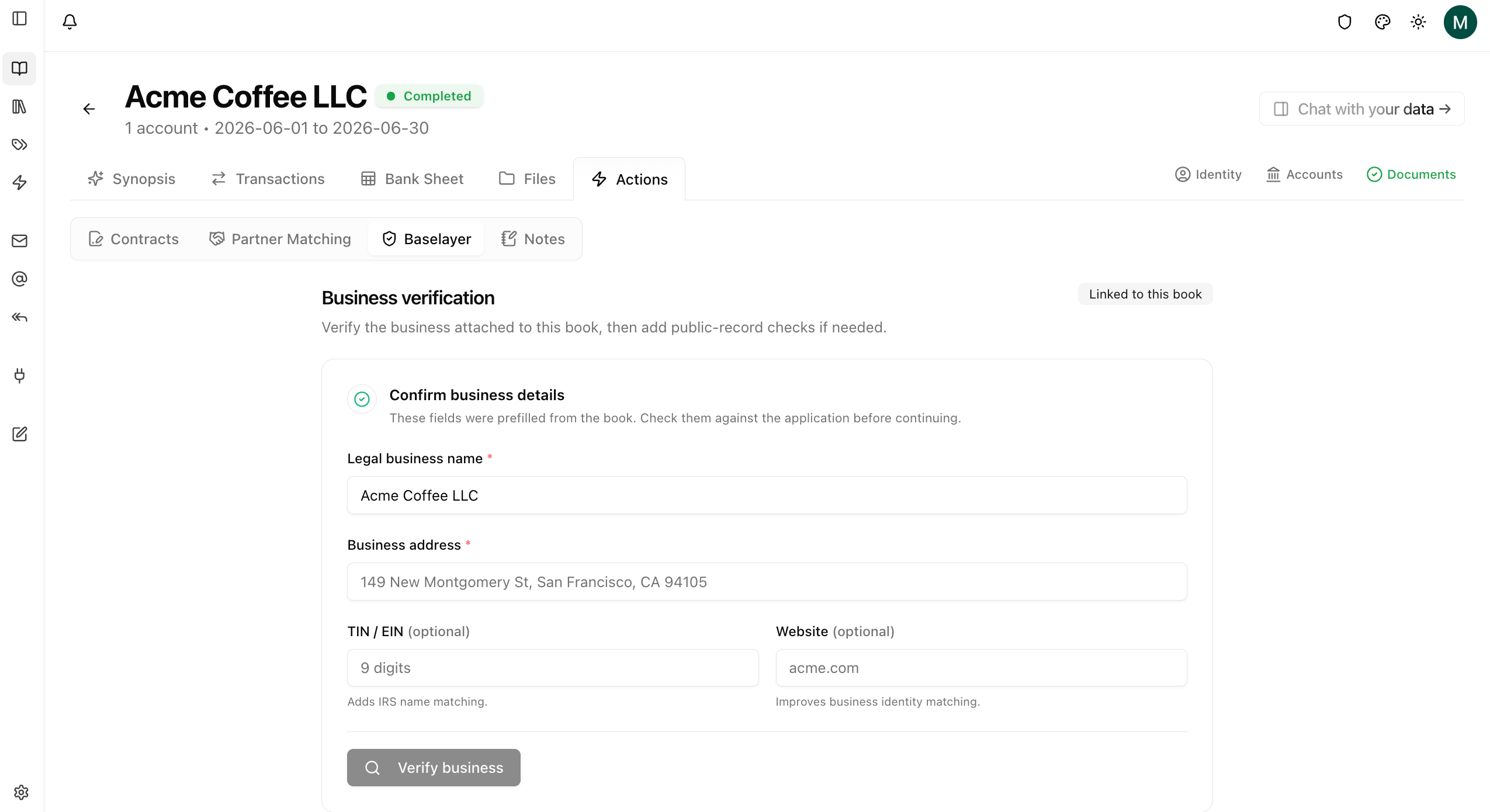
Book Actions — Baselayer
The Baselayer page
Baselayer in the sidebar is the organization’s ledger: every verification, lien search, litigation search, case-detail order and owner check anyone ran, newest first, with the date, the business or owner, who ran it, and what it cost at Baselayer’s rates. Each row links to its book, and the list can be searched and filtered by date, action and who ran it. Two small cards above the list show the month’s spend against the budget (with Edit to change the budget) and the month’s spend by product. The Enabled switch at the top right turns Baselayer on or off. Every check runs from a book.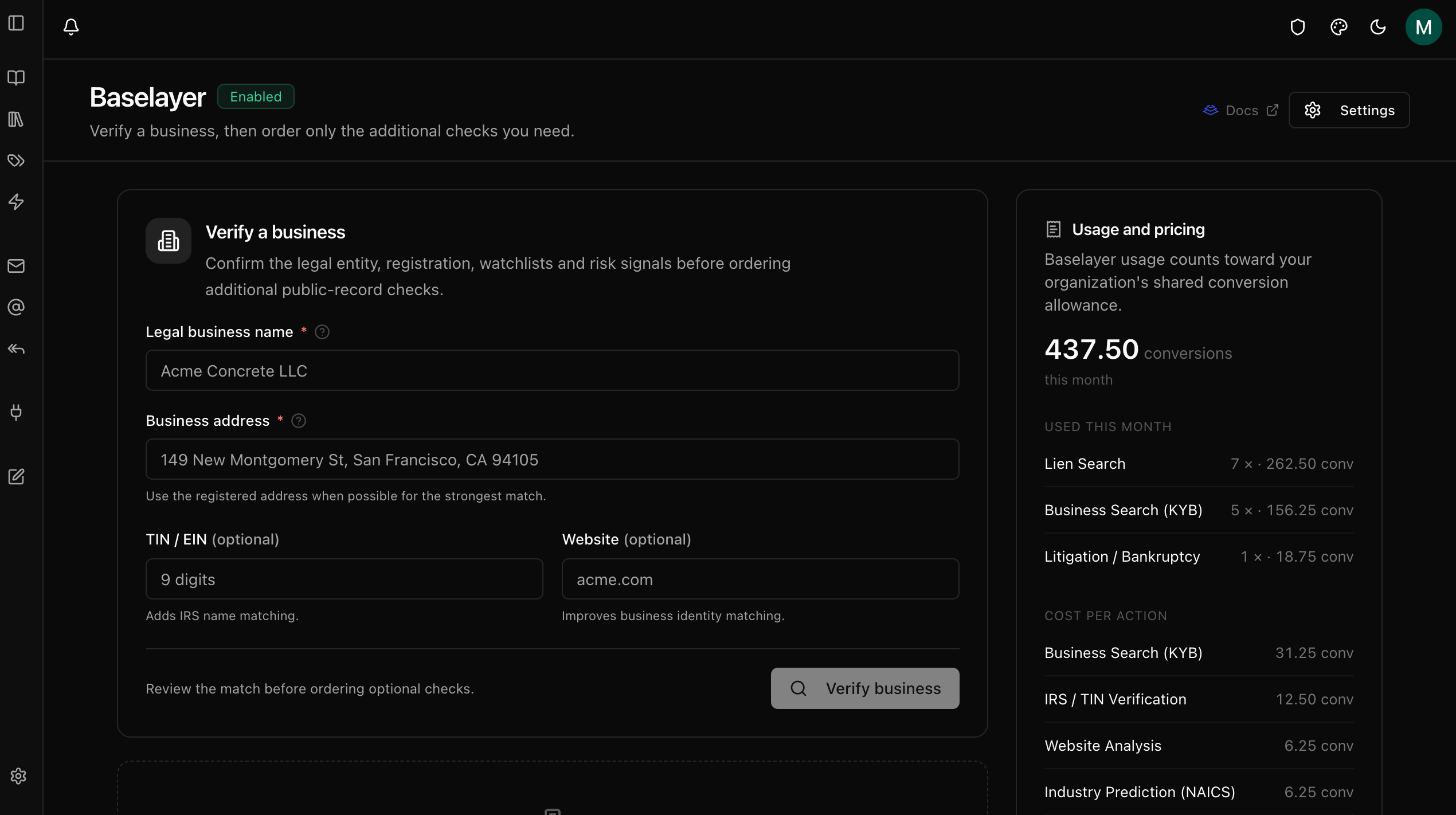
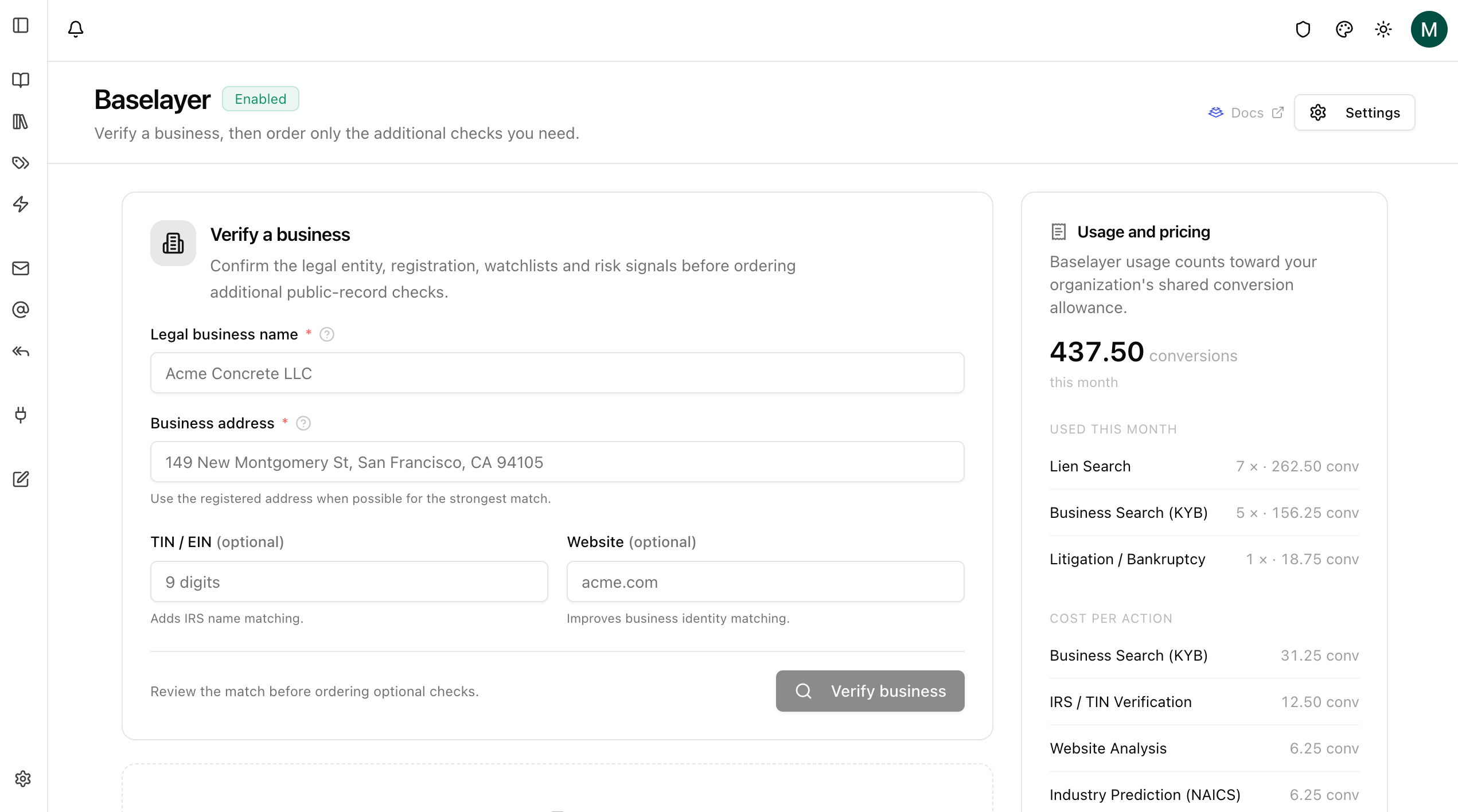
The Baselayer page
Reuse and billing
- Verifying bills one KYB check. The same name and address on the same book reuses the completed result instead of billing again.
- Lien, litigation and owner checks bill separately, when you run them. A lien search bills per state searched, for the business and each named owner; litigation and bankruptcy bill as two checks; an owner check bills as the sum of the screens it runs.
- Baselayer is billed separately from conversions, at pay-as-you-go rates per check. An optional monthly budget blocks further spend when the cap is reached.
- Enabled and Monthly budget can be changed anytime from Integrations or from the top of the Baselayer page.