Create a connected app in Salesforce
LendPathway needs a Connected App to authenticate. This is a one-time setup in Salesforce.- In Salesforce, click the gear icon → Setup
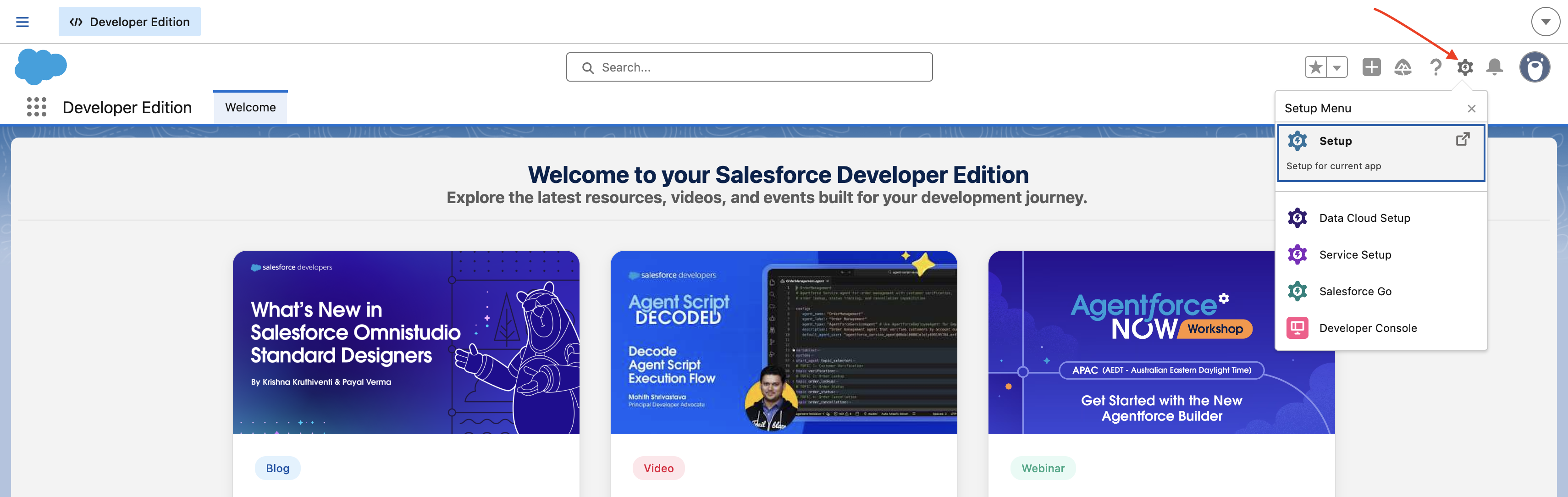
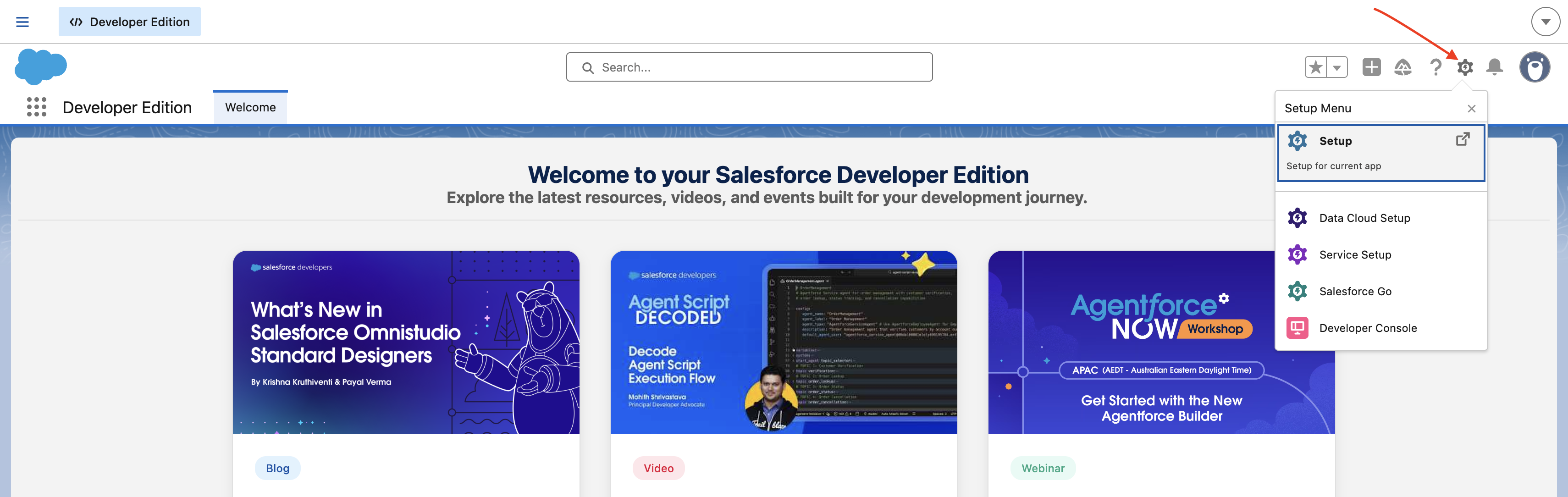
- Search App Manager in Quick Find, click it
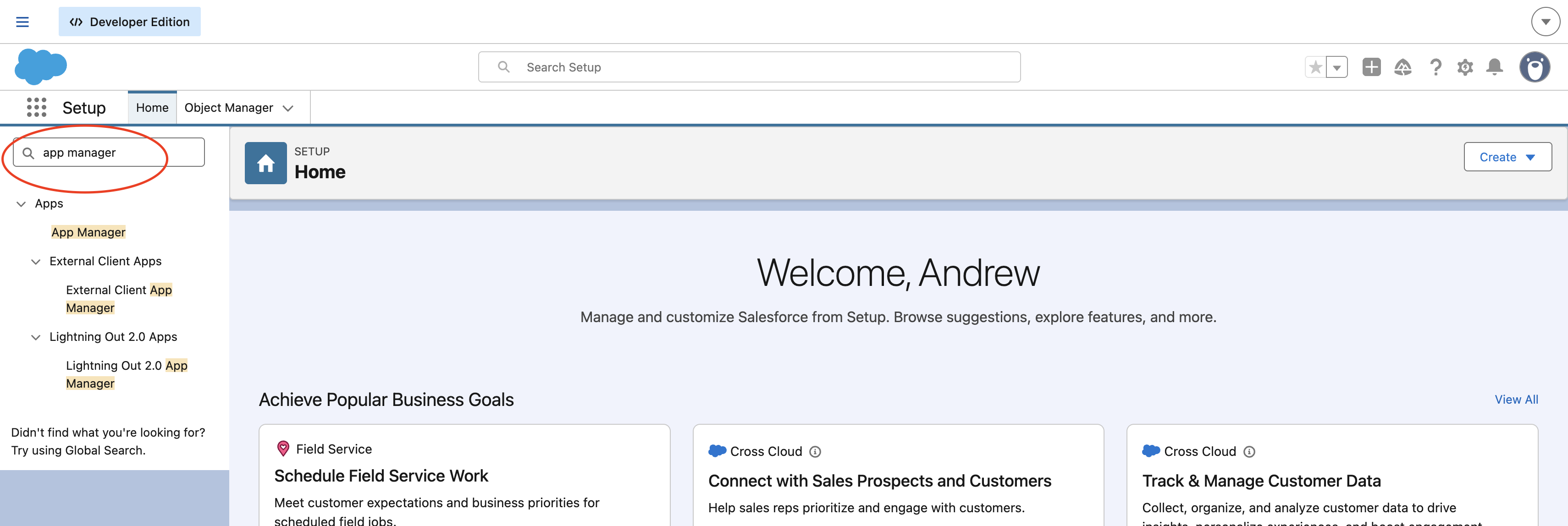
- Click “New External Client App”

- Fill in:
- Connected App Name:
LendPathway - Contact Email: your email
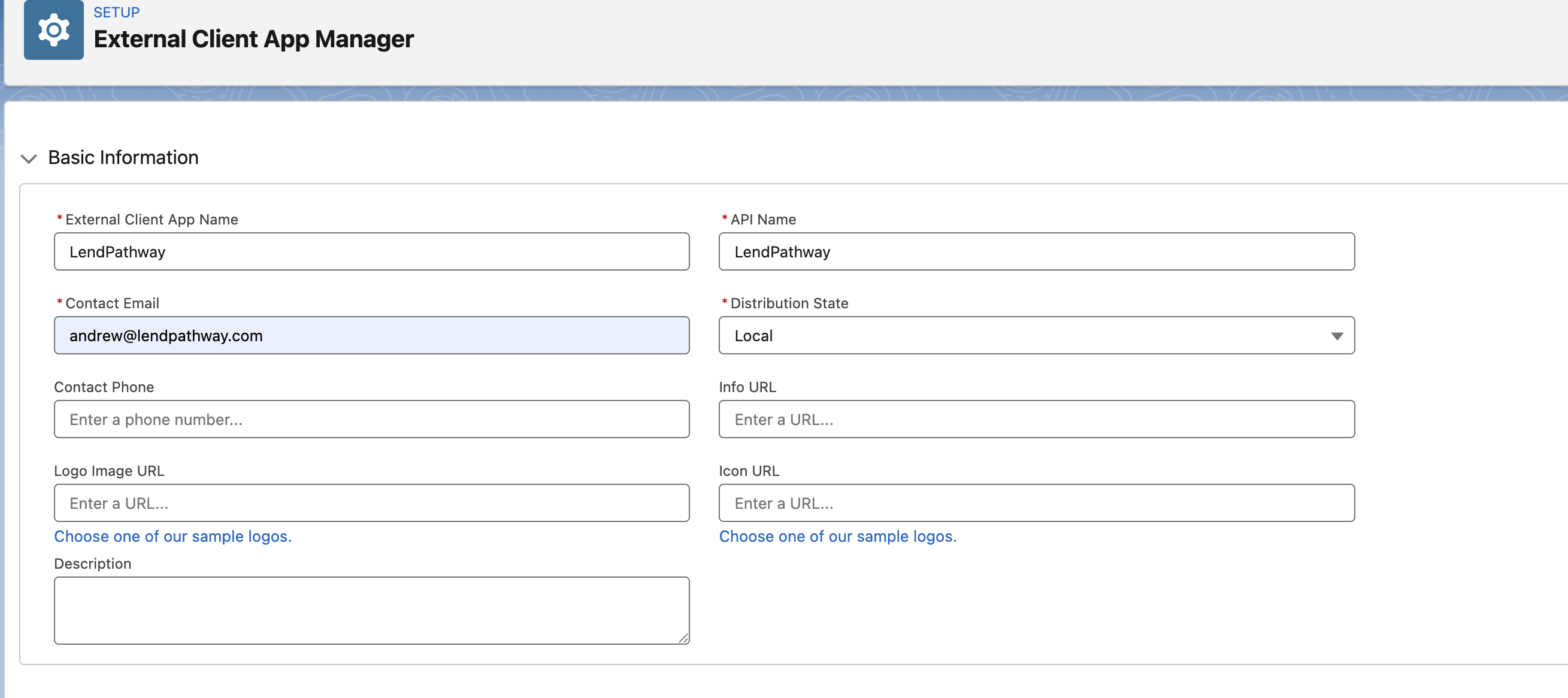
- Connected App Name:
- Check Enable OAuth Settings and configure:
- Callback URL:
https://api.lendpathway.com/api/salesforce/callback - OAuth Scopes: Enable OAuth and grant access to scopes. We recommend granting All scopes.
- Check “Introspect all Tokens” to True.
- Callback URL:
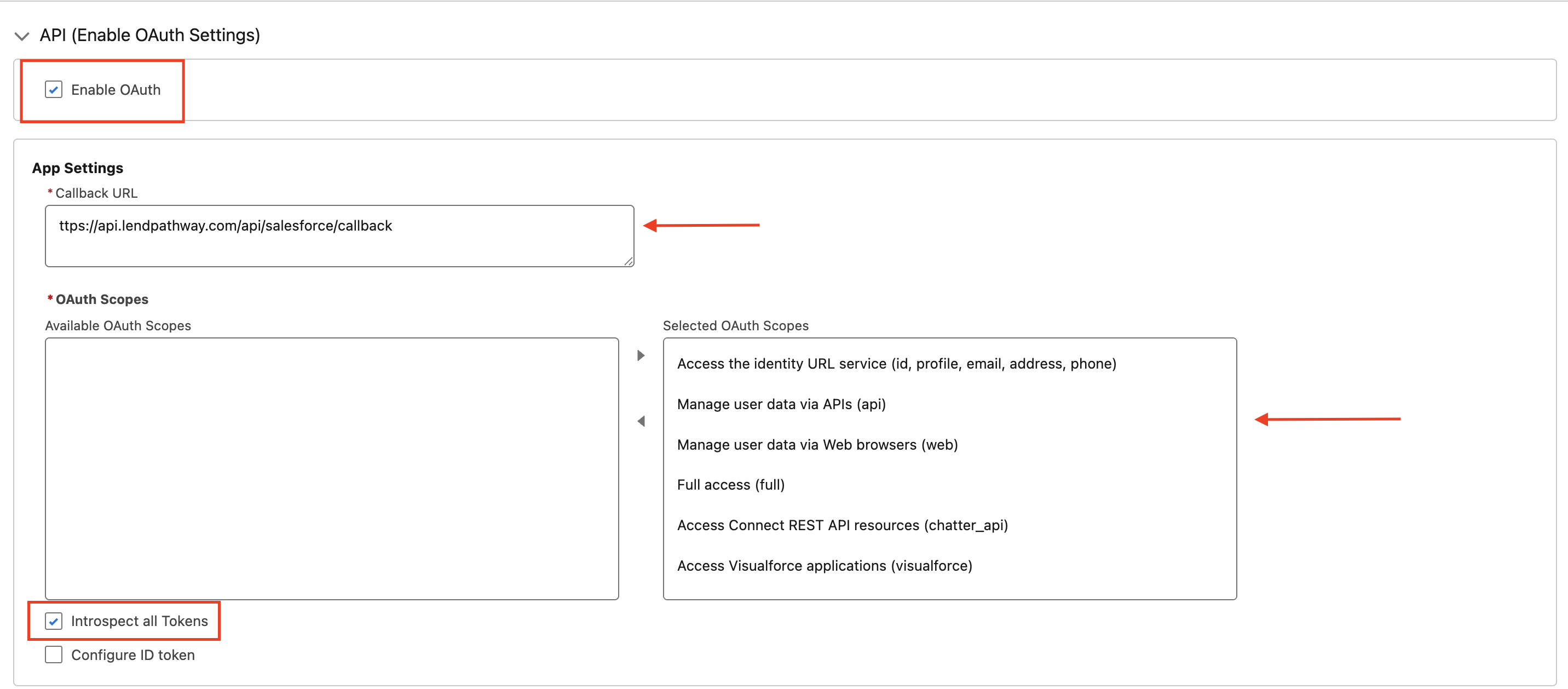
- Use the following Flow Enablement and Security settings:
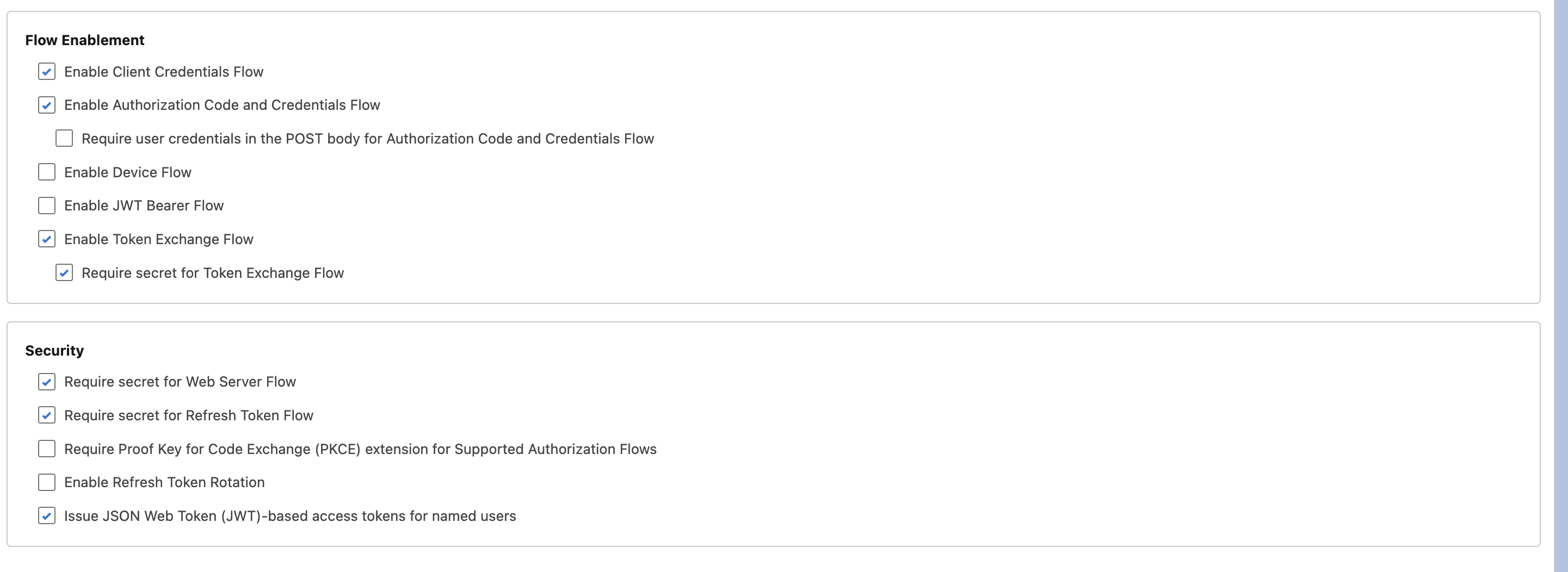
- Click Create. Wait 2-10 minutes for Salesforce to propagate.
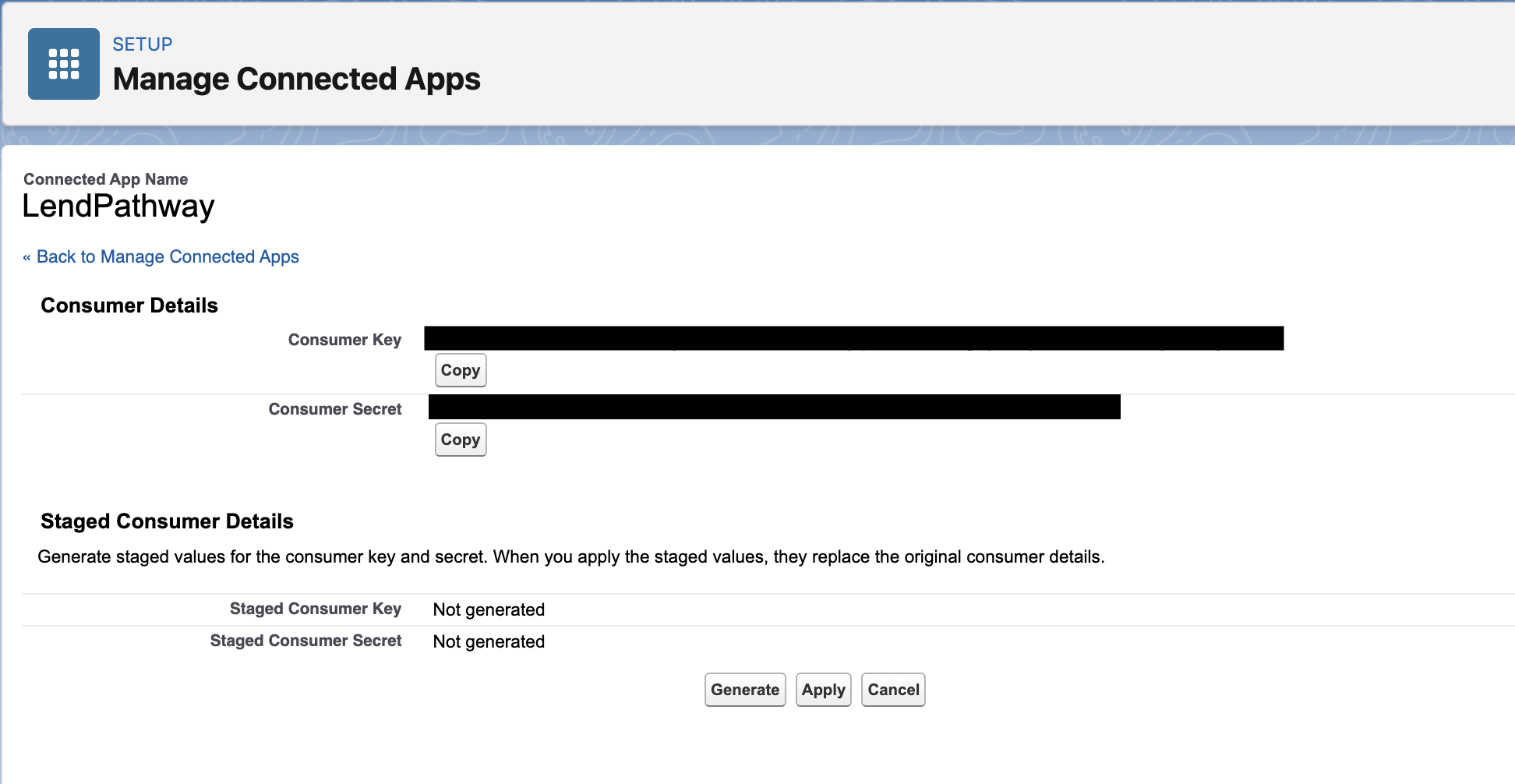
- Go back to App Manager → find your app → View → Manage Consumer Details. Copy the Consumer Key and Consumer Secret.
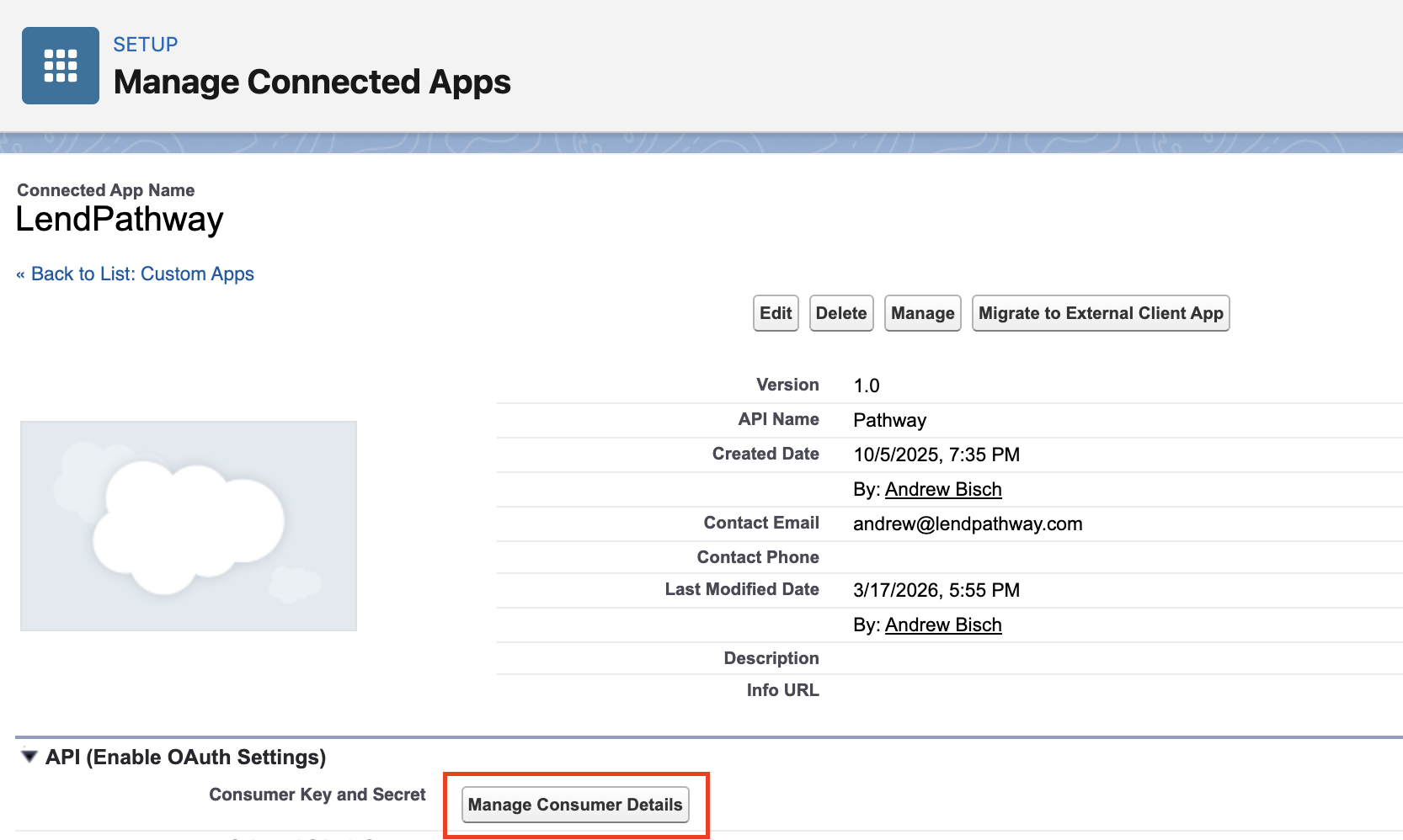
- Authenticate
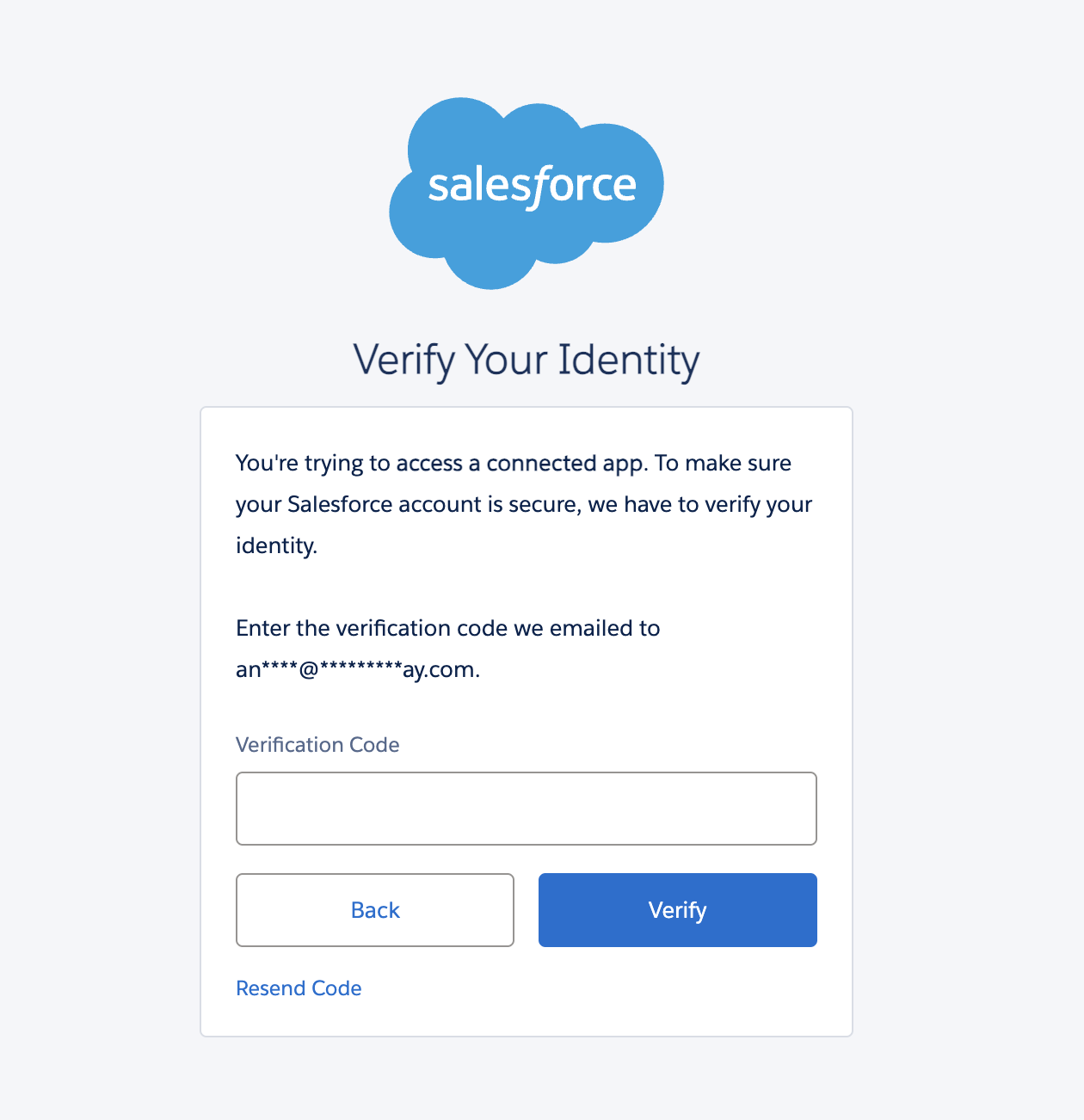
- Copy the Consumer Key and Consumer Secret, you’ll need them for the following steps.
Connect in LendPathway
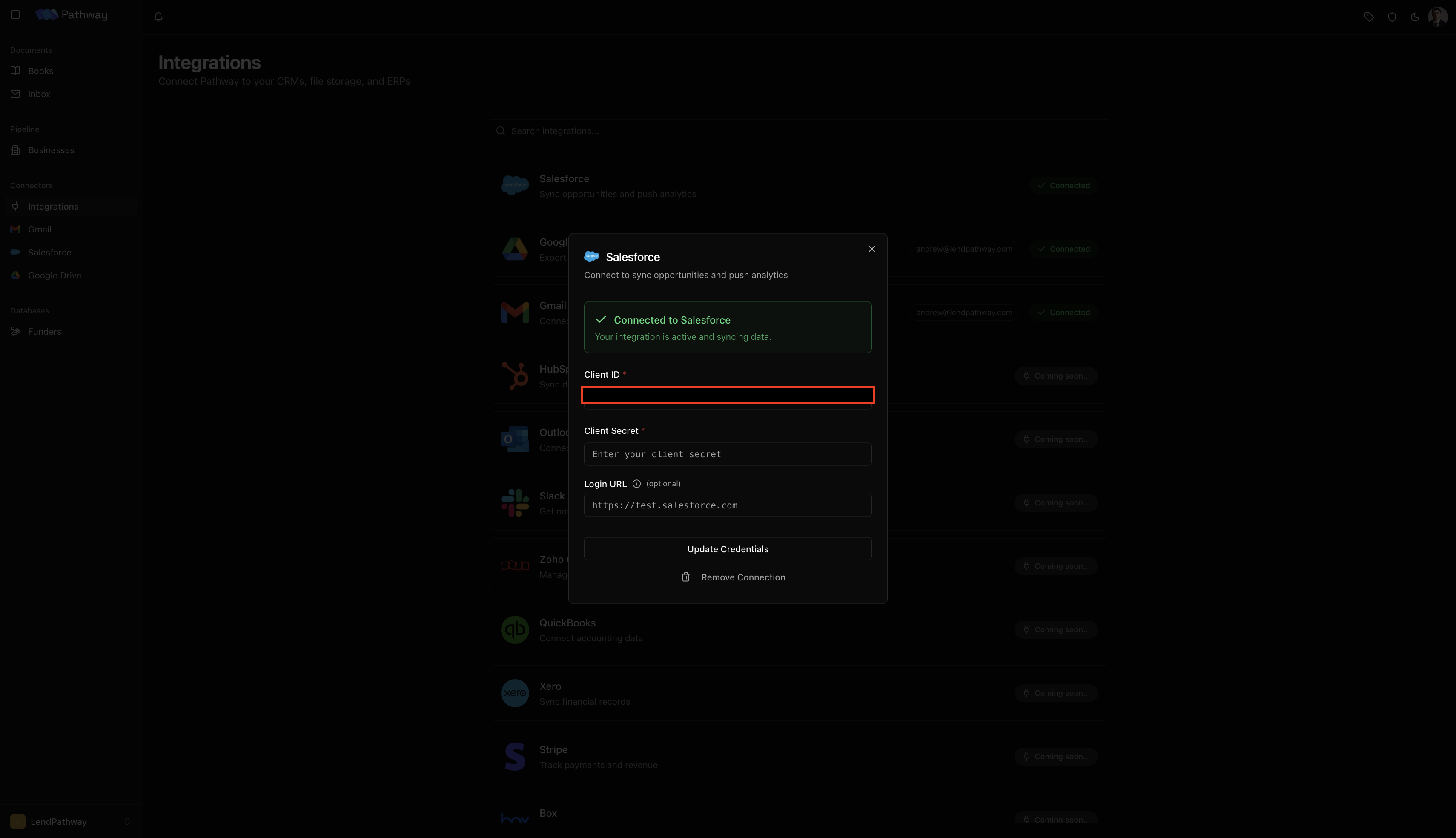
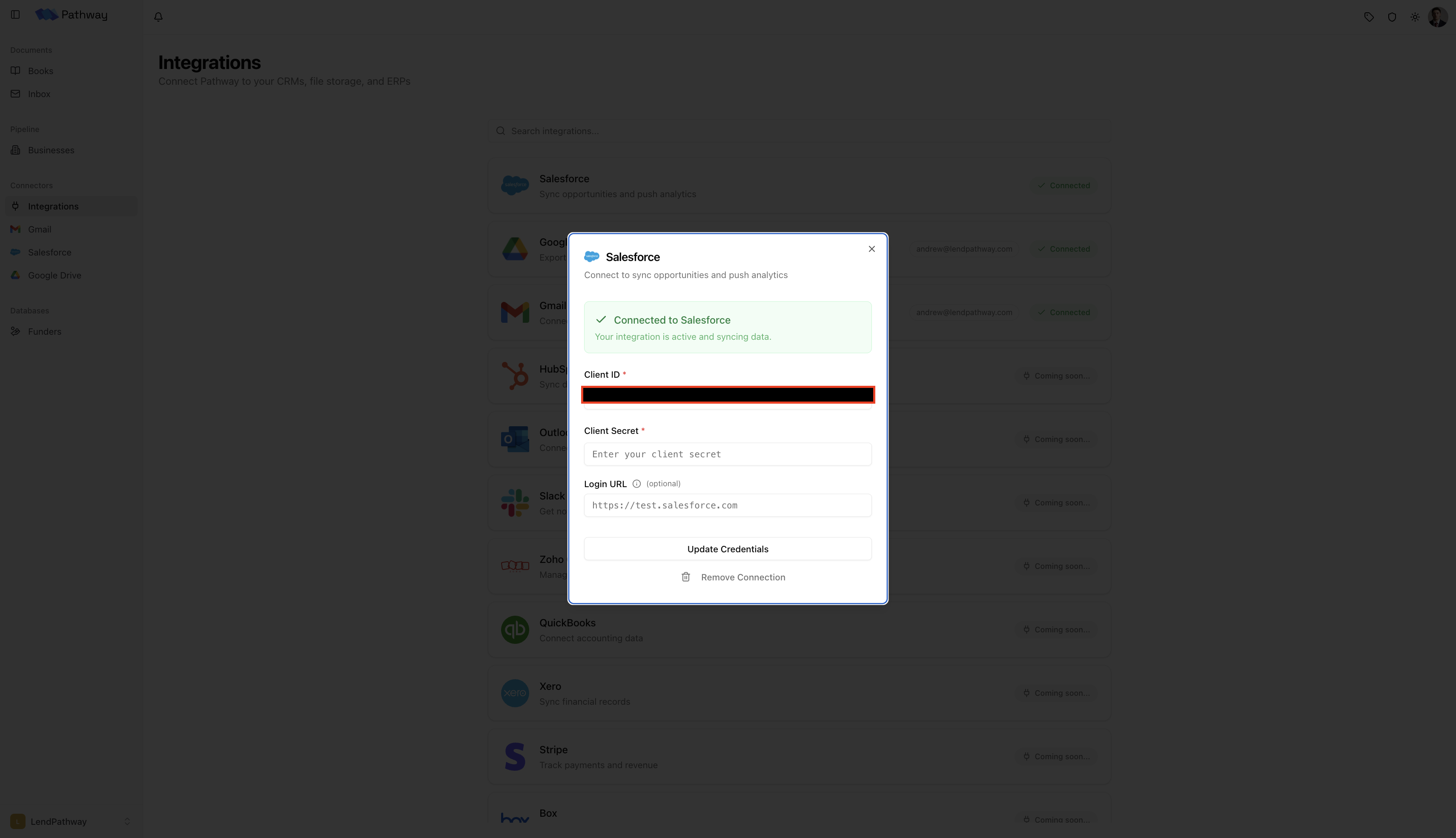
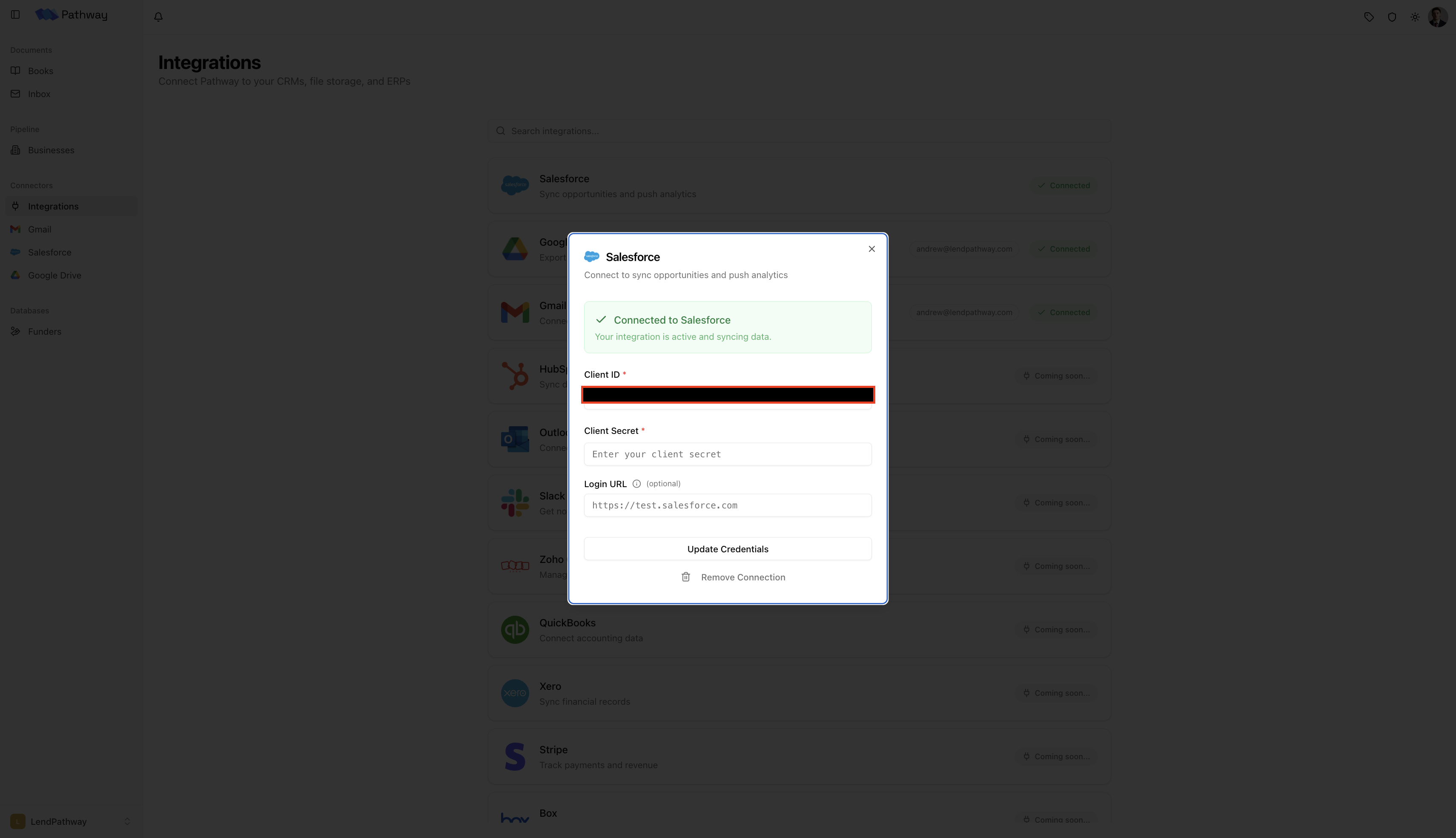
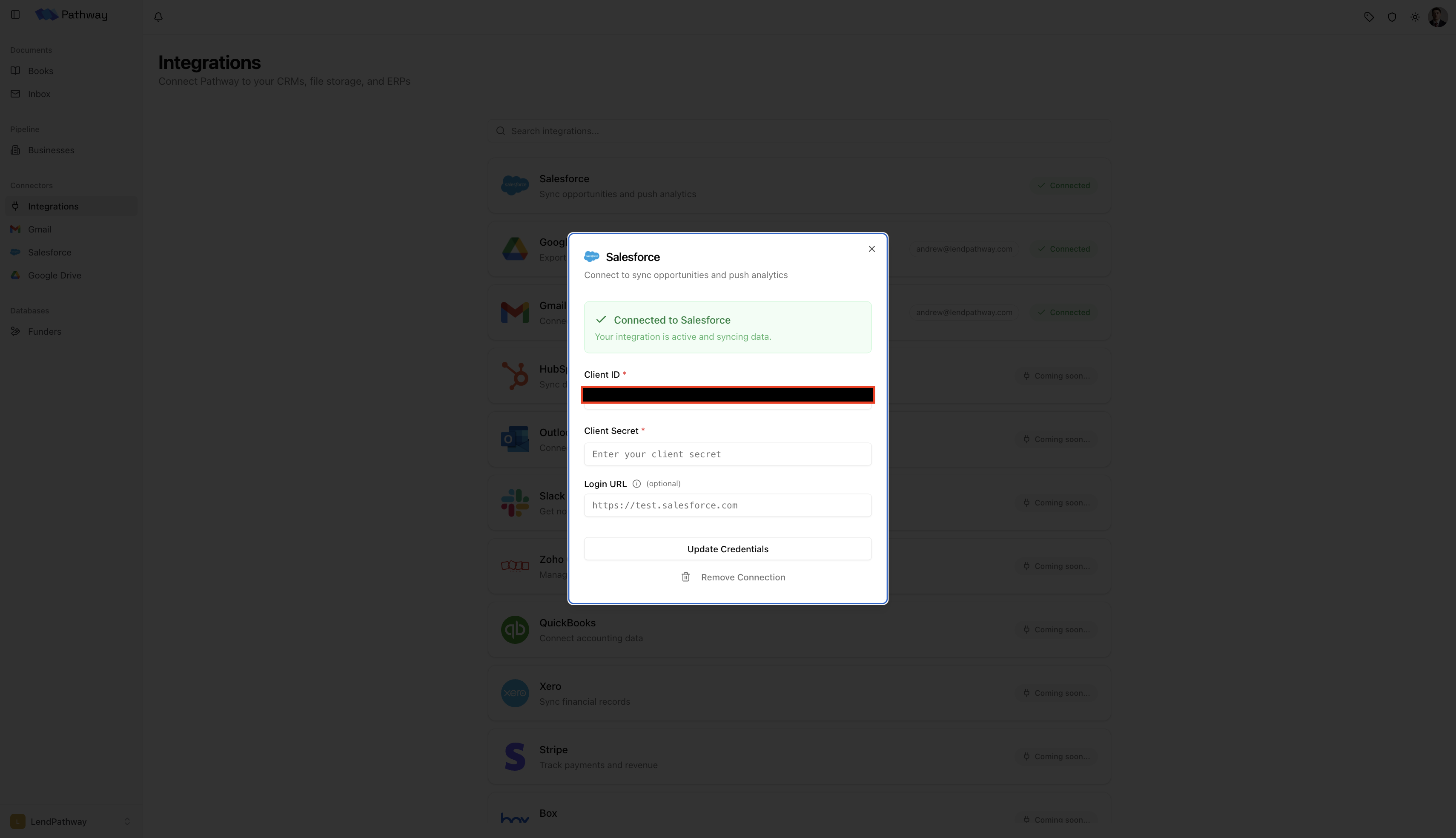
- Go to Connectors → Integrations in the sidebar, click the Salesforce card
- Enter your Client ID (Consumer Key), Client Secret (Consumer Secret), and optionally a Login URL
- Click Save & Continue
- Click Authenticate with Salesforce. Log in in the popup and click Allow. The popup closes and you’ll see a green Connected confirmation.
Once connected
Browsing Opportunities
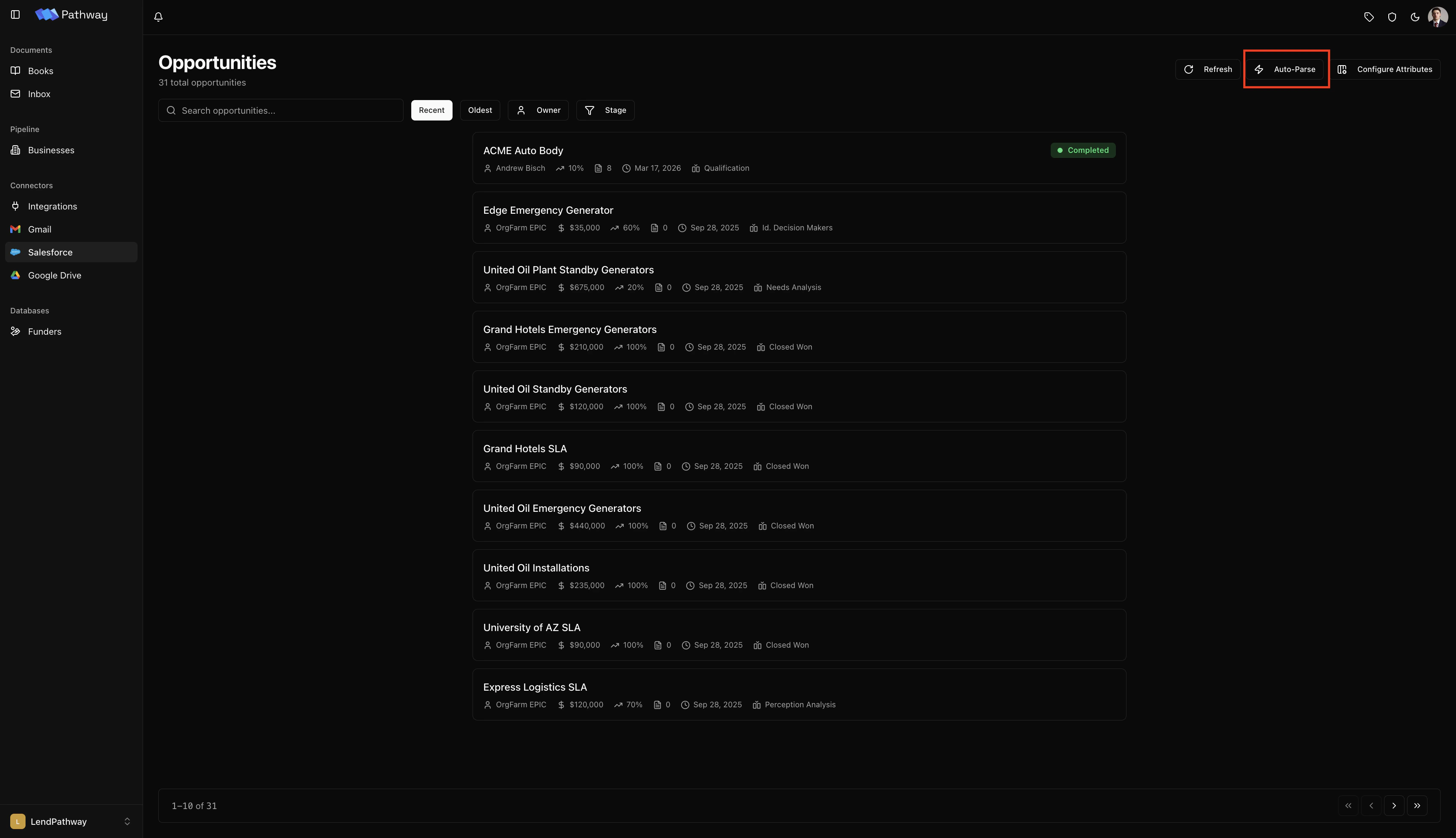
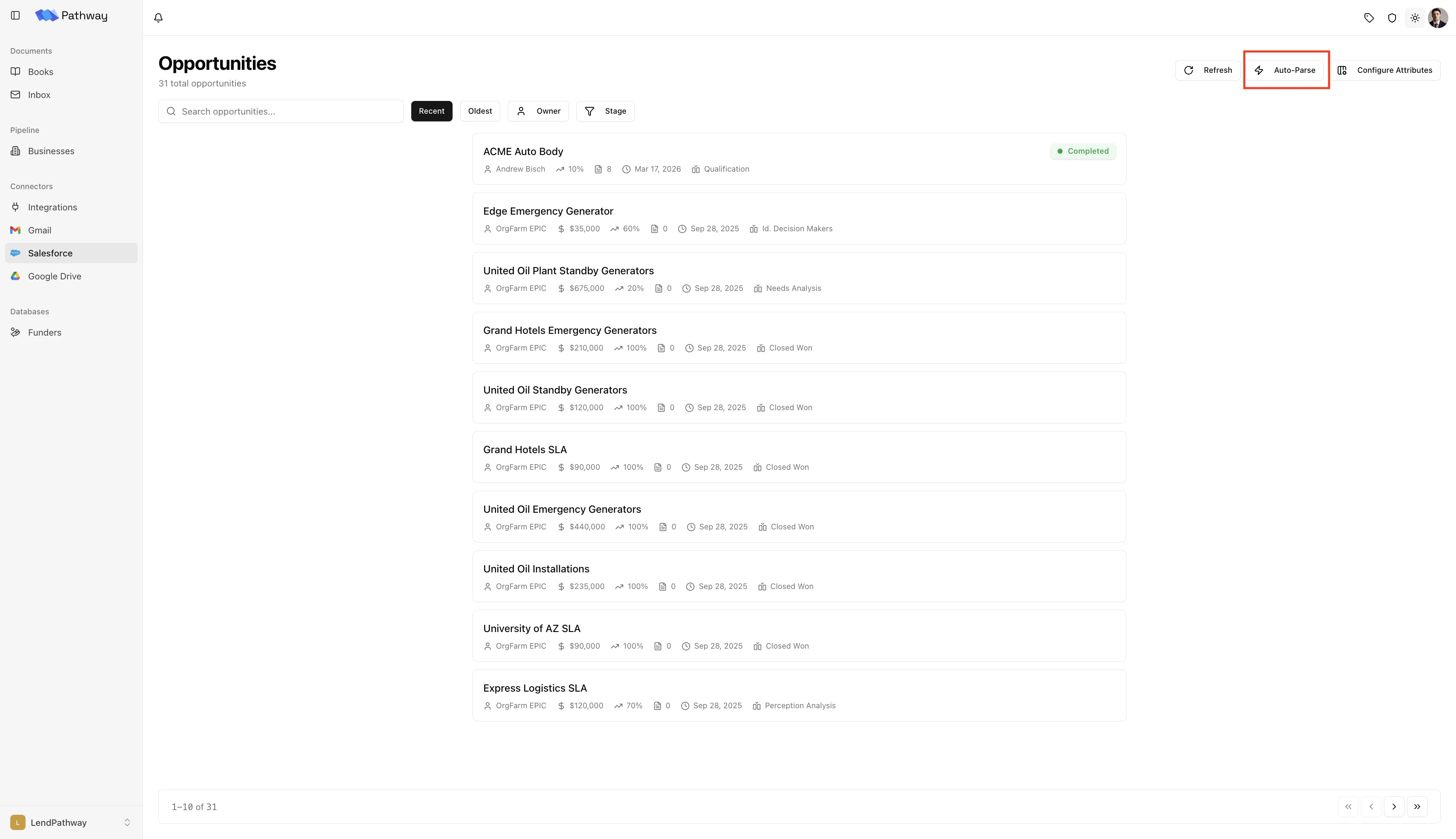
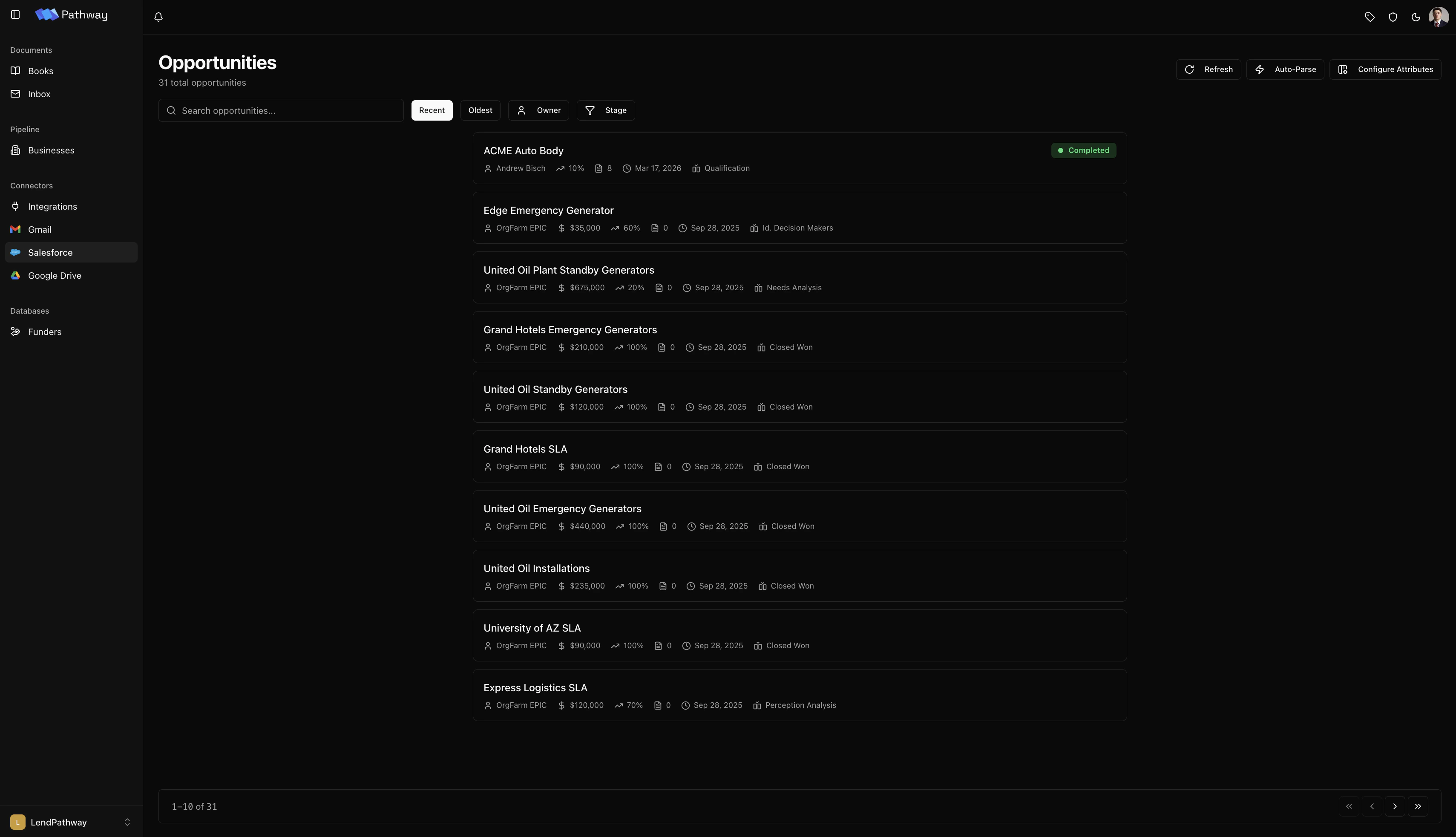
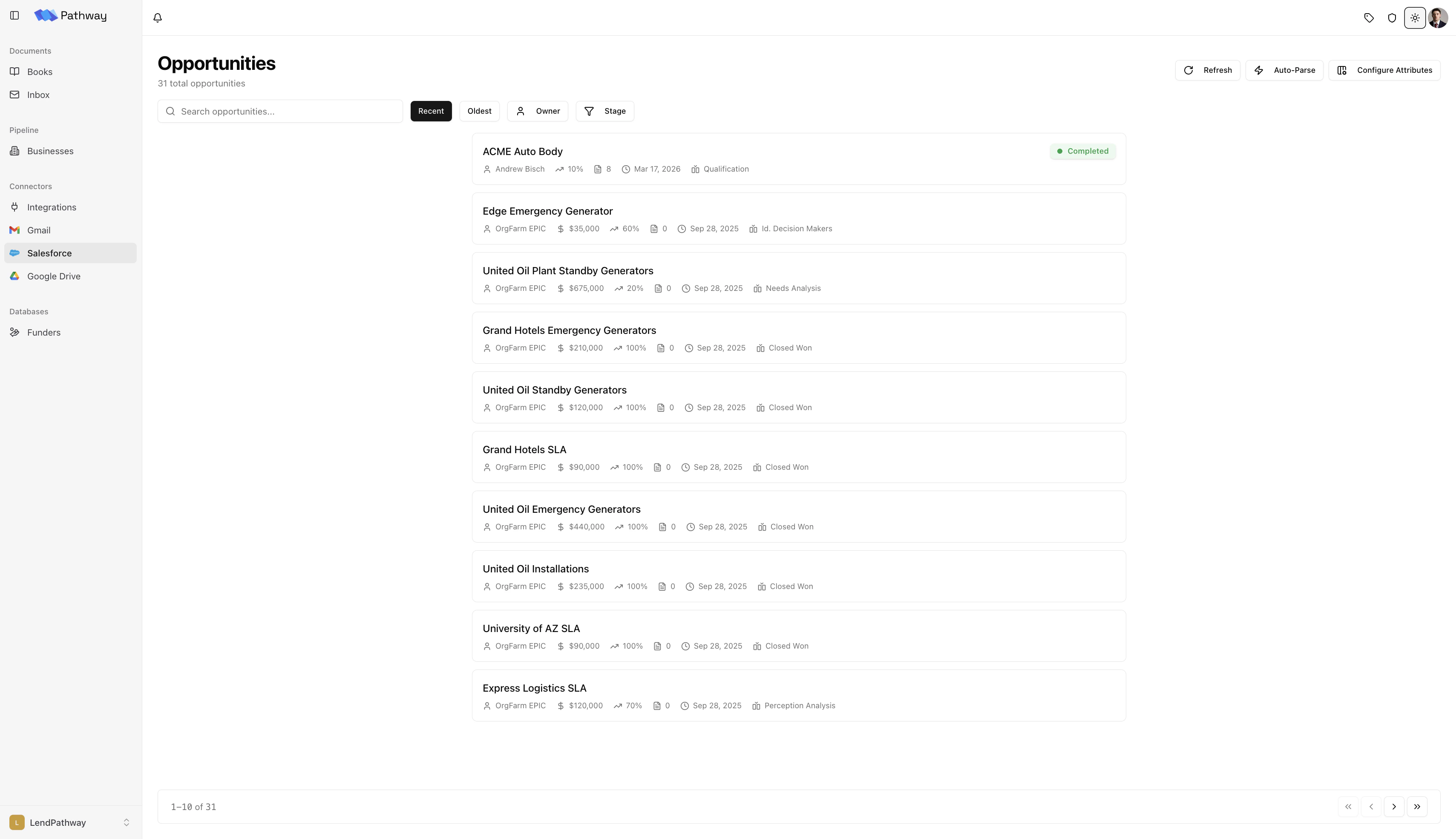
Once connected, click Salesforce in the sidebar to open the Opportunities page. The page shows a paginated list of your Salesforce Opportunities. Use the toolbar to:- Filter by stage — multi-select from your org’s stage values
- Filter by owner — narrow to a specific rep
- Search — find Opportunities by name
- Sort — by recently modified or oldest created
- Refresh — clear cached data and reload from Salesforce
Creating a Book from an Opportunity
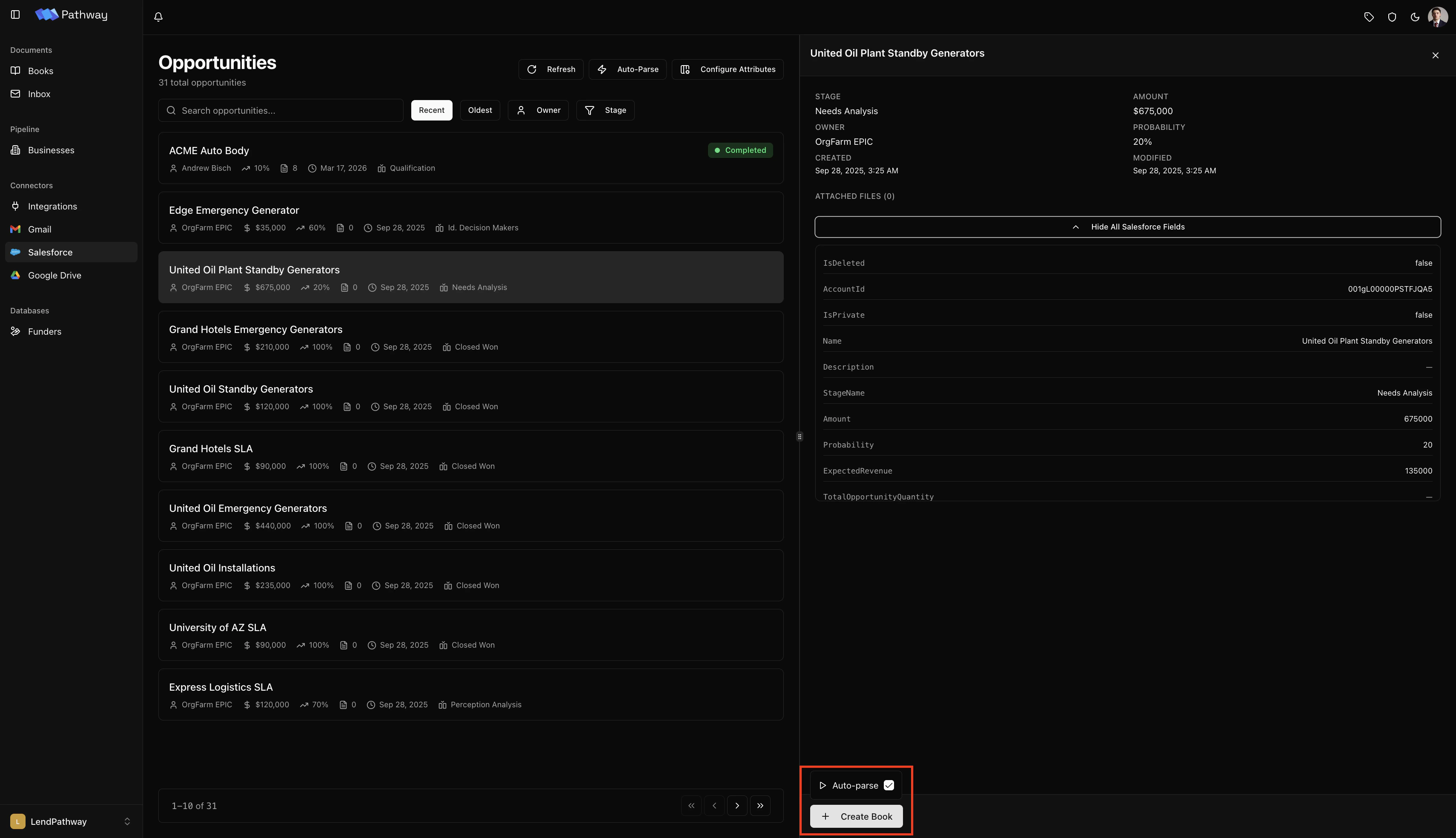
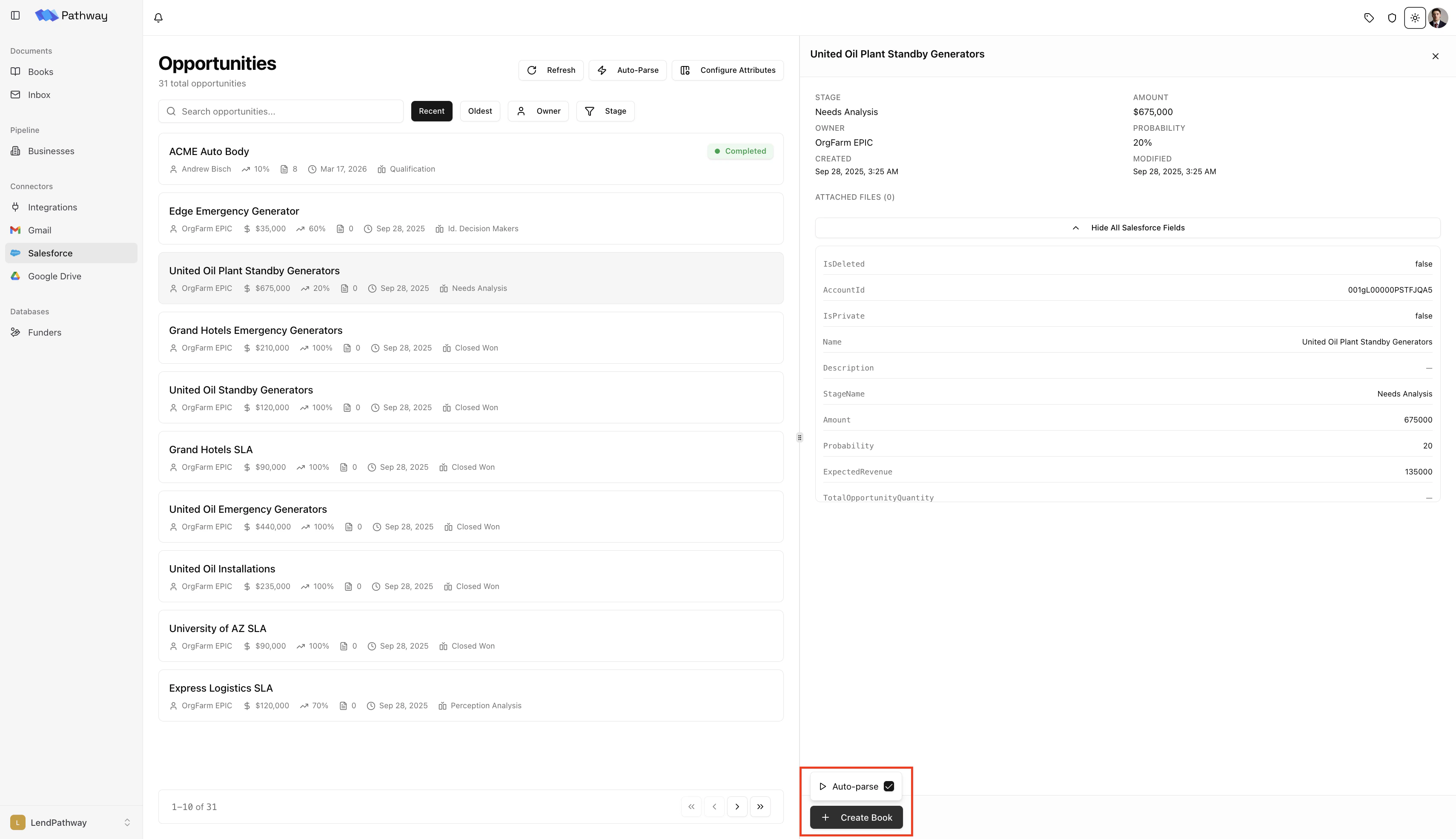
From the detail panel of any Opportunity:- Click Create Book
- Optionally check Auto-parse — this starts parsing immediately and pushes results back to Salesforce when done
- LendPathway downloads all files attached to the Opportunity, creates a book, and uploads them
Field Mappings
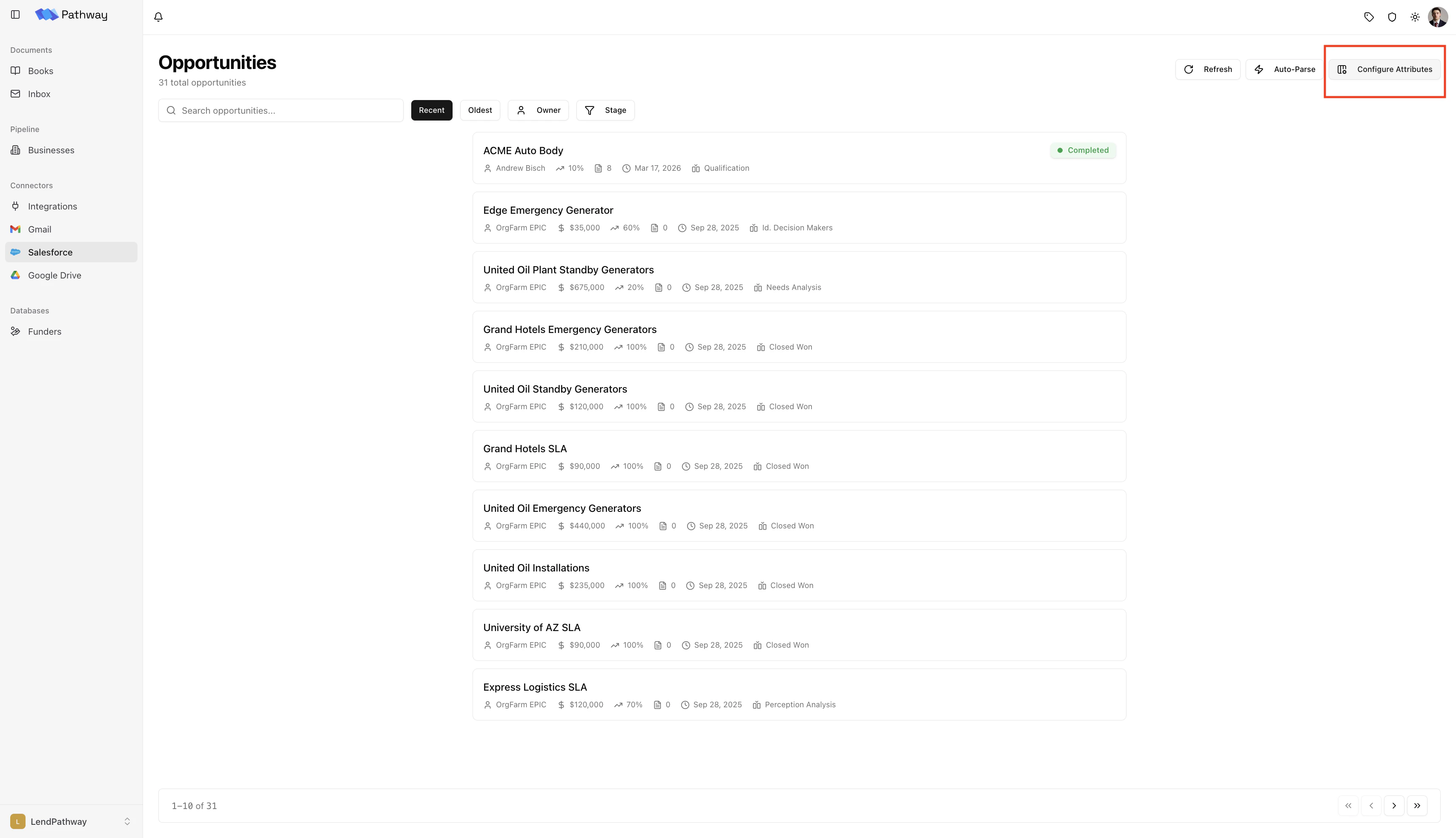
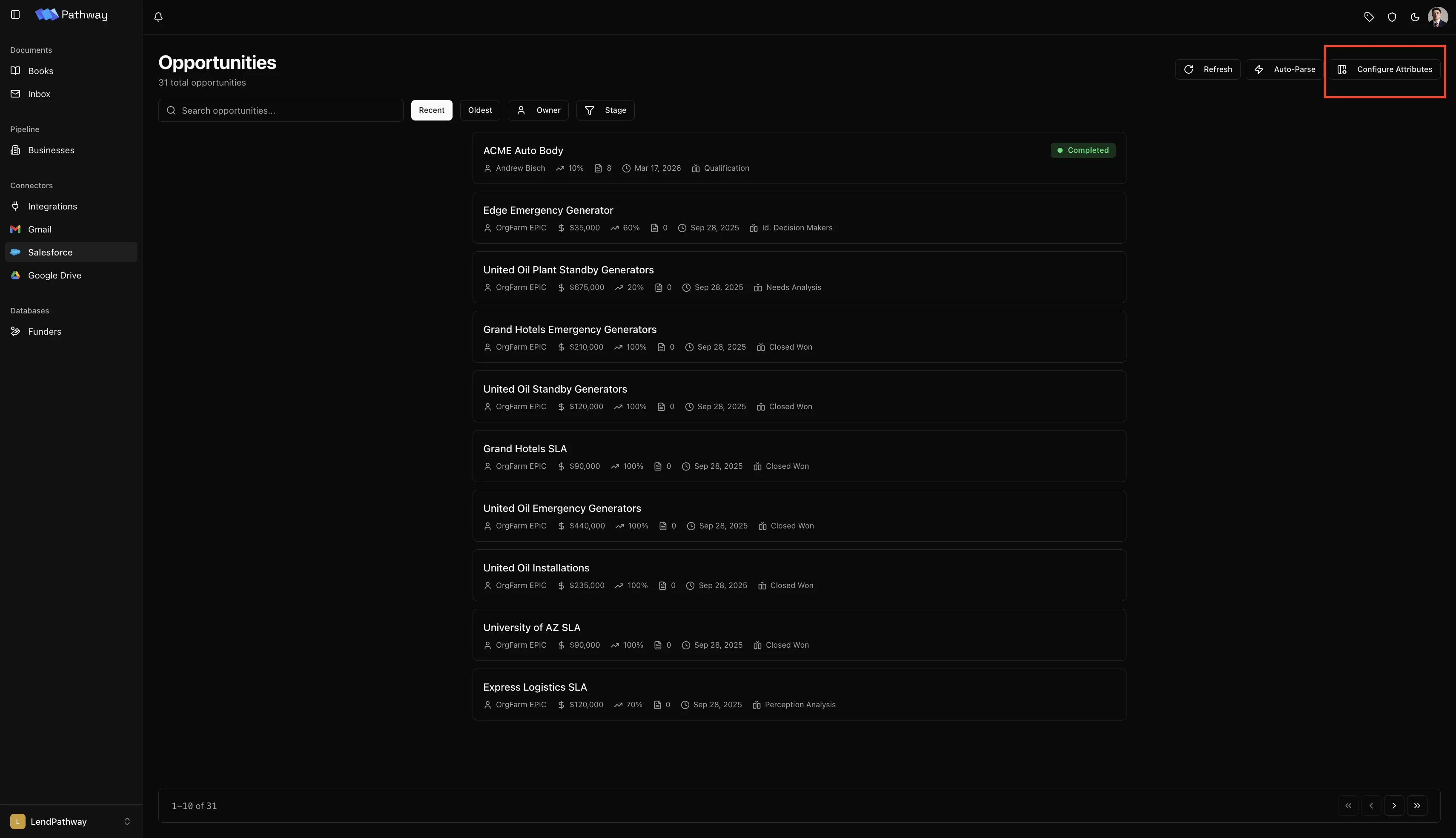
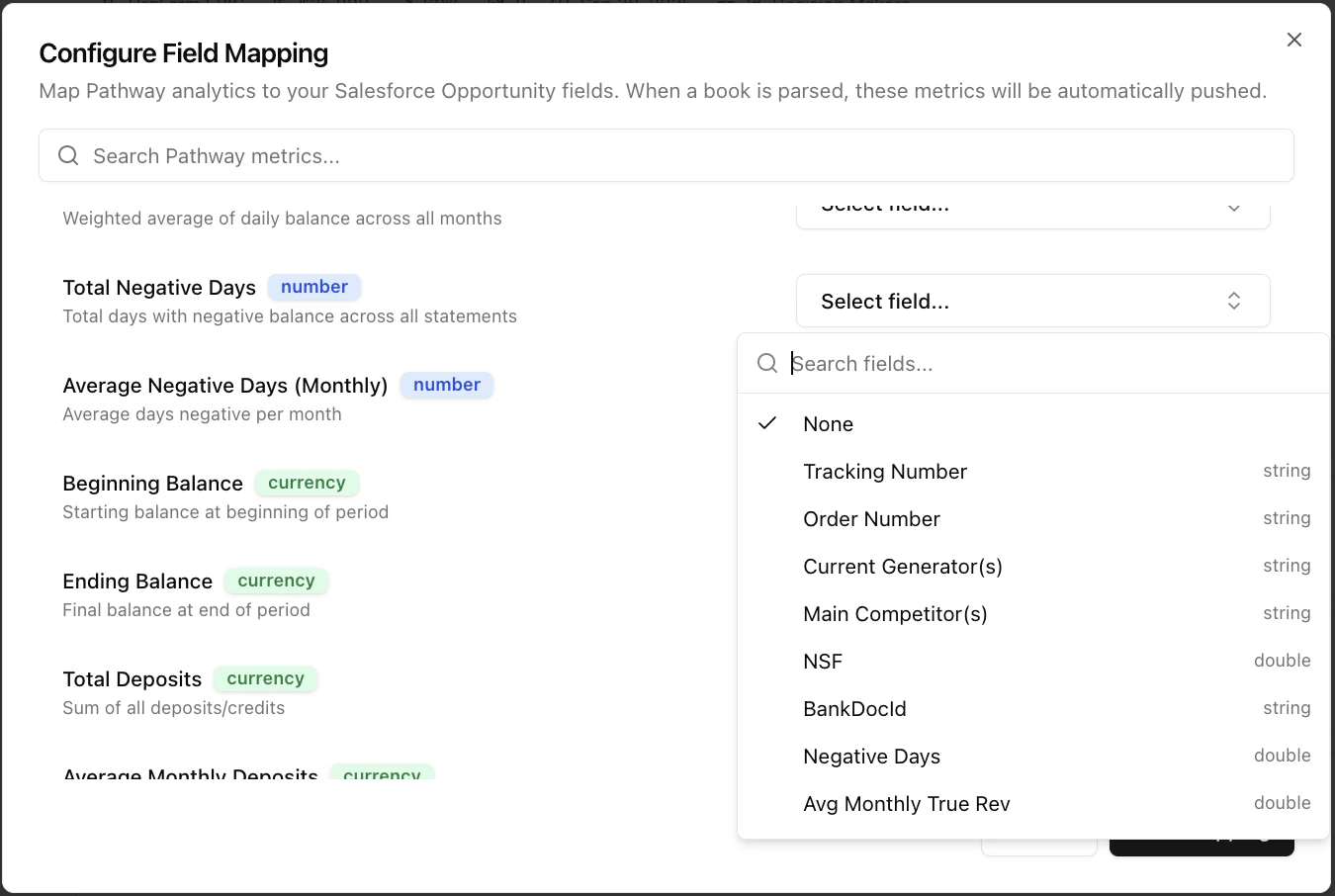
Field mappings control which LendPathway metrics get pushed to which Salesforce Opportunity fields.- On the Salesforce page, click Configure Attributes in the top-right toolbar
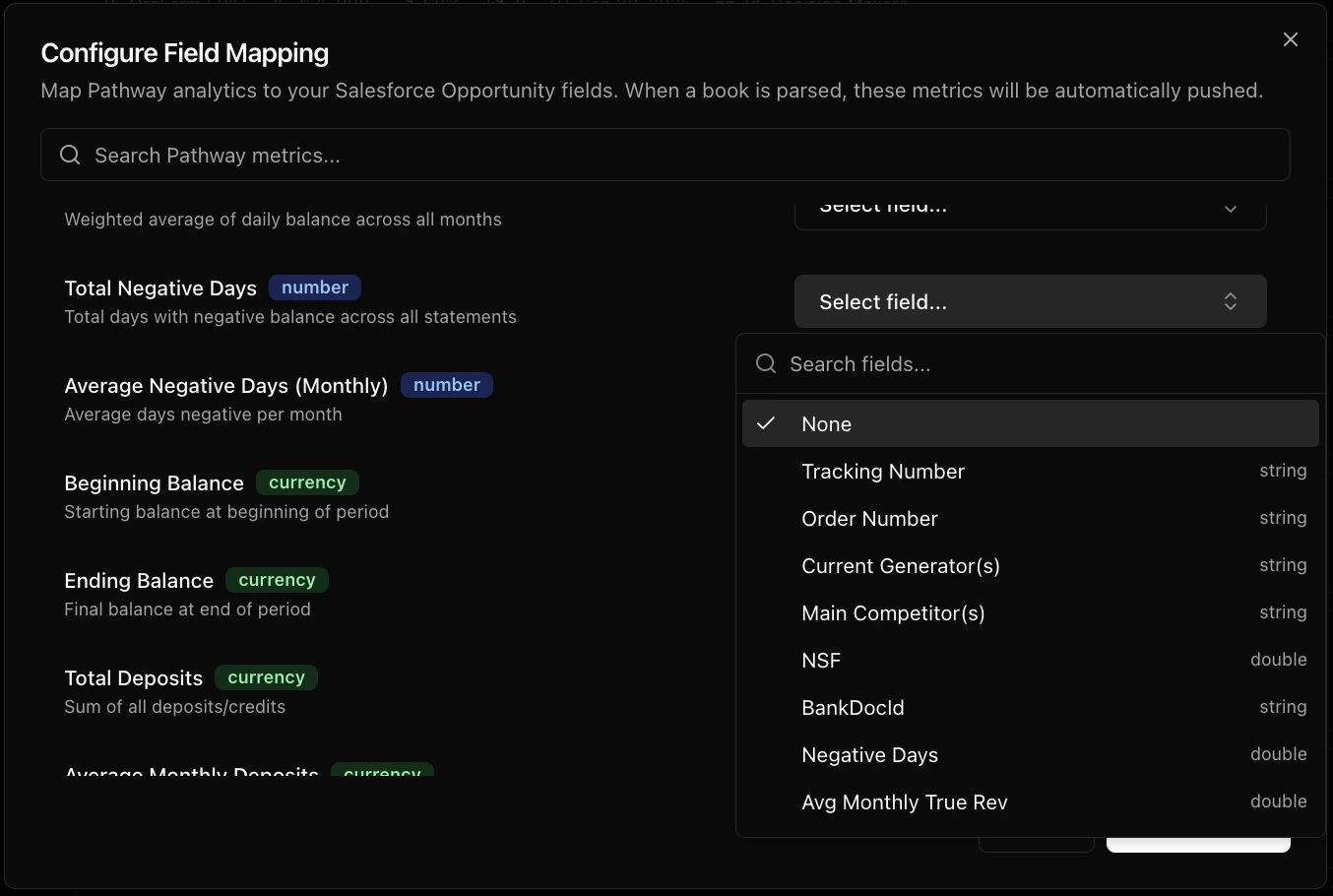
- For each metric, select the target Salesforce field from the dropdown
- LendPathway validates type compatibility — currency metrics can map to currency, double, or text fields; number metrics to number, double, or text fields; and so on
-
Click Save
Pushing Results
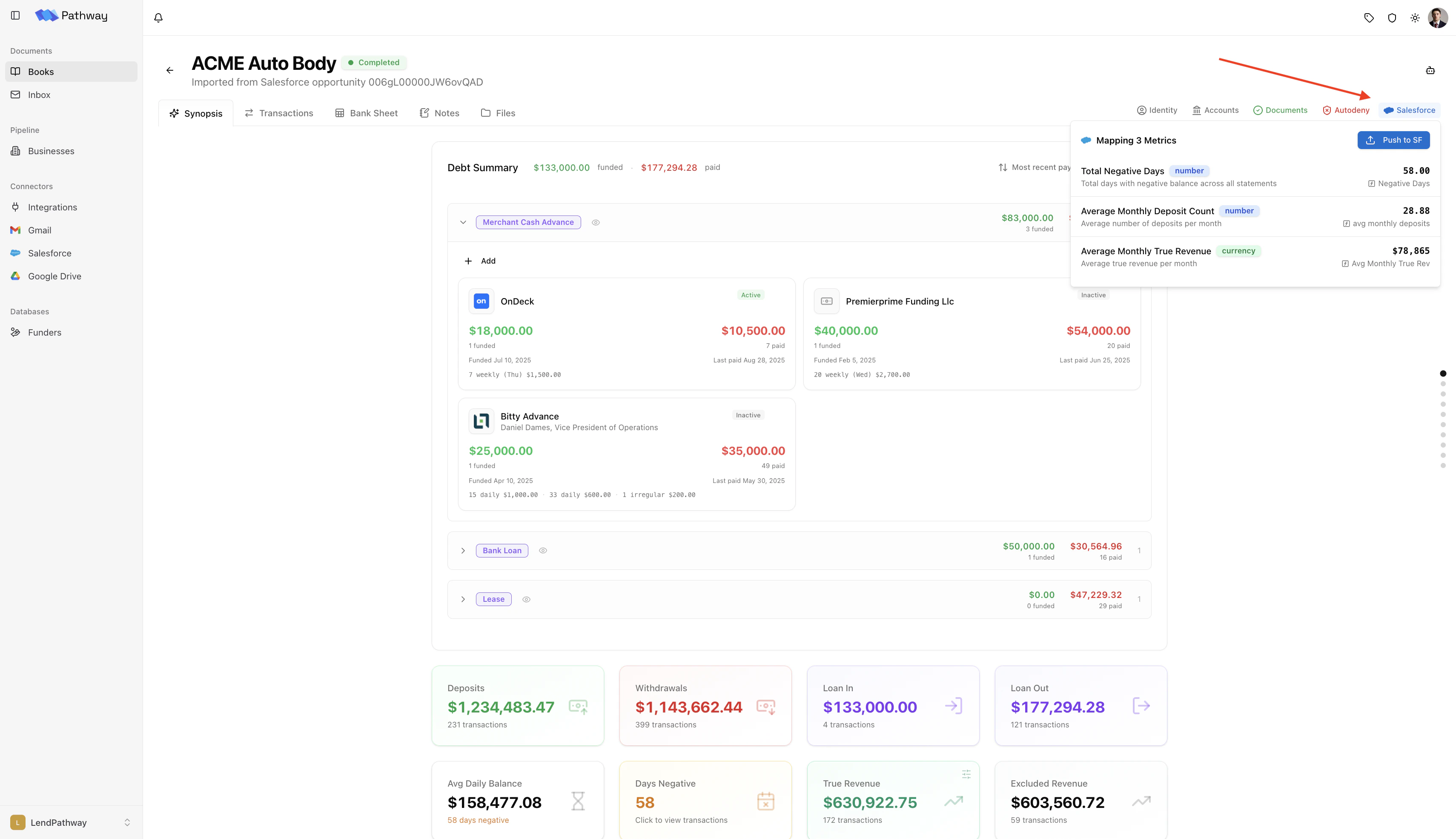
After a book is parsed, there are two ways to push analytics to Salesforce: Manual — Open the book, click the Salesforce badge in the top-right info badges, and confirm. Only available for books linked to a Salesforce Opportunity.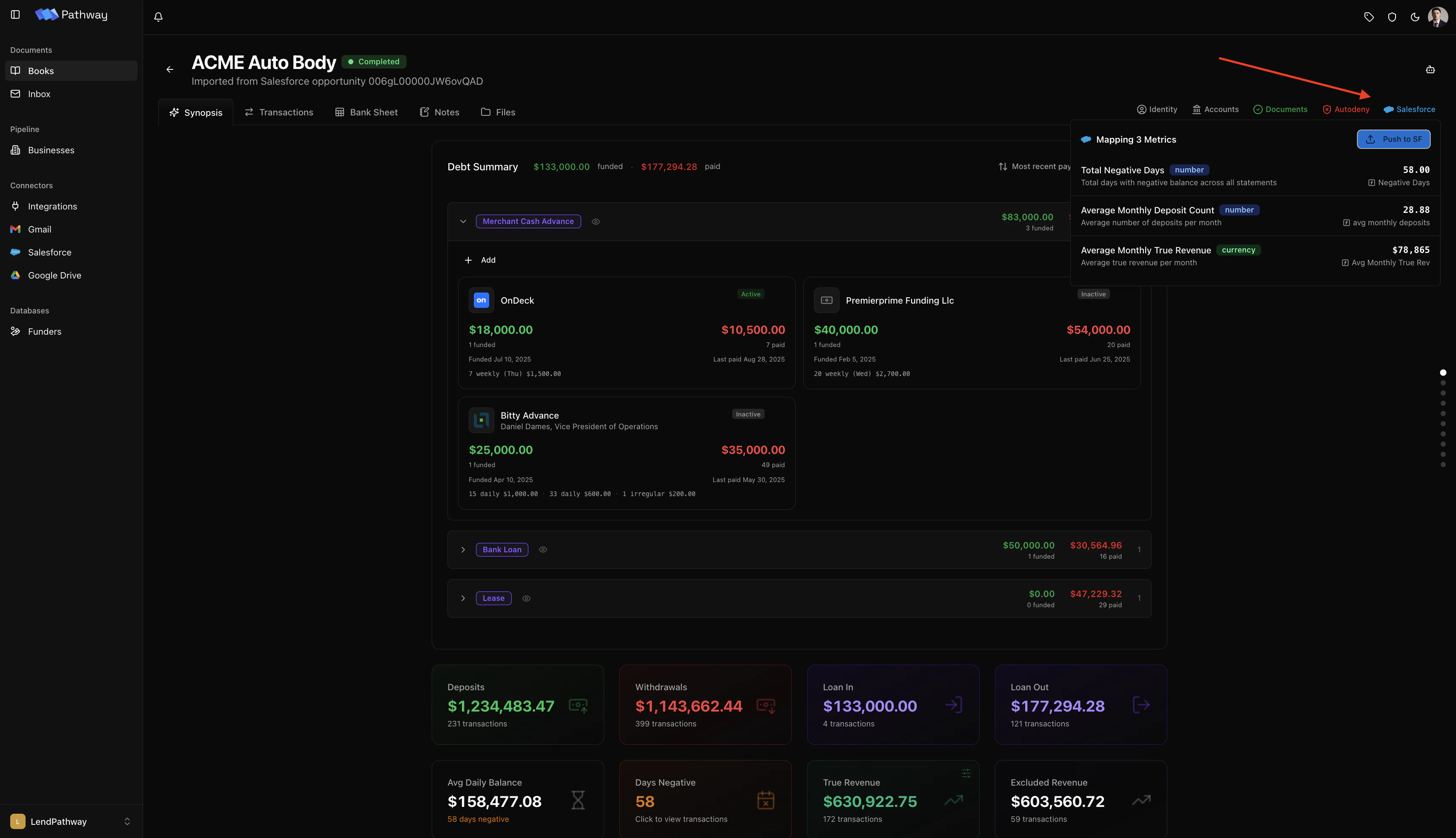
true.
Auto-Parse
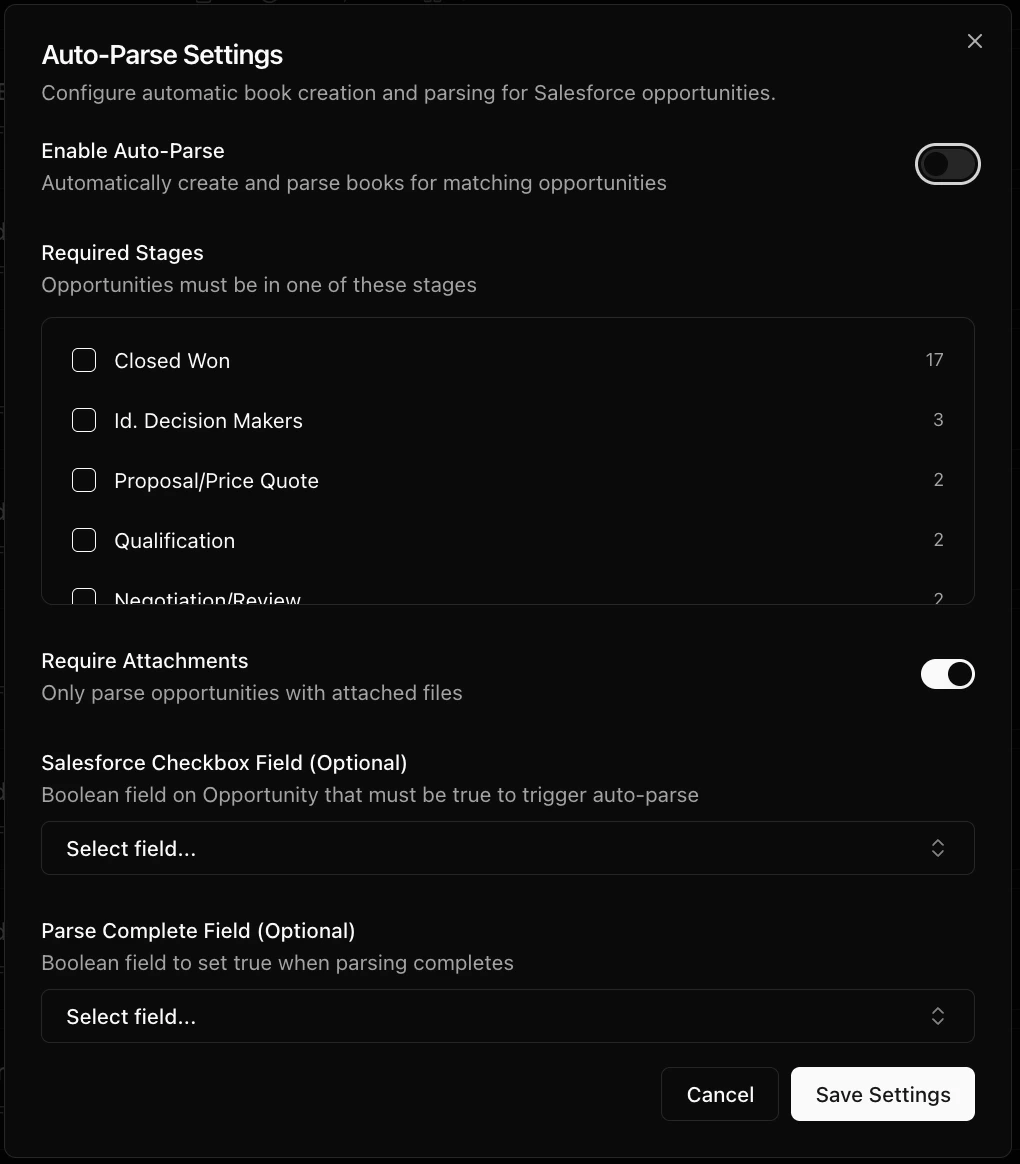
Auto-parse monitors your Salesforce pipeline and automatically creates and parses books for new Opportunities — no manual intervention needed.- On the Salesforce page, click Auto-Parse in the top-right toolbar
- Toggle it on and configure:
- Required stages — only Opportunities in these stages are picked up
- Require attachments — skip Opportunities that have no files
- Checkbox field (optional) — a Salesforce checkbox field that must be
truefor the Opportunity to be picked up - Parse complete field (optional) — a Salesforce field that LendPathway sets to
truewhen parsing and sync are done