

When you parse a book consisting of bank statments and (optionally) a loan application you will be presented with an output consisting of the following tabs
Synopsis Tab
The Synopsis tab is the main view after parsing bank statements. It’s a single scrollable page made up of draggable, reorderable sections (you can grab the grip icon on the left edge of any section and drag it to rearrange the layout). A sticky sidebar navigation appears on the right to jump between sections. There are also info badges that sit in the top-right corner of the page, next to the tab bar. These are covered at the end of this section.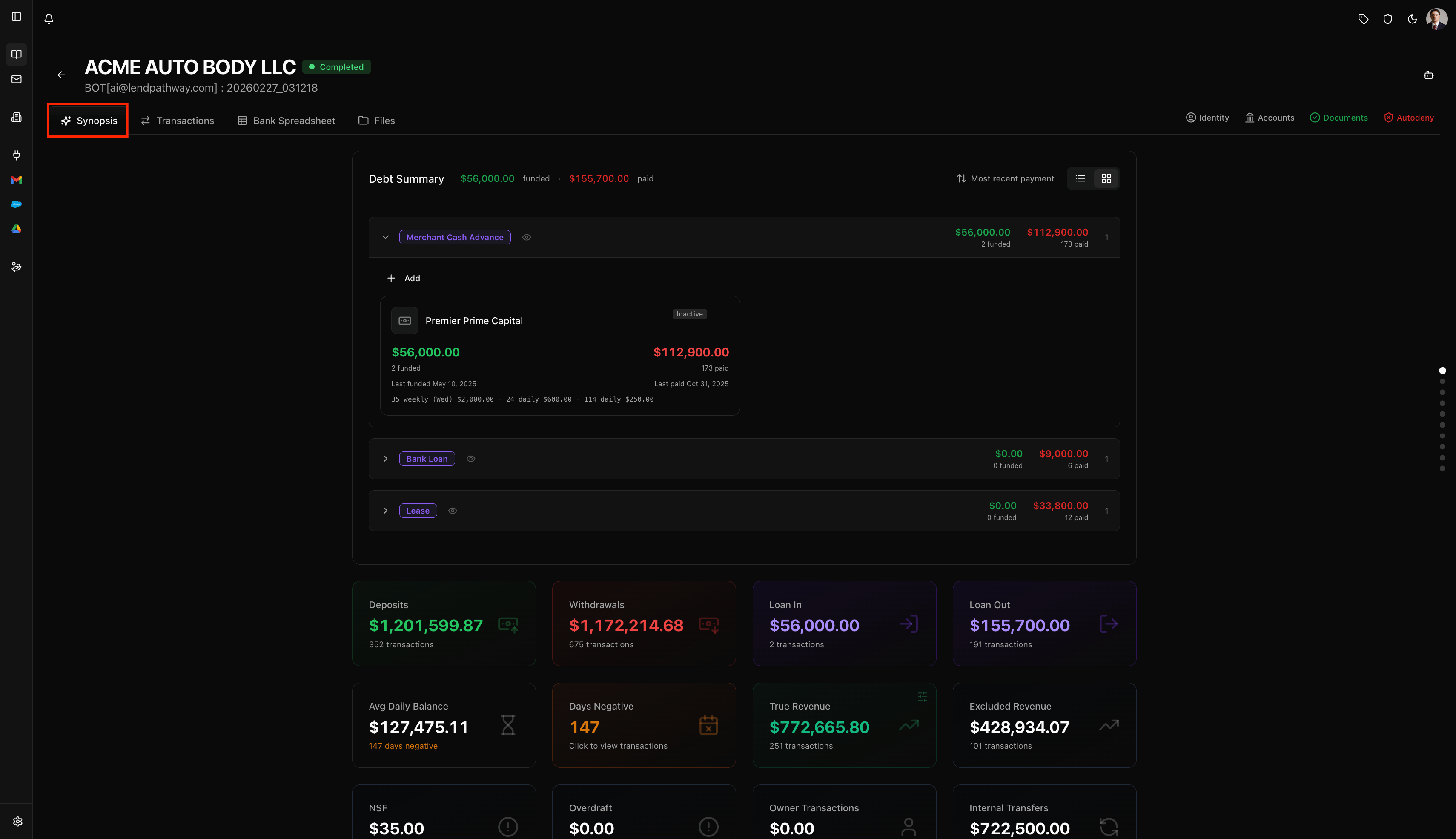
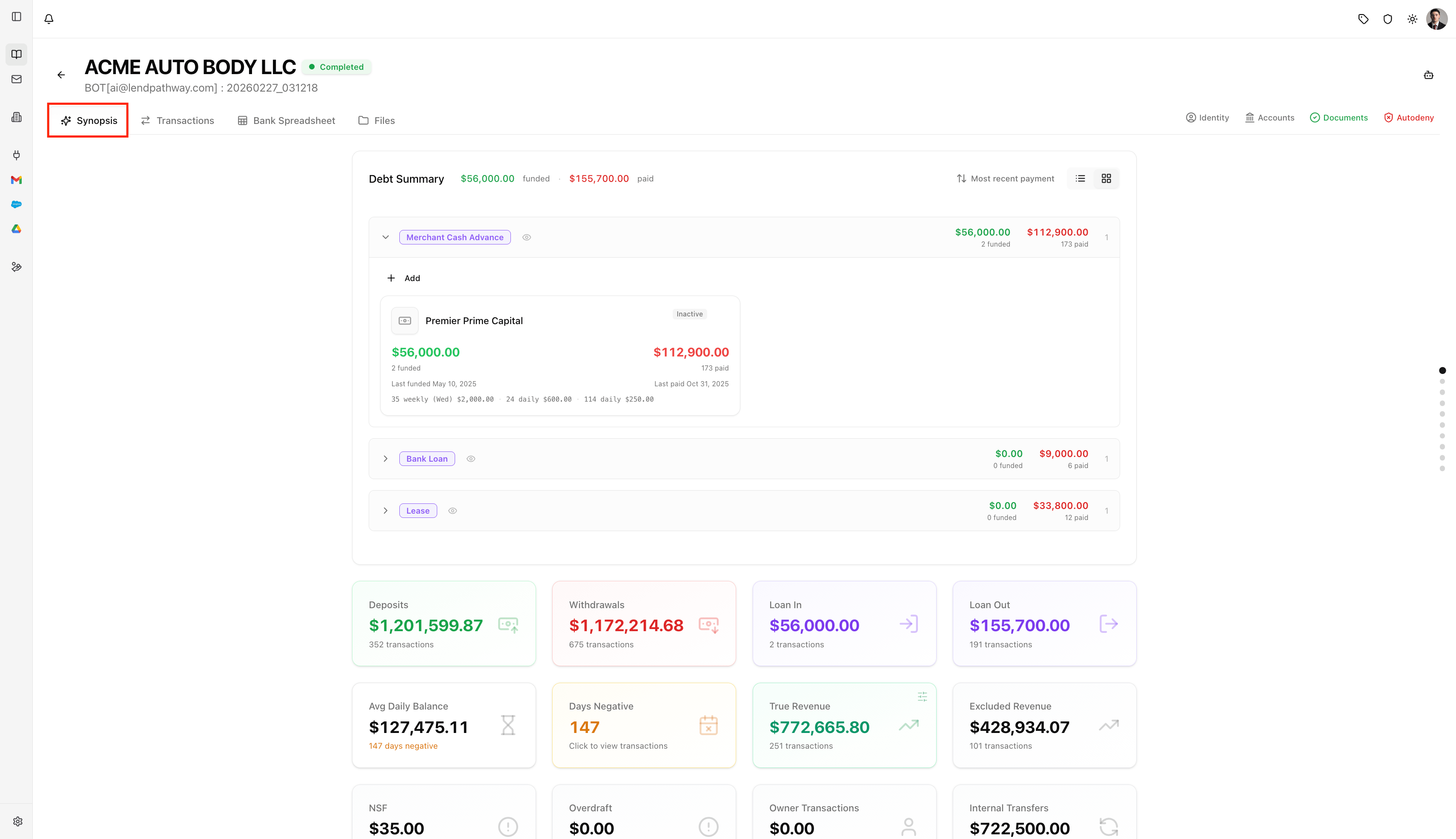
Synopsis Tab Selection
Debt Summary
At the top of the Synopsis. Shows total funded and paid amounts across all detected debt positions. Positions are organized into columns by loan type (e.g. “Merchant Cash Advance”, “Lease”). Each column shows total funded/paid for that type, and contains position cards: one per detected lender/funder. Each position card shows:- Funder name
- Amount funded (green) and amount paid (red)
- Active/Inactive badge
- Last funded and last paid dates
- Payment pattern summary (e.g. “33 weekly (Wed) $2,206.00, 30 daily $450.00”)
- Click a position card to see all its transactions in a modal
- Click a loan type header to see all transactions for that loan type
- Drag positions between loan type sections to reclassify them
- + Add new positions manually
- Select multiple positions to merge or delete them
- Exclude/include individual positions or entire loan types from revenue calculations using the eye icon ()
- Sort positions by most recent payment, most recent funding, largest funded, etc.
- Toggle between expanded (detailed cards ) and sparse (compact ) view
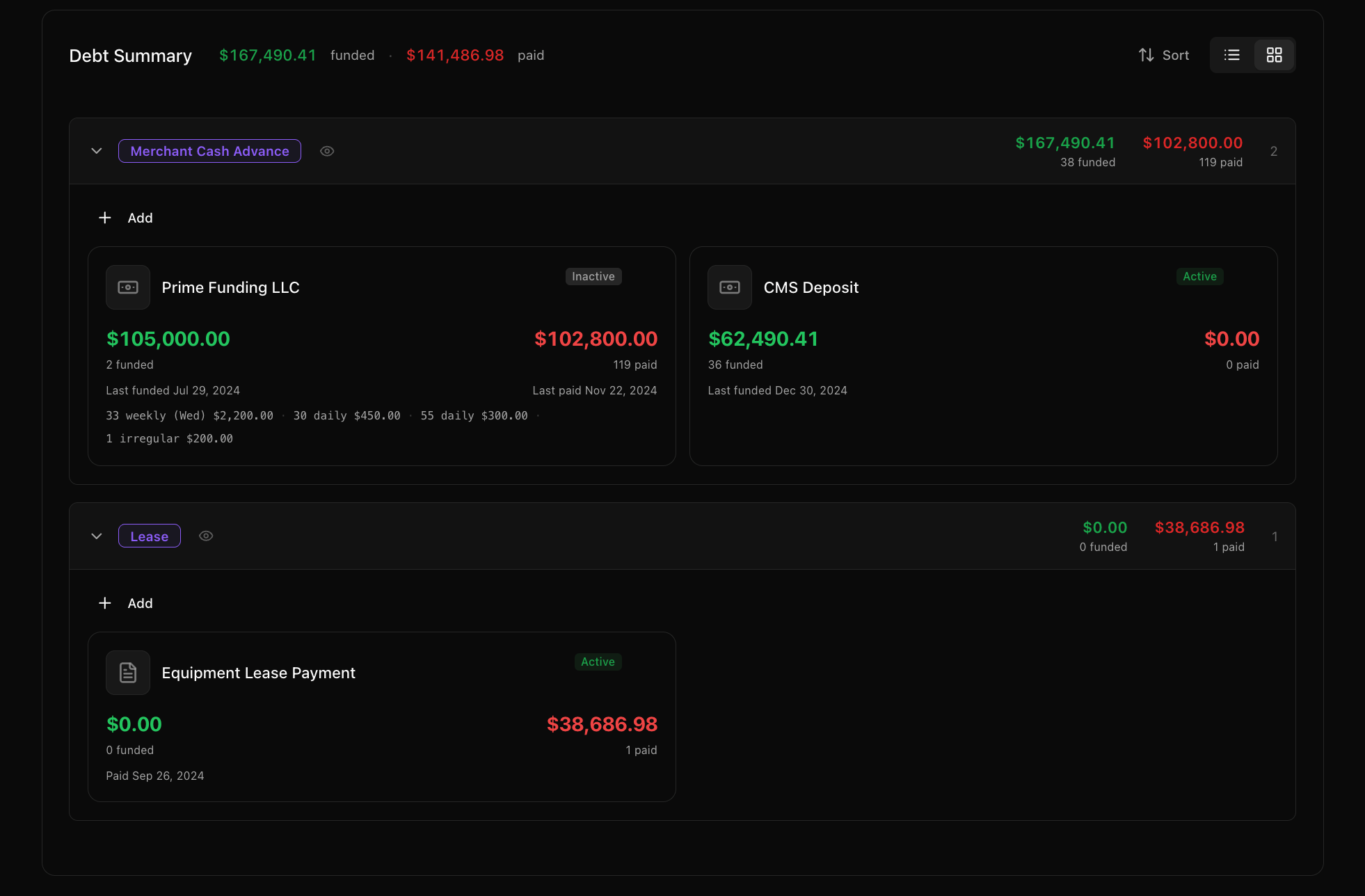
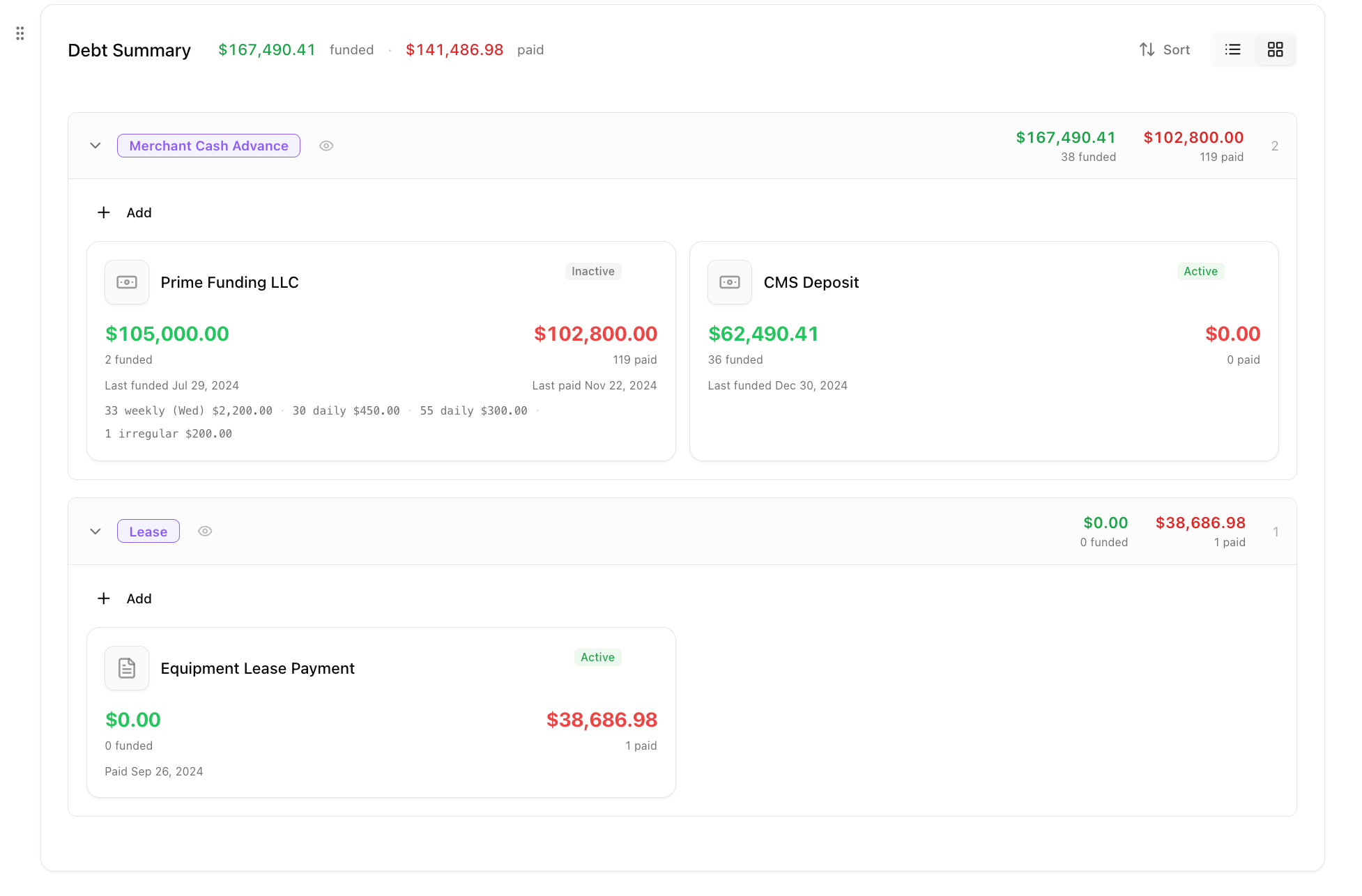
Debt Summary
Metrics
A grid of clickable metric cards showing aggregate numbers across all statements. Clicking any card opens a modal with the underlying transactions for that metric. Row 1 (primary):
Row 2:
Row 3 (flagged activity):
Row 4:
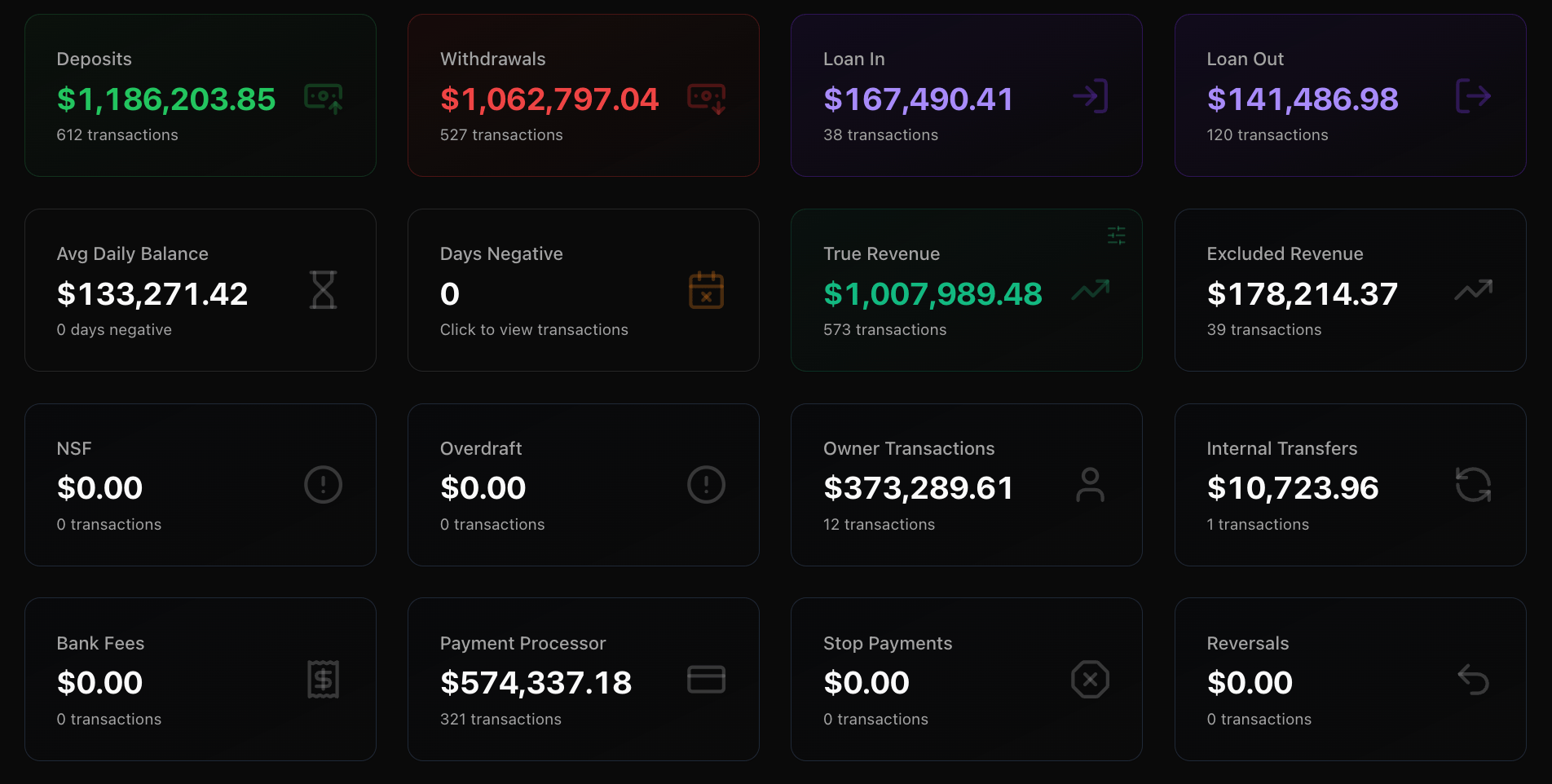
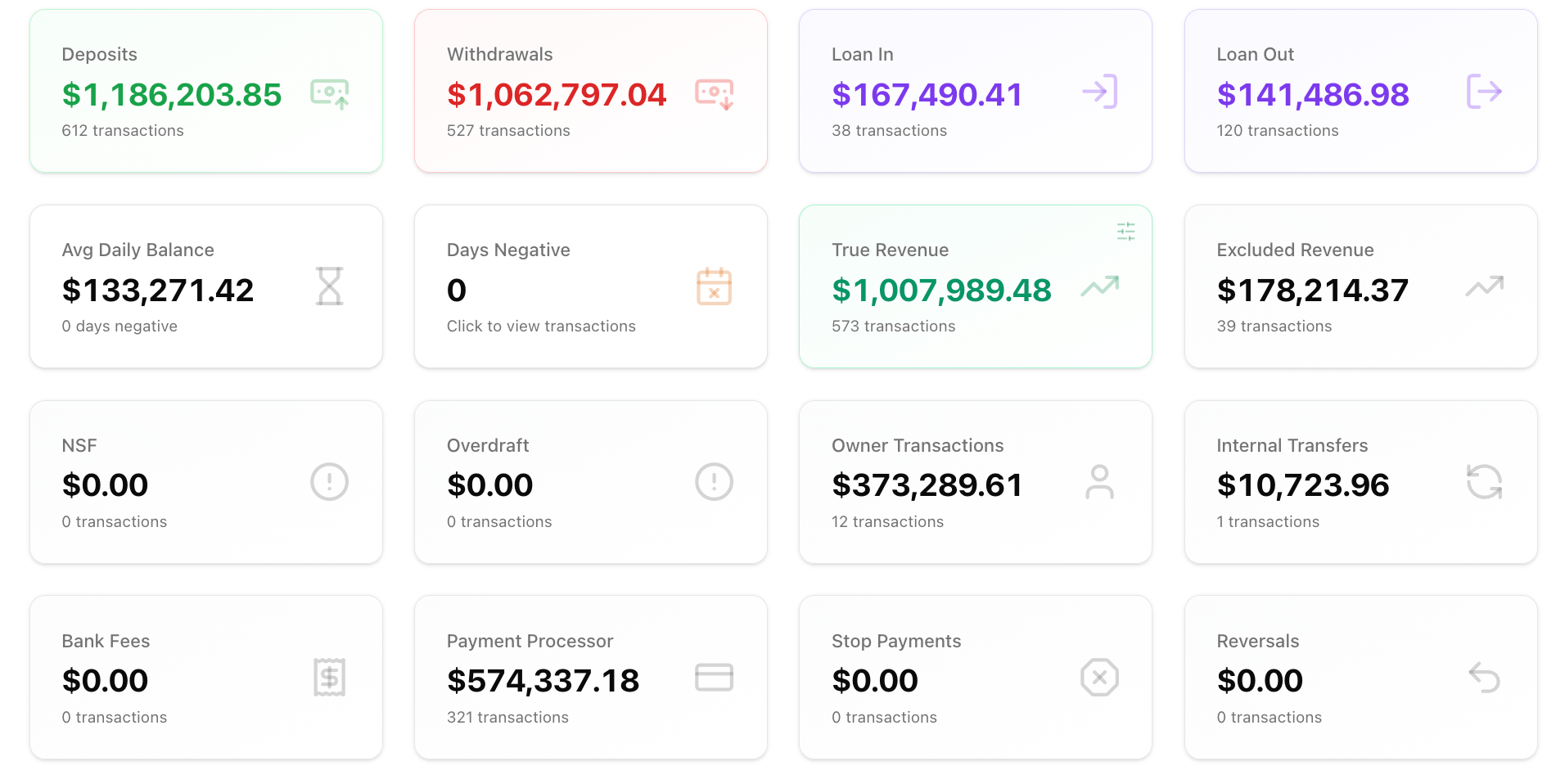
Metrics Grid
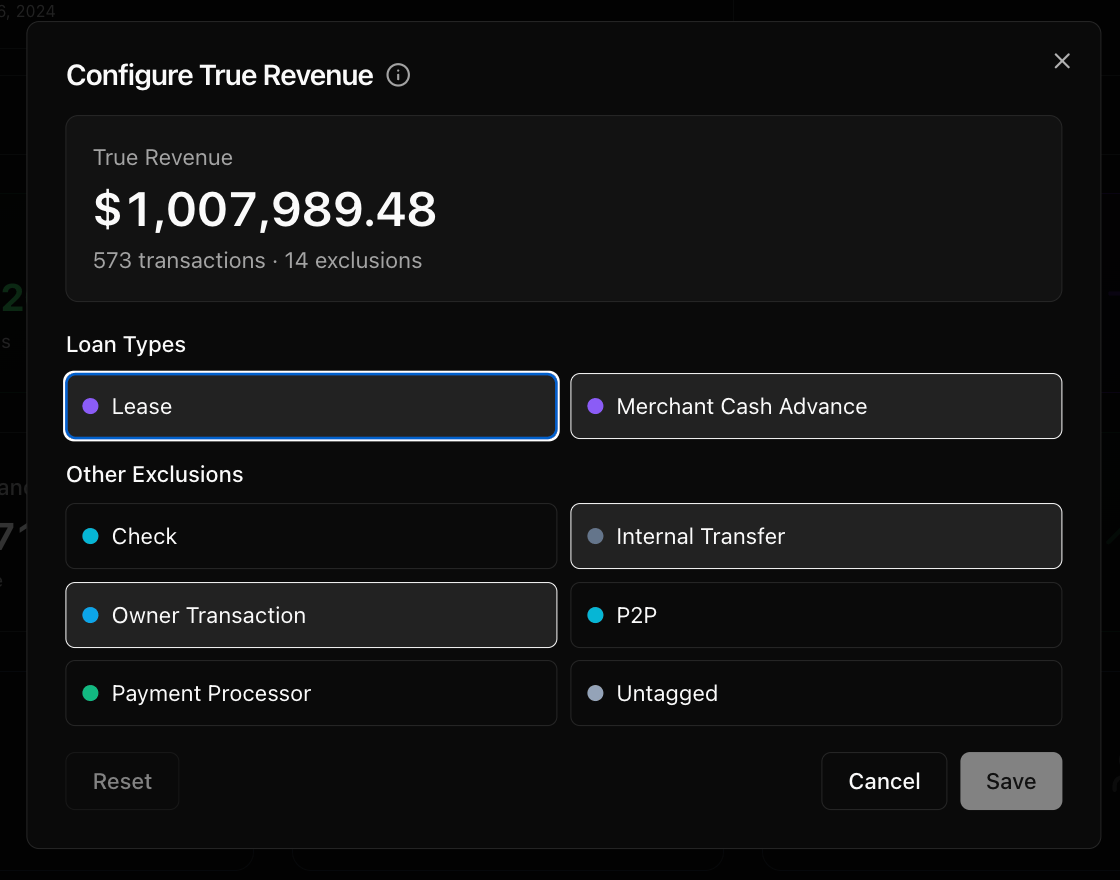
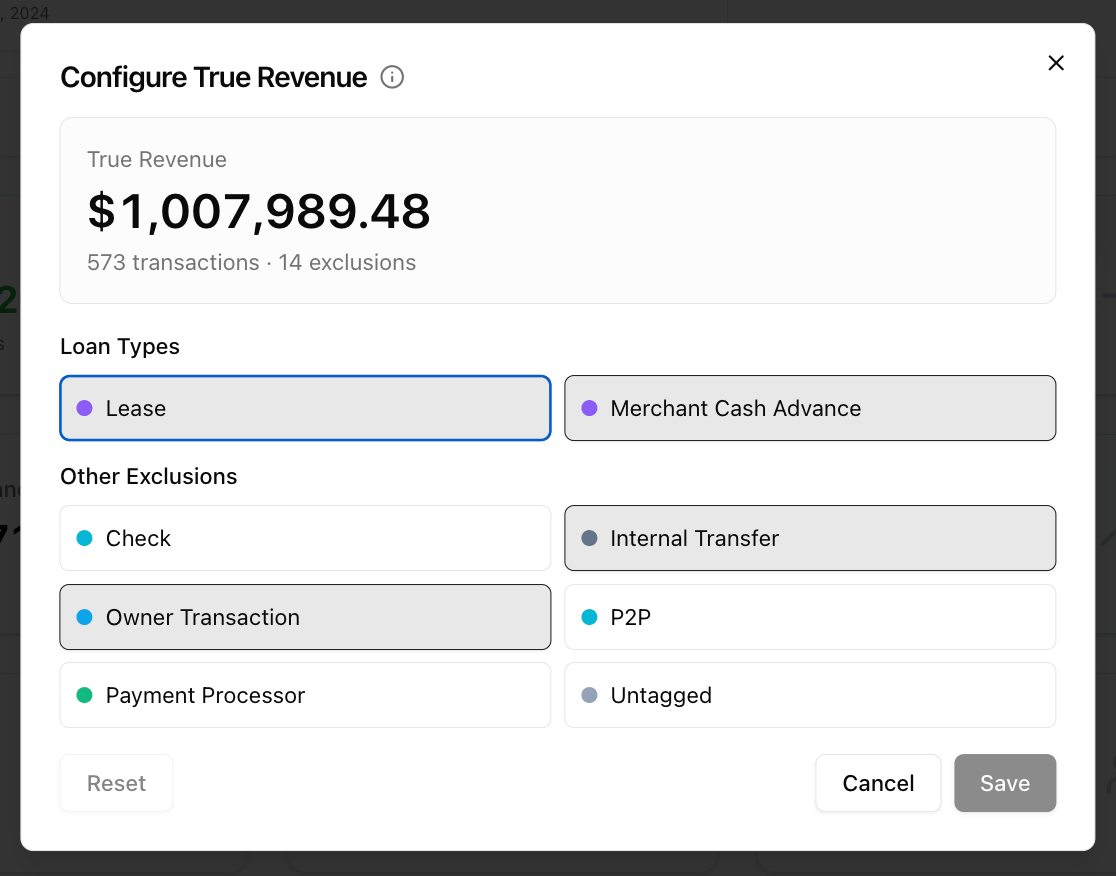
True Revenue Configuration Modal
Bank Statements
A table with one row per statement period per account. Shows the month-by-month breakdown plus an Average row at the bottom. Default visible columns: Period, Acct, Start, Deposits, Withdrawals, End, Loan In, Loan Out, Avg Daily, Neg, Revenue, DTI, Status (reconciliation check mark). Additional columns (toggle via the column picker gear icon): Days, Discrepancy, NSF, Overdraft, Owner Txn, Internal Xfer, Bank Fees, Payment Processor, Stop Payments, Reversals. You can:- Sort by period (newest or oldest first)
- Toggle between Rows and Pivoted view (icon toggle in top-right)
- Export CSV of the table
- Click a row to open the corresponding document in the side panel
- Expand a row to see a per-account breakdown (if multiple accounts exist)
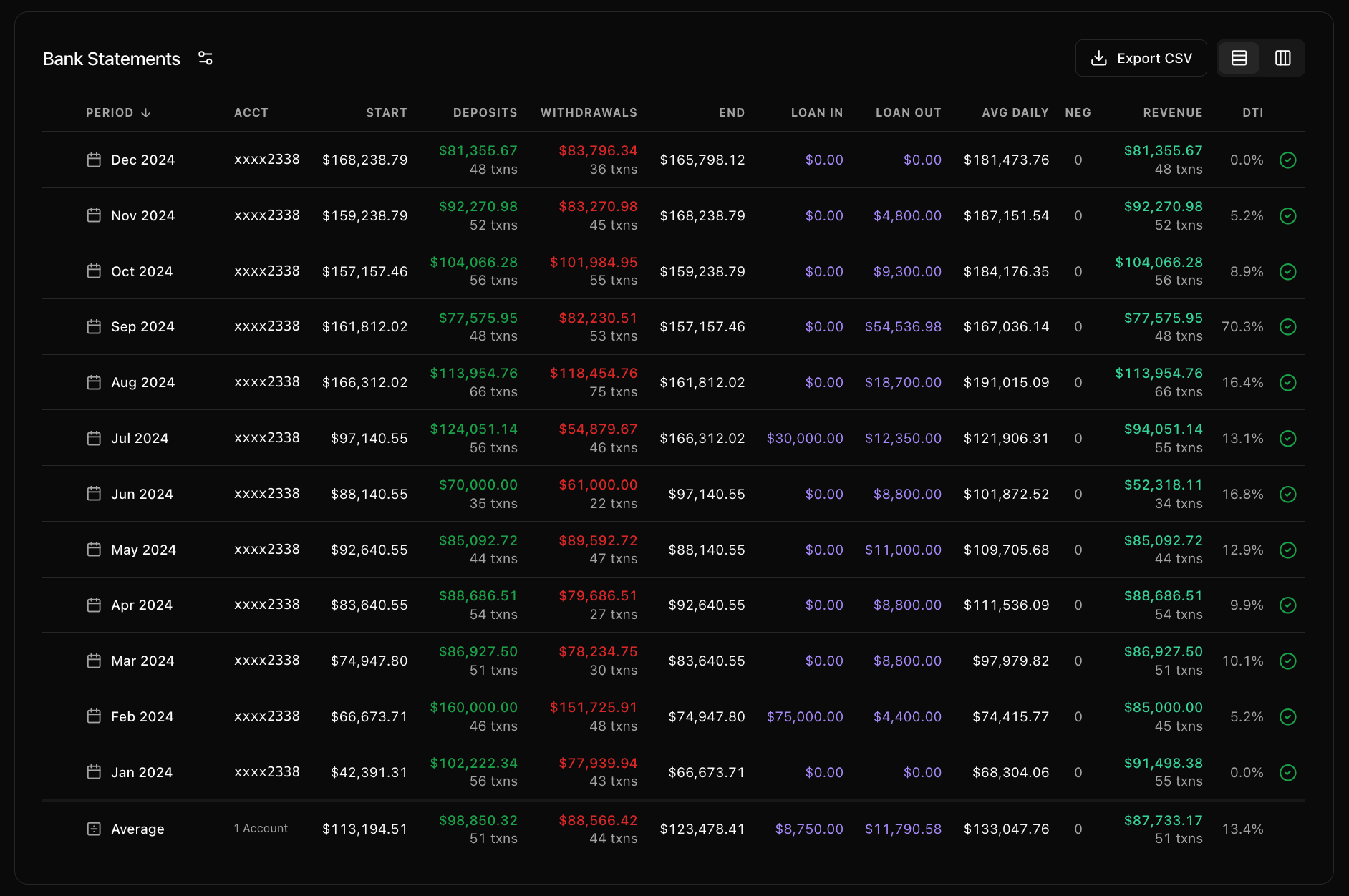
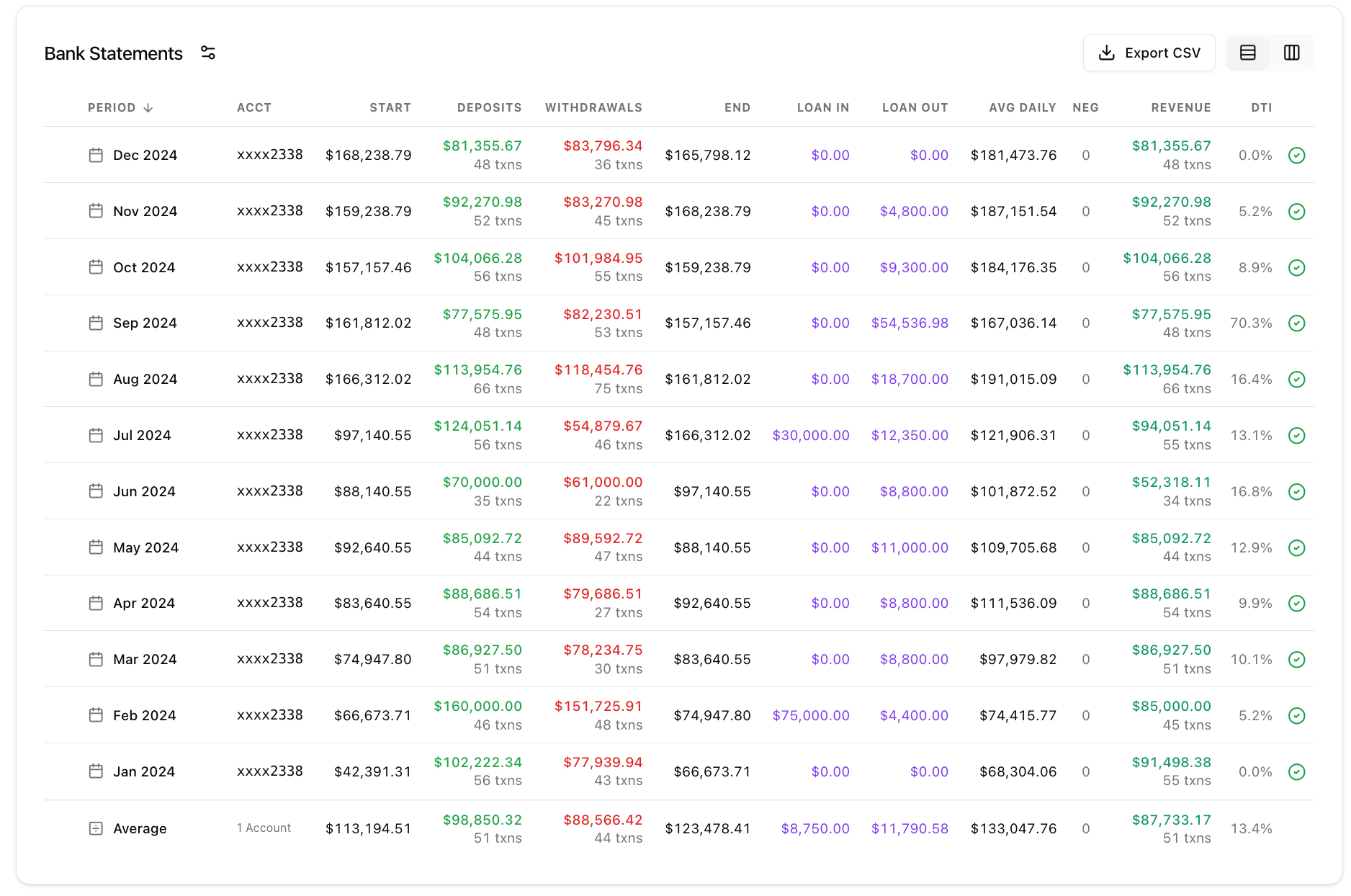
Bank Statements Table
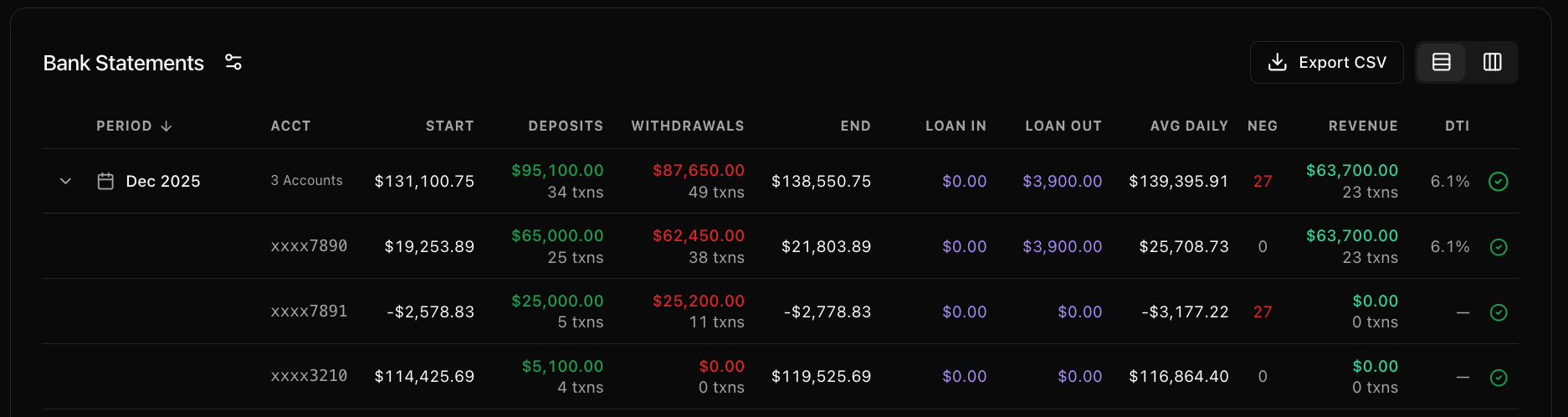
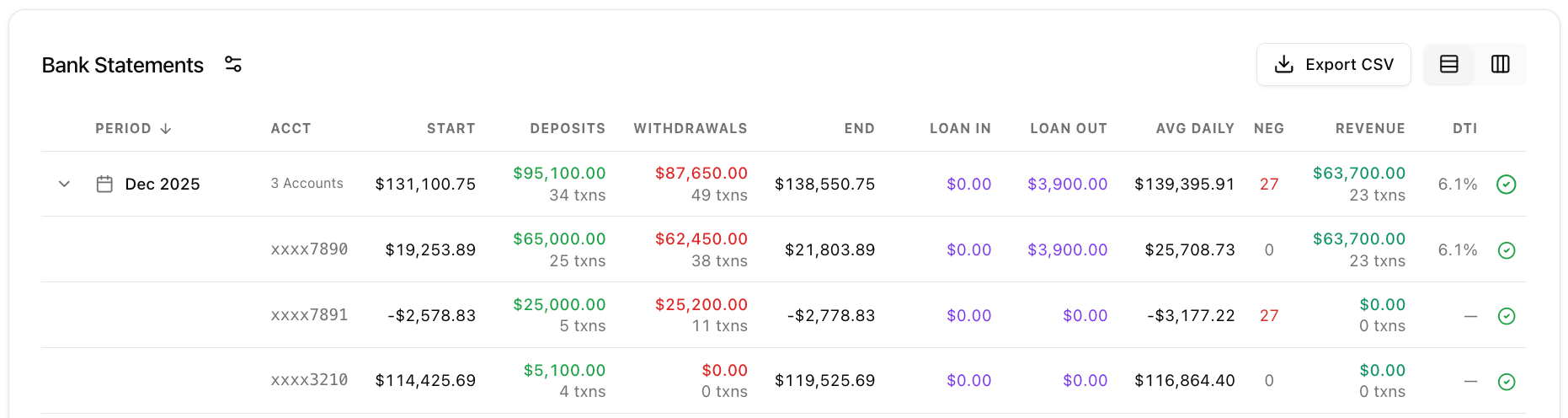
Example of expanded per-account breakdown
Book Summary
Three-column summary card:
This section is display only: no clickable elements.
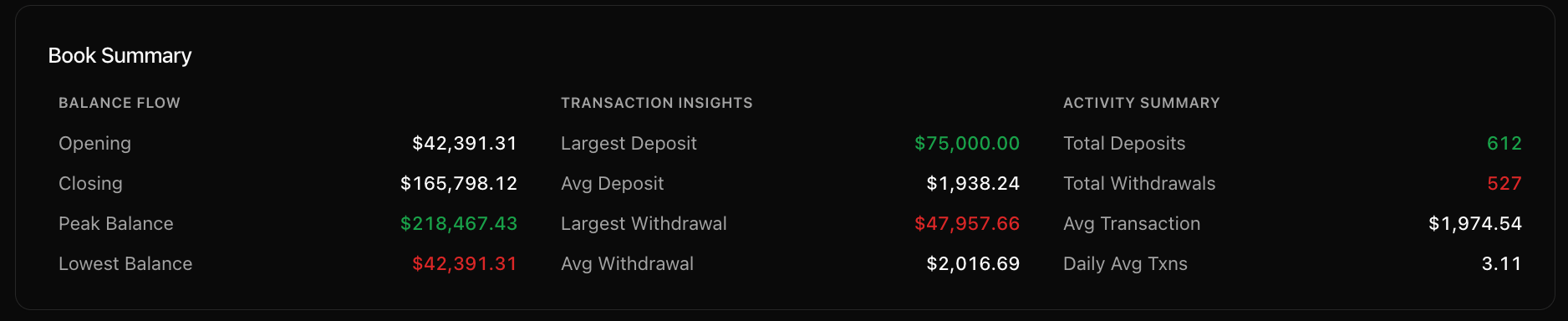
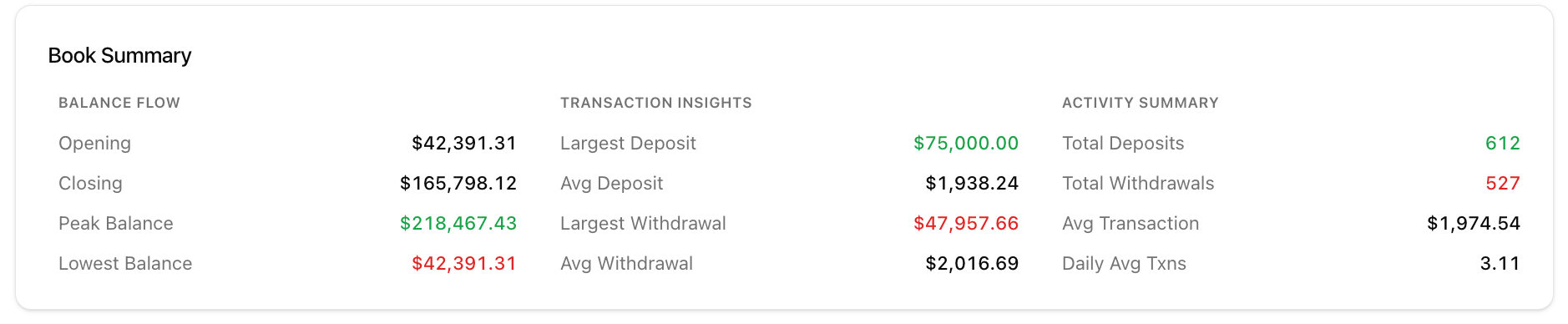
Book Summary
Top Counterparties
Shows the most significant counterparties (entities you transact with), split into Credits and Debits columns. Each counterparty shows name, total dollar amount, and transaction count. You can:- Toggle between grid and list view
- Click a counterparty to open a modal with all transactions for that counterparty
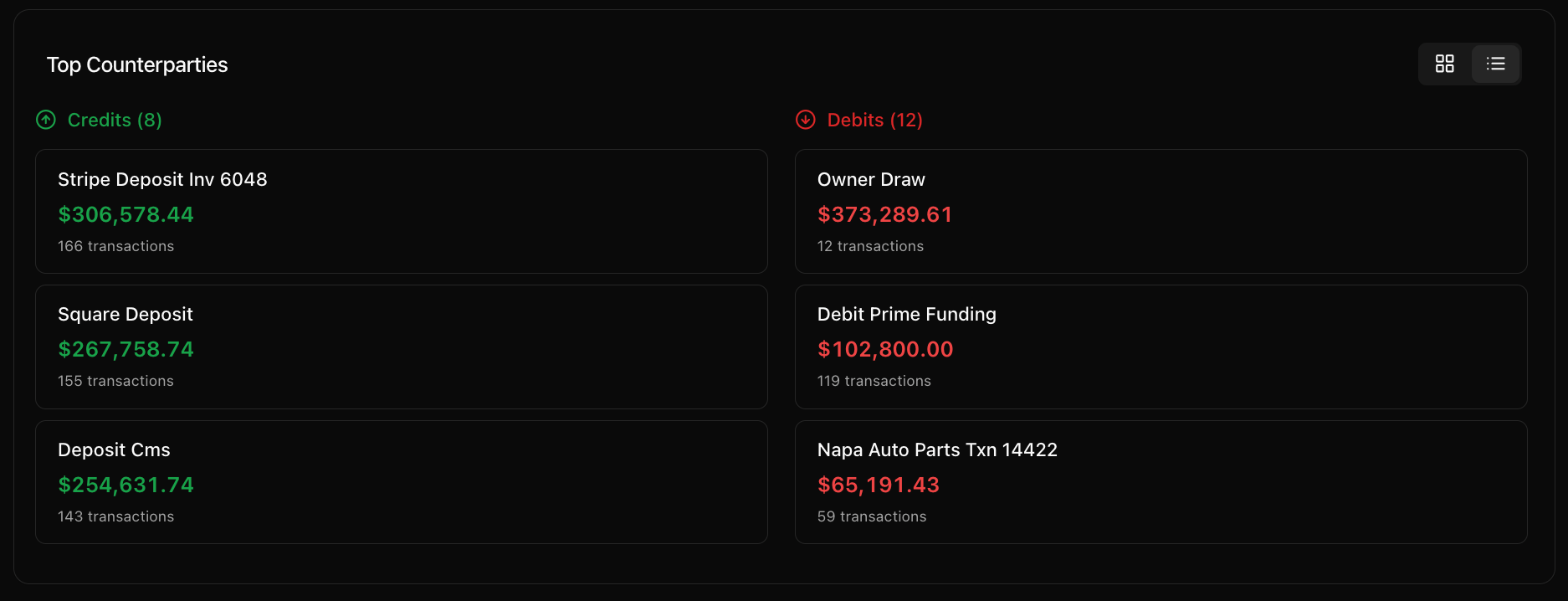
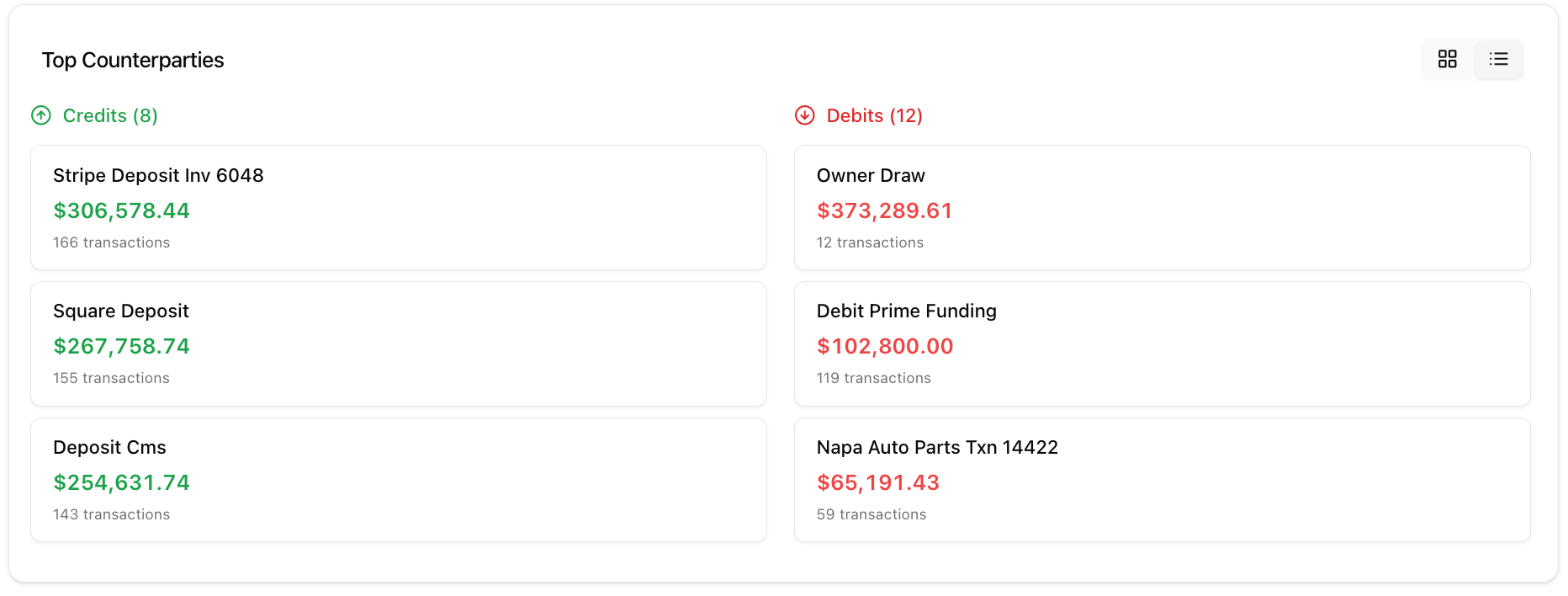
Top Counterparties
Cash Flow by Day of Week
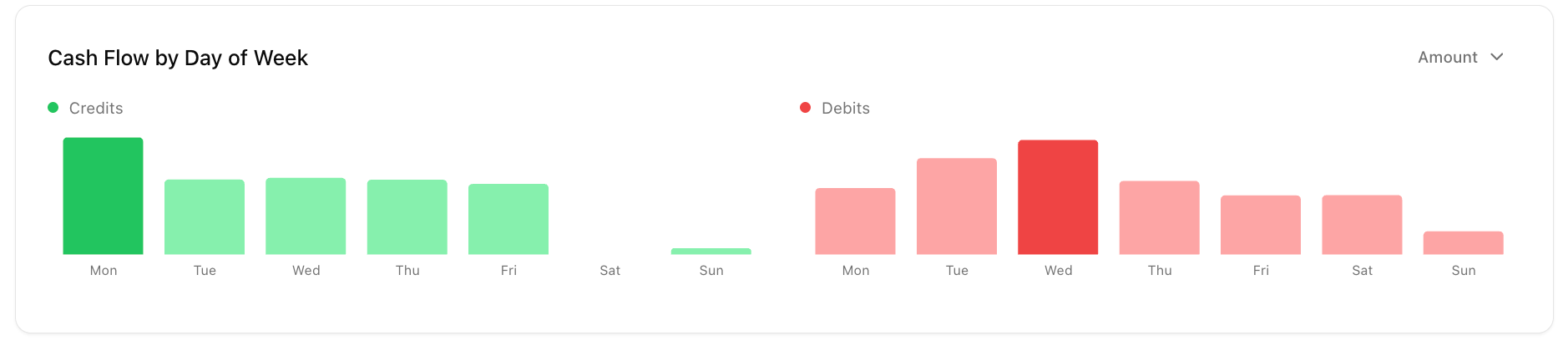
Bar chart showing deposit and withdrawal activity broken down by day of week (Mon–Sun). Credits on the left, Debits on the right. You can toggle between Amount and Count using the dropdown.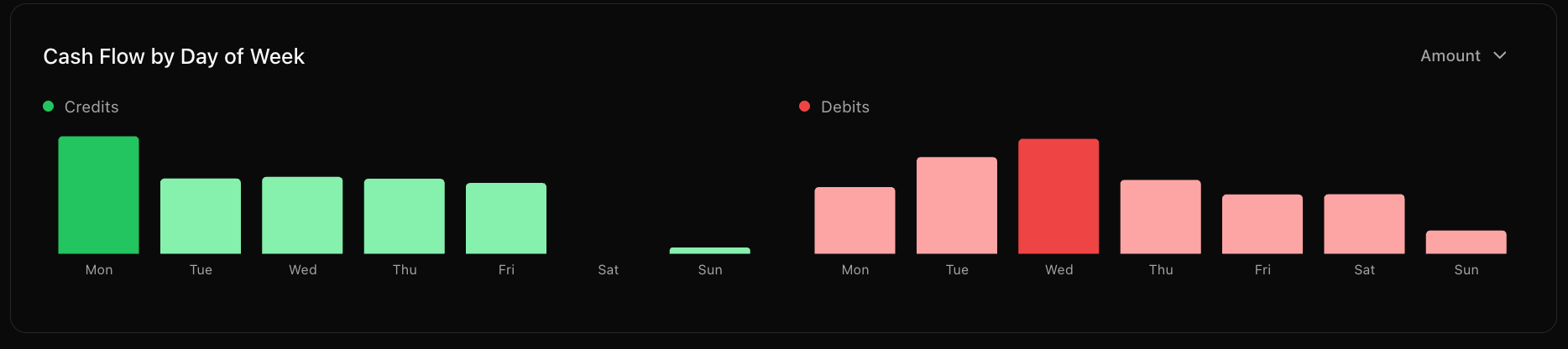
Cash Flow by Day of Week
Daily Balance Calendar
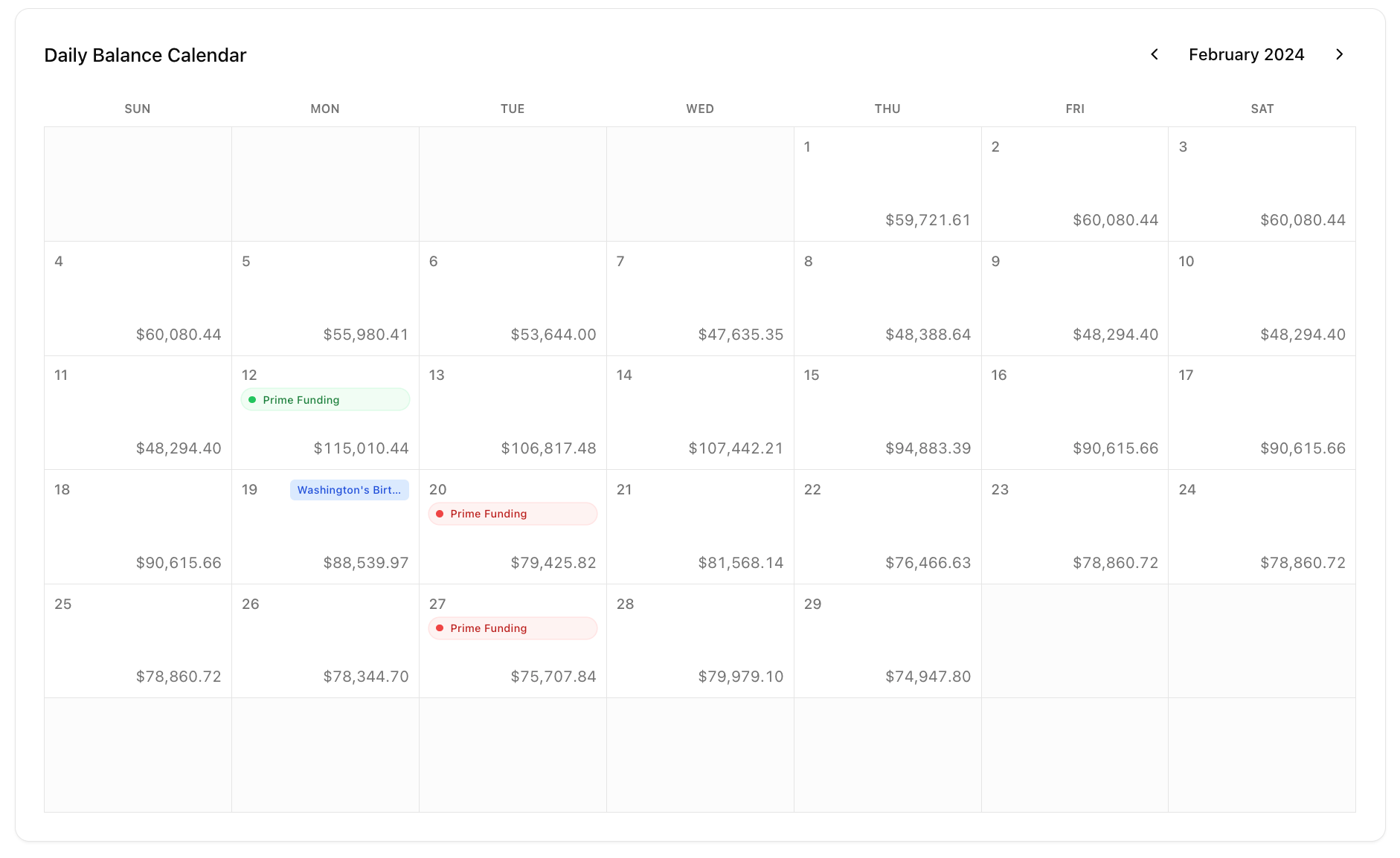
A month-by-month calendar view showing the end-of-day balance for each day. Navigate between months using the left/right arrows. Bank holidays are labeled (e.g. “New Year’s Day”). MCA disbursement & repayment events will be labeled on days they occur.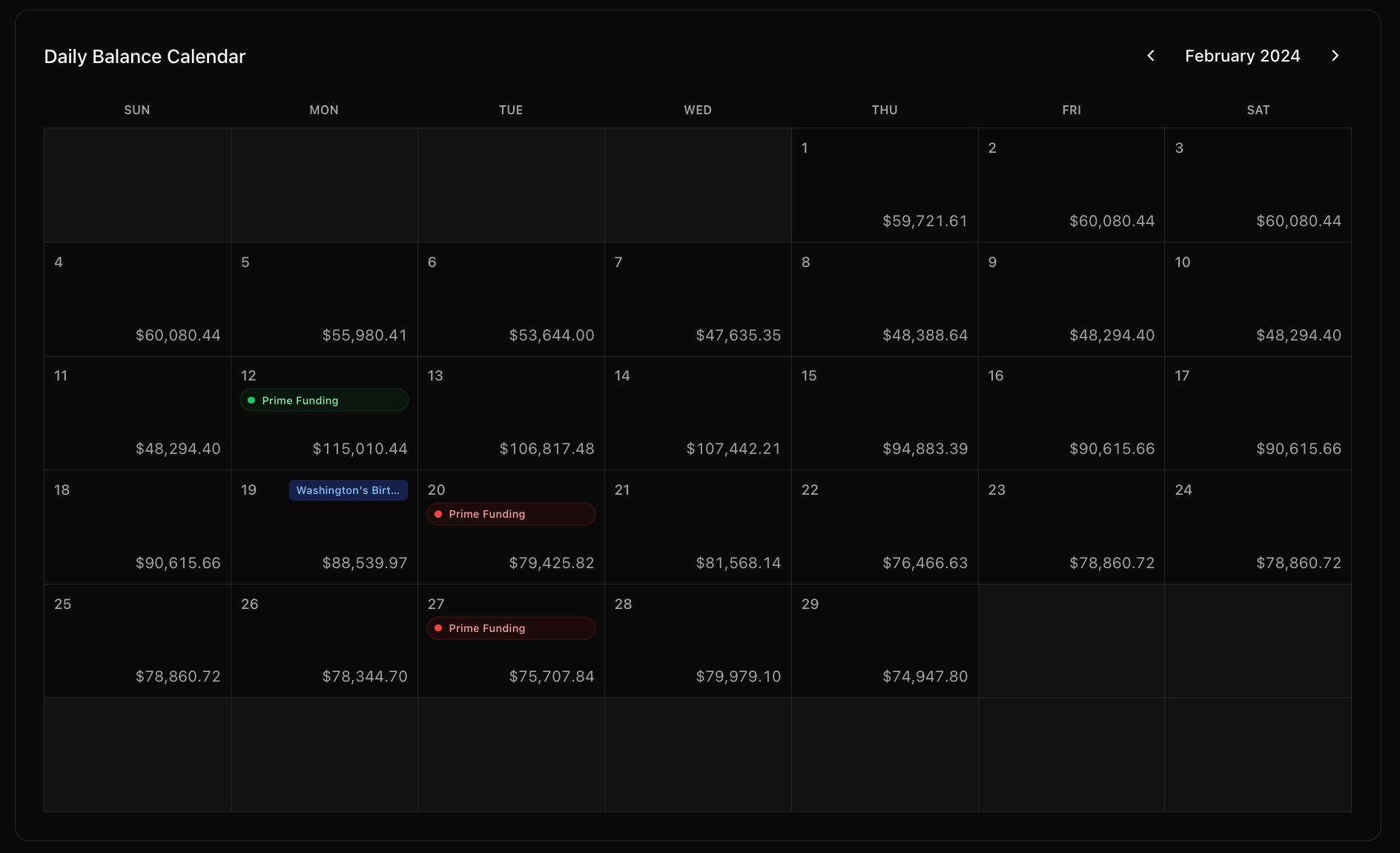
Daily Balance Calendar
AI Deep Research
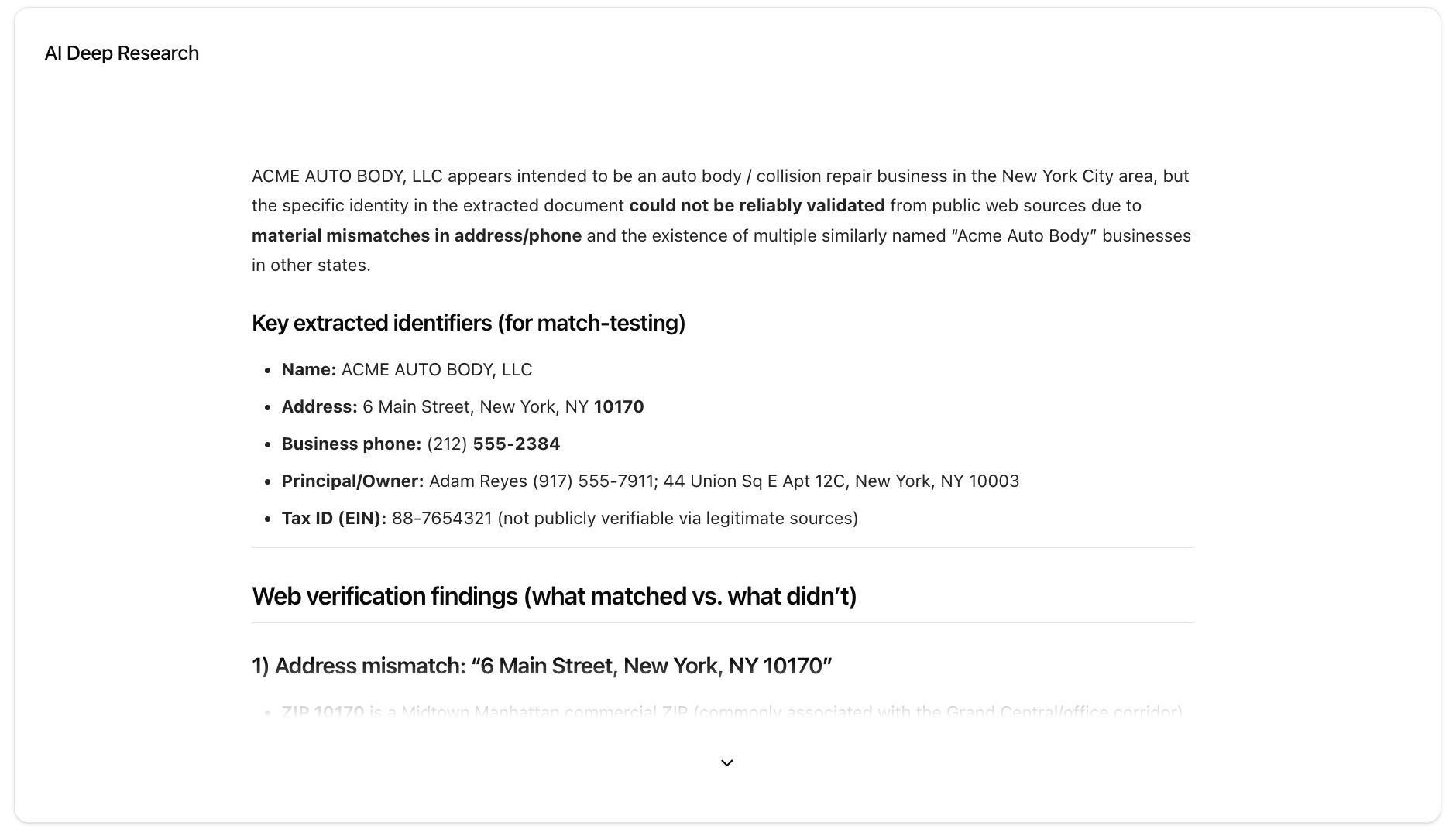
An AI-generated report that cross-references the extracted business identity (name, address, phone) against web sources to verify legitimacy. Shows match/mismatch findings for each identifier.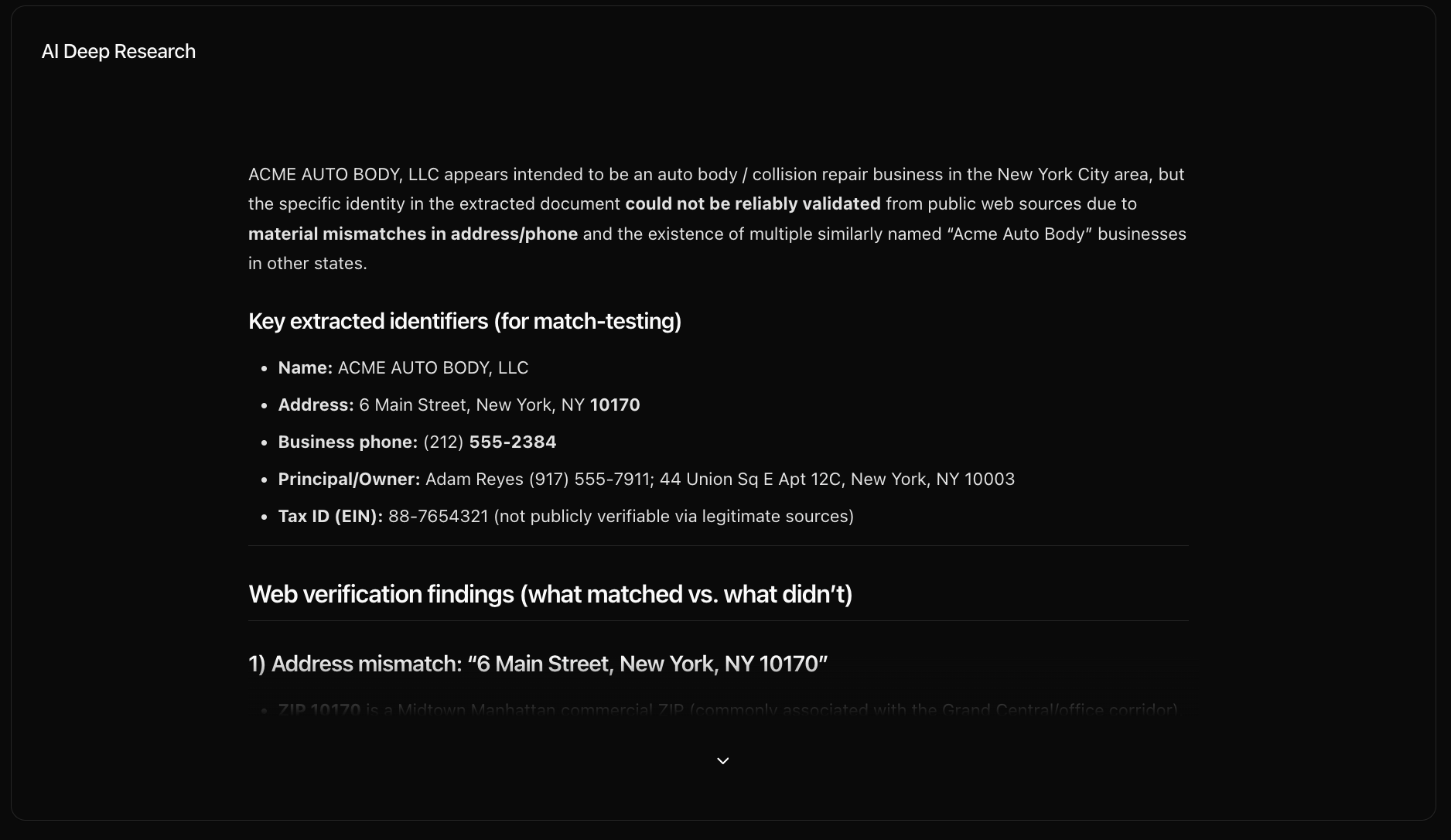
AI Deep Research
Tampering Analysis
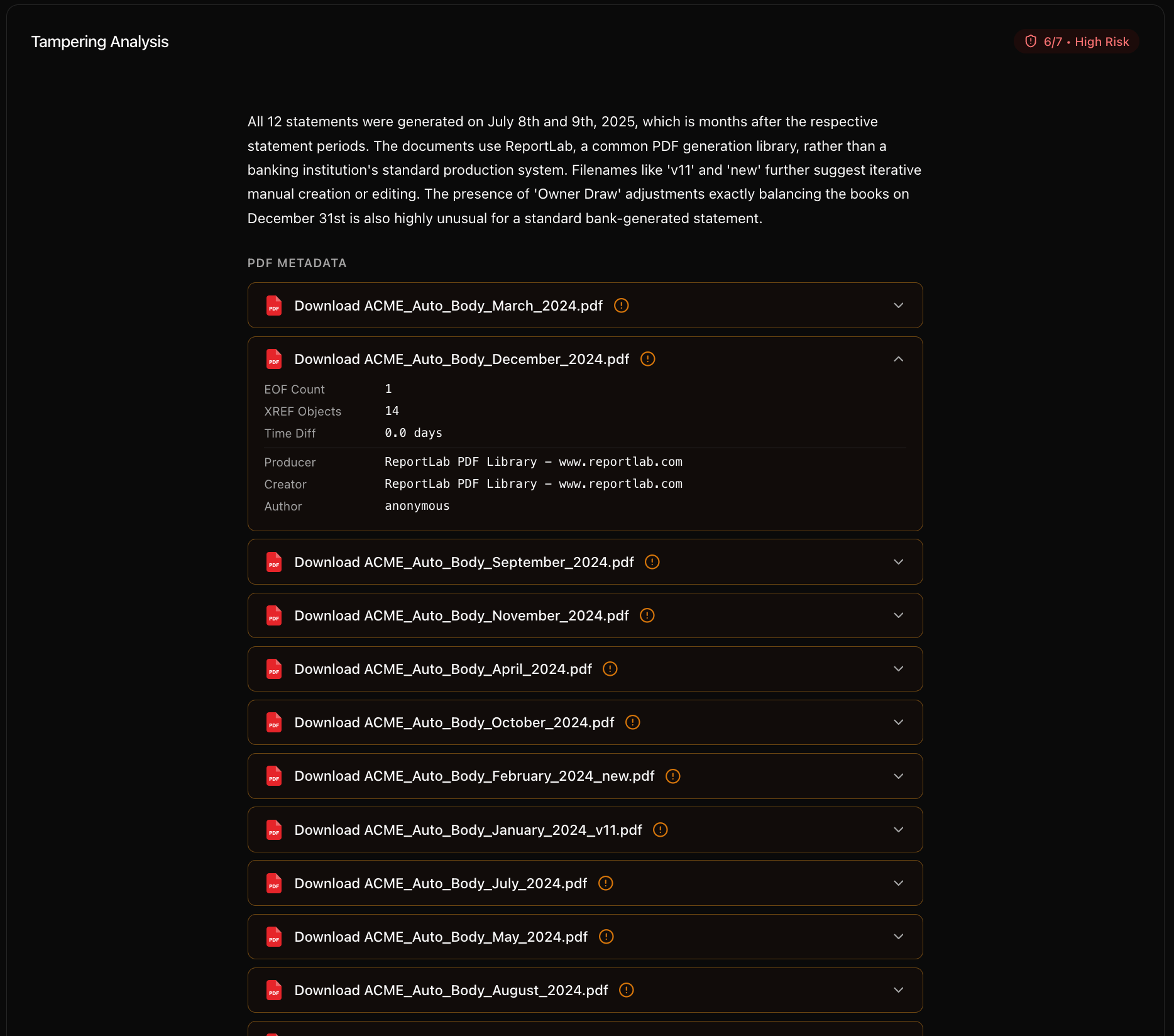
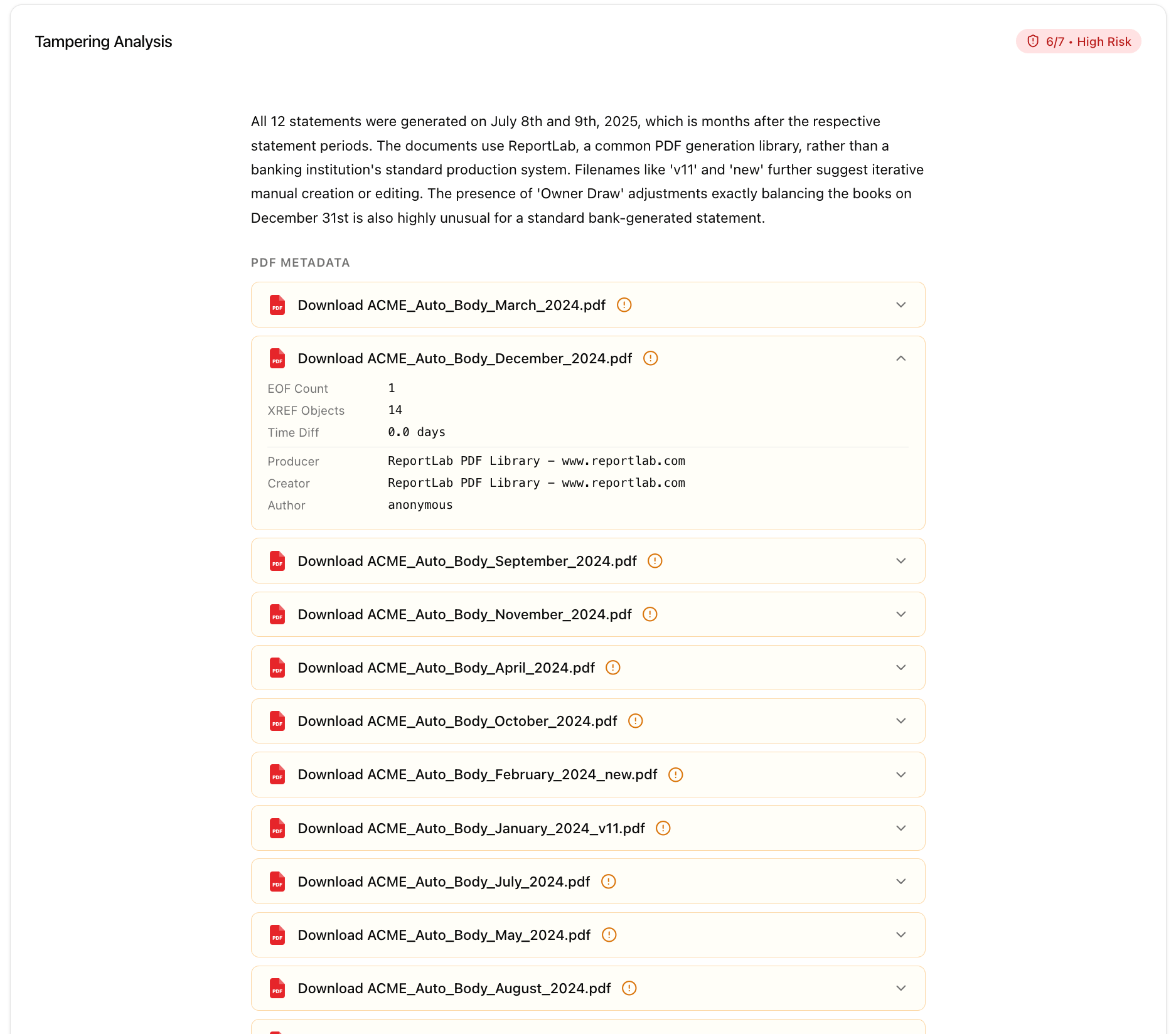
Analyzes the uploaded PDF files for signs of fabrication or tampering. Shows:- A risk score (e.g. “6/7 - High Risk”) in the top-right
- A written summary of findings (e.g. identical metadata, programmatic PDF generation signals, temporal impossibilities)
- PDF Metadata section listing each document with expandable details (producer, creator, creation dates)
Tampering Analysis
Loan Application
Only appears if a loan application was uploaded alongside the bank statements. Displays extracted fields in three groups:- Business Information: Business Name, DBA, EIN, Entity Type, Industry, Business Started, Employees, Address, Phone, Email, Website
- Financial Information: Requested Amount, Loan Purpose, Annual Revenue, Monthly Revenue, Current MCA Balance, Avg Daily Balance, Monthly CC Sales
- Owner Information: Owner Name, Ownership %, Owner SSN, Owner Address, Credit Score
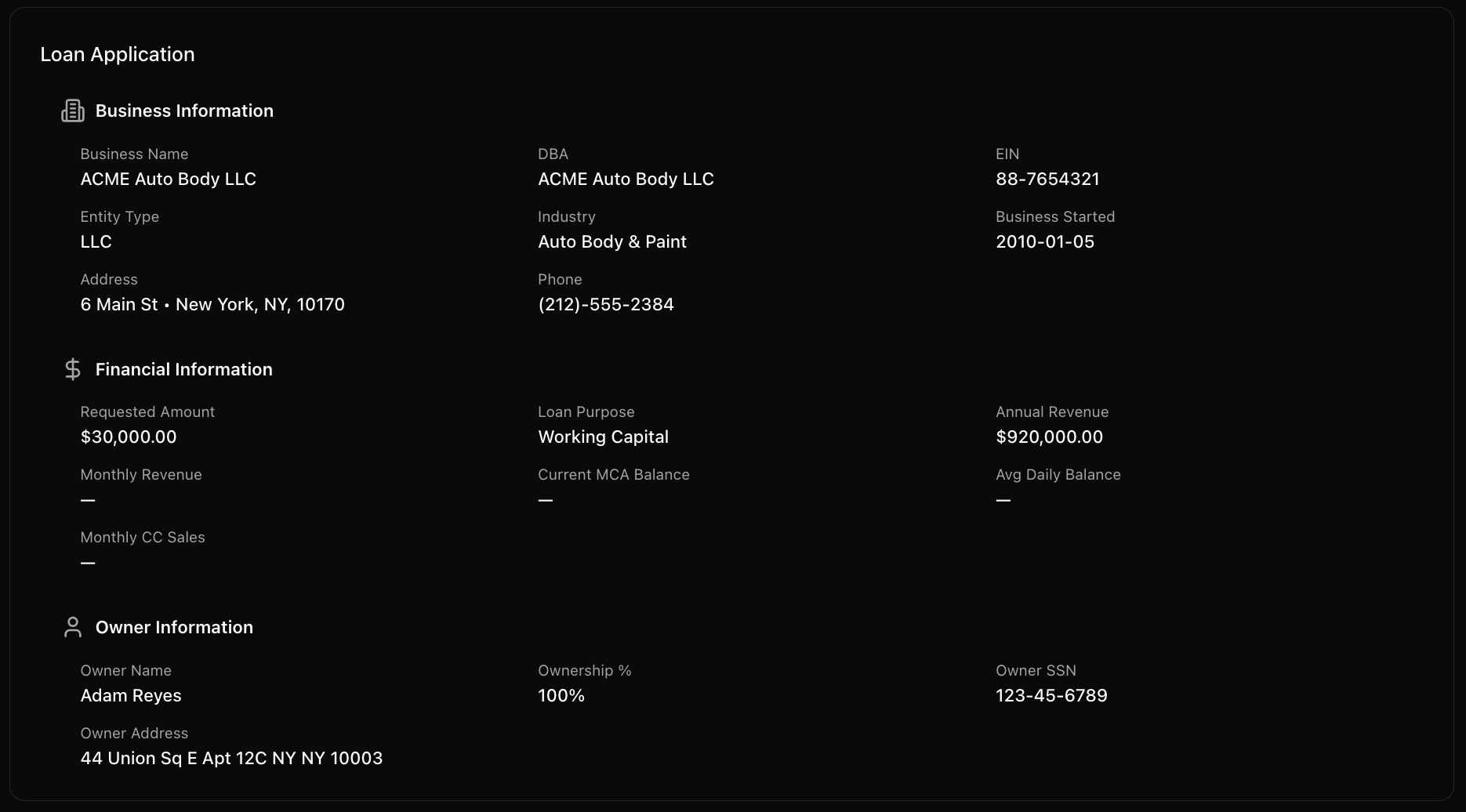
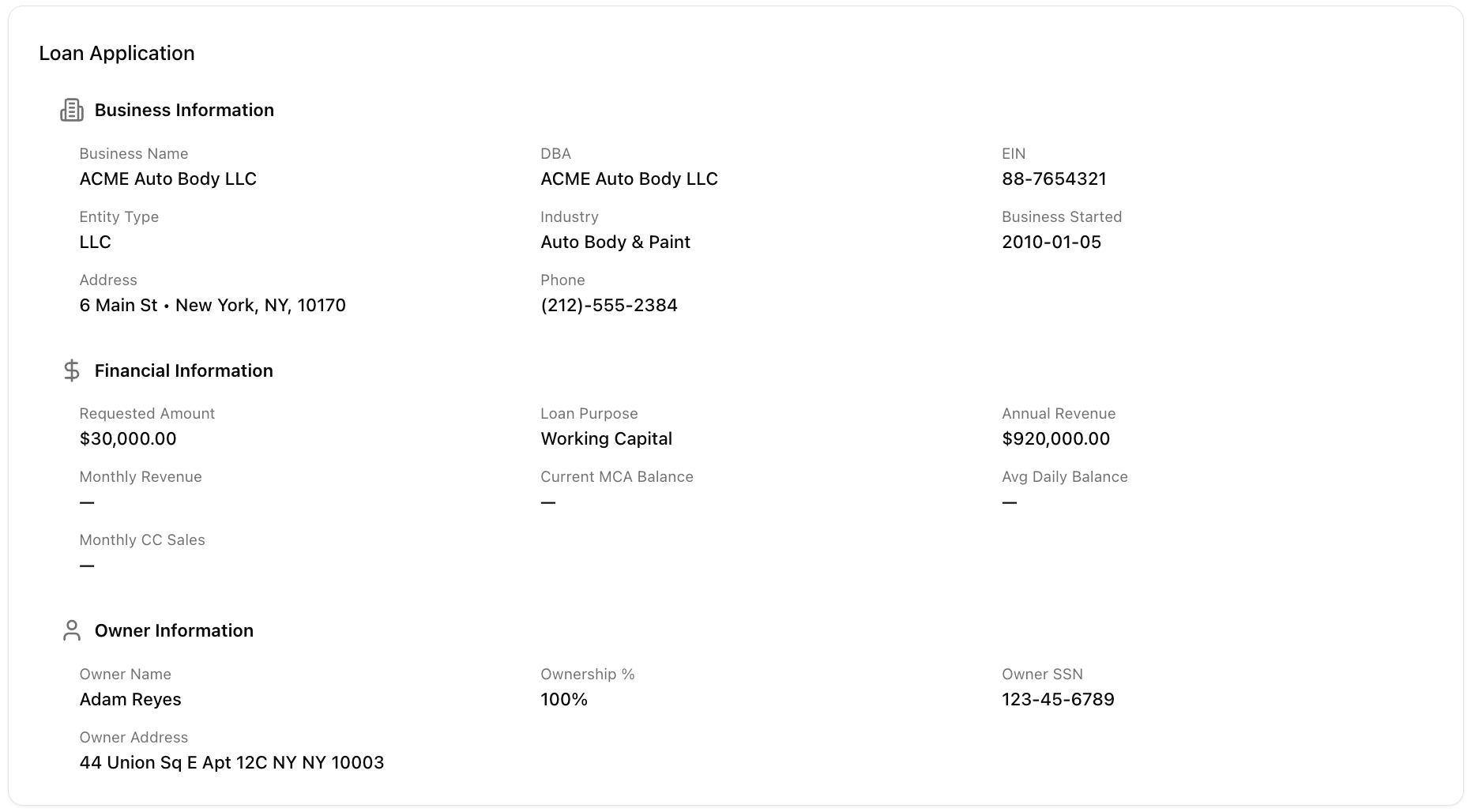
Loan Application Section
Info Badges (top-right corner)
These popover badges sit next to the tab bar and are always visible on the Synopsis page: 1. Identity () — Business name, tax ID, address, phone. Principal(s) with name, role, address, phone.

Identity Tab
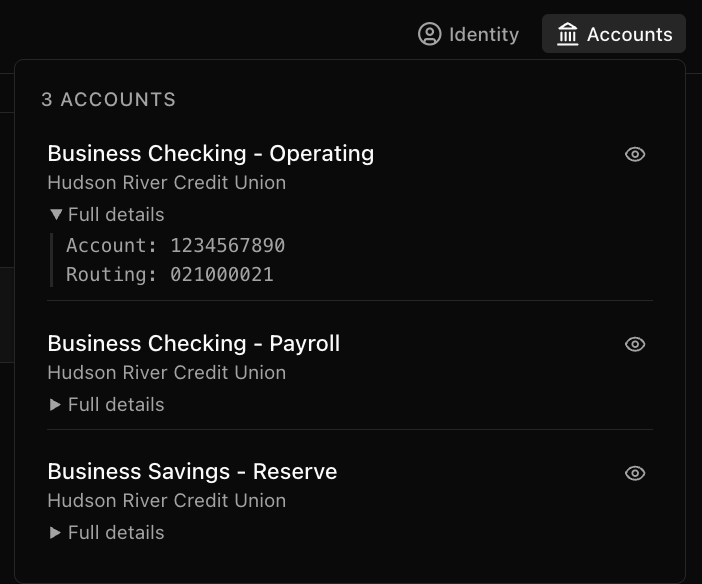
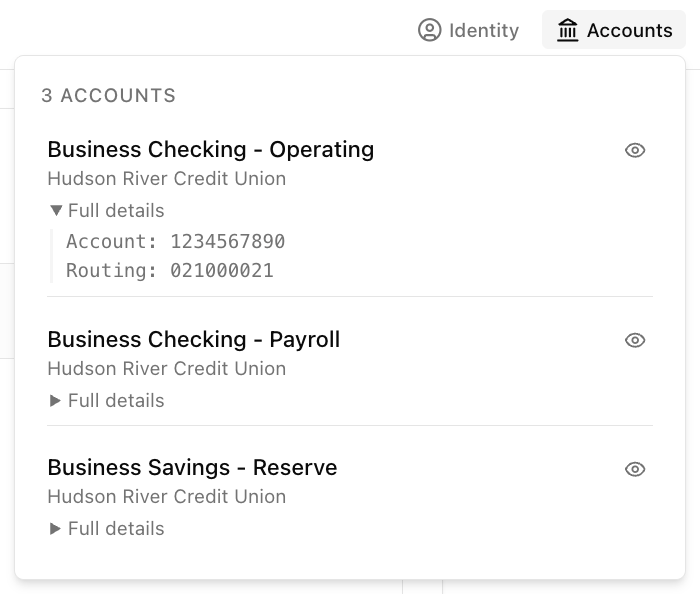
Accounts Tab
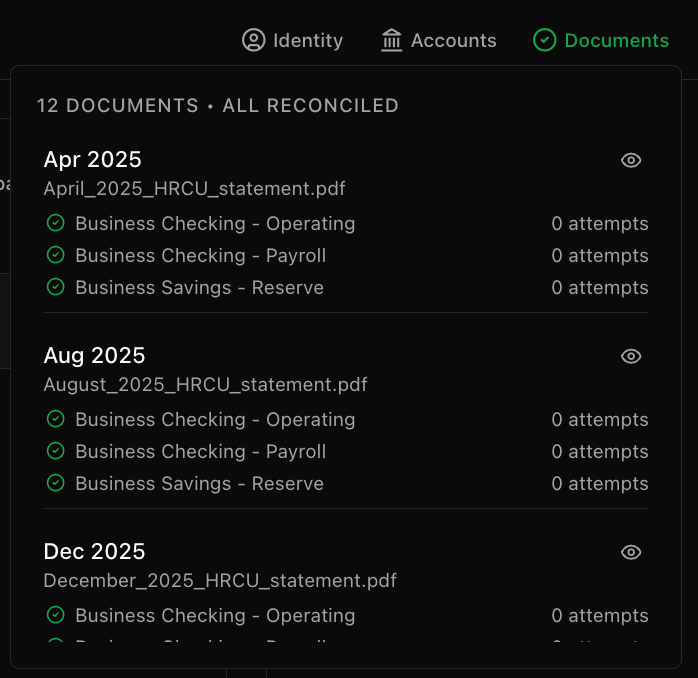
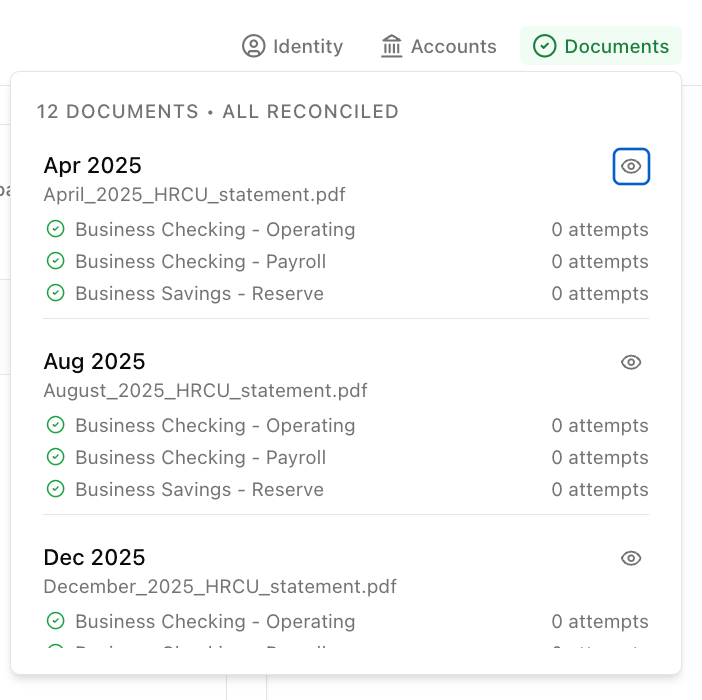
Documents Tab
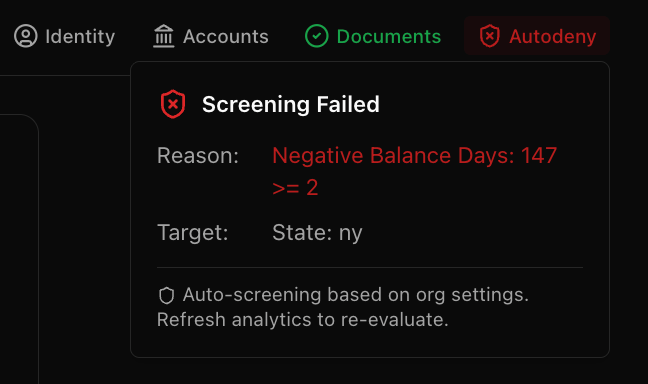
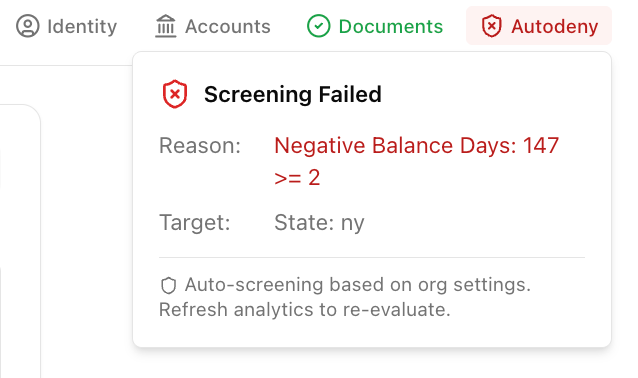
Autodeny Tab
See the Integrations page for more information
Transactions Tab
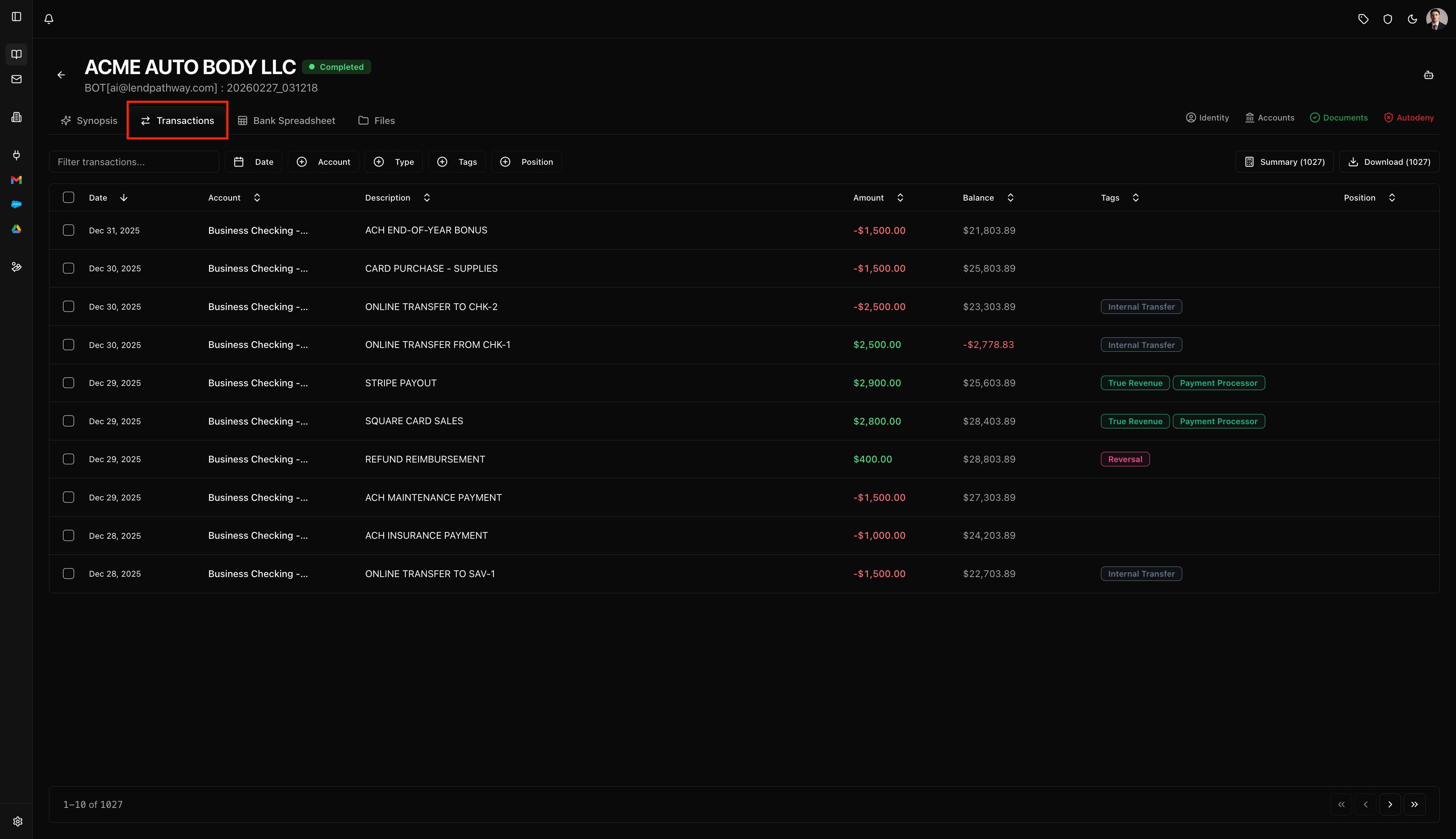
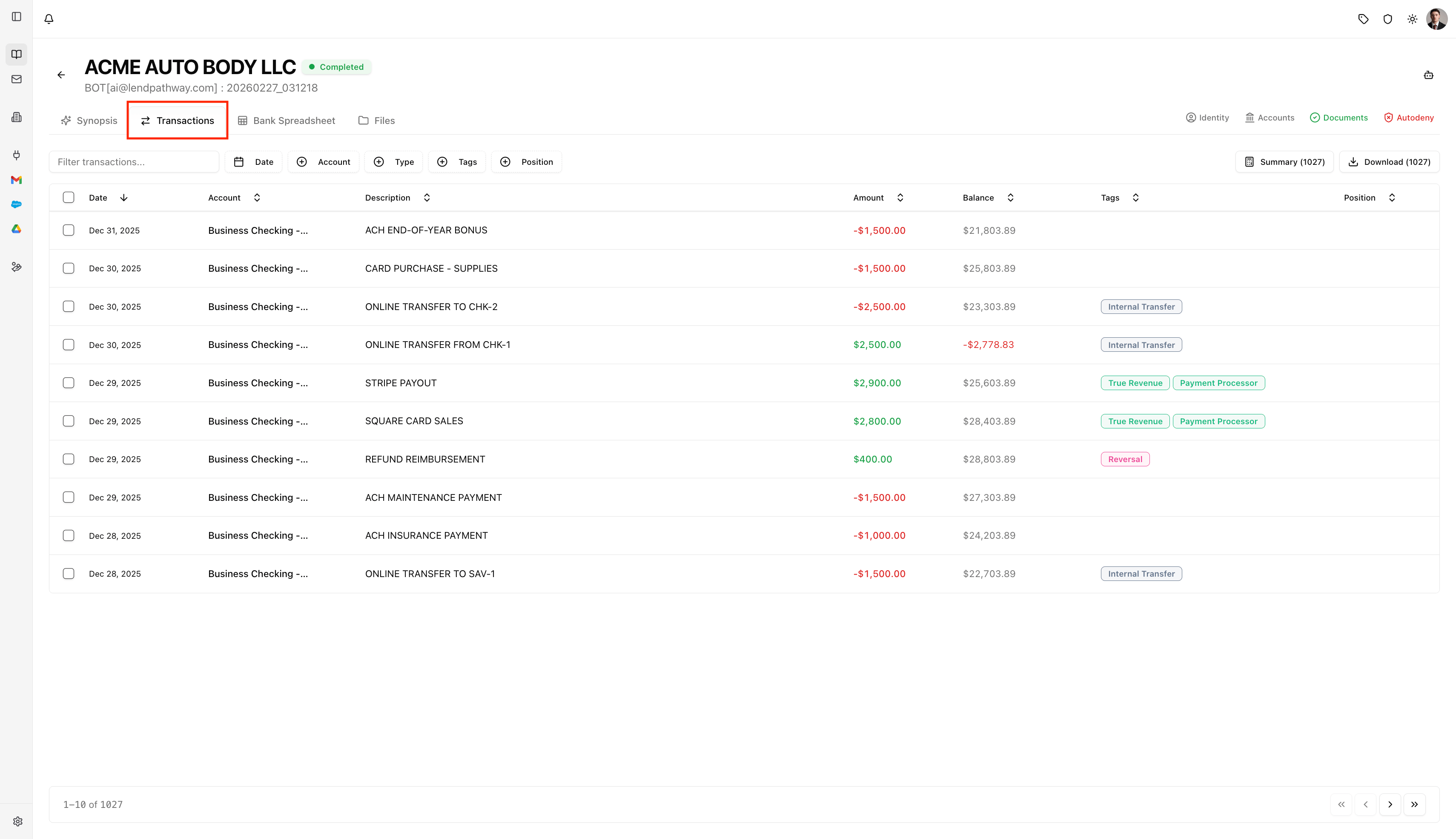
The Transactions tab shows every individual transaction extracted from the bank statements in a searchable, filterable, sortable table.
Transactions Tab
Table Columns
Each row is a single transaction. The columns are:
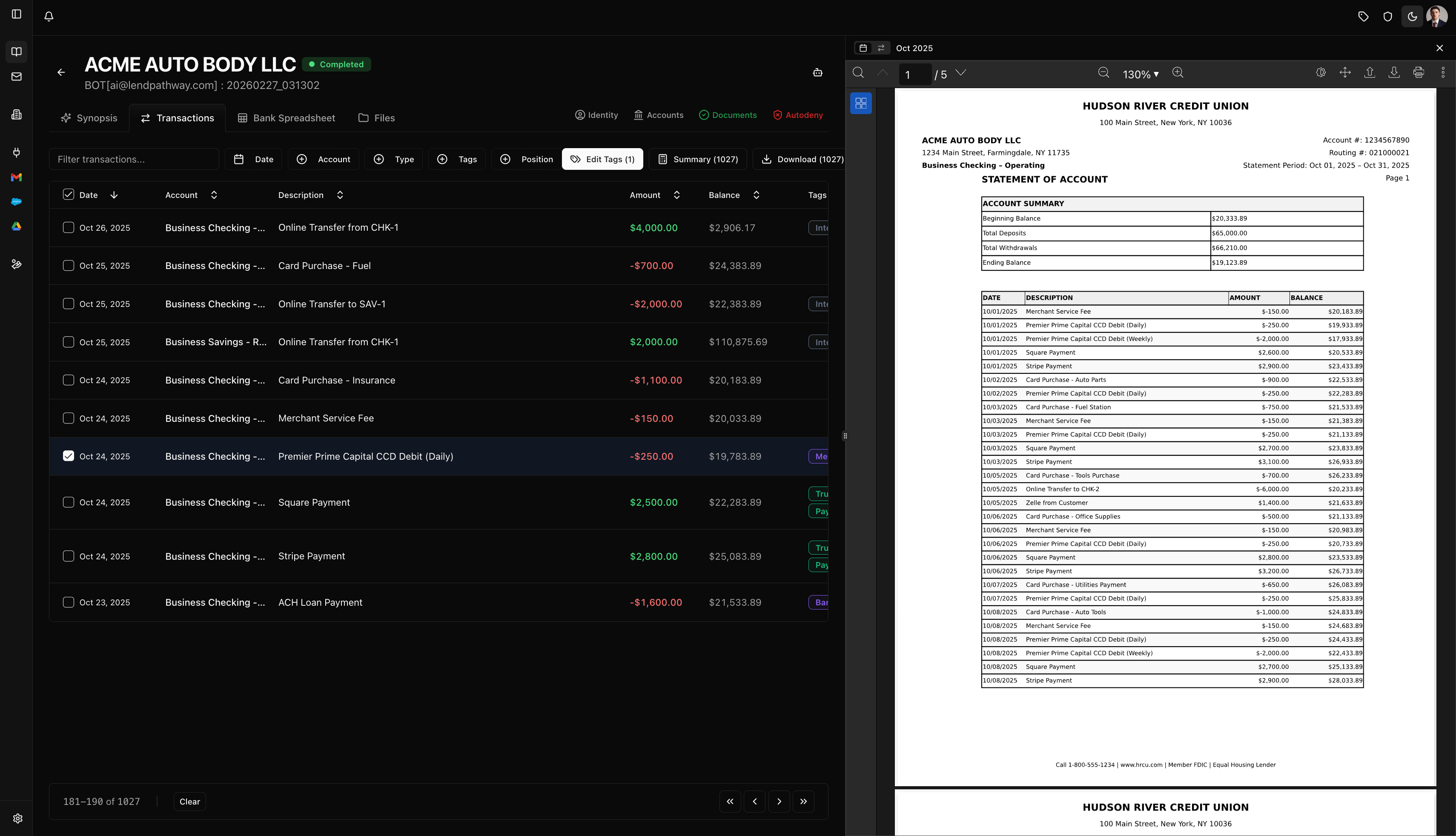
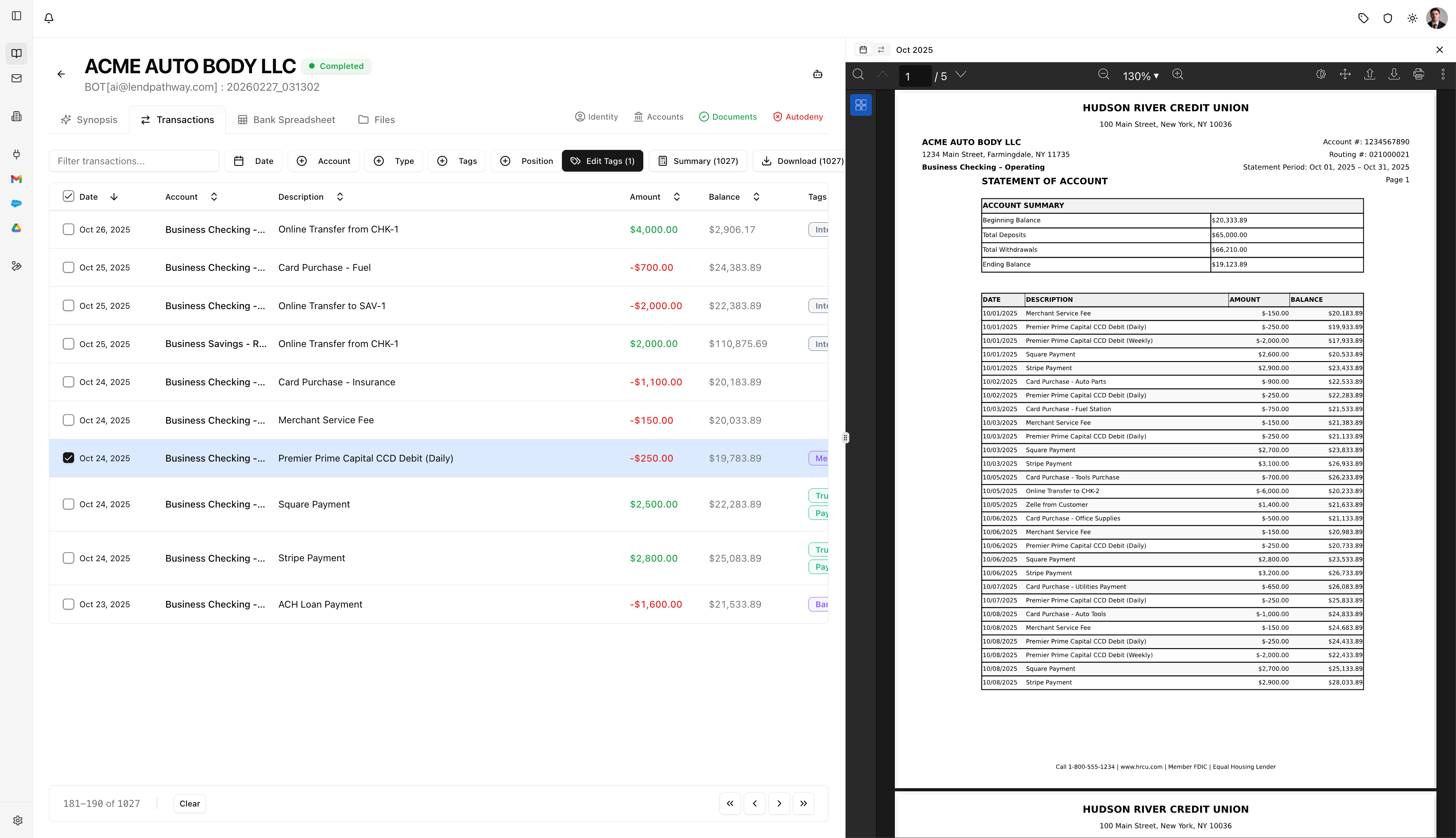
Clicking a row opens the source PDF document in the side panel so you can see exactly where the transaction came from.
Split View with Corresponding PDF Open
Toolbar (Filtering & Search)
The toolbar sits above the table and lets you narrow down transactions:
Filters stack — you can combine date + type + tag + search at the same time.
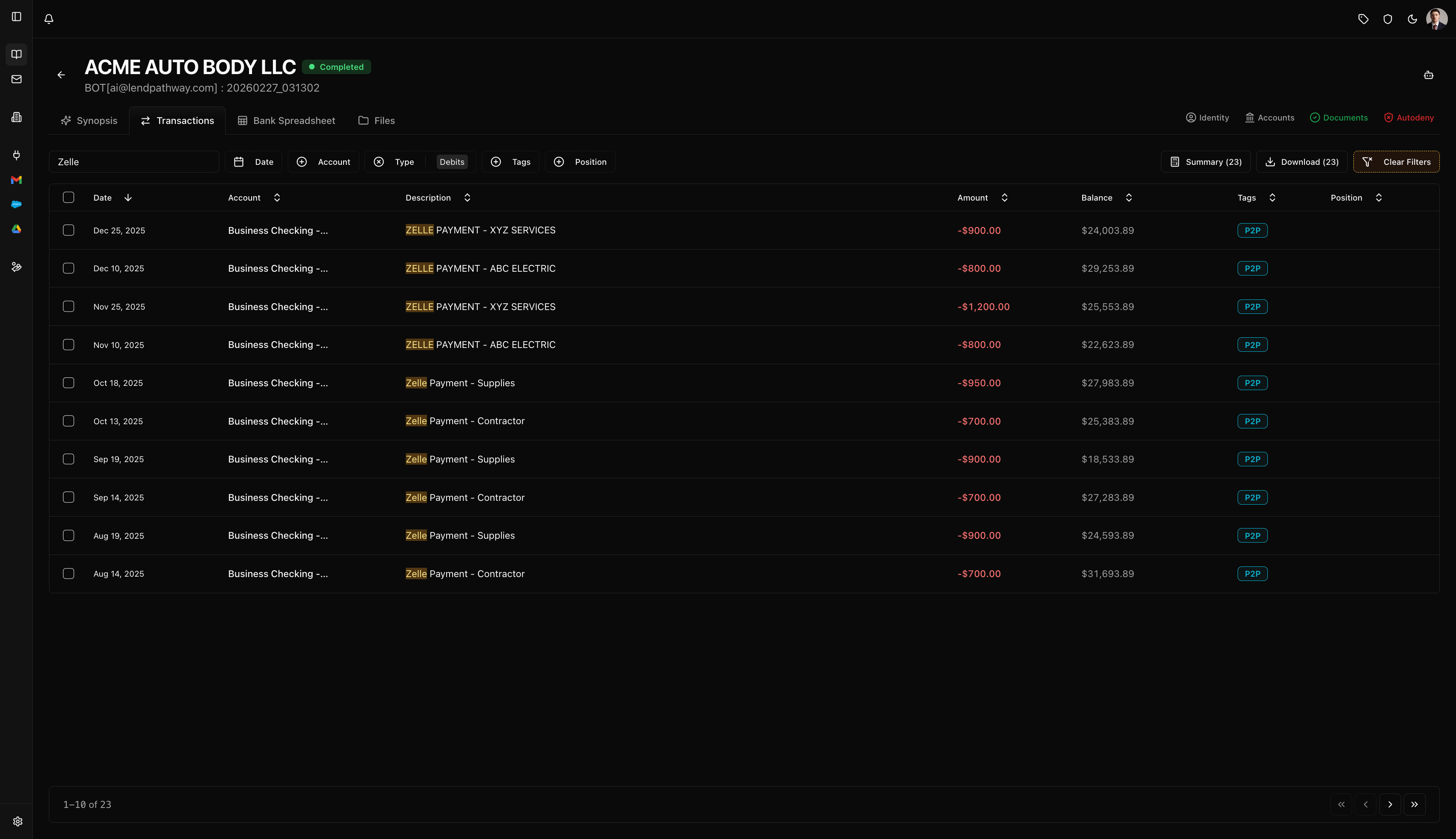
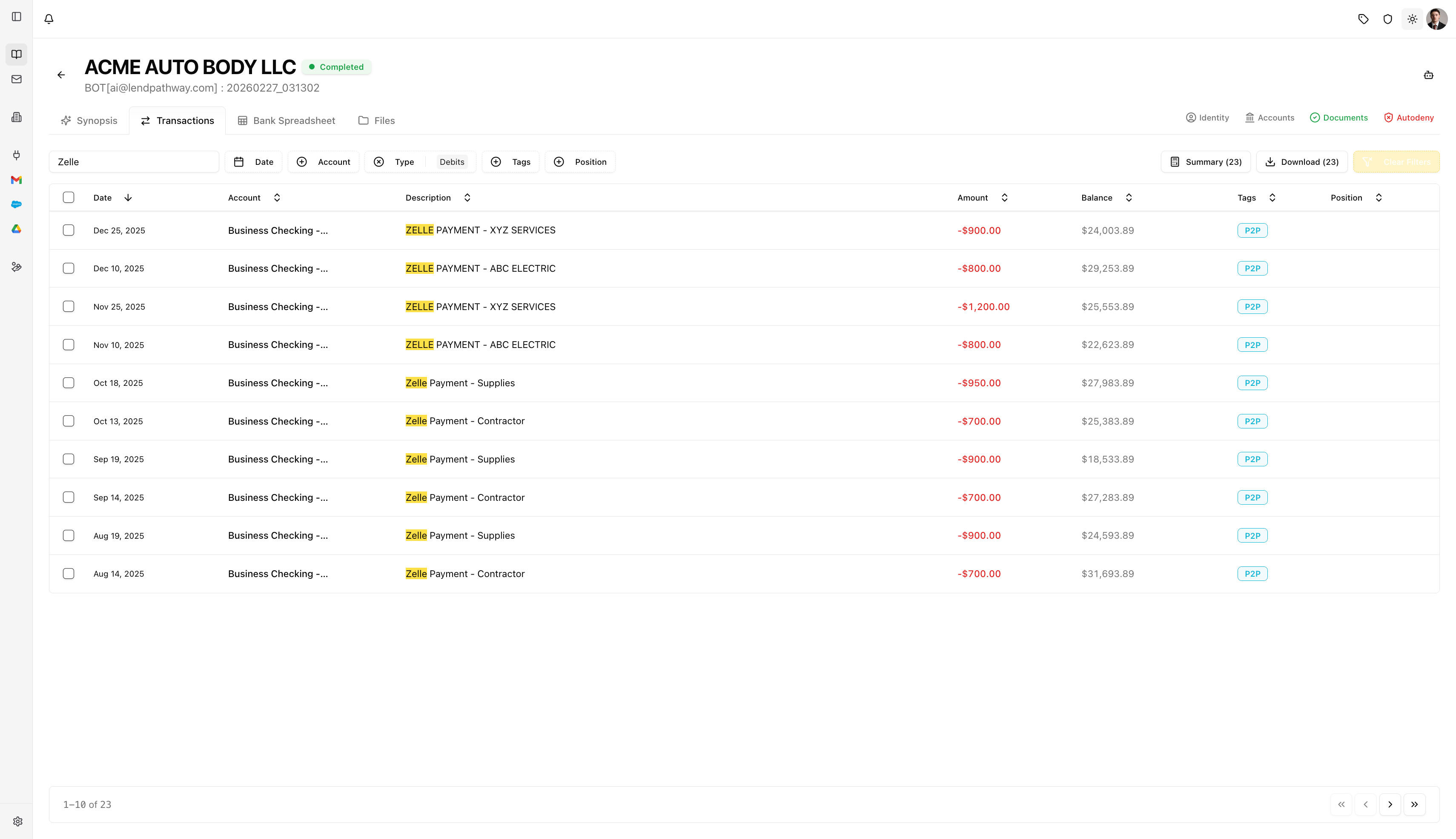
Transaction List with Filters Applied
Actions (Right Side of Toolbar)
Three buttons appear on the right side of the toolbar: 1. Edit Tags () — Select one or more transactions using the checkboxes, then click Edit Tags. This opens a modal titled “Edit Tags ()” with three sections: Replace Current Tags Lists every unique tag across your selected transactions with a count (e.g. “Merchant Cash Advance (12)”). For each tag you can:- Click the arrow slot to replace it with a different tag (searchable dropdown, grouped into “Loan Types” and “Other Tags”)
- Click the trash icon to remove it entirely
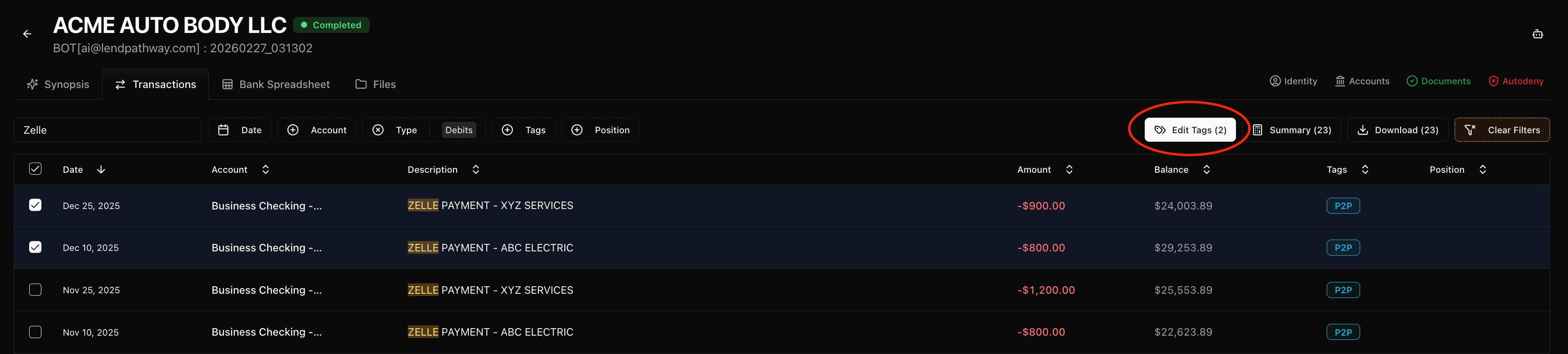
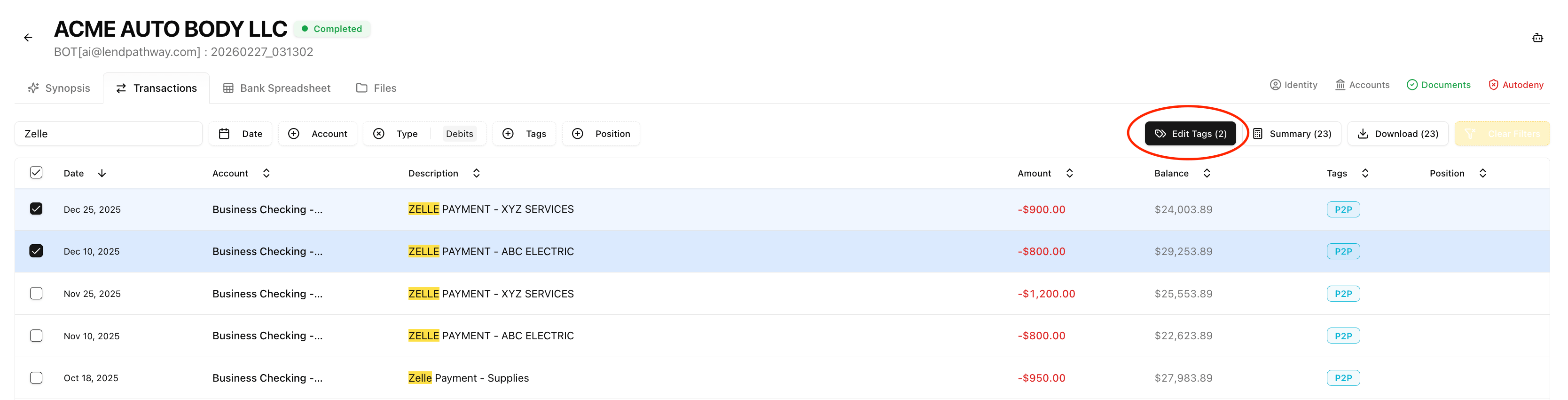
Bulk Editing Tags
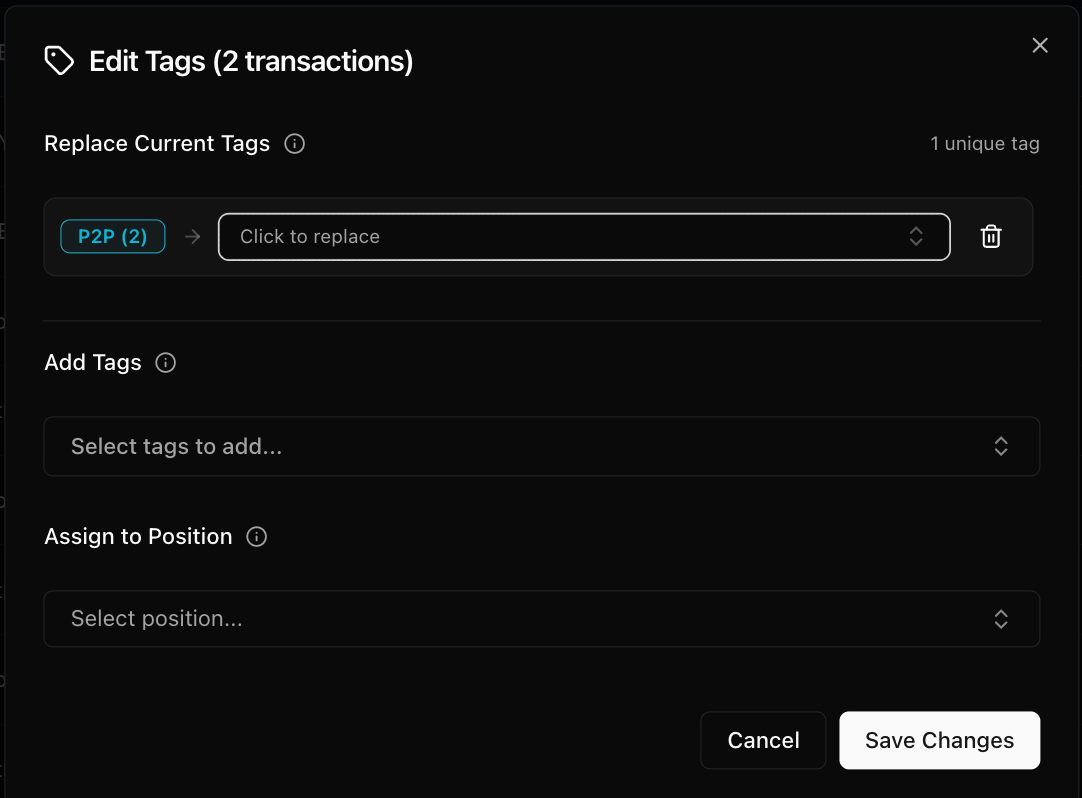
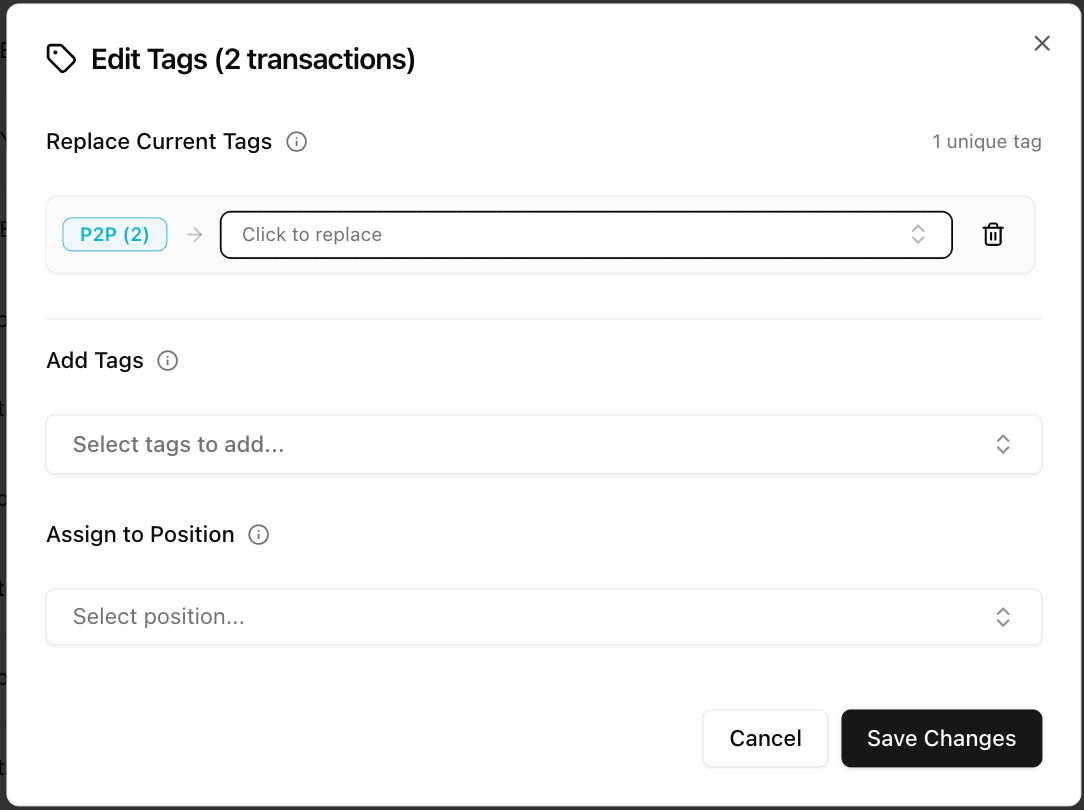
Edit Tags Modal
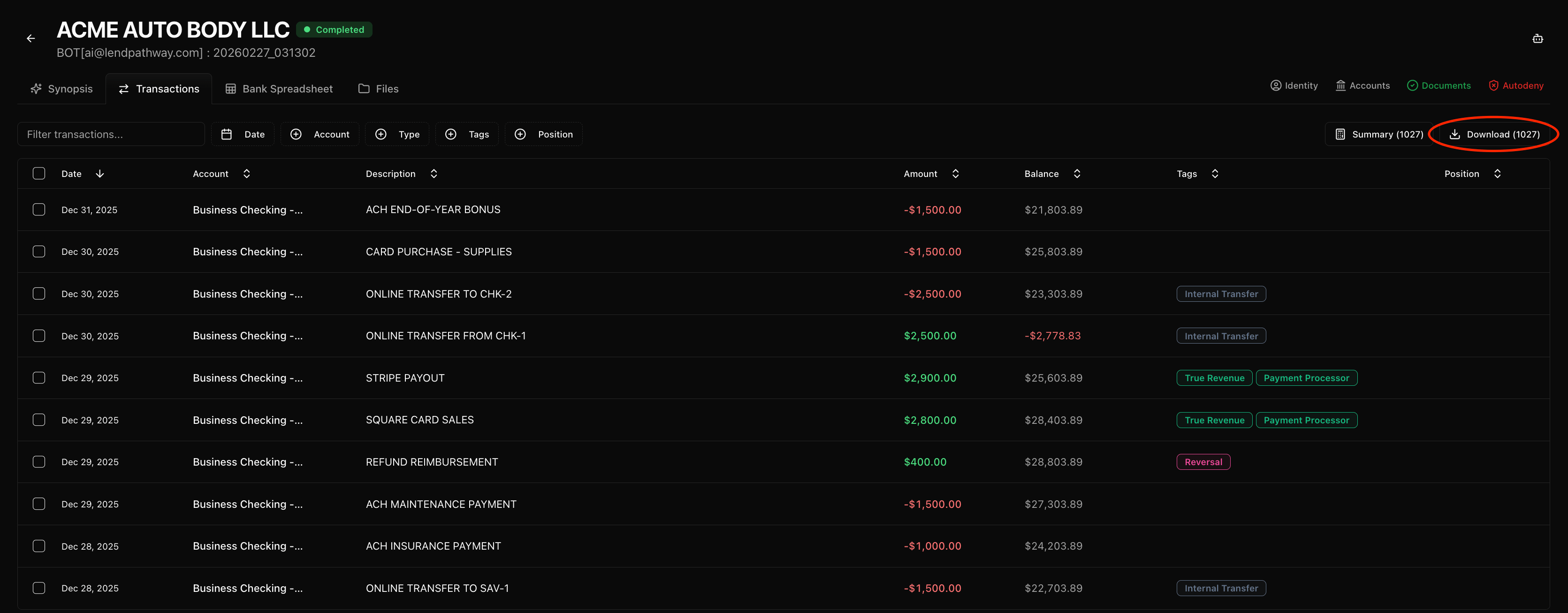
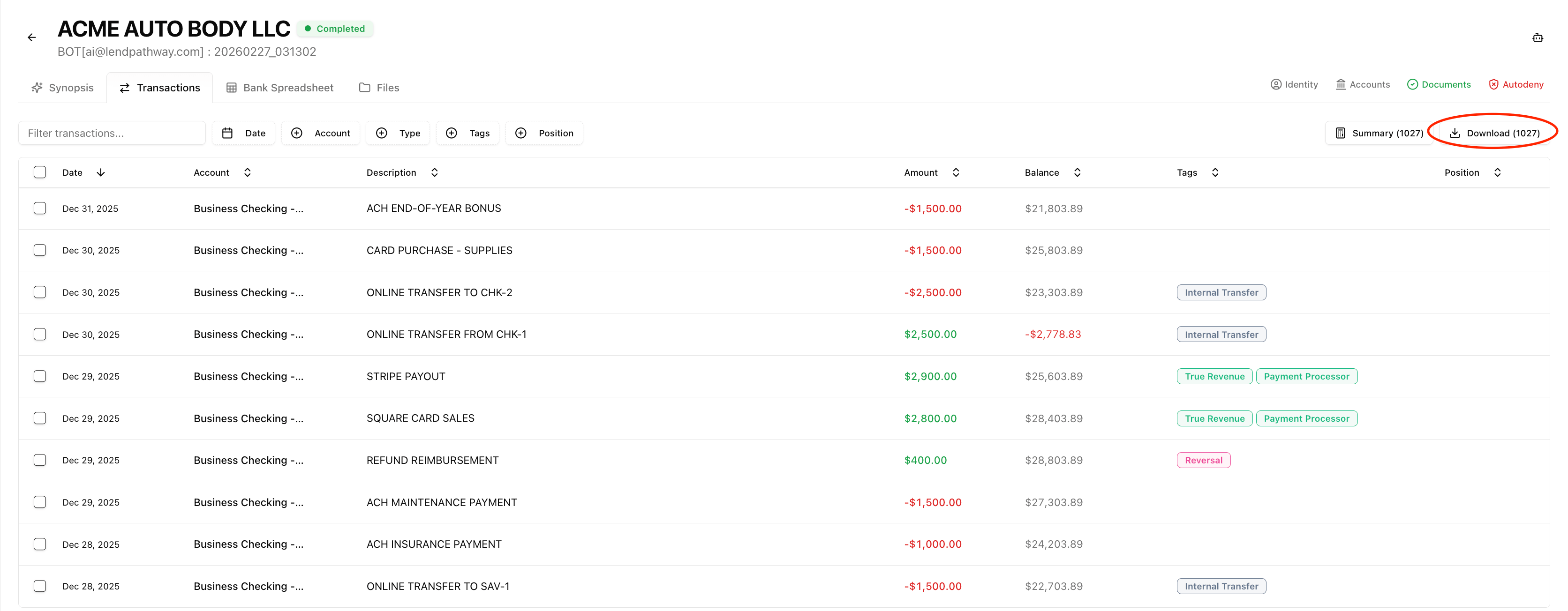
- Total Credits — sum and count
- Total Debits — sum and count
- Net Amount — credits minus debits
- Date Range — first to last date and number of days
Tag Reference (Global)
In the top-right corner of the app header (visible on every page, not just Transactions), there’s a tag icon button. Clicking it opens the Tag Reference modal — a full gallery of every tag in your org’s configuration. Each tag card shows:- Tag name with its color
- Description — what the tag means and the rules for when it’s applied
- Examples — sample transaction descriptions that would receive this tag
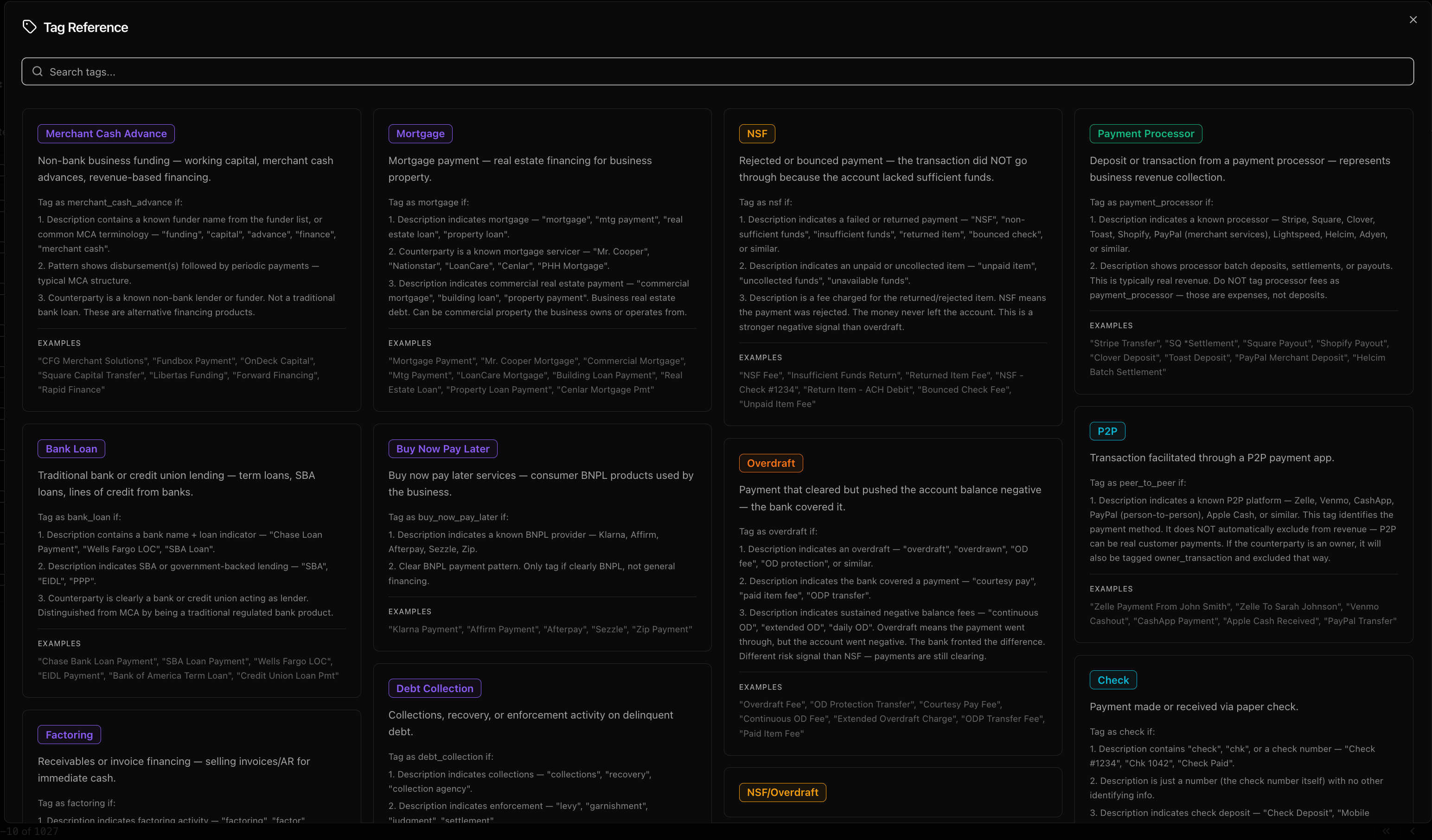
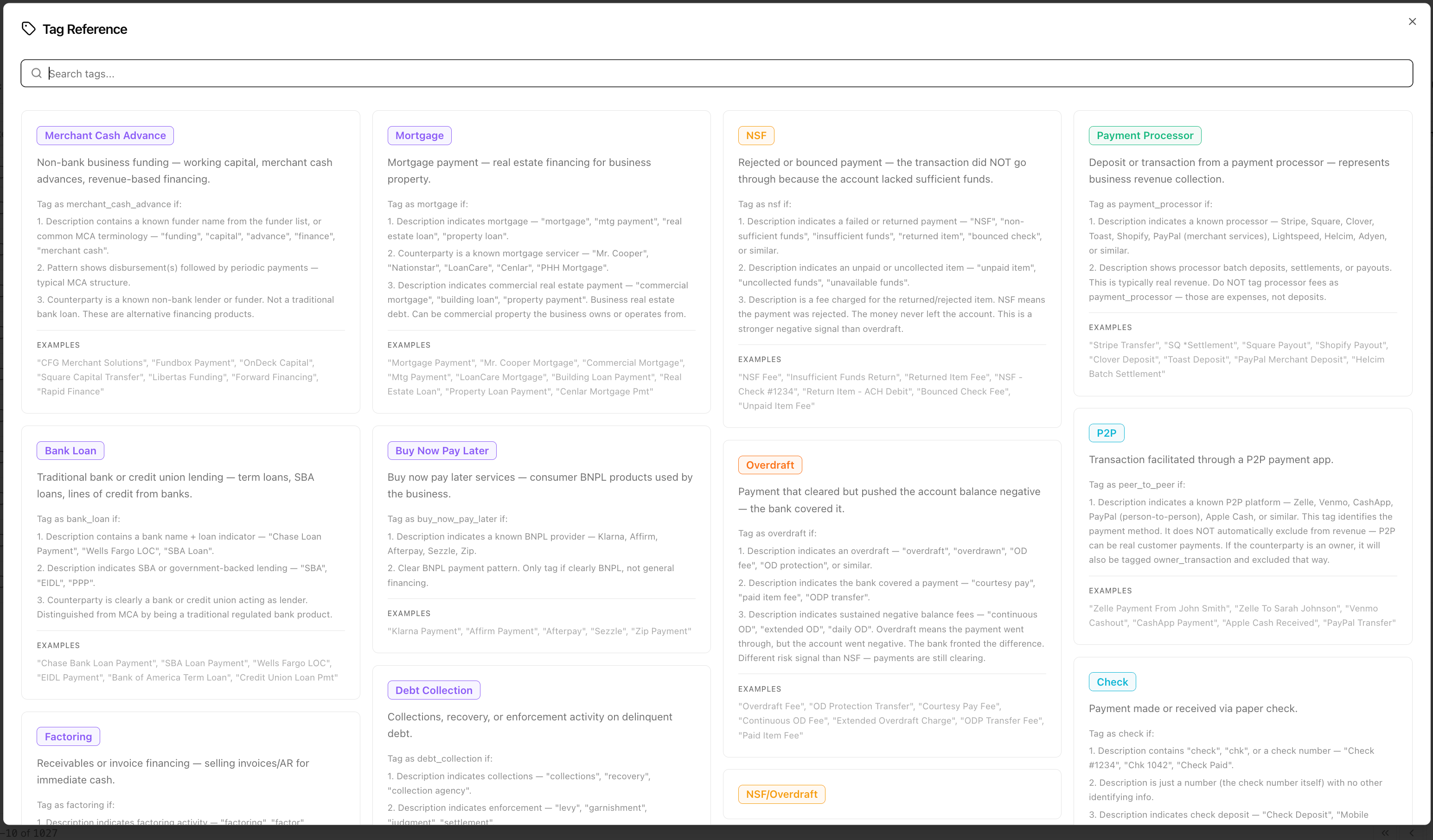
Tag Reference Modal
Bank Spreadsheet Tab
The Bank Spreadsheet tab shows an auto-generated Excel workbook built from the parsed bank statement data. It opens directly in the browser — no download required.
Template Selector
A template selector will appear in the floating toolbar at the bottom of the screen. Click it to switch between templates. For bank statements, the available templates are: 1. MCA Stack View — One row per payment schedule across all MCA positions: funder, amount funded, frequency, number of payments, returns, remit daily, remittance %, and active/renewal status.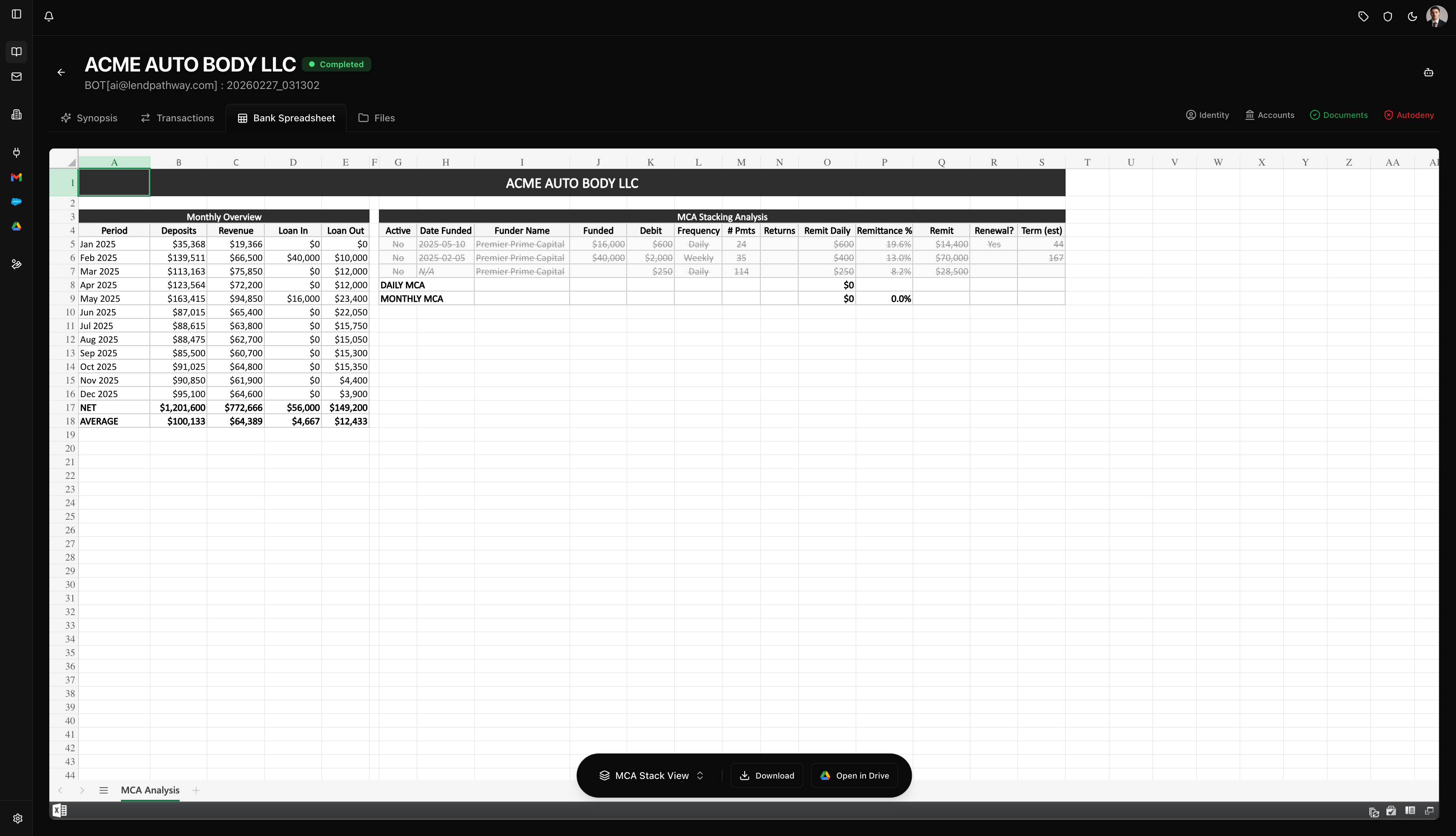
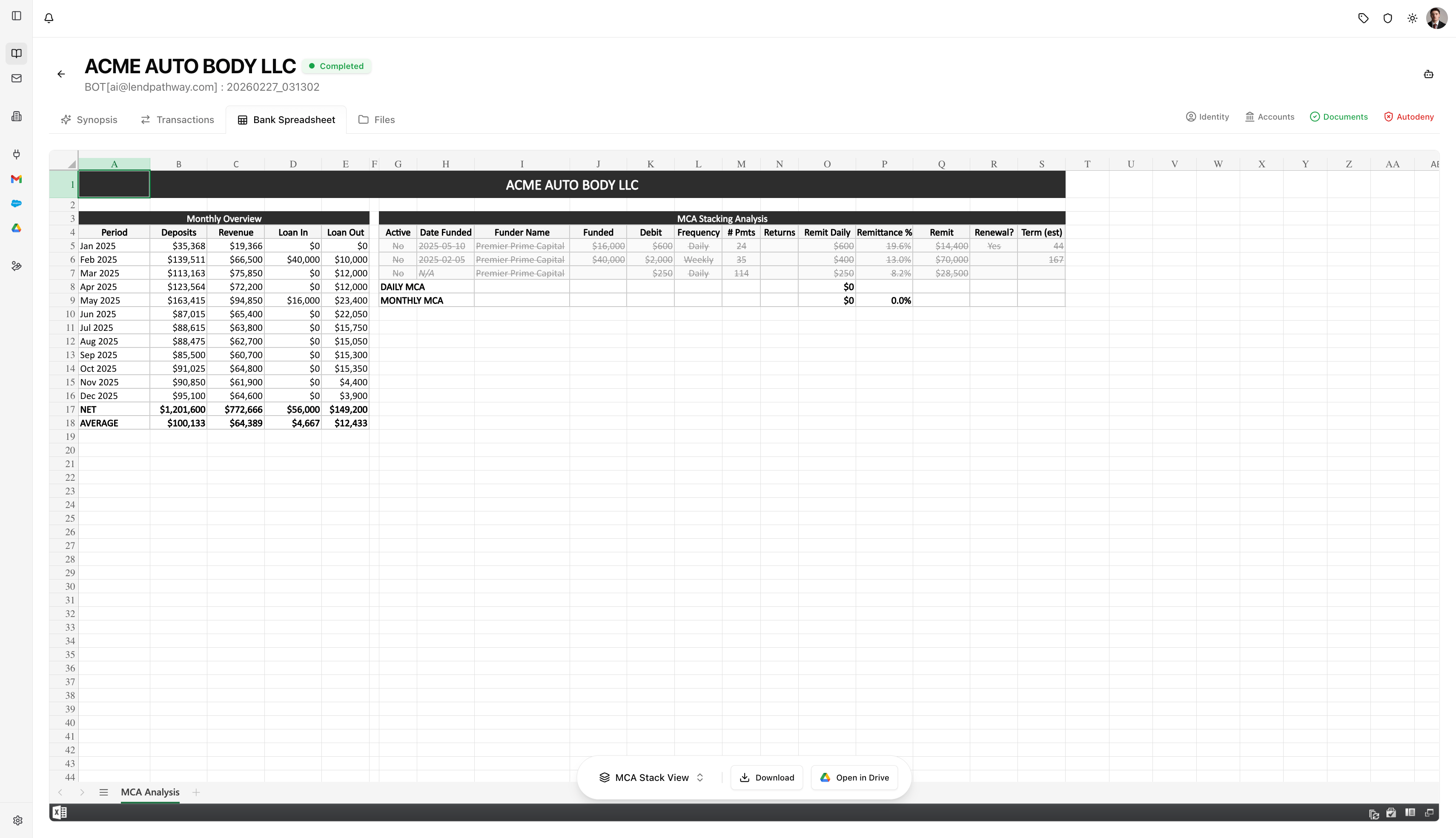
MCA Stack View

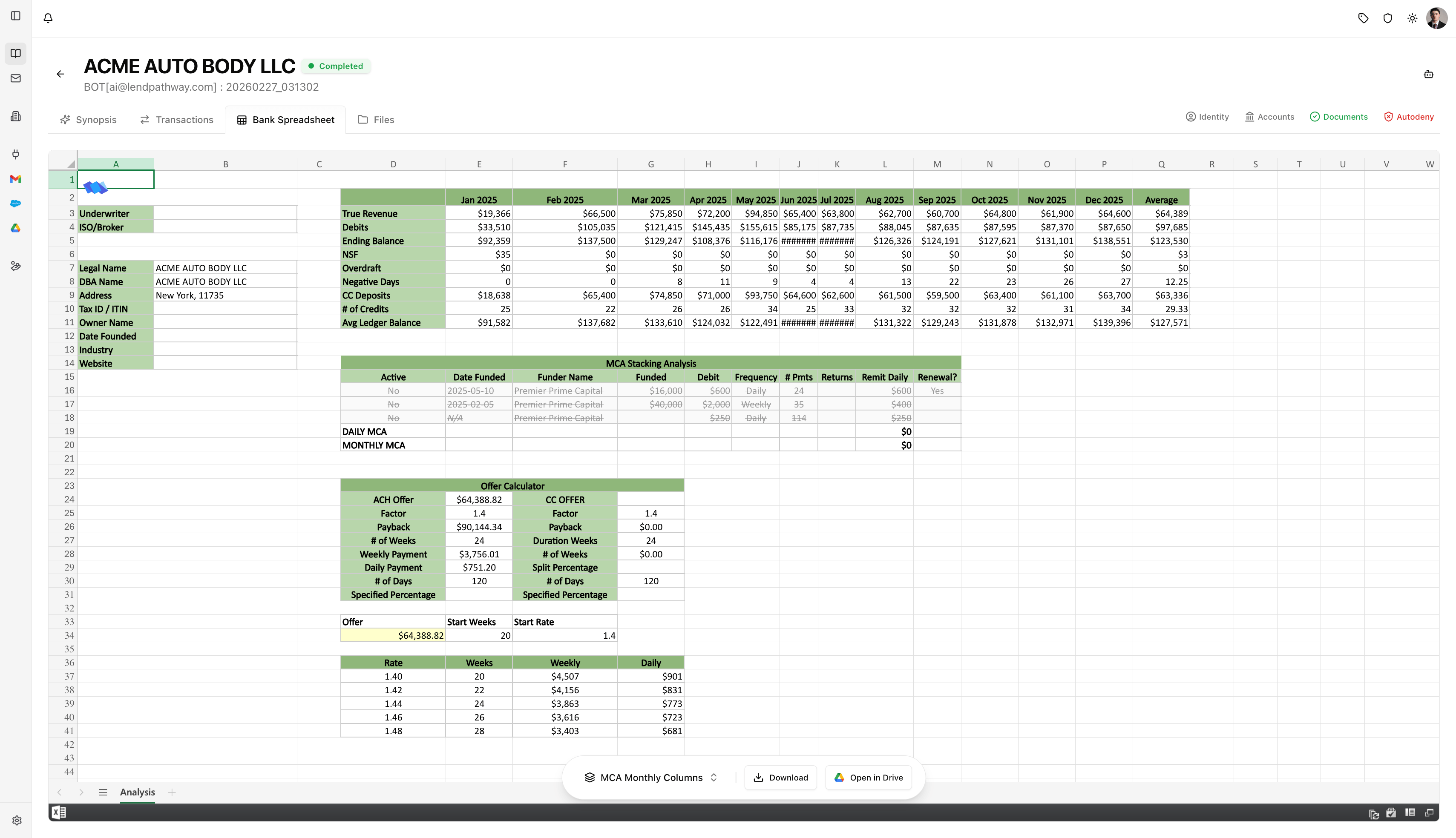
MCA Monthly Columns Template
Toolbar Actions
The floating toolbar sits at the bottom center of the spreadsheet view and has three controls: 1. Template selector — Switch between spreadsheet layouts (described above). 2. Download — Downloads the spreadsheet as an .xlsx file to your computer. Ready to send to a funder or attach to a file. 3. Open in Drive — Opens the spreadsheet in Google Sheets in a new tab. Requires the Google Drive integration to be connected (see Integrations). Creates a copy in your Google Drive that you can edit, share, or collaborate on.

Bank Spreadsheet Toolbar
Files Tab
The Files tab shows all uploaded documents in a visual grid with thumbnails. This is where you manage, preview, download, and exclude/include individual files.
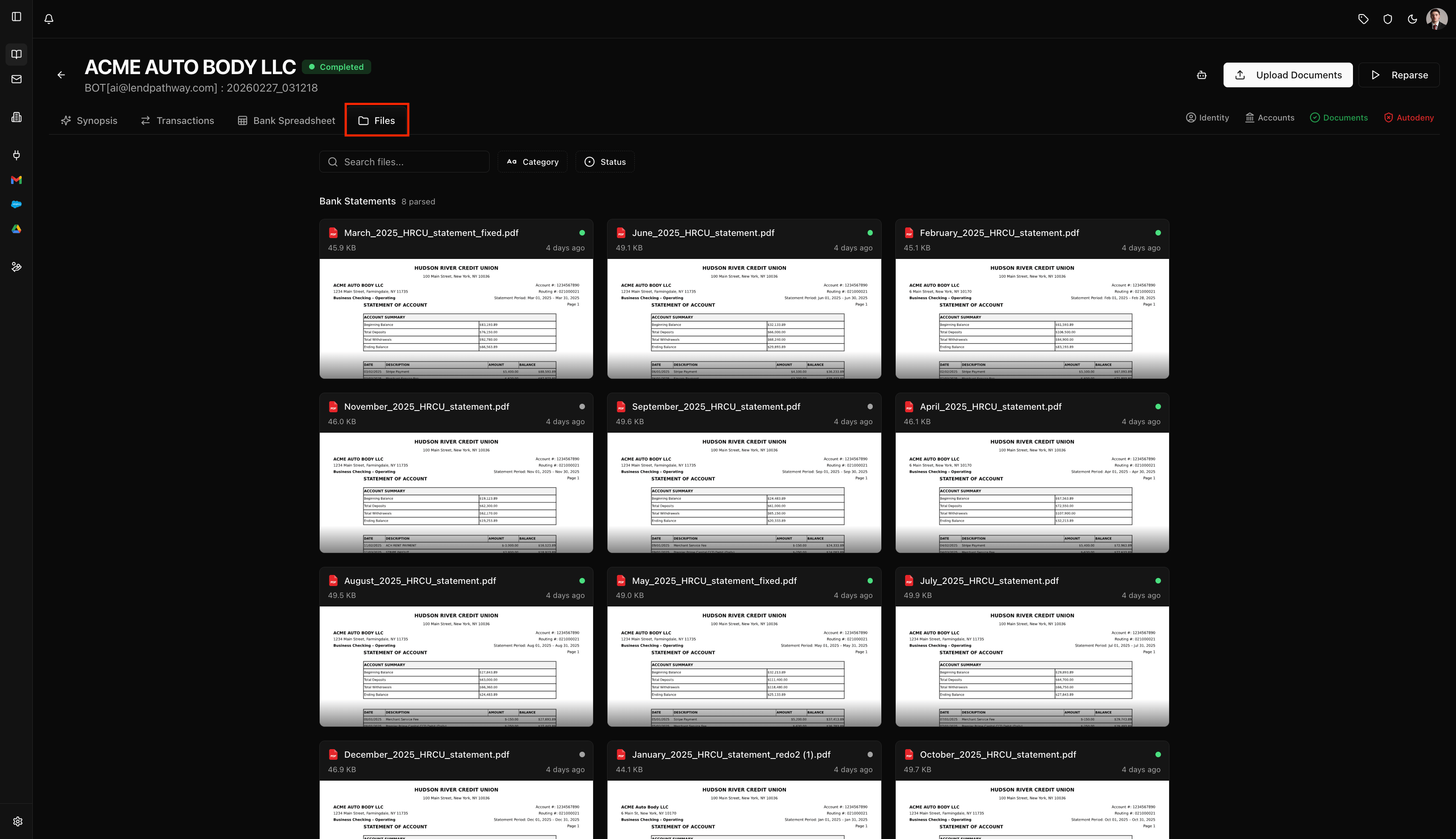
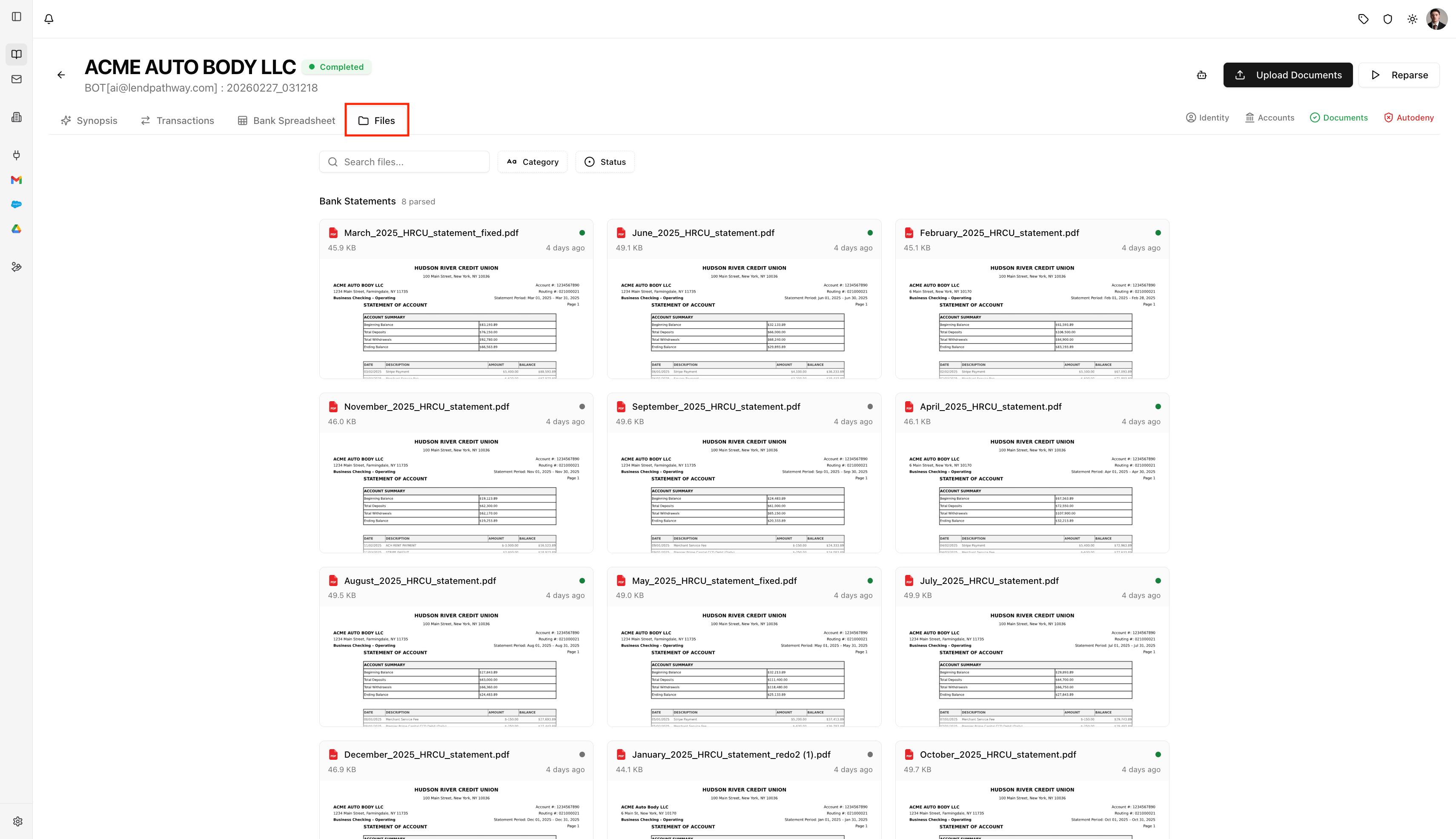
Files Tab
Document Cards
Each file is a card with a thumbnail preview, filename, status dot (green = parsed, red = failed), file size, and upload time.- Click to select (for bulk actions). Shift+click to select a range.
- Double-click to open a full PDF preview modal.
Toolbar
1. Search — Filter by filename. 2. File Type — Filter by extension (PDF, XLSX, etc.). Only shows when multiple types exist. 3. Category — Filter by document type (Bank Statement, Credit Report, etc.). Only shows after classification. 4. Status — Filter by Parsed, Failed, Processing, New.Selecting & Bulk Actions
Select one or more cards and a toolbar appears: 1. Download — Two options: plain zip or watermarked zip (applies a watermark to each file). 2. Show / Hide — Exclude or re-include selected documents from analytics. Excluded documents appear dimmed with an X overlay. Same as toggling the eye icon from the Documents info badge. 3. Delete — Remove selected files from the book. Press Escape to clear selection.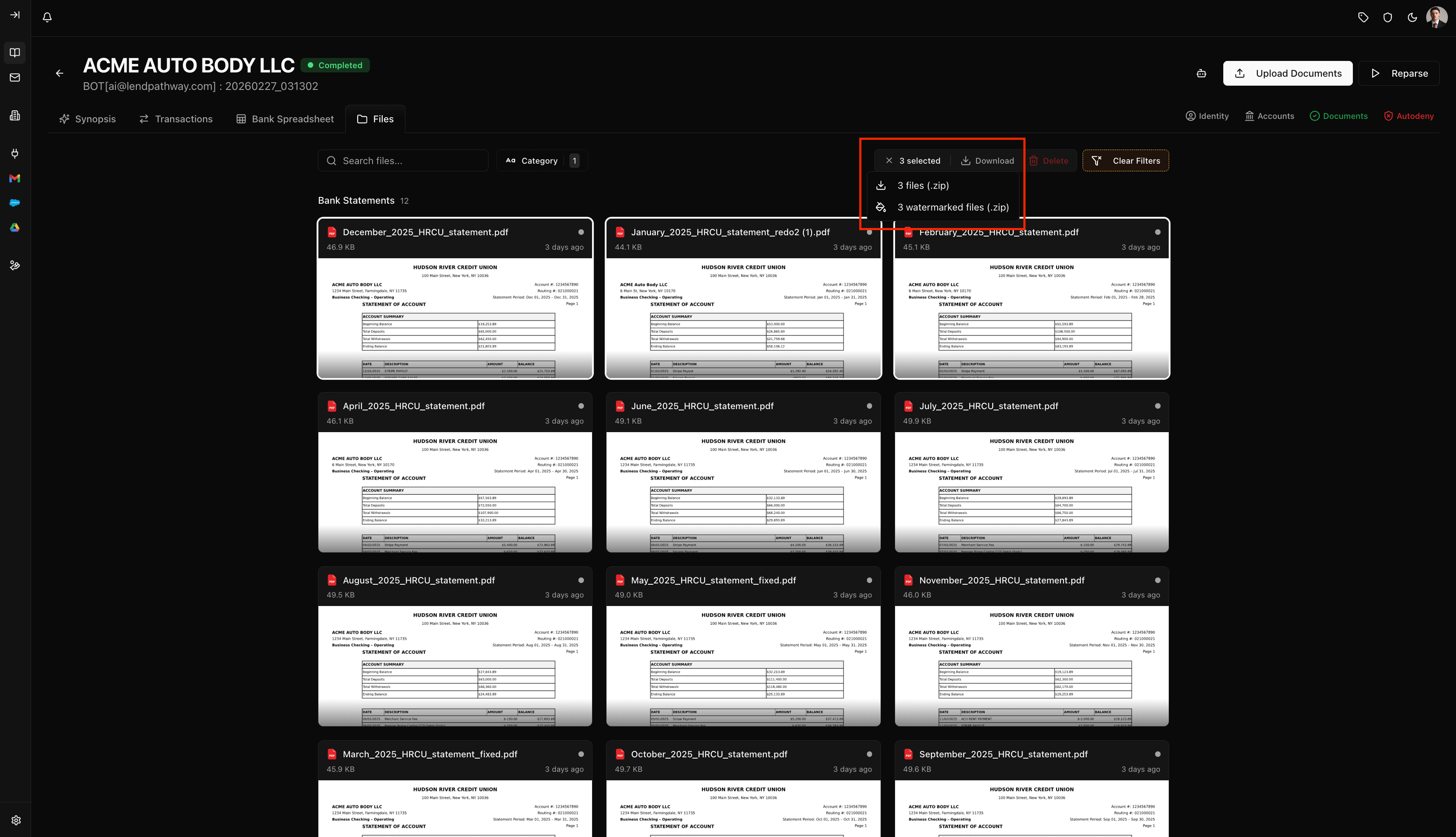
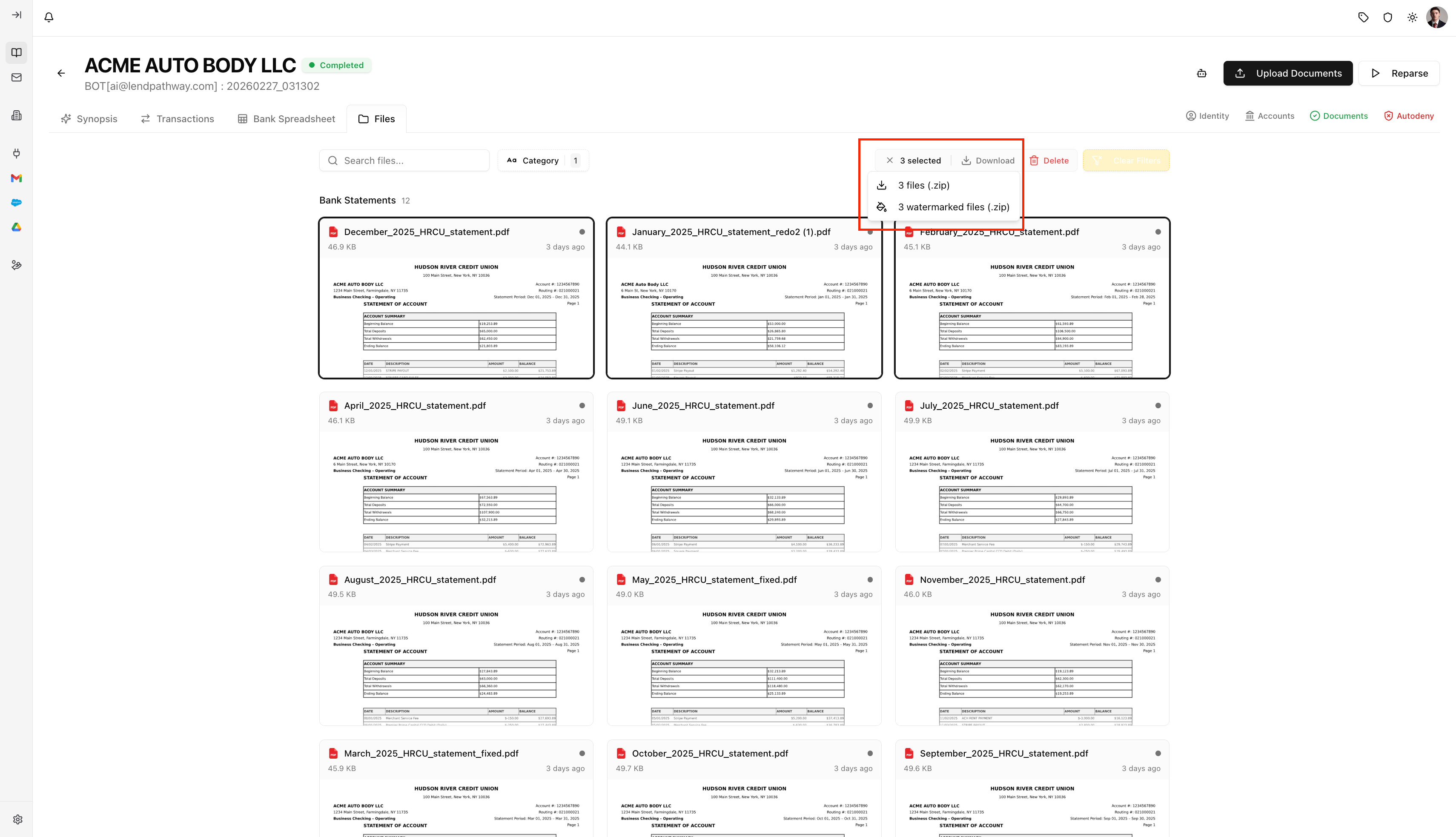
Download / Download with Watermark Options